A load template saves the things you enter again and again for one customer: rates, equipment, flags, the people responsible and the stops. When you create a load for that customer you pick the template and the form fills itself in.
Who can do this: accounting, admin, dispatcher and capacity users can create, edit and delete templates. HR users can only view them. New Template, Edit and Delete show only for users who can edit customers.
Before you begin
- The customer must already exist. Templates belong to one customer. There is no way to copy a template to another customer.
- Using a template is covered in Load form: create, copy and edit a load (Add Load).
Open the templates of a customer
- In the left menu, select Customers.
- Open the customer.
- Select the Load Templates tab. The tab is not there on the new customer page.
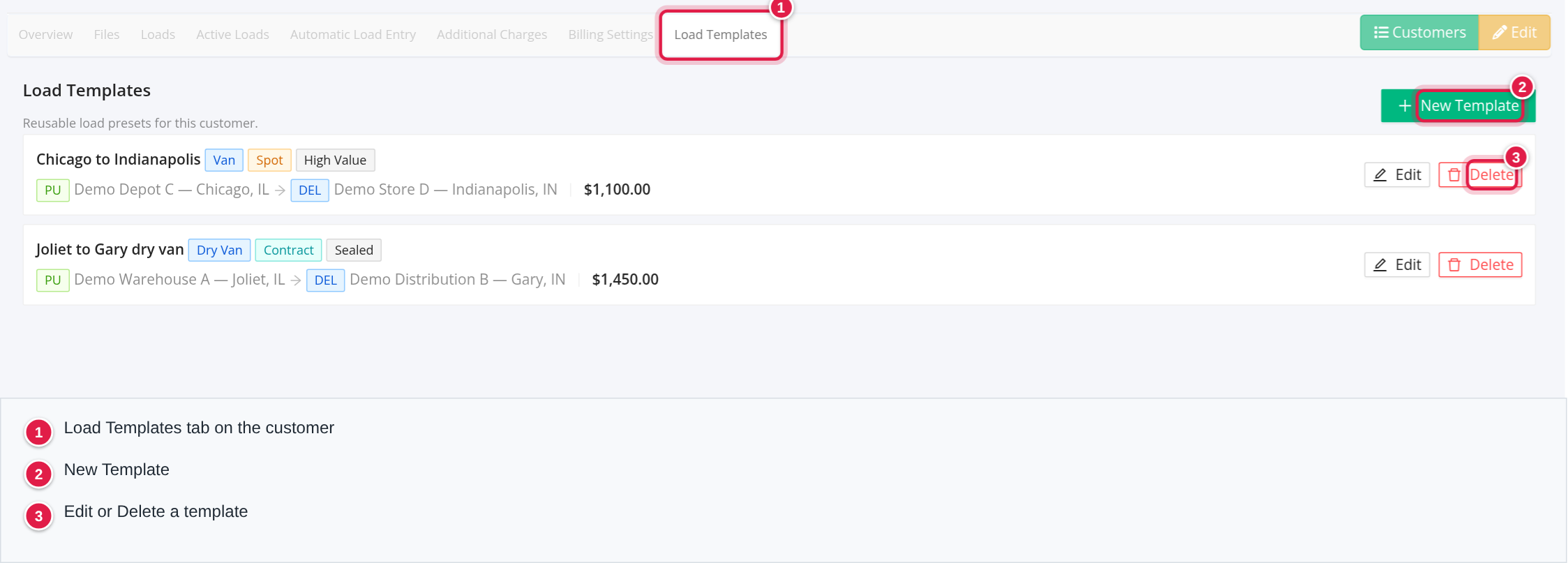
You see Load Templates, "Reusable load presets for this customer." and the + New Template button. With none yet it says "No load templates yet". Templates are listed newest first. Each card shows the name, the equipment, Contract or the other contract type, small tags for Sealed, Scale Required, High Value, Alcohol and Hot, and the stops in order.
Create a template
- Select + New Template.
- Template Details:
- Template Name is required. It must be different from the customer's other templates. It appears in the list when you create a load, so use a clear name such as "Nestle Davenport – Zenith Ave". - LTL / FTL, Equipment, commodity, weight and Contract/Spot are optional.
- Rates: Linehaul Rate, Fuel Surcharge, Storage, Misc, Lumper and Deductions. There is no Detention here.
- Default Assignments: Sales Rep, Account Manager and CSR Manager. On a new template the account manager and CSR manager start as the customer's.
- Flags: Scale Required, Alcohol Shipment, Sealed, High Value, Hot, Last Mile, Re-Power, Ad-Hoc, Dedicated, Short Haul, Regional and PFF.
- Stops: select + Pick Up or + Delivery. For each stop, change its type, and fill the company, address, city, state, zip and special handling. Use the address search to fill the address. Remove a stop with the red remove button.
- Select Create.
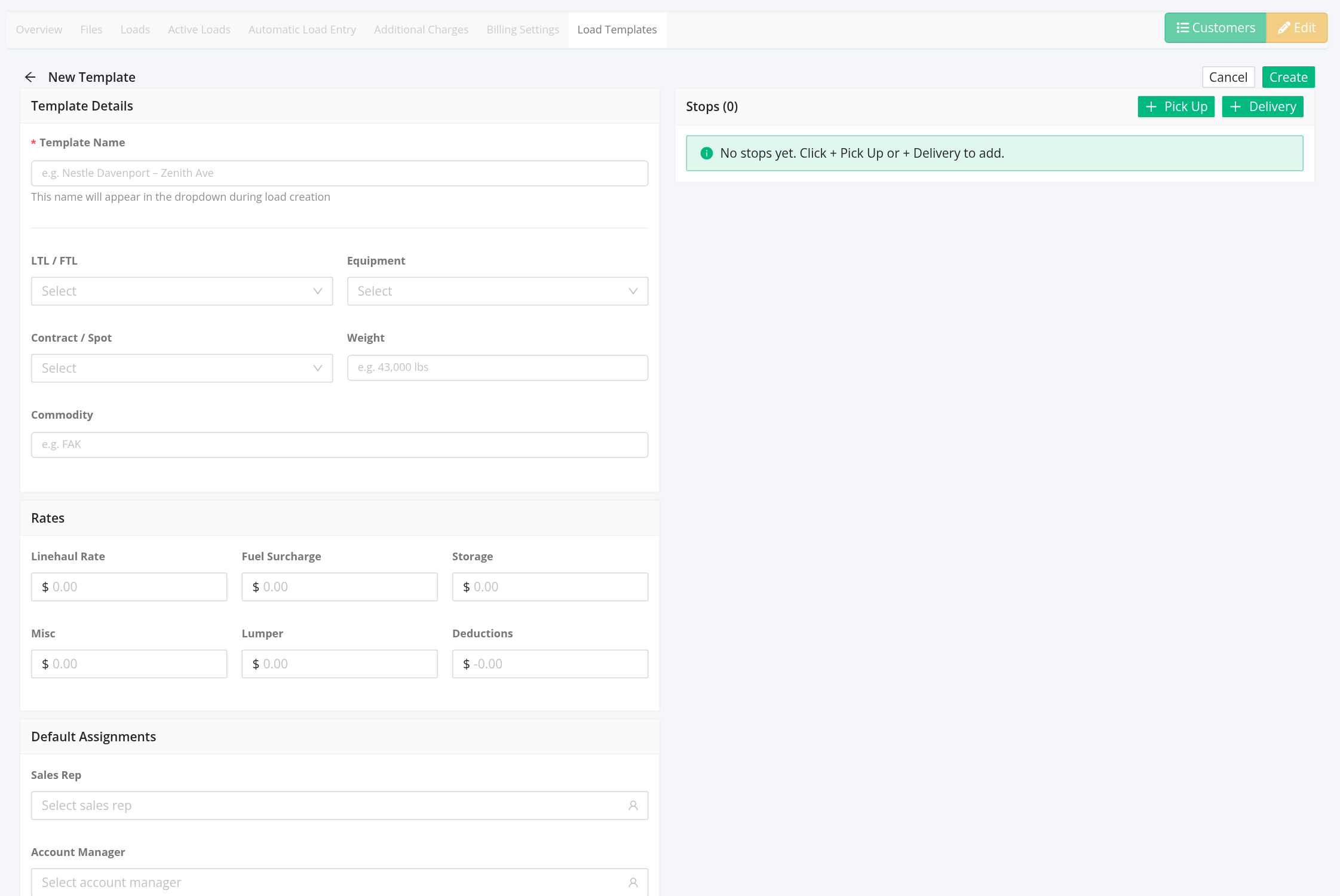
If the name is empty you see "Template name is required".
Edit or delete a template
- Select Edit on a template, change what you need and select Save Changes.
- Select Delete, then Delete in
Delete "<name>"?("This action cannot be undone."). Loads that were already created from the template are not changed.
Use a template on a load
- Add a load or copy a load, and choose the Customer.
- Open Load Template (optional) and pick the template. Each choice shows its name, equipment, contract type, number of stops with the route, and the linehaul.
- The form fills with the template's values. Fill in what the template does not hold: Customer Load#, appointment times, notes and so on, then save.
Choosing — Select a template — again clears what the template filled, and a default pickup and delivery come back.
FAQ
Was this article helpful?
That’s Great!
Thank you for your feedback
Sorry! We couldn't be helpful
Thank you for your feedback
Feedback sent
We appreciate your effort and will try to fix the article