Add a truck to your account. This article shows how to add one and what happens next.
Who can do this: you need permission to create trucks. New truck only shows to roles that may create trucks.
Before you begin
- Vendors you pick in the form must already exist in your account.
Add a new truck
- On the Trucks page, select New truck.
- Fill in the form. It has the same cards as the profile. Status is the first field and starts as Active. Fields that depend on a tick box appear as soon as you tick it.
- Select Create Truck. Cancel takes you back to the list.
Only Unit ID# is required, and it must not be used by another truck in your account. Everything else can be added later.
When the truck is created, a "Truck #<unit> has been created." email is sent to the recipients set up under Settings > Email Notifications.
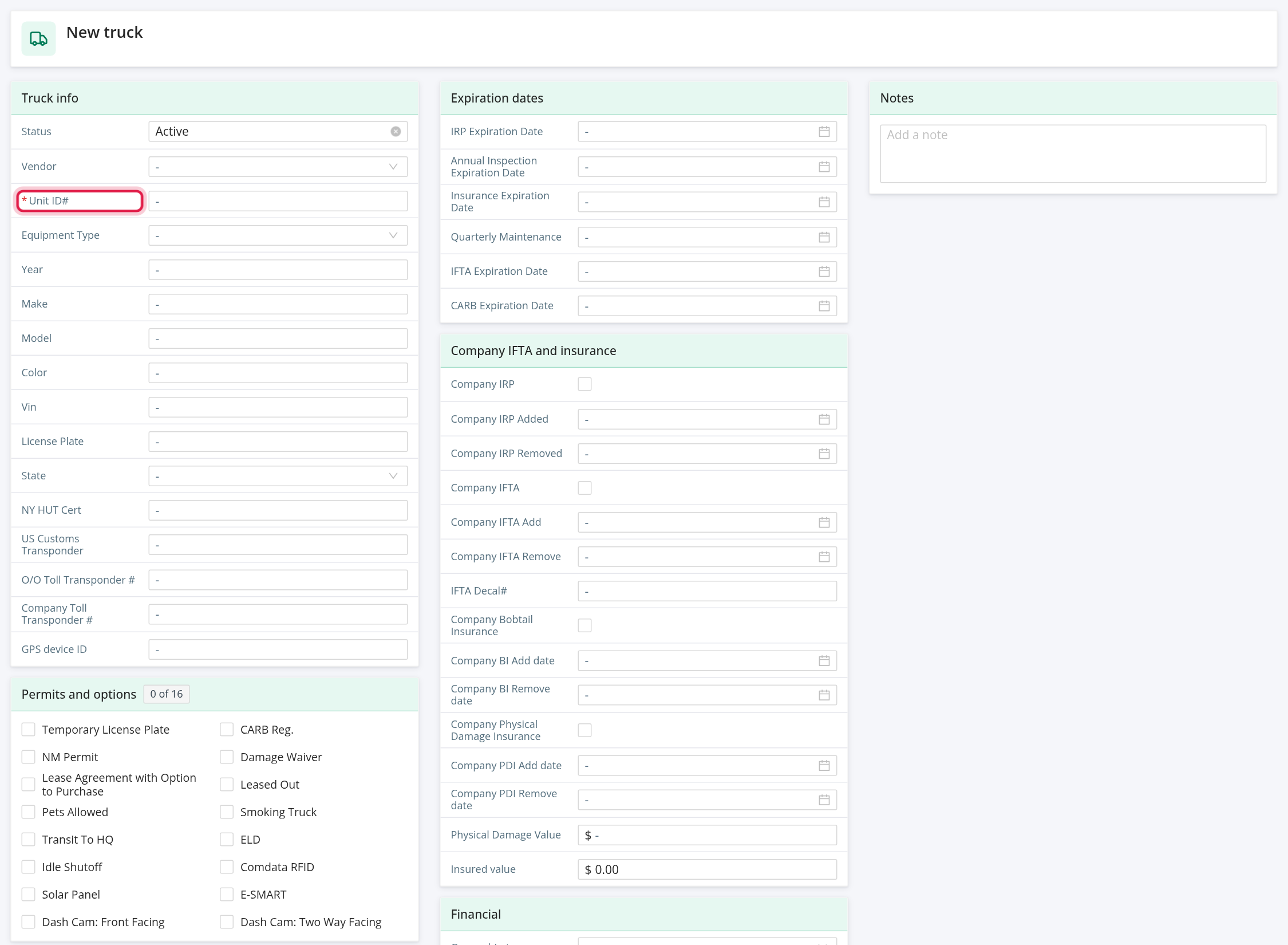
What to fill in
The form has the same cards as the truck profile. Every card and field is explained in Truck profile: all tabs (Overview, Files, Tolls, Fuel, Maintenance, Logs, GPS Logs, Stats and Accidents).
Frequently asked questions
Was this article helpful?
That’s Great!
Thank you for your feedback
Sorry! We couldn't be helpful
Thank you for your feedback
Feedback sent
We appreciate your effort and will try to fix the article