Support may ask you for a screenshot of the browser's Network tab when something does not work in OpenRoad. It shows the requests your browser makes and which of them fail, which helps us find the cause quickly.
Who can do this: anyone using OpenRoad in a web browser.
Before you begin
- Use the same browser and the same OpenRoad page where the problem happens.
- Know the exact action that causes the problem (for example, selecting Save), because you will repeat it with the tab open.
Open the Network tab
Step 1. In Chrome or Edge, select the three-dot menu in the top-right corner, then More tools > Developer tools. In Firefox, open the menu and select More tools > Web Developer Tools. In all three browsers you can press F12 instead.
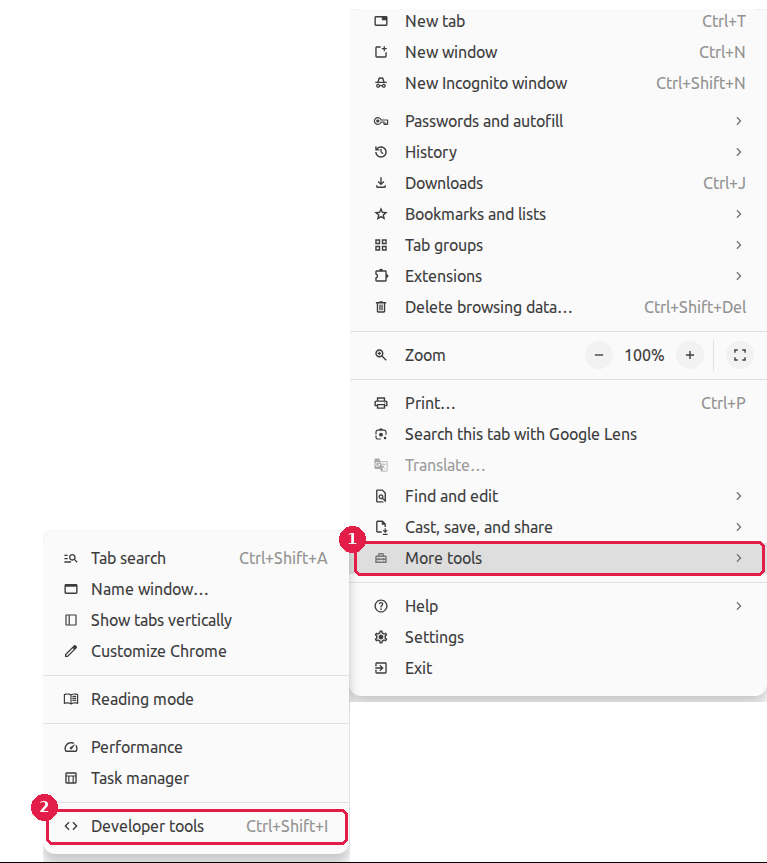
In the picture, 1 is More tools and 2 is Developer tools.
Step 2. A window with several tabs opens. Select the Network tab.
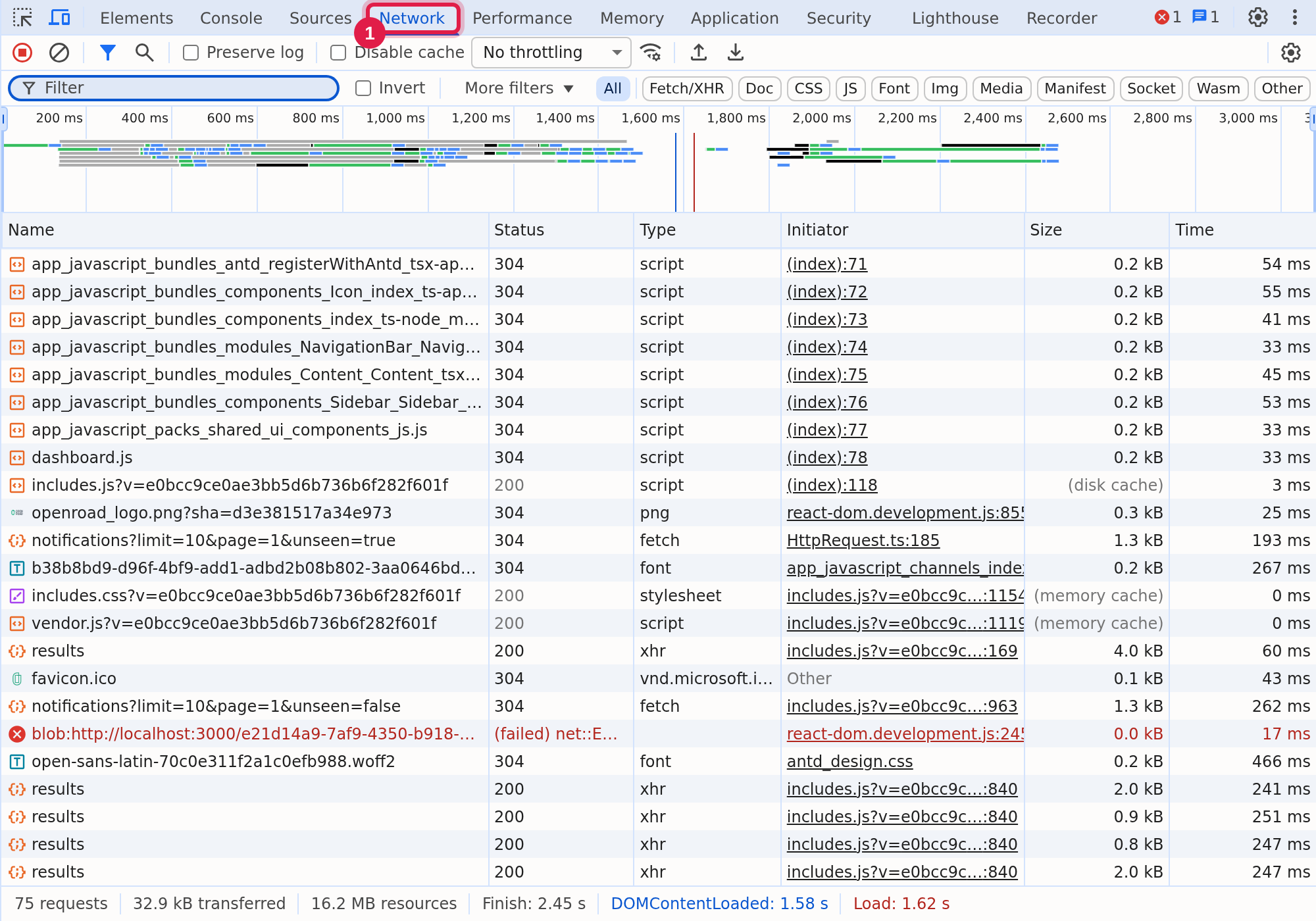
Open the Network tab before you repeat the action. Requests made earlier are not shown.
Capture the problem
- With the Network tab open, repeat the action that causes the issue.
- Look for requests marked in red. These are the errors we are interested in.
- Take a screenshot of the Network tab, with the red lines visible.
- If there are more requests than fit in one view, scroll and take a screenshot of each part.
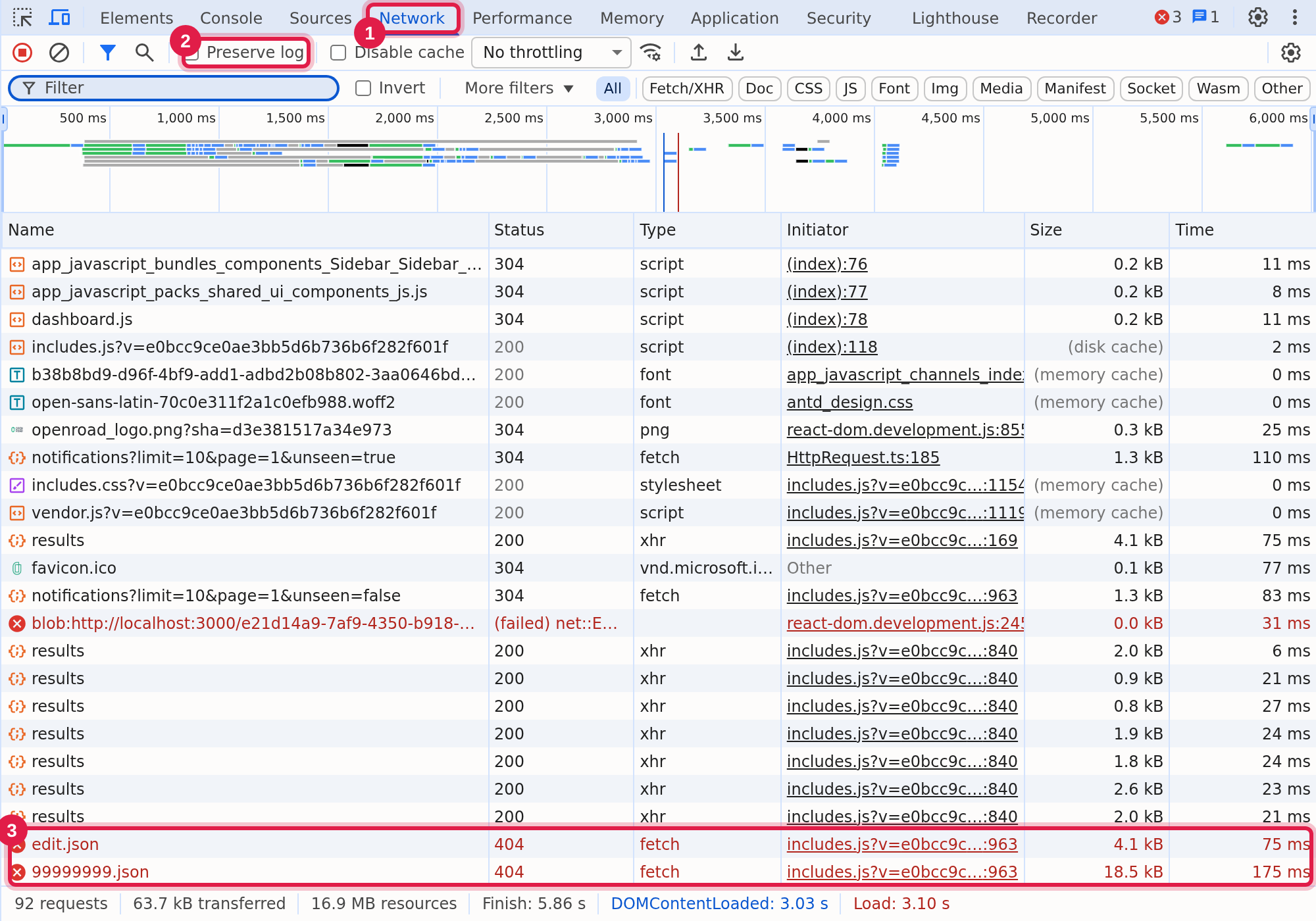
In the picture, 1 is the Network tab, 2 is Preserve log and 3 shows failed requests in red.
If the page reloads or moves to another page when the problem happens, tick Preserve log first. Otherwise the list is cleared and the error is lost.
Send it to us
Attach the screenshots to your ticket or reply to our e-mail with them attached.
Frequently asked questions
Was this article helpful?
That’s Great!
Thank you for your feedback
Sorry! We couldn't be helpful
Thank you for your feedback
Feedback sent
We appreciate your effort and will try to fix the article