This document provides a clear overview of how GP Transco processes EDI transactions with customers and outlines the key steps, requirements, and best practices for maintaining a smooth EDI integration. Its goal is to help external partners understand how each EDI message type is handled—204 Load Tenders, 210 Billing, 214 Status Updates, and 990 Tender Responses—and what actions may be required from your team to ensure accurate and timely data exchange.
The structure of this guide walks through each EDI workflow, including how load tenders are reviewed, how status updates are sent or re-triggered, how billing information is transmitted, and how common issues can be monitored and resolved. It also includes FAQs, troubleshooting instructions, and escalation guidelines so your team knows when and how to contact GP Transco for support.
There are 4 types of EDI requests that proceed in Open Road:
- 204 load create
- 210 Invoice/billing
- 214 Load Status Updated
- 990 Tender Response/ Load Accepted
Tip: New tenders appear every 5–10 minutes, Preview Lock stops other users from expanding and editing a load for 1 min.
- Open OpenRoad
- Go to EDI → Load Tenders
- Accept or Reject Loads (Daily Task)[GB1]
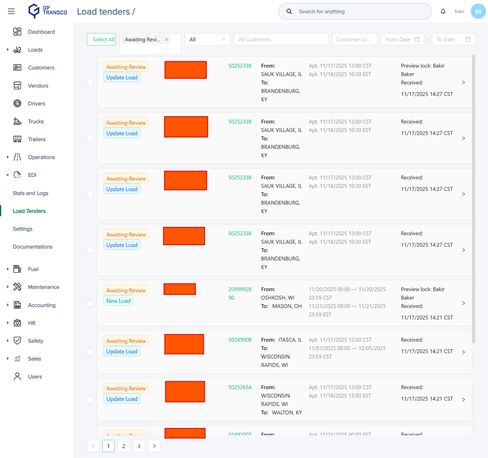
Buttons and Filters
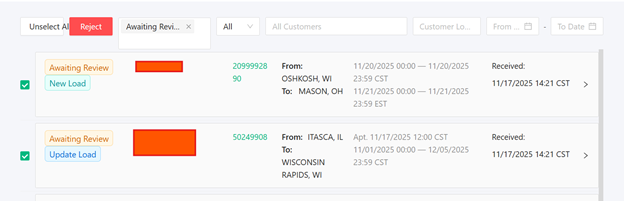
- Select All – Allows to select all loads visible at once
- Reject – Reject the load from customer
- Type of Tender Filter – Awaiting Review, Accepted, Rejected, Discarded Cancelled
- Type of Load Filter – New Load, Update Load, Forced Load
- All Customers Filter – Search by Customer
- Customer Load # Search – Search for specific load by customer
- From & To Date – Time period user wants to search for data
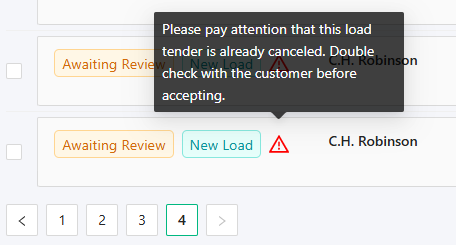
- Red Triangle – cancelled load, check before accepted

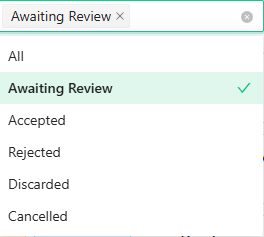
Statuses and Their Meaning
- Awaiting Review – Initial load has been sent to our system and waiting for review
- Accepted – label marks and shows tenders already handled by users, can see who accepted in details
- Rejected – label marks and shows tenders already handled by users, can see who reject in details
- Discarded – Show all deleted tenders from system (duplicates, outdated, etc..)
- Cancelled – Customer cancelled on their end and sent this information to us
Step | Action[GB2] |
1 | Look for “Awaiting Review” (orange) |
2 | Click load → Review: Stops, Times, Linehaul |
3 | Accept → Load auto-creates Reject → Pick reason |
4 | Forced Load (cannot reject, only accept?) → Click Accept as Forced |
5 | There is an option to select or reject multiple tenders. EDI → Load Tenders → Select All → Reject |
Manually Update EDI Load Status/ Check Status Updates (214)[GB3]
To get to the view in the screenshot below, navigate to a load with missing updates, and scroll down to Update EDI Status in the Status section of the load.
Click Update EDI Status in Load Page. This is a UI Functionality to retrigger missing EDI statuses. Will only show subscribed statuses for each customer.
Select whichever positions you would like to resend updates for (all available positions will be all preloaded so delete the ones you don’t need) and click Submit. To check if load statuses were resent please navigate to Customer specific logs as shown in the next section.
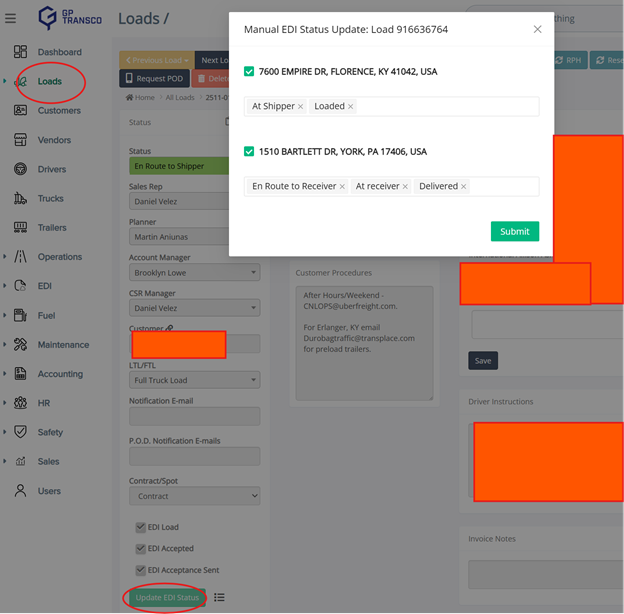
Quick Tip: If load is showing EDI Pending even after accepting tender, please make sure “EDI Accepted” is checked in the load. See above photo.
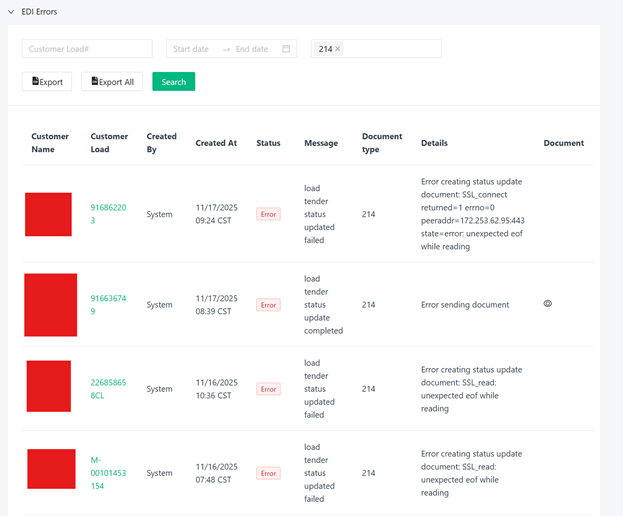
Use EDI Error Dashboard to see all issues.[GB4] Navigate to EDI → Stats and Logs
Filters
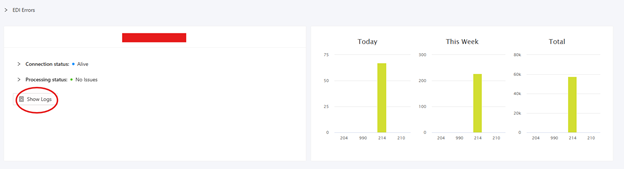
- All Customers – Filter by Customer Specific EDI Logs to view single customer
- Scroll down past EDI Errors to see Customers
- Customer Load # - Filter by Customer Specific Load Number
- Start & End Date – Time period user wants to search for data
- Document Type – Chose 997, 214, 210, 204, 990, Unknown
- Export – Generate .csv with data from the front end for one/first page
- Export All – Generate .csv with data from the front end for all pages
- Eye Icon – Opening the raw file with EDI data
EDI → Stats and Logs → EDI Errors
Show Logs per Customer below EDI Errors in Stats and Logs

FAQ
- Please have Load #/link to load, screenshot of error(s), short description, definition of scope (singular or multiple customers/loads affected – need list[GB5] )
- Contact help@openroadtms.com for any questions with this information above
- Load status options to select for update will be based on the selected customer’s EDI setup.
- If no status and manually resent, will be sent with the next status update batch, made every 15/30 or 60 minutes based on the customer.
Problem | Fix[GB6] |
Tender stuck >30 min | Refresh → If stuck → message help@gptransco.com |
Wrong times after update | Step 1 – Ops verify times with customer (through email, phone, customer portal) customer may need to adjust on their end Step 2 – If not customer side issue, contact help@gptransco.com with short description of issue |
Customer says “no status” | 1. If you notice missing EDI updates, you should go inside the load. Loads page → load view → EDI Action Section 2. Press ‘Update EDI Status’ button (see screenshot below no status) 3. Select which status(es) updates are missing and for which stop 4. Press ‘Submit’ |
Missing charges in bill | 1. Check EDI Logs if 210 message was generated successfully and sent to customer 2. Check Billing Snapshots logs to see how the load was billed 3. Check additional charges section in load (see if charges were added properly before billing) If no errors in all 3 steps above, contact help@gptransco.com |
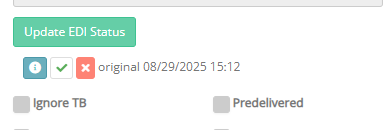
Screenshot for customer says “no status”
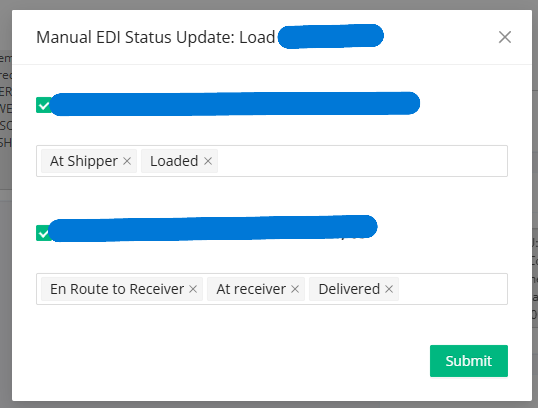
Screenshot for customer says “no status”
Billing (210)
EDI Billing is an easy way to bill and saves users valuable time to do other tasks
EDI Billing Checklist
- Cannot bill without linehaul, fuel, accessorials, POD
- Must always double check amounts in load
- Must add all additional charges and stop offs to load before billing
- If customers have an accessorial charge, they need customer approval depending on customer[GB8] [BB9]
- Check “Bill Box” to bill EDI load
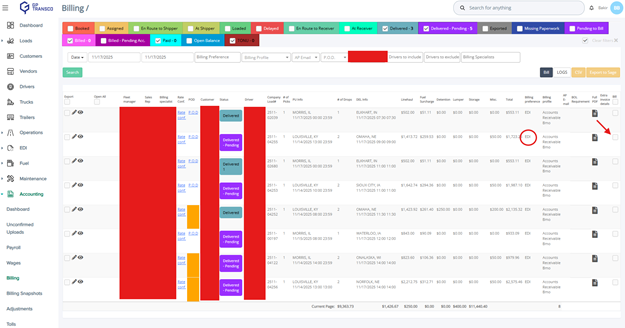
Identify if customer is using/integrated through EDI Billing – customer profile → overview → look for Billing Preferences (should be EDI)
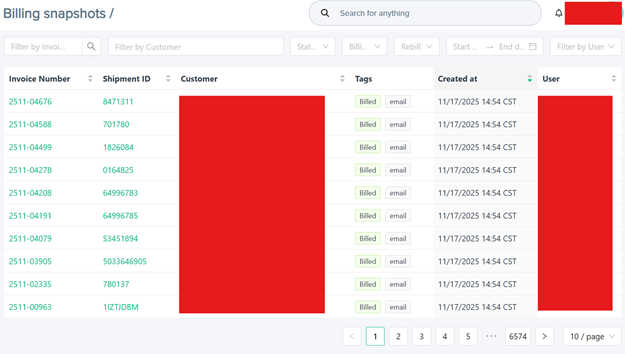
Billing Snapshot is a billing log for the load found under Accounting → Billing Snapshots
In the detail view of the logs, you will see the author, when it was billed , who billed
Main Filters:
- User – filter data by selected user
- Period – select From To dates to filter billing logs for X period of time
- Customer – filter data by selected customer(s). Multi-selection available
- Billing Type – filter data by billing made through EDI or Email[GB10]
Extra Invoice Details
A record attached to the load at creation containing additional, customer-specific invoice information such as:
- Payment terms, Quantity, Special invoice attributes, Weight at stop
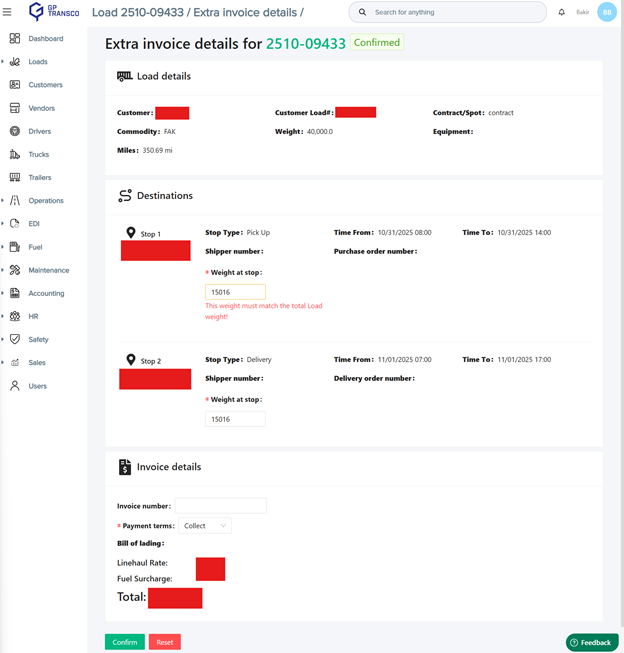
Extra Invoice Details Handling
- Some customers require additional invoice information found in the ExtraInvoiceDetails record.
- These details are automatically attached to a load upon creation.
- In most cases, Extra Invoice Details can be trusted and do not require manual review.
- Exceptions include older (legacy) flows—such as SPS EDI—where manual review and acceptance is required.
Enabling Manual Review (Customer-Specific Settings)
- Navigate to EDI Settings → Customer 210 Preferences.
- Configure which Extra Invoice Detail fields should appear on the review form.
- When this setting is enabled:
- Accounting cannot bill a load from the Billing page until Extra Invoice Details are reviewed and accepted.
- The workflow enforces manual validation for selected customers.

When to Call IT
- Please have Load #/link to load, screenshot of error(s), short description, definition of scope (singular or multiple customers/loads affected – need list)
- Reminder that the EDI Teams channel is no longer in use for any feedback, questions or issues.
Issue | Contact |
New Customer EDI Onboarding Request | |
Repeated failures, Ongoing Issues, Errors, Improvement ideas, | |
External Customer Support for EDI | |
Very Urgent Cases |
Last Updated: November 10, 2025
Was this article helpful?
That’s Great!
Thank you for your feedback
Sorry! We couldn't be helpful
Thank you for your feedback
Feedback sent
We appreciate your effort and will try to fix the article