See how much driving, shift, break and cycle time a driver has left and the log of the driver's duty status changes. This article covers the HOS tab of the driver profile.
Who can do this: users with access to Drivers and its HOS tab. The tab only appears if your user has that access.
Before you begin
The HOS tab only has data when your electronic logging (ELD) connection is set up and the driver is matched in it. Until then the tab is empty.
- Samsara: OpenRoad matches the driver by the driver number in the driver's name in Samsara (for example "1000 Alex Sample"). Without a number it matches by the exact first and last name, and only when one OpenRoad driver has that name and is not already linked to another Samsara driver.
- Motive: only drivers who are Active and have a Motive driver ID get HOS data.

What the HOS tab shows
The data comes from the electronic logging device (ELD) connected to your account. The tab shows what the provider last sent for the driver and keeps a log of every update, so it is empty until your ELD integration is sending data. Ask our team if your account has no HOS data and you expect it.
The four clocks
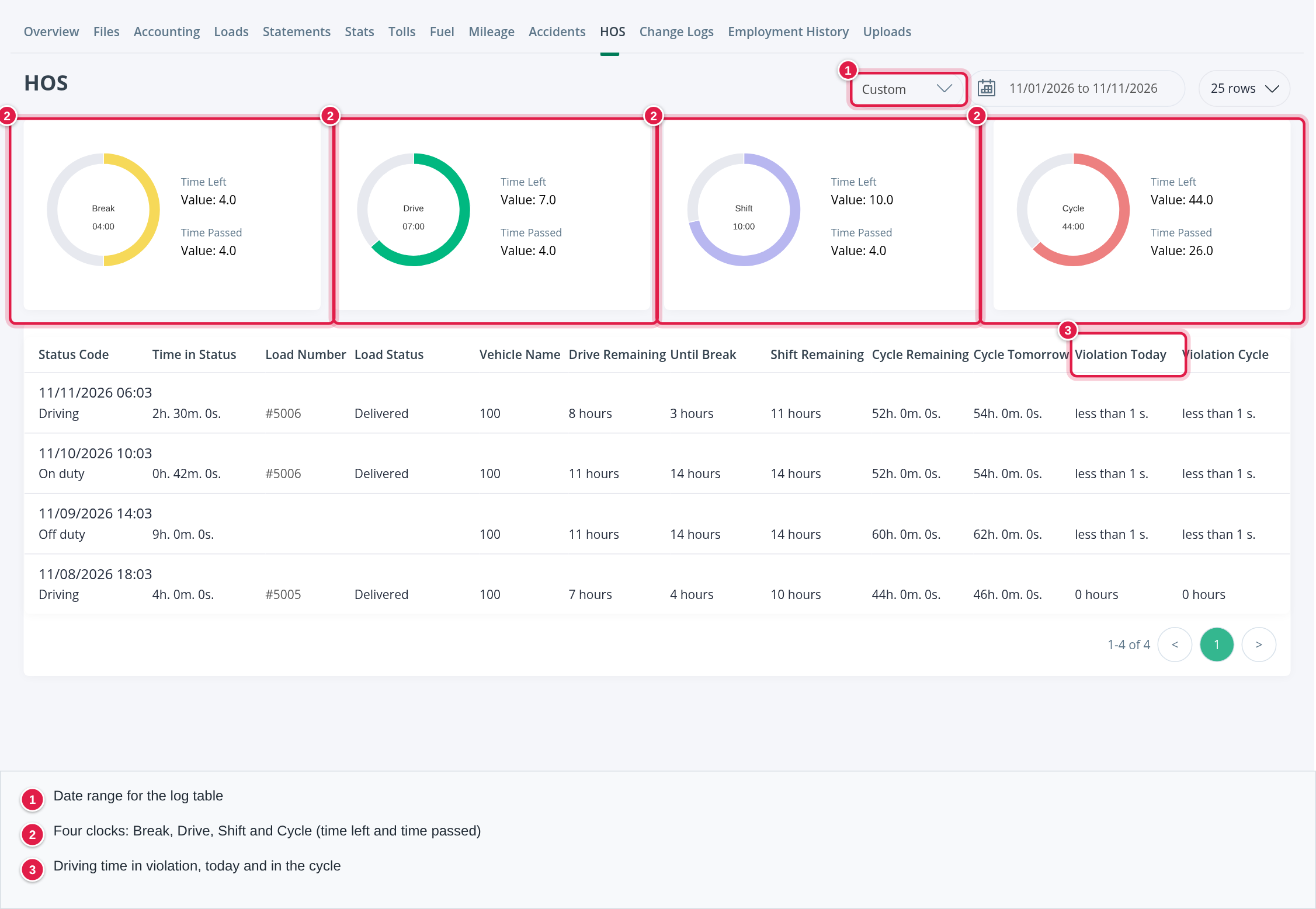
At the top of the tab (and in the driver's header, on every tab) four rings show the latest update. Each ring shows the Time Left and the Time Passed, in hours:
| Clock | What it shows |
|---|---|
| Break | Time left until the driver needs a break |
| Drive | Driving time left in the shift |
| Shift | Time left in the shift |
| Cycle | Time left in the cycle |
The log table
Every update from the ELD is a row, newest first. Use the date range at the top right to look further back. It opens on the current month.
| Column | What it shows |
|---|---|
| Status Code | The date and time of the update and the duty status: Off duty, Sleeper berth, Driving, On duty, Personal conveyance, Yard move or Disconnected |
| Time in Status | How long the driver has been in that status |
| Load Number and Load Status | The load the driver had at that time and its status |
| Vehicle Name | The truck the ELD reported |
| Drive Remaining | Driving time left in the shift |
| Until Break | Time left until a break is due |
| Shift Remaining | Time left in the shift |
| Cycle Remaining and Cycle Tomorrow | Cycle time left now and the cycle time the driver will have tomorrow |
| Violation Today and Violation Cycle | Driving time over the limit today and in the cycle |
The current duty status also shows in the driver's header on every tab, as long as the ELD has sent one.
The HOS Violations tab
If your account is connected to Samsara, the driver profile has one more tab, HOS Violations, with each violation's type, description, start and end, duration and when it was resolved. You see it only if your user has access to it.
Frequently asked questions
Was this article helpful?
That’s Great!
Thank you for your feedback
Sorry! We couldn't be helpful
Thank you for your feedback
Feedback sent
We appreciate your effort and will try to fix the article