How many miles each truck gets per gallon of diesel, worked out from your fuel card purchases. Use it to spot trucks with poor or suspicious MPG, compare months or weeks, and see MPG per driver assignment.
Who can do this: the page is available to users who may see the MPG List. The CSV and Generate Fuel / MPG report buttons only show when your role allows them, and only when the grouping is Total.
Before you begin
The MPG figures come only from your fuel card transactions, so the transactions must be in OpenRoad and must have a Diesel Gal and an Odometer. A transaction gets the odometer in one of two ways: you type it in the transaction, or, once the transaction has a driver and no odometer, OpenRoad fills it from the driver's truck, using the latest Samsara odometer reading from the 14 days before the transaction. See Fuel Transactions page (Fuel → Fuel Transactions) and Samsara Integration: Setup and How It Works.
A truck is listed only if it has a driver assignment that overlaps your dates. See Driver profile: Overview tab.
Open the page
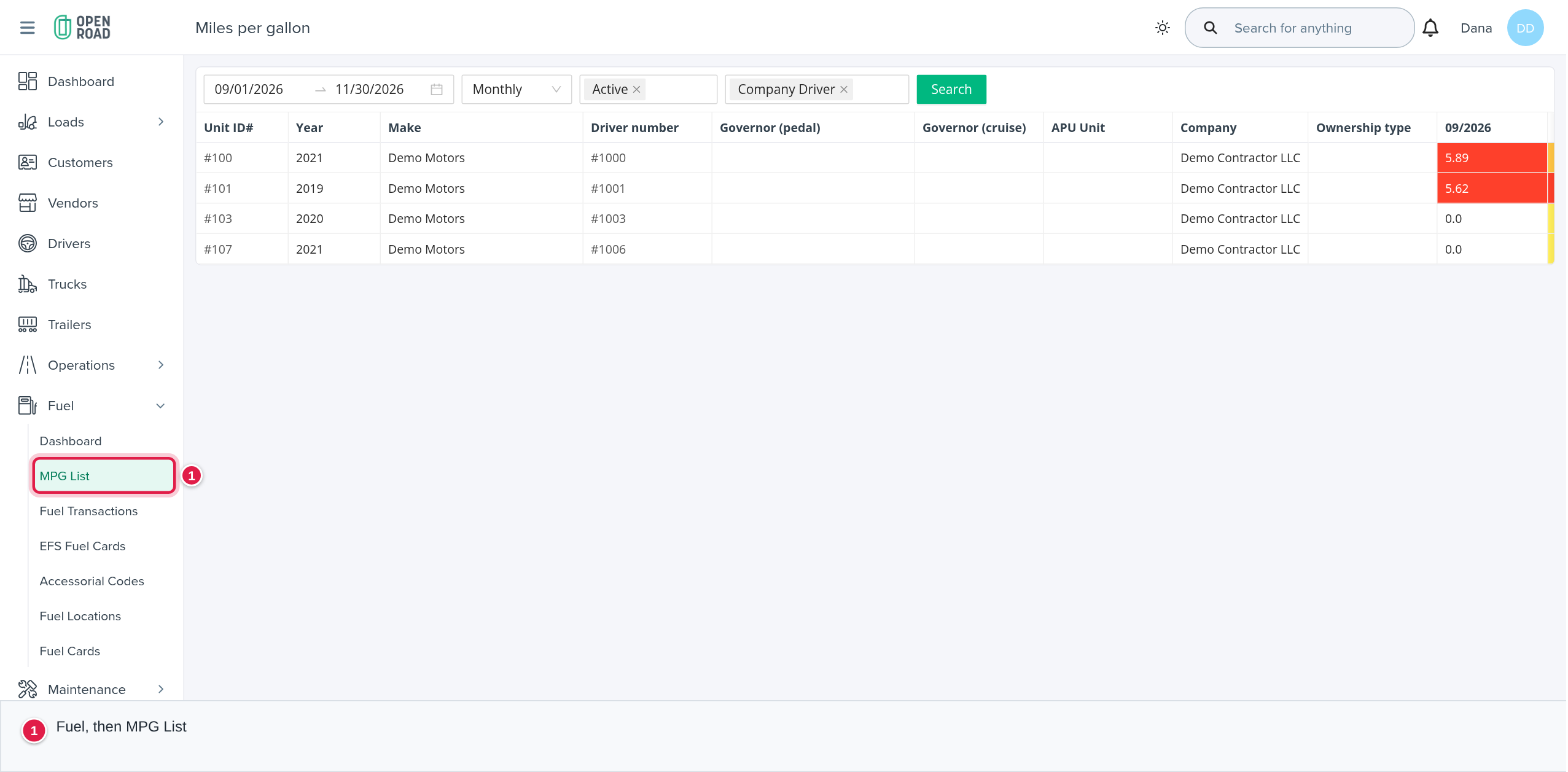
In the left menu, open Fuel, then MPG List.
Choose what the list shows
Set the filters, then select Search. Nothing changes until you do. The filters are saved in the page address, so you can bookmark a view.
- Date range (start and end, with presets such as This Month, Last Month and This Year). The page opens on the six months before this month, up to the end of this month.
- Grouping (the box with no label): Monthly (the default), Weekly or Total.
- Truck Status: On Order, Active, For Sale, Disabled, Marketing or On Hold. The page opens on Active.
- Driver type: Company Driver, Contract Driver, Owner Operator or Leased Owner - Op. The page opens on Company Driver.
The trucks load one at a time. If a truck cannot be loaded, its row says "This truck could not be loaded." with a Retry button.

Monthly and Weekly
Each truck is one row, with the columns Unit ID#, Year, Make, Driver number, Governor (pedal), Governor (cruise), APU Unit, Company, Ownership type, and then one column per period: MM/YYYY for months, or #WW/YYYY for weeks. Each period cell is the MPG for that period, with 2 decimals. A period with no fuel purchases shows 0.
Total
One row per truck for the whole range: Unit ID#, Year, Make, Driver number, APU Unit, Gallons, Miles and MPG. Under each truck, a smaller table shows each driver assignment of the truck: Start Date, End Date, Driver number, Full Name, Gallons, Miles and MPG. A truck with no MPG data or no assignment is left out.
How the MPG is worked out
MPG = the miles between two odometer readings ÷ the gallons bought between them. The readings come from the truck's fuel card transactions that fall inside a driver assignment on that truck and inside your date range. Each period (month or week) is worked out on its own, using the last purchase before the period as the starting point.
Colours
- MPG cell: red when MPG is under 6 or over 8.5, orange from 6 to under 6.5, yellow from 6.5 to under 7. From 7 to 8.5, or 0, there is no colour.
- Miles cell (Total grouping only): the miles are scaled to 30 days. Over 20,000 miles is red and over 13,000 is orange.
Export in Total grouping
- CSV: OpenRoad builds the CSV in the background and emails it to you ("MPG CSV will be sent via email after processing").
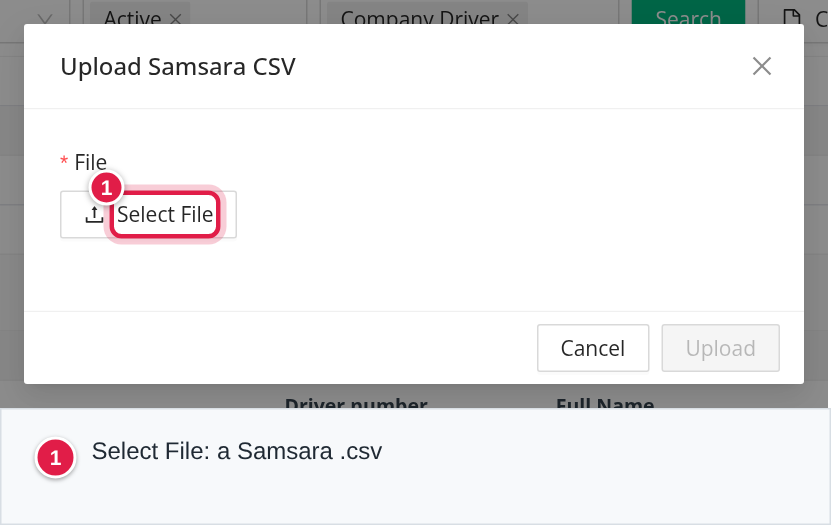
- Generate Fuel / MPG report: opens Upload Samsara CSV. Choose a .csv exported from Samsara, then Upload. OpenRoad merges the file with your MPG figures for the listed trucks and emails you an Excel workbook named
fuel_mpg_report_<start>_<end>.xlsx, with the sheet Fuel and MPG report. The Samsara columns are read by position: unit in column 1, MPG in column 2, gallons in column 3, miles in column 4, run time in column 7, idle time in column 8 and idle percent in column 9. The first row is skipped as the header.
The Samsara upload does not change the MPG List. It only feeds the emailed report.
The report has these columns: Unit ID#, Year, Make, APU Unit, Driver ID, Full Name, Start Date, End Date, Gallons, Miles, MPG, Samsara MPG, Samsara Gallons, Samsara Miles, Run, Idle and %. A Samsara row is attached only to driver assignments that cover your whole date range.
Messages you may see: "Start date must be before the end date", "No file was given.", "Incorrect file type. Please select a CSV file.", "Given file is empty.", "Data not found" and "Given csv file did not contain data".
Frequently asked questions
Was this article helpful?
That’s Great!
Thank you for your feedback
Sorry! We couldn't be helpful
Thank you for your feedback
Feedback sent
We appreciate your effort and will try to fix the article