Add a company you work with or pay: a carrier, an owner operator's company, a maintenance shop. This article shows how to add one and what happens next.
Who can do this: New vendor only shows when your role allows adding vendors.
Before you begin
- A vendor is the company a driver is paid through. When you add a driver you choose it in Pay to. See Adding a driver (Drivers → New driver: required fields and app login).
- Driver statements are sent to the e-mail address of the driver's linked vendor, not to the driver's own e-mail. Give every vendor that is paid an E-mail address, otherwise its drivers' statements have nowhere to go. See Driver profile: Accounting tab.
- Maintenance shops used in service logs need the type Maintenance and status Active to appear in the Vendor list of a service log.
Add a vendor
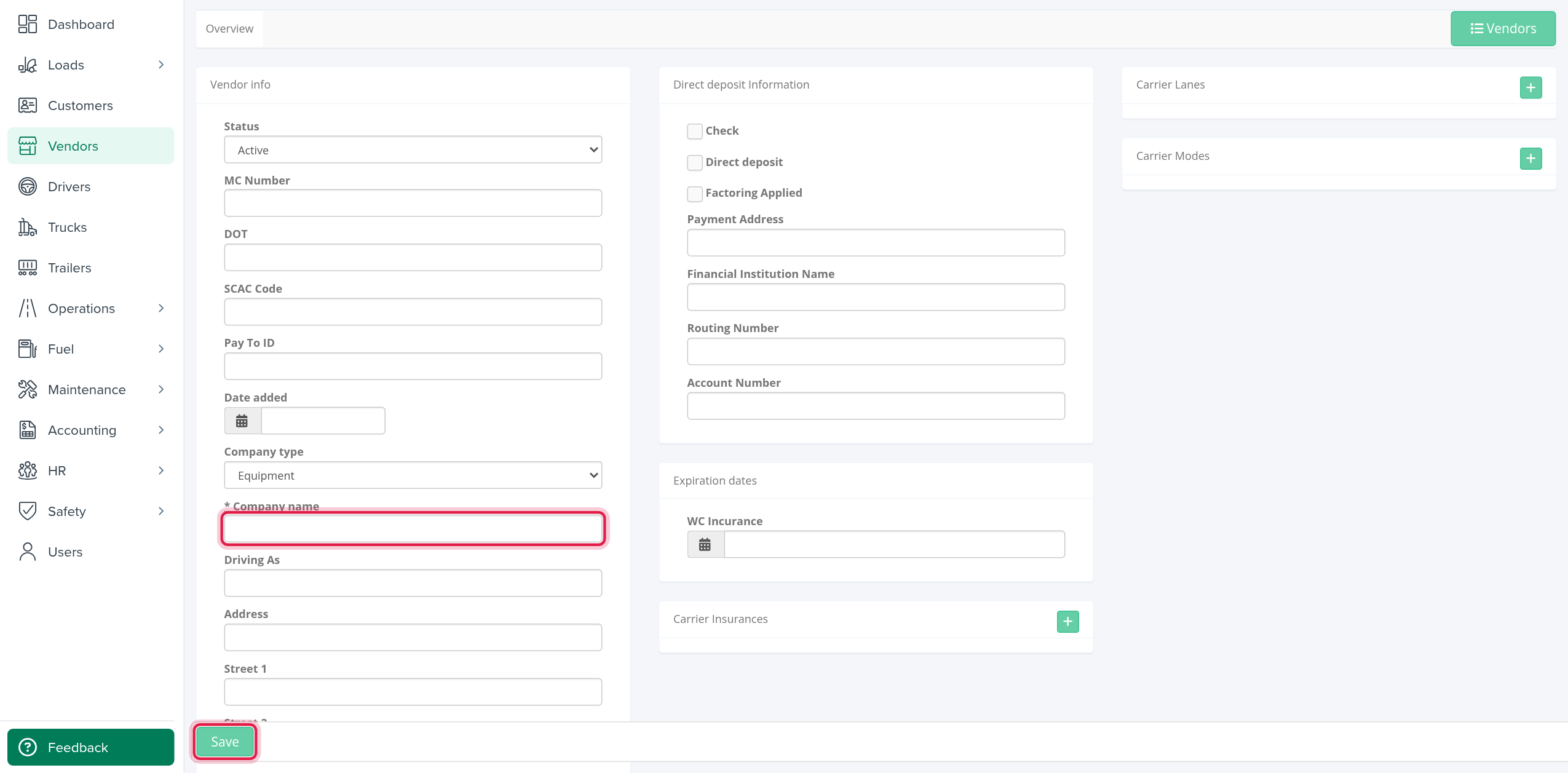
- Select Vendors, then New vendor.
- Enter the Company name. It is the only field the system requires. (The E-mail field carries a star, but a vendor without an e-mail can be saved; fill it in anyway if the vendor will be paid.)
- Fill in the rest of the cards, see below.
- Select Save at the bottom. The new profile opens.
If something cannot be saved, a red box lists the first problem, for example an e-mail address that is not valid or a duplicate line in a list.
You can also add a vendor from the + button next to Pay to when you add a driver. That window only asks for the Company name and E-mail.
What to fill in
The form has the same cards as the vendor profile: Vendor info, Direct deposit Information, Expiration dates, Carrier Contacts, Carrier Insurances, Carrier Lanes and Carrier Modes. Notes appears once the vendor exists. Every field is explained in Vendor profile: all tabs (Overview, Files and Driver + Equipment).
Frequently asked questions
Was this article helpful?
That’s Great!
Thank you for your feedback
Sorry! We couldn't be helpful
Thank you for your feedback
Feedback sent
We appreciate your effort and will try to fix the article