Track how many Home Time days each driver has earned, see when the next one is available, and correct the balance when needed. This article covers the whole feature: the account settings in Settings → Preferences → Drivers → Home Time, the Home Time card on the driver's Overview tab, and the Manage Balance window.
Who can do this: the account settings can be changed by Super Admin users only. The driver's Home Time card and Manage Balance are available to users who can edit drivers.
How Home Time works
A driver earns 1 Home Time day for every few work days. The number of work days is the Home Time Earn Ratio (7 by default). The balance the driver sees is:
starting balance + manual adjustments + earned days − Home Time days taken − Unapproved Off days
The balance never goes above Max Days per Assignment (7 by default).
| Term on screen | What it means |
|---|---|
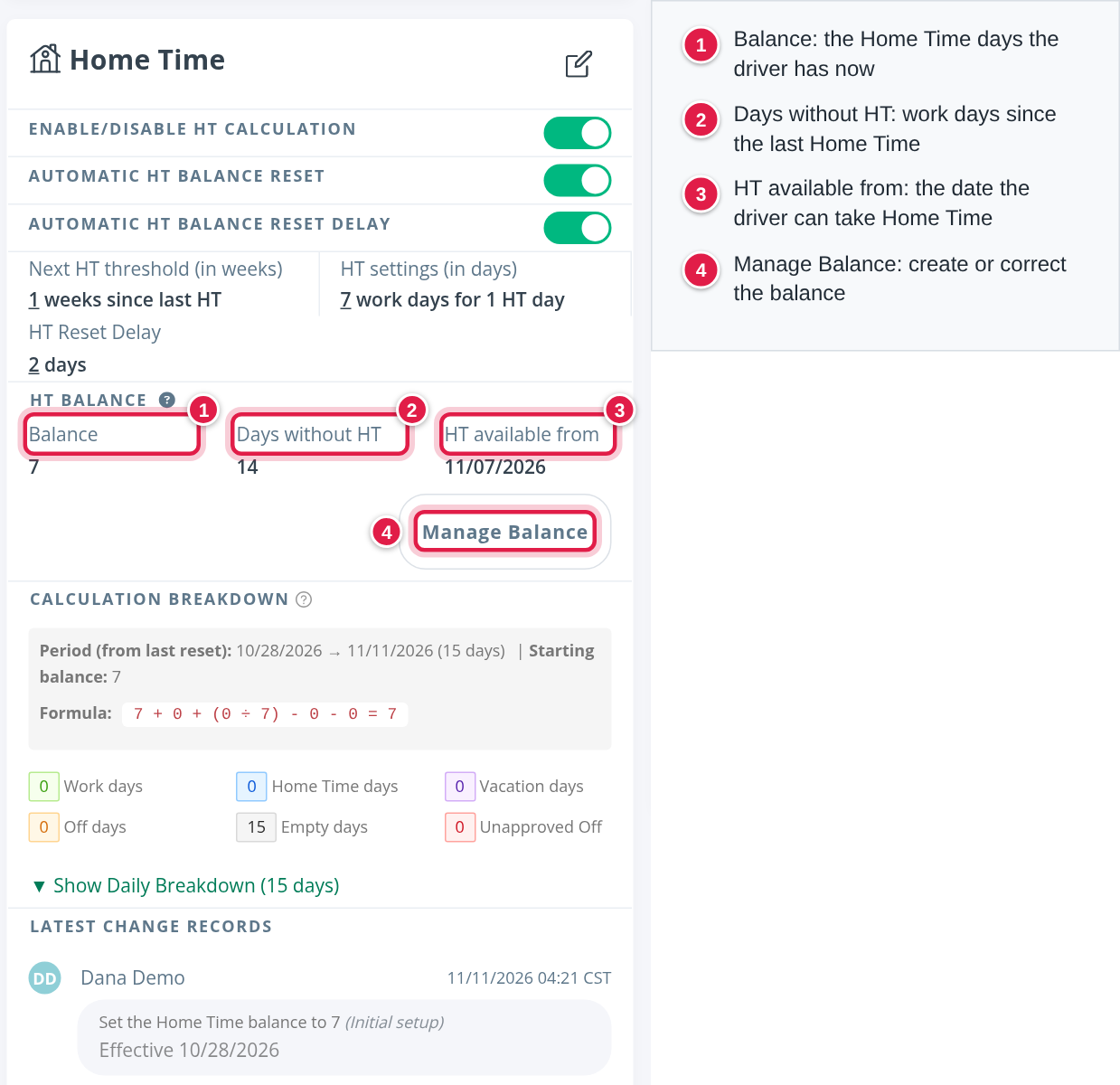
| Balance | The Home Time days the driver has now |
| Days without HT | Work days since the last Home Time |
| HT available from | The date the driver can take Home Time, based on the working schedule |
| Next HT threshold (in weeks) | Weeks a driver needs to work to earn 1 Home Time day |
| HT settings (in days) | Work days needed to earn 1 Home Time day (the earn ratio) |
What counts as a work day. A day counts as a work day when the driver has a load that day, or an off-duty event of one of these kinds: 10 Hour Reset, 34 Hour Reset, Planned, Breakdown, Weather, Layover, Paid Layover or Not Paid Layover. A Home Time day is deducted from the balance, and so is an Unapproved Off day. Days with no activity, Vacation days and other off-duty days neither add to nor take from the balance.
The balance is updated only after an event ends. To see the exact days remaining, check the Latest change records on the card.
Before you begin
- Home Time is off by default, for the account and for every driver. You turn it on in two places: the account settings (step 1) and the driver's card (step 2).
- Decide which driver types earn Home Time: Company Driver, Contract Driver, Owner Operator or Leased Owner - Op.
Step 1: Turn on Home Time for your account
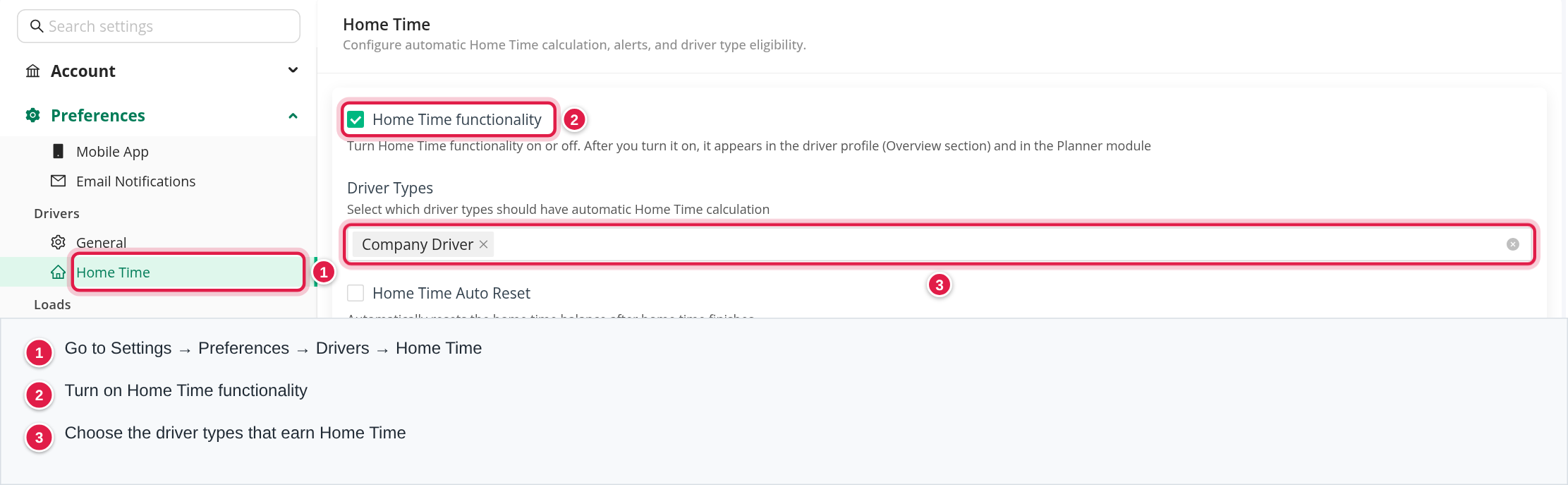
- Go to Settings → Preferences → Drivers → Home Time.
- Tick Home Time functionality. The other options stay greyed out until you do.
- Under Driver Types, select the driver types that earn Home Time.
- Set the options you need (see the table below).
- Select Save.
| Option | What it does |
|---|---|
| Home Time functionality | Turns Home Time on or off. Once on, it appears in the driver profile (Overview) and in the Planner |
| Driver Types | Which driver types get automatic Home Time calculation |
| Home Time Auto Reset | Automatically resets the Home Time balance after Home Time finishes |
| Automatic HT Balance Reset Delay and Reset Delay | Shown when Auto Reset is on. The number of days the system waits after Home Time ends before it locks the balance. During the wait, event corrections still change the result |
| Future Home Time alerts in Planner | The Planner shows upcoming Home Time days and lets the user confirm or reject them. The drivers' Home Time settings must be in place first |
| Home Time email notifications | Emails about a negative Home Time balance and about Home Time assigned before the official date |
| Next Home Time Threshold | Default weeks a driver must work to earn 1 Home Time day |
| Home Time Earn Ratio | Default work days needed to earn 1 Home Time day |
| Days Before Alert | How many days before upcoming Home Time the system sends a reminder |
| Max Days per Assignment | The most Home Time days to assign to a driver at one time. It is also the highest balance a driver can have |
| Planned HT Limit | Extra days allowed on top of the maximum balance when planning a Home Time event in the Planner |
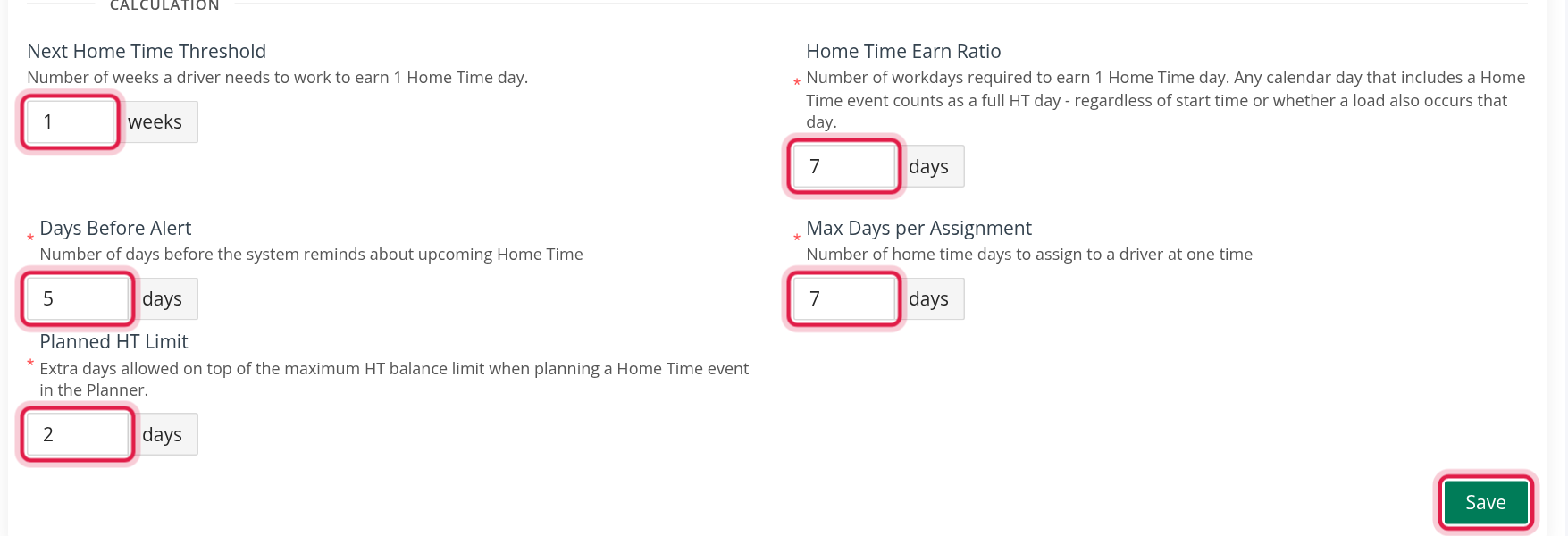
The Home Time Earn Ratio, Days Before Alert, Max Days per Assignment and Planned HT Limit fields are required.
Step 2: Turn on Home Time for a driver
- Open Drivers and select the driver.
- On the Overview tab, find the Home Time card.
- Select the pencil icon to edit it.
- Turn on Enable/Disable HT calculation.
- Check Next HT threshold (in weeks) and HT settings (in days). They start from the account defaults. Both must be greater than zero.
- Select Save.
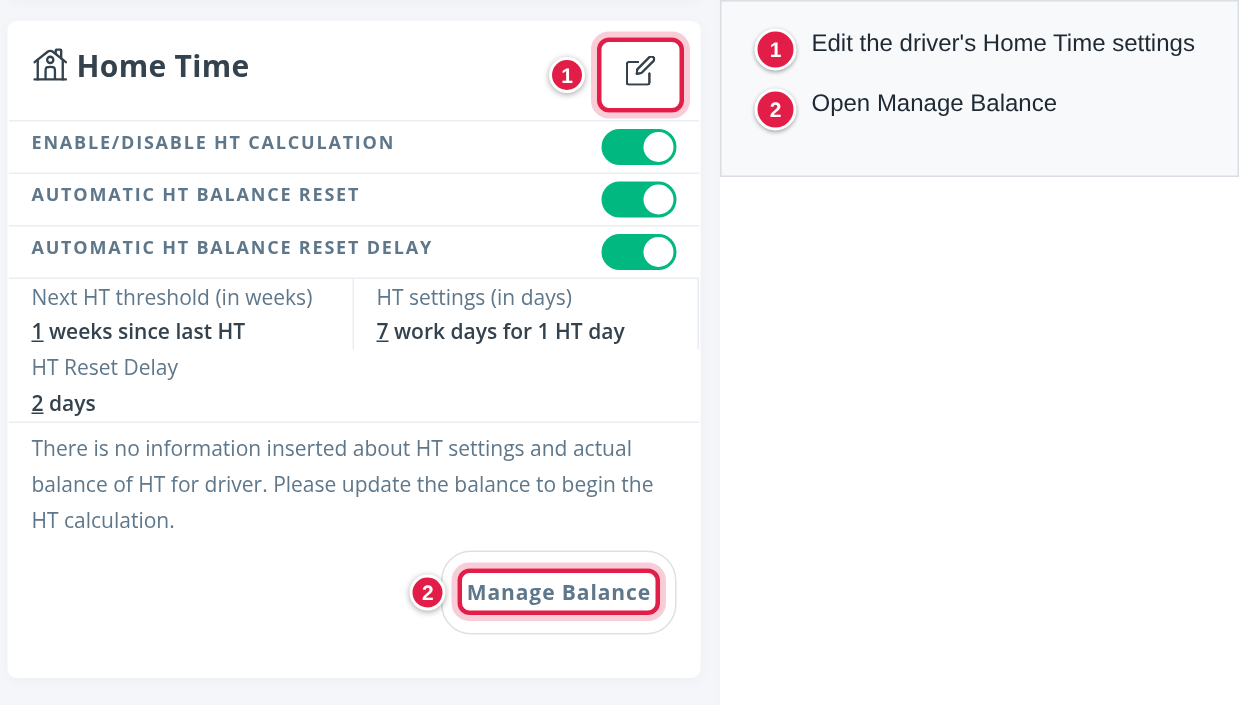
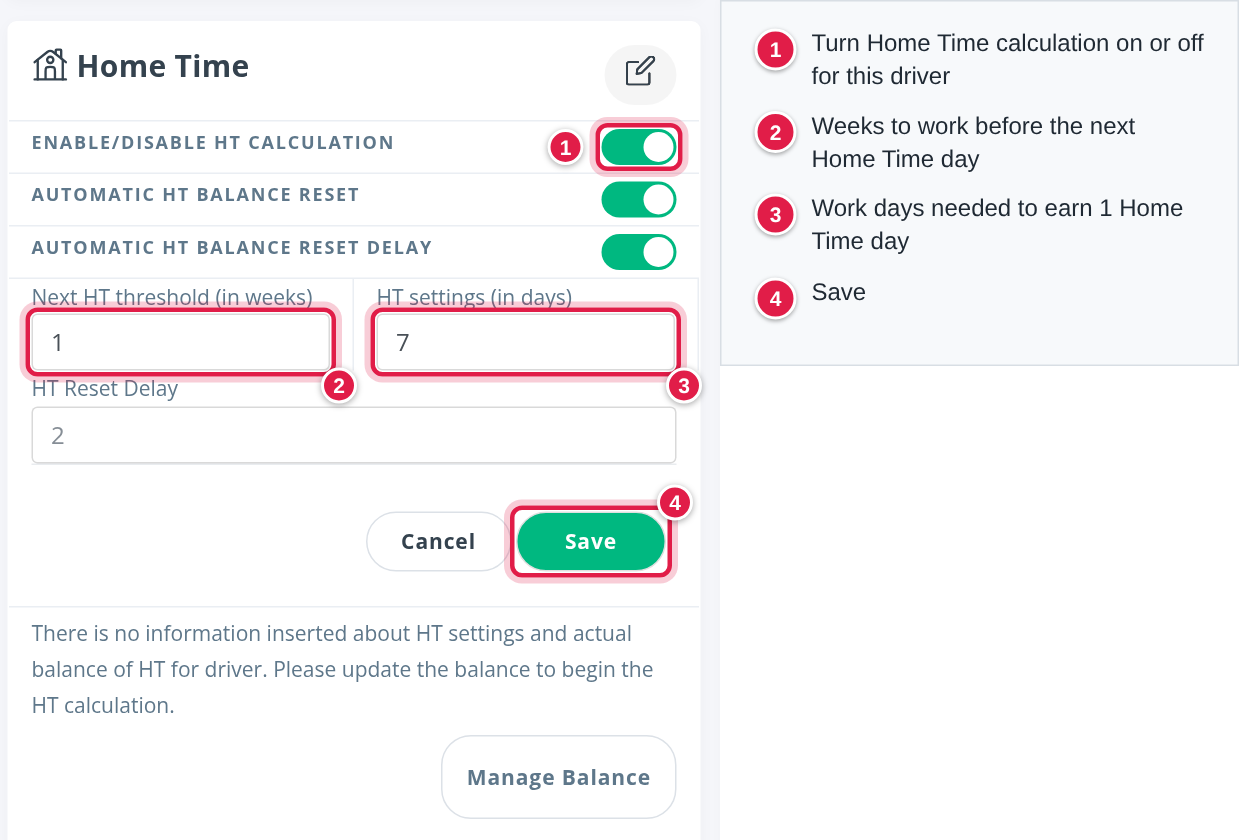
The card also has two switches for the automatic reset:
- Automatic HT Balance Reset resets this driver's balance automatically after Home Time.
- Automatic HT Balance Reset Delay (shown when the account uses a reset delay) holds the reset for HT Reset Delay days, from 0 to 7.
If you do not see the Home Time card, check that Home Time functionality is on, that the driver's type is selected under Driver Types, and that the driver is Active or Pre-Hired.
Step 3: Set the starting balance
Until you set a starting balance, the card shows "There is no information inserted about HT settings and actual balance of HT for driver. Please update the balance to begin the HT calculation."
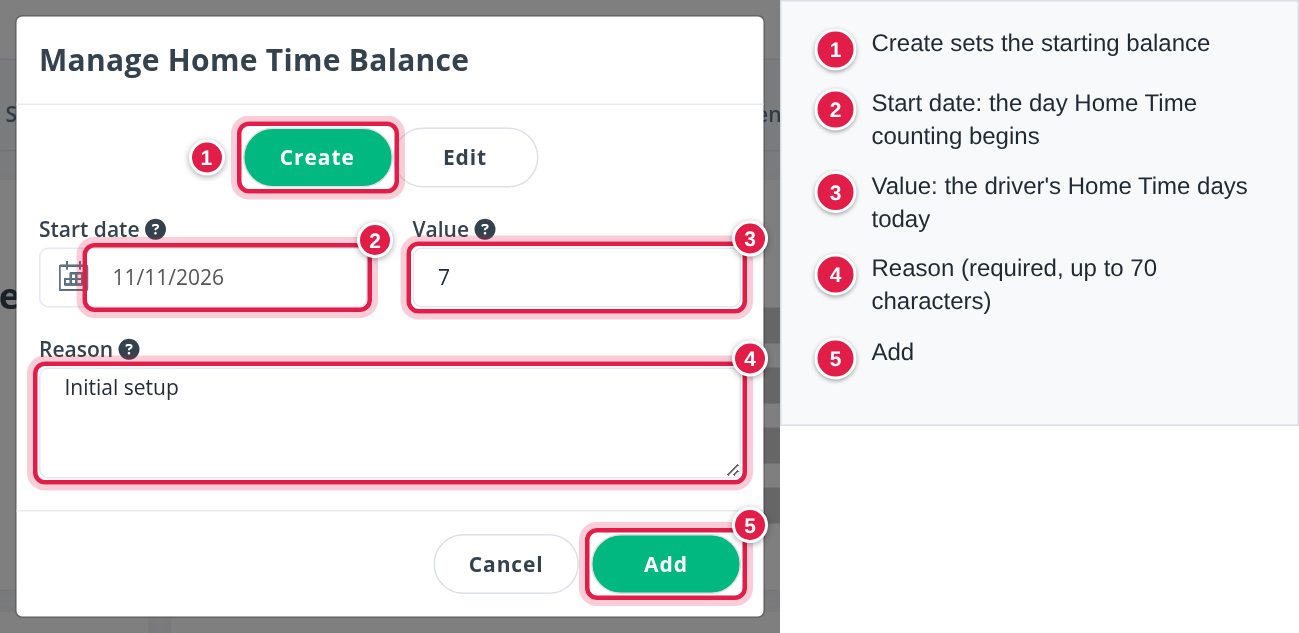
- On the Home Time card, select Manage Balance.
- Make sure Create is selected.
- Enter the Start date: the date from which the automatic calculation should start.
- Enter the Value: the number of Home Time days the driver has now. The minimum is 0. The maximum is the account's Max Days per Assignment (7 by default).
- Enter a Reason (required, up to 70 characters), for example "Initial setup".
- Select Add.
Read the balance
Once the starting balance exists, the card shows:
- HT Balance: Balance, Days without HT and HT available from.
- Calculation Breakdown: the period since the last reset, the starting balance, the formula, and the counts of Work days, Home Time days, Vacation days, Off days, Empty days and Unapproved Off. Select Show Daily Breakdown to see each day.
- Latest change records: who changed the balance, when, the new value, the reason and the effective date.
Correct the balance
Use Edit to add or remove one day, for example after a mistake.
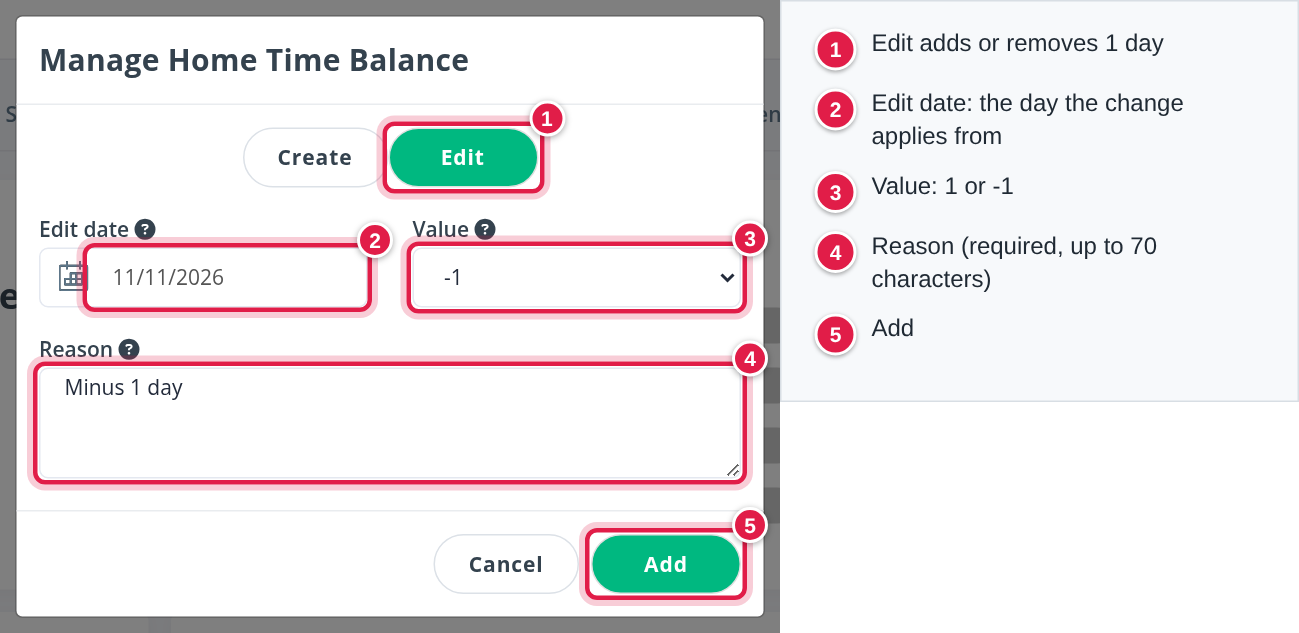
- On the Home Time card, select Manage Balance.
- Select Edit.
- Enter the Edit date: the date the change applies from. It cannot be earlier than the starting balance's Start date.
- Choose the Value: 1 or -1.
- Enter a Reason (required, up to 70 characters).
- Select Add.
Edit is only available after a starting balance has been created. To change the balance by more than one day, repeat Edit once for each day, or create a new starting balance with Create.
What drivers see in the app
Drivers see their Home Time balance and their upcoming and past Home Time events in the PTO and Home Time card in Portal in the OpenRoad Driver app. See Using the Driver app.
Frequently asked questions
Was this article helpful?
That’s Great!
Thank you for your feedback
Sorry! We couldn't be helpful
Thank you for your feedback
Feedback sent
We appreciate your effort and will try to fix the article