Add a trailer to your account. This article shows how to add one and what happens next.
Who can do this: you need permission to create trailers. New trailer only shows to roles that may create trailers.
Before you begin
- A trailer's Equipment Type comes from your trailer types. See Trailers settings: DOT warnings, Trailer Types and Trailer App times.
- A trailer's Vendor is one of your account's companies.
Add a new trailer
- On the Trailers page, select New trailer.
- Fill in the cards. The form has Trailer info, Options, Specs, Order section (only when Status is On Order), Expiration dates, Value and insurance, Financial, Payoff and Notes.
- Save.
On the new form, Status is in Trailer info. Equipment Type starts as a type named Van, or Dry Van, if your account has one. The flags (OOS, Needs Repair, Restricted Use), the calculated fields and the Selling and Disposal card are not on the form.
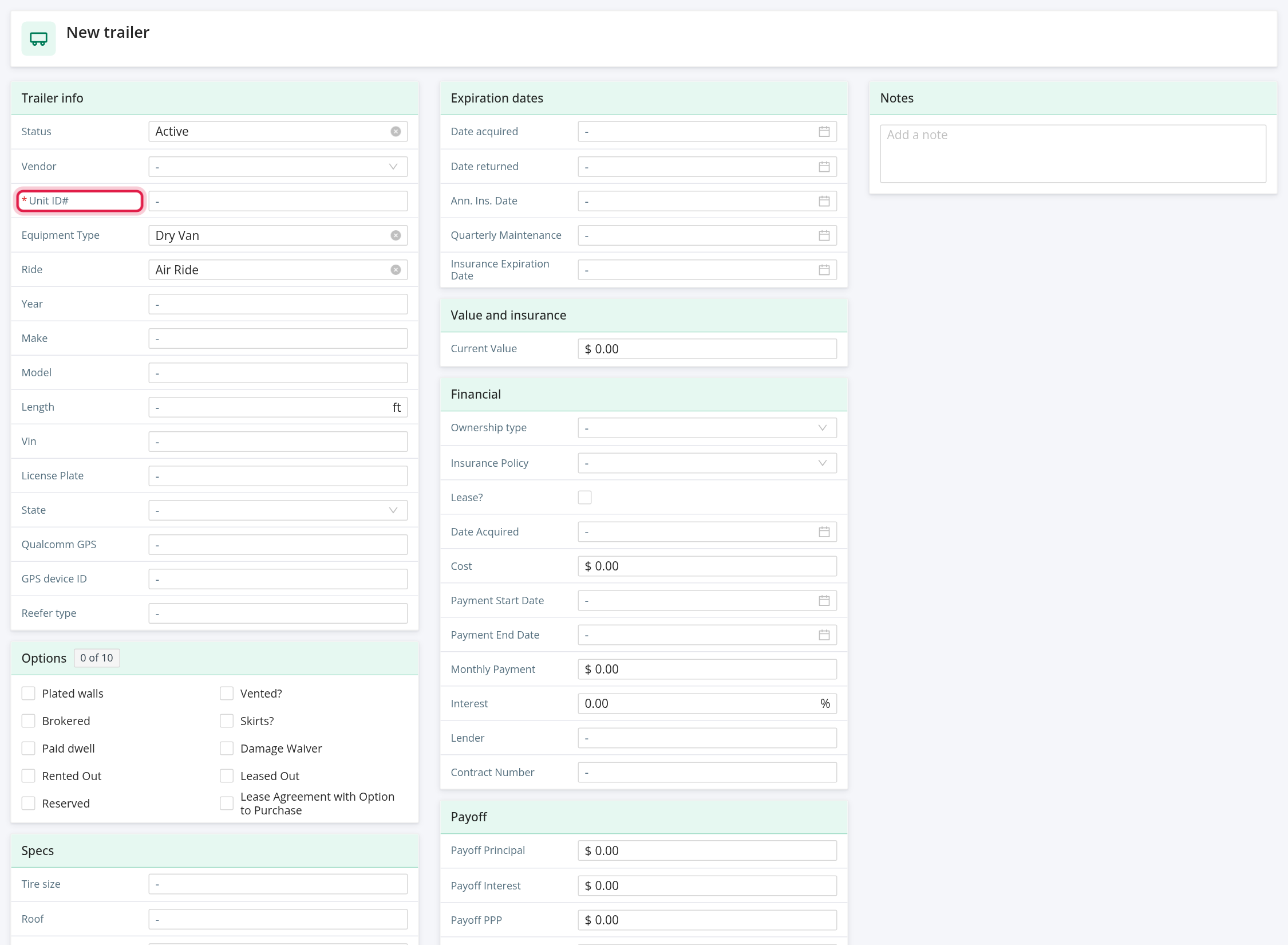
What to fill in
The form has the same cards as the trailer profile. Every card and field is explained in Trailer profile: all tabs (Overview, Files, Maintenance, Logs, GPS Logs, Accidents and Assignments).
Frequently asked questions
Was this article helpful?
That’s Great!
Thank you for your feedback
Sorry! We couldn't be helpful
Thank you for your feedback
Feedback sent
We appreciate your effort and will try to fix the article