Places keeps one record for every location your operation works with, such as shippers, receivers, terminals and driver home locations. Every load destination is linked to a place, so working hours, special handling notes, load flags and customer details are entered once and reused on every load.
Places are created automatically when loads are entered. This article explains how to find and improve them: add customer details, set load flags, correct a location, create a trailer yard, merge duplicates and review changes.
Before You Begin
- Places enabled on your account. It appears under Operations → Places. If you do not see it, contact OpenRoad Support at help@openroadtms.com.
- Permission to edit places. Administrators set it in Settings v2 → Access, area Places and Yards, by user group or by user.
Part 1: Find a Place
- Go to Operations → Places.
- Use the search and filter icons in the column headers to find a place, or filter by Banned, Polygon, Overnight Parking or Tags.
- Click a place to open it.
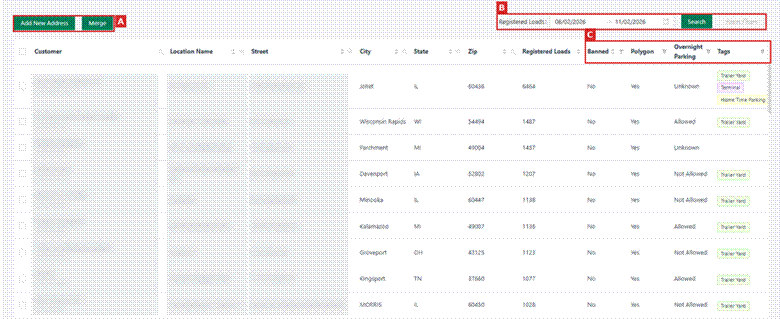
Label | What it is |
A | Add New Address creates a place. Merge combines duplicate places (active when two or more are checked). |
B | Registered Loads: the date range used to count loads per place. Click Search to apply, Reset Filters to clear. |
C | Banned, Polygon (whether the place has a tracking area), Overnight Parking (Allowed, Not Allowed, Unknown) and Tags (for example Trailer Yard, Terminal, Home Time Parking). |
Part 2: Create a Place
You only need this for locations that are not on your loads yet.
- Click Add New Address.
- Enter the Name, Full Address, Street, City, State and Zip.
- Click the map to set the pin.
- Click Save.
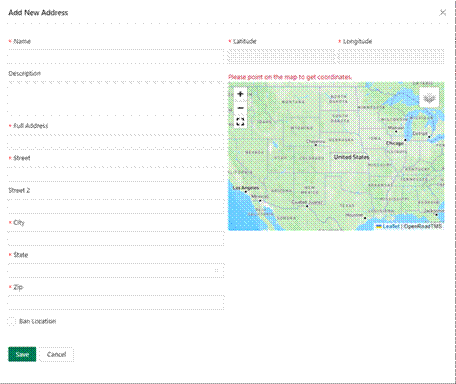
Important: If OpenRoad finds a similar place, it asks before creating a new one. If the place already exists, click Cancel and use it, to avoid duplicates. |
Note: Check Ban Location only for a location you must avoid. OpenRoad does not create loads with a banned destination. |
Part 3: Review a Place
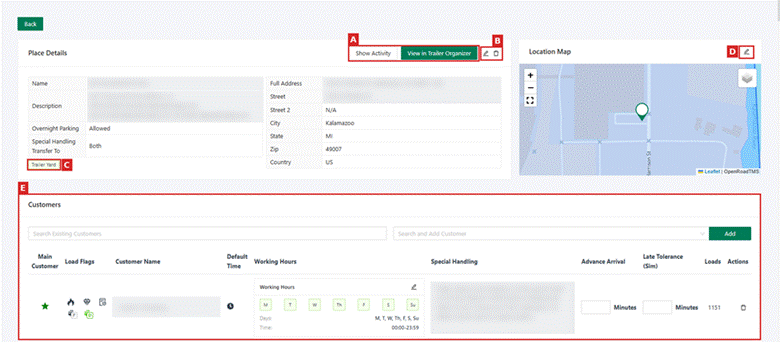
Label | What it is |
A | Show Activity (who changed what) and View in Trailer Organizer (only for trailer yards). |
B | Edit or delete the place. |
C | Tags, for example Trailer Yard. |
D | Edit the pin or the site area on the map. |
E | The customers that use this place. |
Part 4: Add Customer Details and Load Flags
- In Customers, select the customer in Search and Add Customer and click Add. Customers already used on loads are linked automatically.
- Set what you need for that customer at this place:
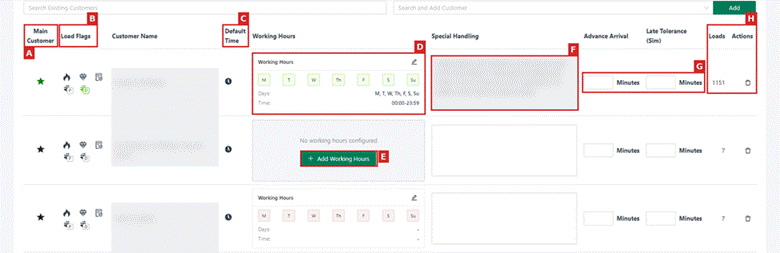
Label | Column | What it does |
A | Main Customer | The star marks the place’s main customer. |
B | Load Flags | Flags copied to every load for this customer at this place. A green icon is on; click it to turn it on or off. See the icons below. |
C | Default Time | Fills the customer appointment times on loads from the working hours. Not available on every account. |
D | Working Hours | The customer’s days and hours at this place. Click the pencil to change them. |
E | Add Working Hours | Shown when no hours are set yet. |
F | Special Handling | Instructions for this customer at this place, such as gate codes, check-in steps or dock information. |
G | Advance Arrival / Late Tolerance | Minutes of early arrival and of ETA tolerance. Not available on every account. |
H | Loads / Actions | Loads for this customer at this place in the last 90 days, and the trash icon to remove the customer. |
Load flags: click an icon to turn it on (green). Loads to this customer and place get the flag automatically.
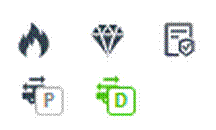
Icon | Flag |
Flame | Hot: loads with this destination are marked as Hot. |
Diamond | High Value: loads with this destination are marked as High Value. |
Trailer with P | Preloaded Trailer: the destination is marked as Preloaded Trailer. |
Trailer with D | Drop Trailer: the destination is marked as Drop Trailer. |
Tip: Use Special Handling for gate codes, check-in steps and dock information. Your team then sees them on every load to that customer and location. |
Part 5: Choose Where Special Handling Notes Go
Administrators set the default in Settings → Preferences → Places → Special Handling Transfer Mode:
Option | Result |
Both | Notes go to the load’s Special Handling field and to the Load Notes. |
Load Special Handling | Notes go only to the load’s Special Handling field. |
Load Notes | Notes go only to the Load Notes. |
None | Notes are not transferred to loads. |
A single place can use a different option with its own Special Handling Transfer To value.
Part 6: Correct the Location or the Site Area
Many places get their site area (tracking area) automatically. If the pin or the area is wrong:
- Click the pencil icon on the Location Map.
- Select Point and drag the pin, or select Polygon and use the polygon tool to click points around the site, finishing on the first point.
- Click the check mark to save.
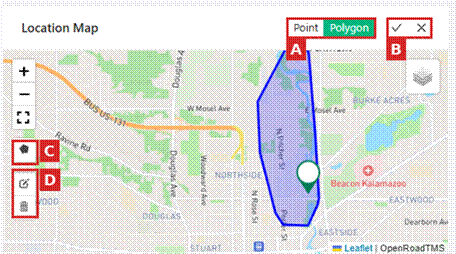
Note: If a place has no site area, OpenRoad uses a radius of 0.5 miles around the pin. Areas you draw are never changed automatically. |
Part 7: Turn a Place into a Trailer Yard
- Open the place and click Create Yard.
- Enter the Radius in meters, the Pool (target number of trailers) and whether the yard is Shared.
- Click Save. Use View in Trailer Organizer to open the yard.
Note: A place can have only one yard. |
Part 8: Merge Duplicate Places
- On the Places list, check the places that are the same location.
- Click Merge.
- Select the Primary Place (the one that stays) and confirm. Customer links and load history move to it.
Important: A merge cannot be undone. Choose as Primary the place with the most complete details and the most accurate location. |
Part 9: Review Changes to a Place
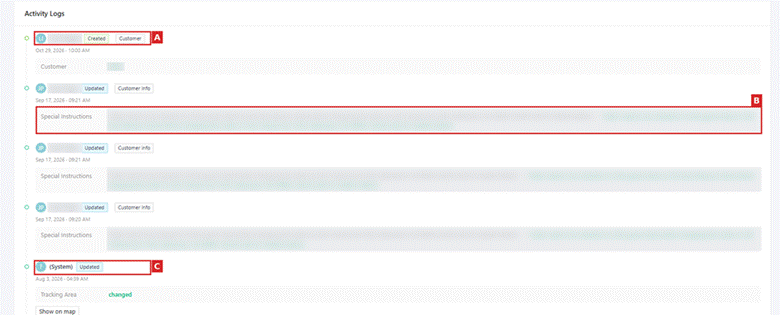
Click Show Activity on the place. The Activity Logs list every change with the user, the date, and the old and new values. Automatic changes show (System).
Frequently Asked Questions
Do I need to create places for every customer?
No. Places are created automatically from your loads. When Places is enabled, OpenRoad also builds your first places from your past loads.
I see the same facility twice. What do I do?
Merge the two places (Part 8) and keep the most complete one as Primary.
A load was marked Hot or High Value automatically. Why?
The customer on the destination place has that load flag on (Part 4).
Notes from a place are not showing on the load. Why?
Check the Special Handling Transfer setting (Part 5). With None, notes are not copied.
Can I import a list of locations?
Yes. Contact OpenRoad Support for the Places import template.
Some columns in the Customers section have no effect. Why?
Default Time, Advance Arrival and Late Tolerance are not available on every account.
Need help? Contact OpenRoad Support at help@openroadtms.com.
Was this article helpful?
That’s Great!
Thank you for your feedback
Sorry! We couldn't be helpful
Thank you for your feedback
Feedback sent
We appreciate your effort and will try to fix the article