The IFTA page shows, for any period you choose, the miles your drivers and trucks ran in each state, the fuel they bought in each state, and, for a quarter, the fuel tax you owe or can claim back in each state. You enter the tax rate of each state once per quarter and OpenRoad does the arithmetic. This article explains the four tabs (Drivers, Trucks, Gallons and IFTA), where every number comes from, how to enter the tax rates, and what to check before you rely on the totals.
OpenRoad calculates the figures for your return. It does not file the return for you. You take the numbers from the IFTA tab (or its CSV or Excel export) to your own filing.
Before you begin
- Switch on Company IFTA for every driver whose miles and fuel belong in your return. Open the driver, then the Overview tab, then the Compliance card (click the pencil to edit) and turn on Company IFTA. See Driver profile: Overview tab (Personal information to Rehire Eligibility cards). Drivers without it are left out of the IFTA tab and, by default, out of the other tabs too.
- Miles come from your loads. Loads need their stops with an appointment date, and the load must have a driver. Miles are counted only for loads that are not canceled and for drivers that are not marked Test Driver.
- Gallons come from fuel card transactions that have a driver and a state. See Fuel Transactions page (Fuel → Fuel Transactions): filters, Import, New Fuel Card Transaction and Export.
- Trucks need driver assignments. The Trucks tab puts a driver's miles on the truck the driver was assigned to. Check the start and end dates of the driver's truck assignments.
- You need access to IFTA in the Accounting menu (in Settings → Access the area is called Mileage). To type tax rates you also need permission to edit them: by default Accounting, Safety and Admin users have it.
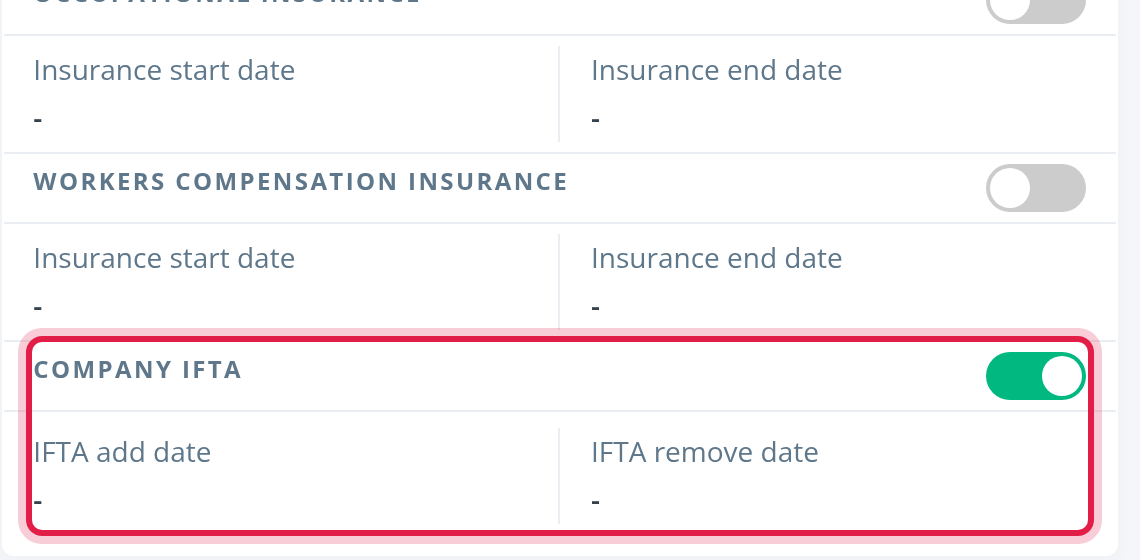
Only the driver's Company IFTA switch as it is today counts. The IFTA add date and IFTA remove date next to it are for your records and are not used in any calculation, and the Company IFTA setting on a truck is not used either. If you turn a driver's switch on or off, the figures of every period change, including quarters you have already filed. Take your export before you change it.
Part 1: Open the page
Open Accounting, then IFTA. The page is called Miles by states and has four tabs: Drivers, Trucks, Gallons and IFTA.
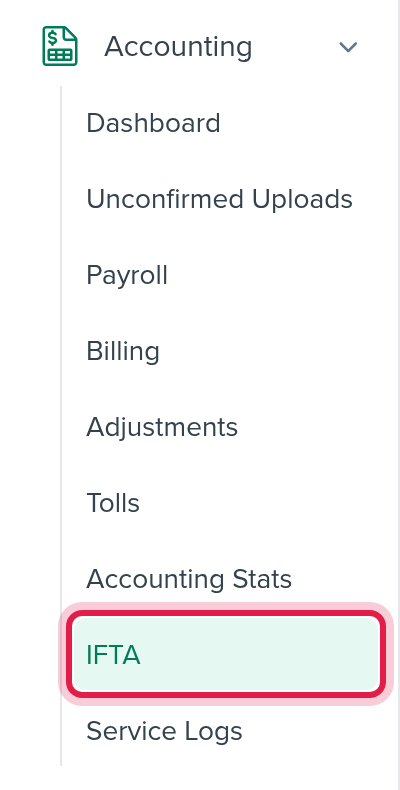
On the Drivers, Trucks and Gallons tabs:
- Start date and End date: the period to show. If you leave both empty, you see the whole previous calendar quarter.
- Company IFTA: Yes (the default), No or All. Yes shows only drivers with Company IFTA turned on.
- States: choose the states you want to see, or a whole group (all US states or all Canadian provinces). This only hides columns. It does not change the totals of the states you keep, or the MPG on the IFTA tab.
- Search shows the result. CSV and Excel download the table exactly as it is on screen, including the Total row.
The columns are every US state and DC, followed by the Canadian provinces.
Which date puts a mile or a gallon in a period. A mile belongs to the period of the appointment date of the load's last stop (the delivery). A fuel transaction belongs to the period of its own transaction date.
Part 2: The Drivers tab
Shows how many miles each driver ran in each state.
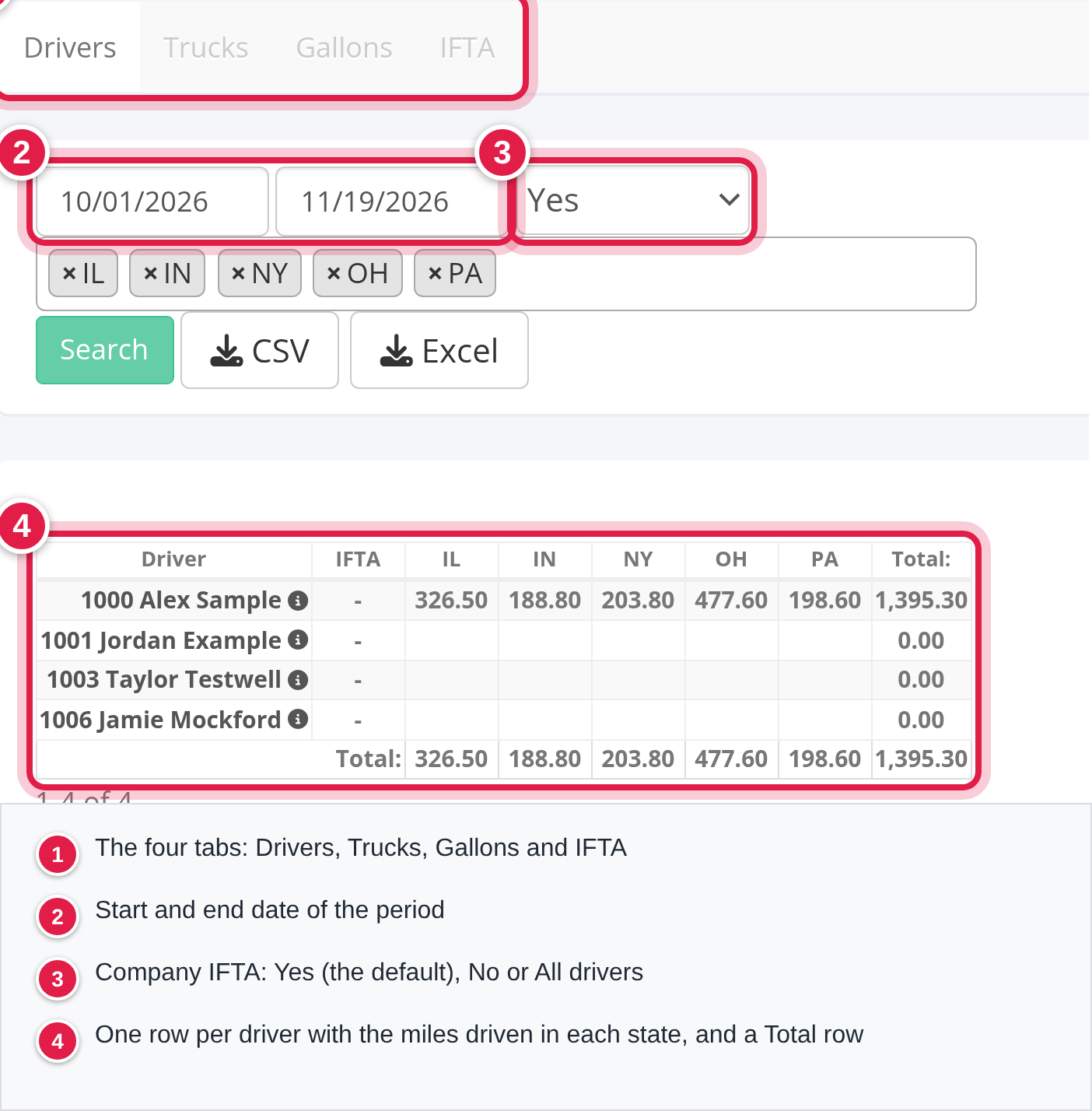
- One row per driver (driver number and name), one column per state, and a Total column and row.
- A cell is the sum of the driver's miles in that state in the period: loaded miles and empty miles, on all loads whose delivery falls in the period.
- Miles are shown with two decimals.
Part 3: The Trucks tab
Shows the same miles per truck.
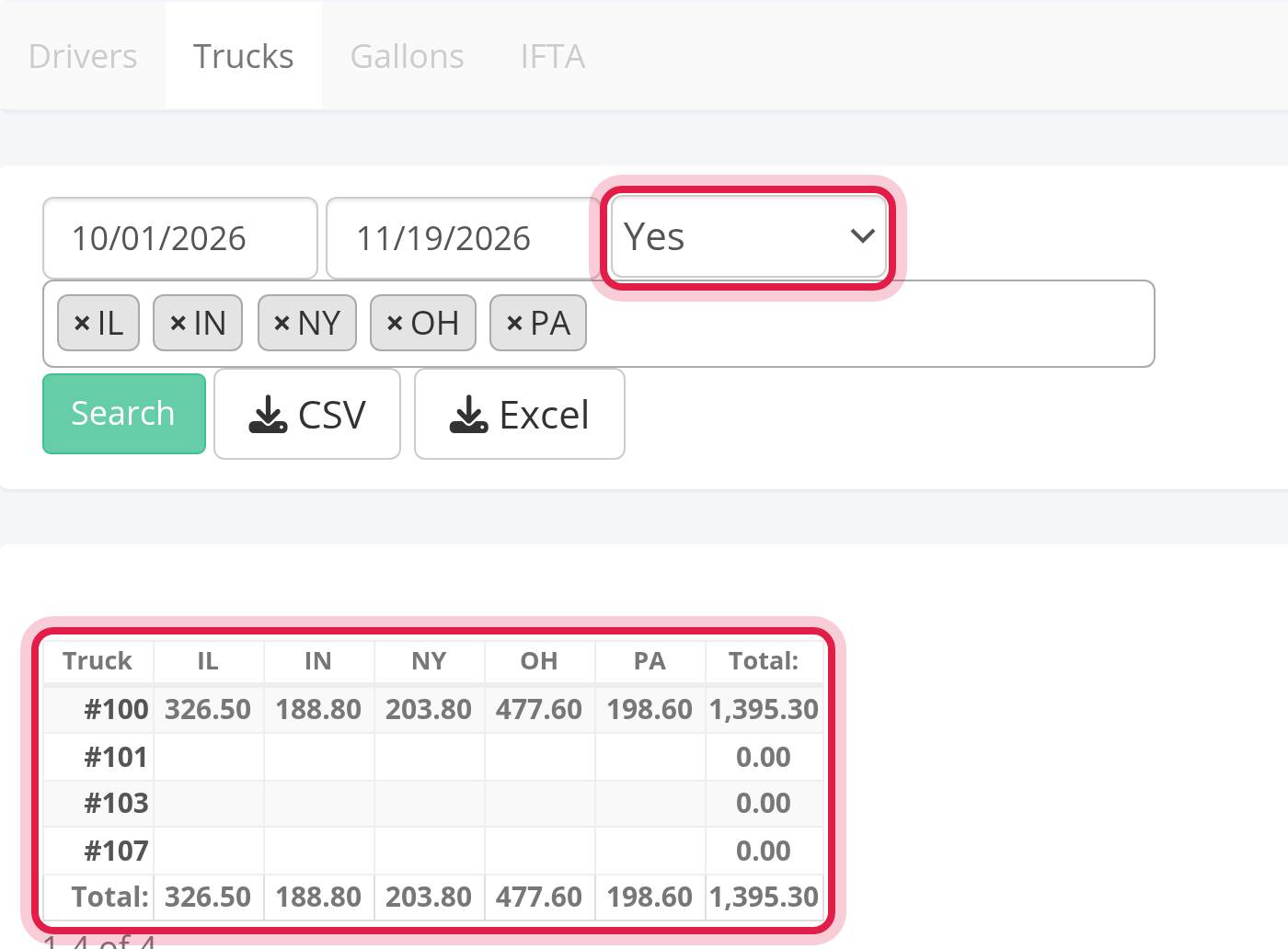
- One row per truck, with the unit number, one column per state and a Total.
- Each load's miles go to the truck the driver was assigned to. Miles of a driver who had no truck assigned are shown in a separate row at the bottom.
- The Company IFTA filter on this tab looks at the driver's switch, not the truck's.
Part 4: The Gallons tab
Shows the fuel your drivers bought in each state.
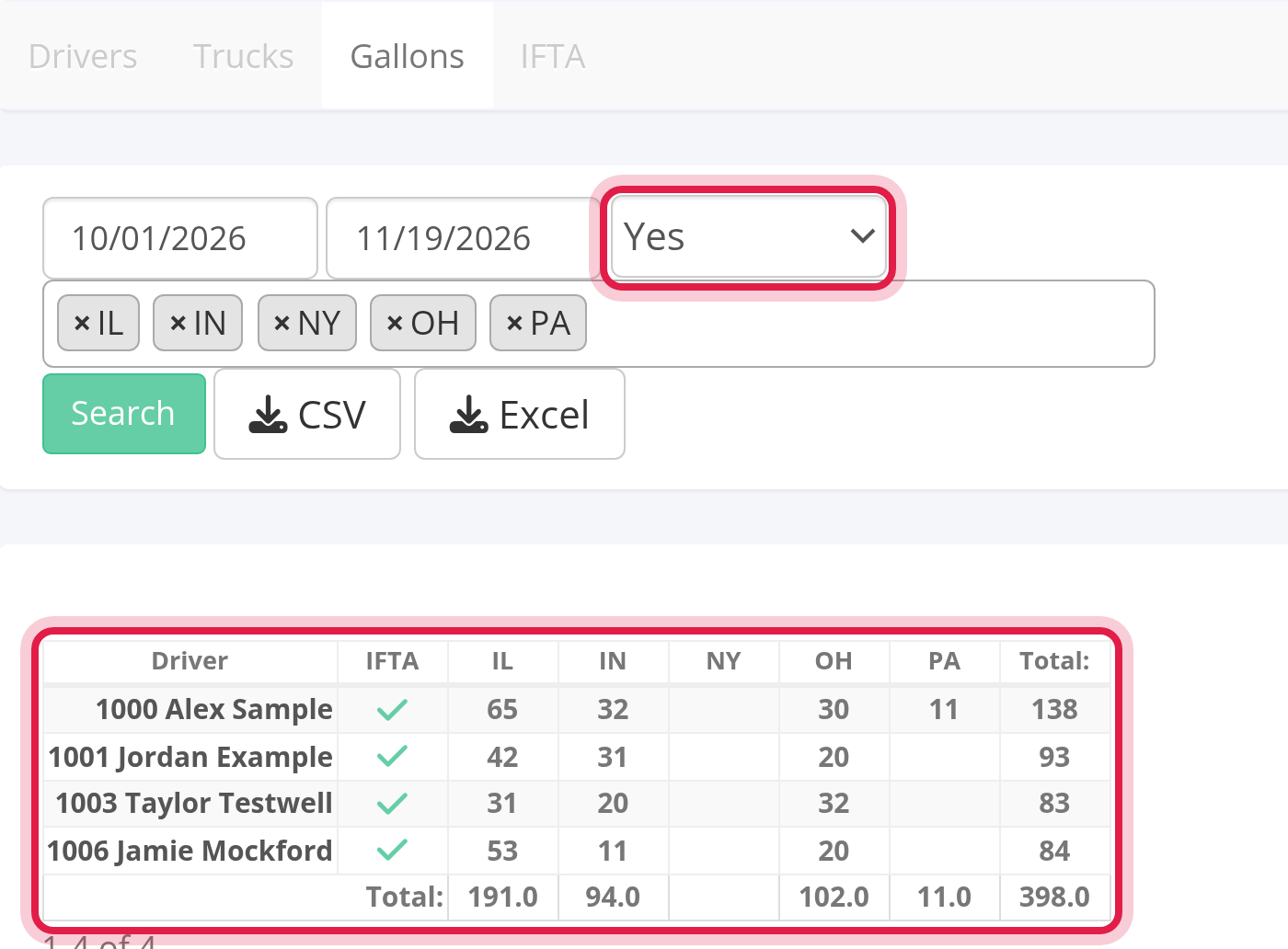
- One row per driver, with a check mark or a cross in the IFTA column (the driver's Company IFTA), one column per state and a Total.
- Only diesel gallons count. Other products on the transaction, such as DEF, are not included.
- The state is the state where the fuel was bought, as stored on the fuel card transaction.
- Every transaction is rounded to whole gallons before the transactions are added up.
- Transactions that are deleted or have no driver do not count. A transaction marked as cancelled does still count, so delete it if it must not be in your return.
Part 5: The IFTA tab (your quarterly return)
This is the tab you use for the return. It always uses Company IFTA drivers only and one whole quarter, which you choose in the quarter list (it opens on the previous quarter).
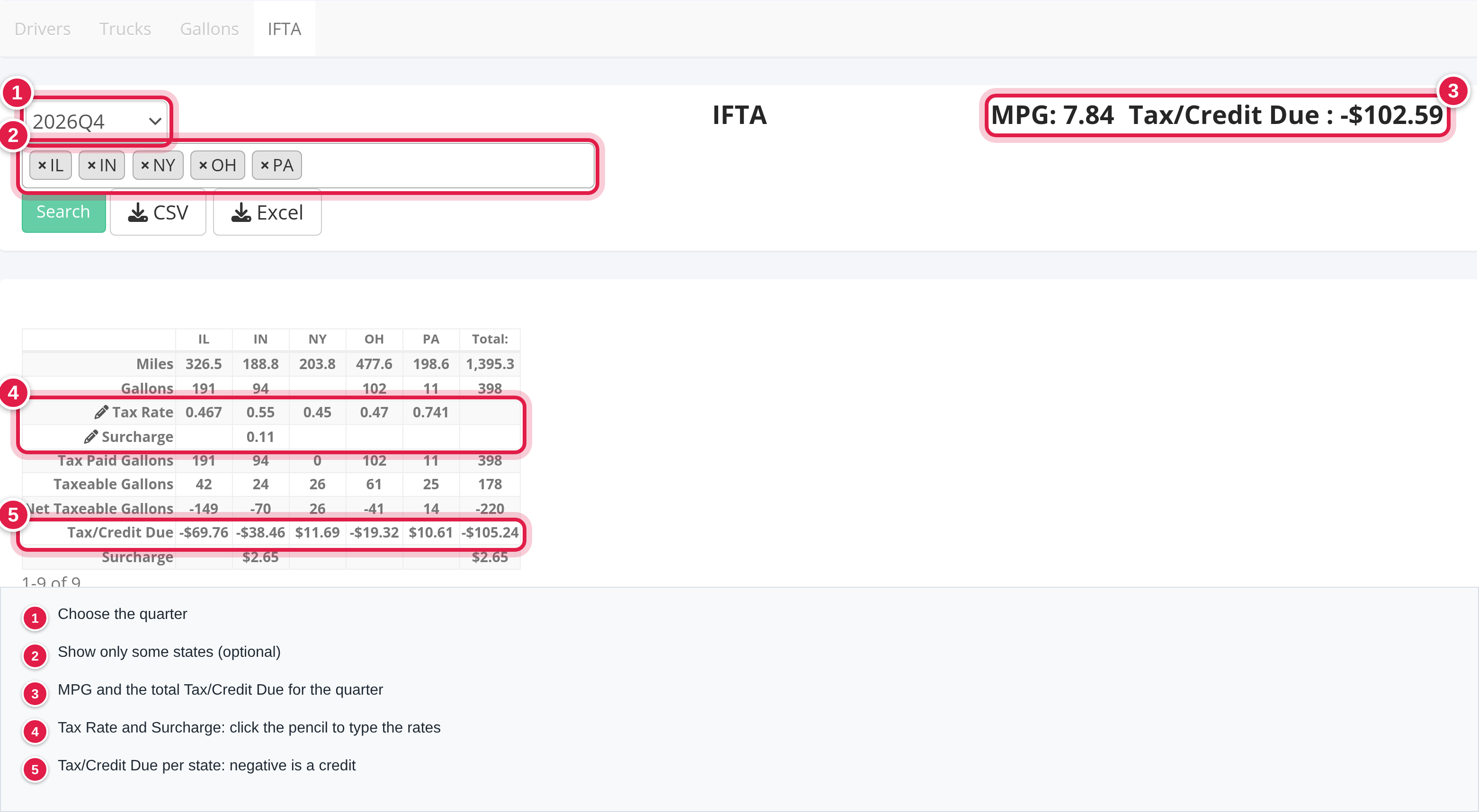
At the top right you see MPG and Tax/Credit Due for the quarter.
Step 1: Type the tax rates.
- Click the pencil next to Tax Rate. Every state you can see turns into an input.
- Type the tax rate per gallon of each state for the quarter.
- Click the save icon that replaces the pencil. The page reloads with the new figures.
- If a state charges a surcharge, do the same on the Surcharge row.

The rates start empty for every quarter and are not copied from the previous quarter, so type them again each quarter. Whatever you type is saved as typed (there is no check that it is a number). If you filtered the states, only the states you can see are saved and the other states keep their rates.
Step 2: Read the table. One column per state and a Total column:
| Row | What it shows |
|---|---|
| Miles | Miles run in the state by Company IFTA drivers in the quarter. |
| Gallons | Diesel gallons bought in the state by Company IFTA drivers (whole gallons). |
| Tax Rate and Surcharge | The rates you typed. |
| Tax Paid Gallons | The same gallons as above: the fuel you already paid tax on in that state. |
| Taxeable Gallons | The gallons you used in the state: the state's miles divided by the MPG. |
| Net Taxable Gallons | Taxeable Gallons minus Tax Paid Gallons. Negative means you bought more fuel there than you used. |
| Tax/Credit Due | Net Taxable Gallons multiplied by the Tax Rate. A negative amount is a credit. |
| Surcharge (last row) | Taxeable Gallons multiplied by the surcharge. Only for states where you bought fuel and a surcharge is typed. |
- MPG = all Company IFTA miles (all states) divided by all Company IFTA gallons (all states). It is the same MPG for every state.
- Tax/Credit Due at the top right adds up the Tax/Credit Due of the states you can see and their surcharges. The Tax/Credit Due row of the table does not include the surcharge.
- The States filter hides columns and the header total follows what you see, but the MPG and the gallons used in each state always use all states.
- Gallons are shown as whole numbers and money in cents.
Step 3: Take the numbers to your filing. CSV and Excel download the table as shown.
Extra tabs (only if OpenRoad turned them on for your account)
- IFTA drivers lists the owner-operators, leased owners and contract drivers with Company IFTA, miles and fuel in the quarter, one statement each. You can export the statements as PDF files, send them by e-mail to the driver's company e-mail (a driver whose company has no e-mail is skipped without a message), and export a CSV of the amounts for the quarter.
- NY HUT calculates the New York Highway Use Tax of your trucks from their New York miles and the loaded and empty rates you save for a period.
If you need either one, contact OpenRoad support.
Good to know
- Miles are not edited on this page. They come from the loads. To change a mile figure, correct the load (stops, driver, dates).
- Quarter rows are created automatically when loads with a delivery in a new quarter appear.
Frequently asked questions
Was this article helpful?
That’s Great!
Thank you for your feedback
Sorry! We couldn't be helpful
Thank you for your feedback
Feedback sent
We appreciate your effort and will try to fix the article