Documents that drivers scan or upload in the OpenRoad Driver app (proof of delivery, bill of lading, lumper receipts, scale tickets and more) wait on the Unconfirmed Uploads page until someone in accounting accepts or rejects them. This article shows how to review them one by one or in bulk, and what each action does.
Before you begin
- Drivers send these documents from the Scan feature of the OpenRoad Driver app. Which document types a driver can choose is set under Settings → Preferences → Mobile App → General → Scan document types. See "Driver app general settings".
- You need access to Unconfirmed Uploads in the Accounting menu. Confirming and rejecting are separate permissions, so a user may open the page and still not see every action.
- Uploads of the types Other and Safety are accepted automatically and never appear here.
What appears on the page
Every document a driver sent that has not been confirmed or rejected yet. The Type of each upload is one of:
- Proof of Delivery and Proof of Delivery (alt. version)
- Bill of Lading and Bill of Lading (alt. version)
- Lumper Receipt
- Scale Ticket and Scale Ticket (alt. version)
- Miscellaneous
An alt. version is a second, cleaned-up copy of the same document. When both copies are waiting on the same load, the page shows only the alt. version. Confirming it turns it into the normal type (for example Proof of Delivery).
If a driver sends a document for a load that is not theirs, the upload has no load. You can assign one (see "Assign a load").
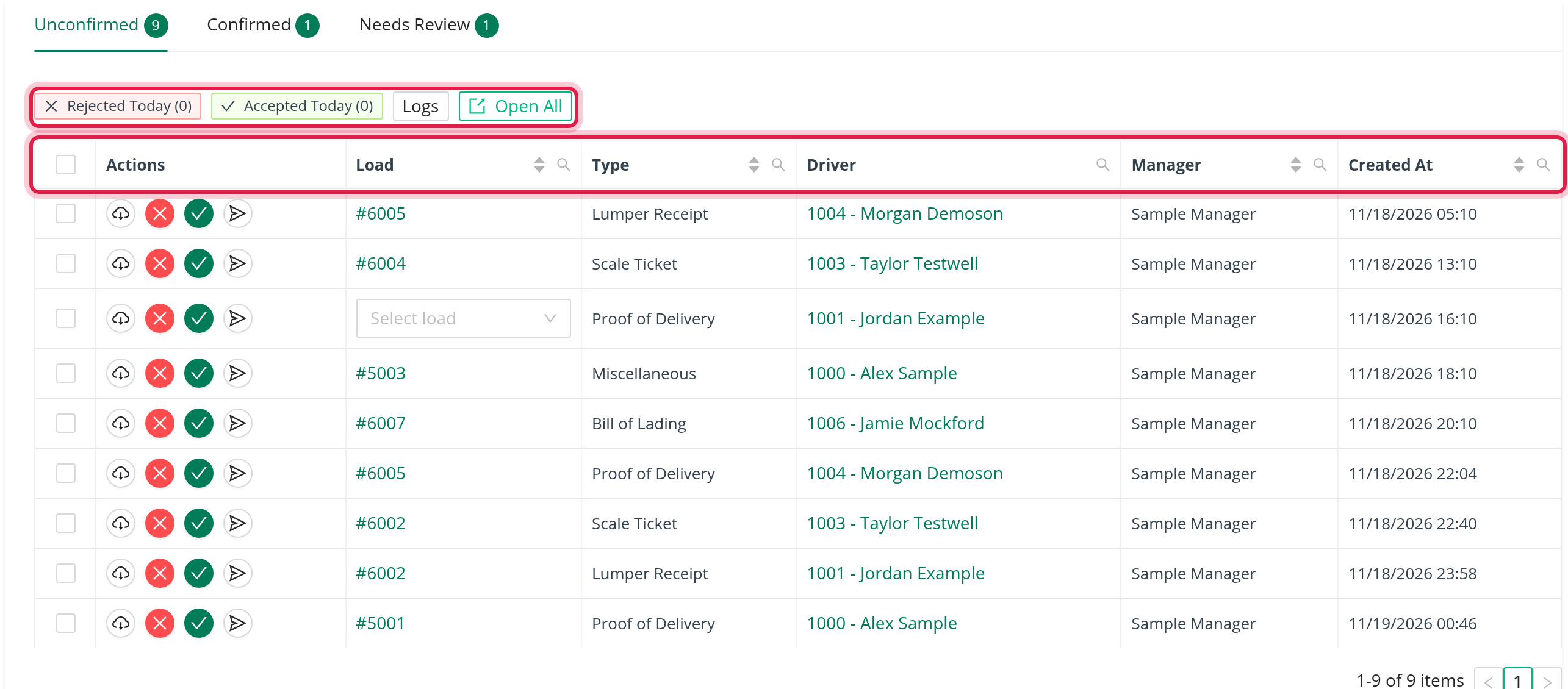
Part 1: Find the uploads you need
The table shows 20 uploads per page, newest first. The columns are Load, Type, Driver, Manager, Created At and Actions.
- Click a column title to sort by Load, Type, Manager or Created At.
- Use the filter of a column to narrow the list: a Load number, one or more Select types, a Driver No or name, a manager, or a Created At date range (month/day/year). The filters you apply appear as chips above the table, each with a clear button.
- Load is a link to the load. Driver is a link to the driver profile and shows the driver number and name. Manager is the driver's manager.
- Open All opens every load on the current page in its own browser tab, in edit mode.
- At the top, Rejected Today and Accepted Today show how many uploads were rejected and accepted today.
Part 2: Review one upload
- Click Download (the download icon in Actions) to open the file in a new tab. Check that it is the right document and readable.
- If the Load column shows Select load, the upload is not attached to a load yet. See "Assign a load".
- Click the check mark (Confirm) to accept it, or the red X (Reject) to refuse it. Each asks you to confirm: "Are you sure you want to confirm this file?" or "Are you sure you want to reject this file?".
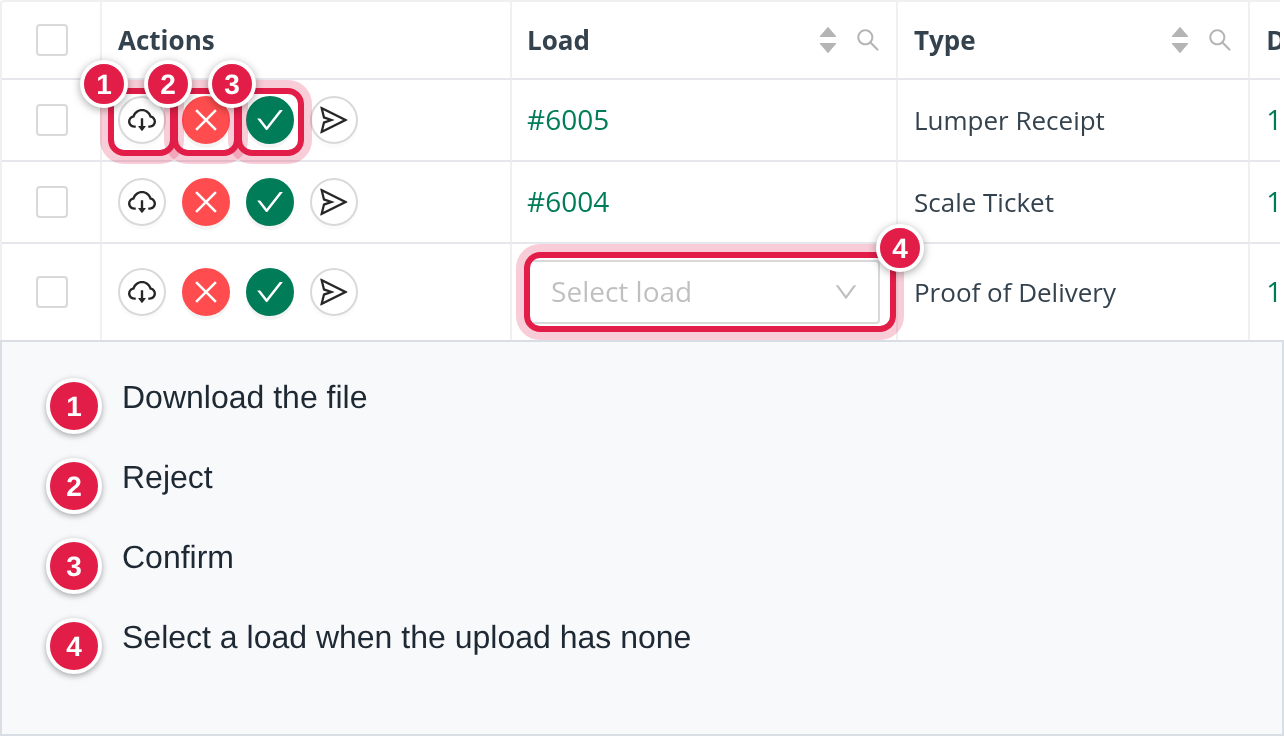
Confirm marks the upload as confirmed with your name and keeps the document on the load. A proof of delivery counts as received for the load only once it is confirmed, and unconfirmed documents are not handed out through OpenRoad's external API unless the request asks for them.
Reject removes the upload from the list and the file is no longer used. There is no reason field and the driver is not notified by OpenRoad.
You see "Upload(s) was marked as confirmed successfully." or "File successfully rejected.".
Assign a load
When an upload has no load, open the Select load list in the Load column. It lists the driver's current loads (searchable by load number). Pick the right one and the upload is attached: "Load was successfully assigned to the upload".
Part 3: Confirm or reject many at once
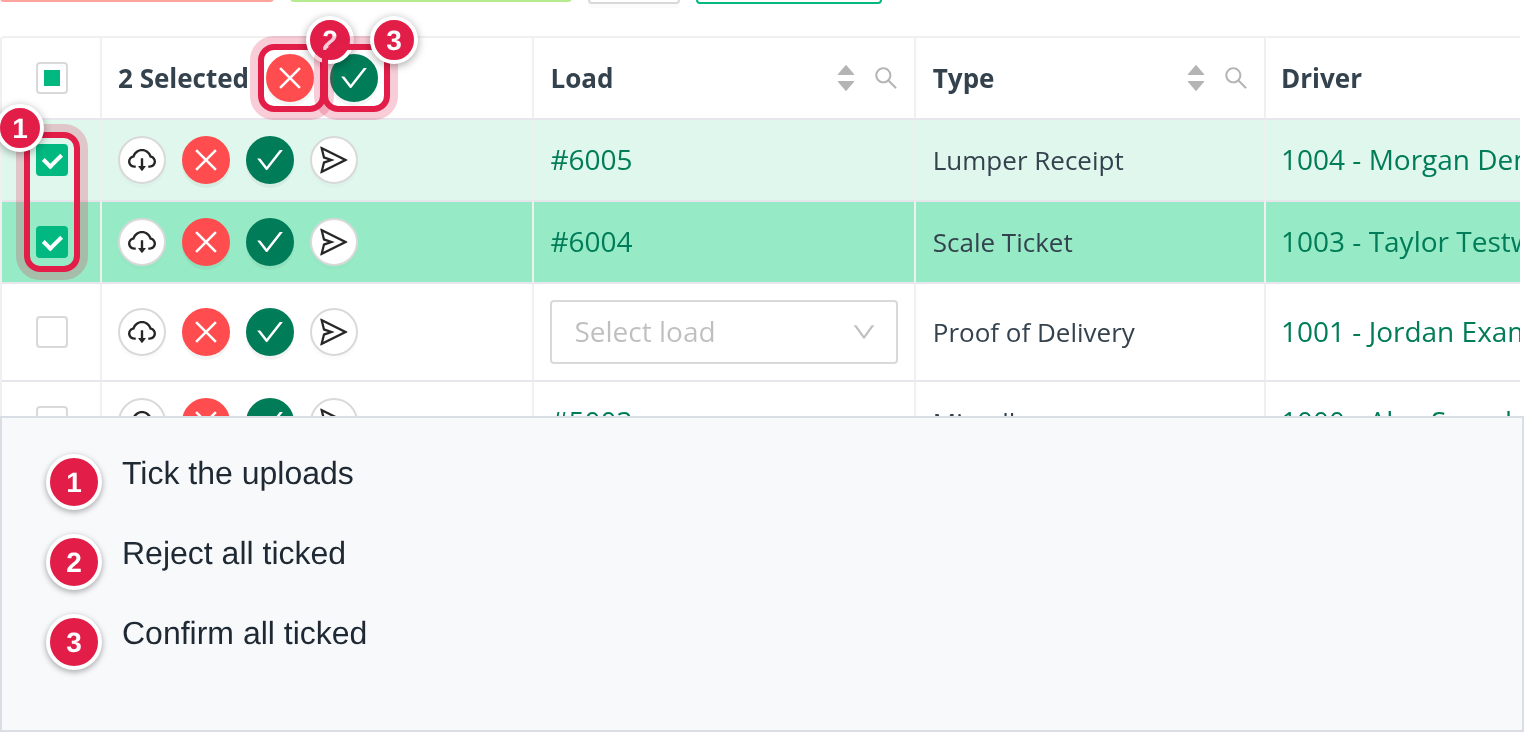
- Tick the boxes at the start of the rows. The Actions header becomes "N Selected", with a Reject and a Confirm button.
- Click one of them. The window Confirm uploads or Reject uploads asks "Do you want to confirm (or reject) N selected item(s)?".
- Confirm the window.
If one upload cannot be confirmed, OpenRoad stops and shows the reason; uploads handled before it stay confirmed.
The load page
The load's Uploads section also shows unconfirmed documents. A check button confirms the document there, and each file has a download link and a red X that rejects it.
Download the activity log
Logs (tooltip "Download upload logs (CSV)") downloads a log of the confirmed and rejected uploads. It is shown only to users who have the export permission.
Verification Robot (extra feature)
With the extra feature Unconfirmed Uploads Verification, the page gains three tabs, Unconfirmed, Confirmed and Needs Review, each with a count, and a robot can check driver documents for you. If you do not see these tabs and want them, contact OpenRoad Support at help@openroadtms.com.
For the full setup, what the robot does with each document and the daily report, see Unconfirmed Uploads Verification (EXTRA FEATURE): let the Verification Robot check your drivers' documents.
- A Superadmin sets it up under Settings → AI → Unconfirmed Uploads Verification: switch on Enable Verification Robot, choose the Document Types it should check (POD (Proof of Delivery), Scale Ticket, Lumper Ticket, Miscellaneous), and optionally add Custom Prompts and Account-Wide Consignee Rules.
- When the robot approves a document, it is confirmed automatically and appears on the Confirmed tab with System in the Confirmed By column. A line is added to the load log.
- When it does not approve, the upload goes to Needs Review with the Reason shown in red. You review it as described above.
- Send to verification (the paper plane icon on the Unconfirmed tab) sends one upload to the robot by hand.
- The Confirmed tab lists the uploads confirmed in the dates you choose (today by default) with Search.
- Bill of Lading documents are not checked by the robot.

Frequently asked questions
Was this article helpful?
That’s Great!
Thank you for your feedback
Sorry! We couldn't be helpful
Thank you for your feedback
Feedback sent
We appreciate your effort and will try to fix the article