A load goes through the same stages every time: you book it, assign a driver, dispatch it, the driver hauls it, it is delivered, you bill the customer, the customer pays, and your driver is paid. This article follows one load through those stages. For each stage it shows what you do, what OpenRoad TMS does by itself, and which articles explain the detail.
Before you begin
- Who changes a status. A load's status is changed by a person, by GPS tracking, or by an action on the Billing page. The buttons in the Driver app change what the driver sees, but not the status of the load. Part 1 shows, for every status, what moves a load into it.
- What you need first. Your customers, drivers, trucks and trailers need to exist. See Getting started: set up OpenRoad TMS step by step.
Part 1: The statuses and what moves a load into each
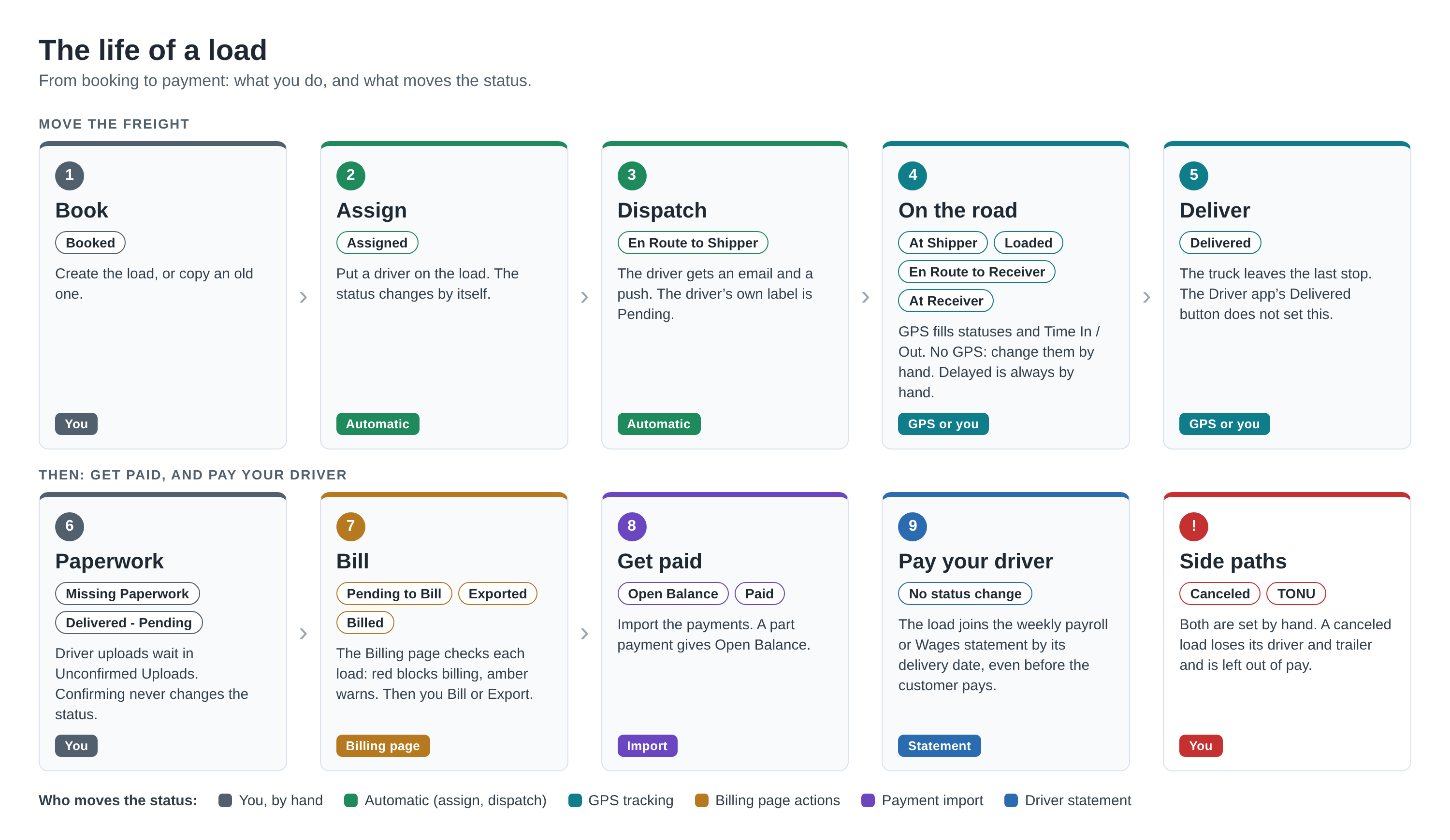
Anyone who may edit the load can also pick any status by hand while editing it. This table shows what happens without anyone picking it.
| Status | What it means | What moves a load there |
|---|---|---|
| Booked | The load has no driver. | A copy of a load starts here. Removing every driver from a load puts it back here. |
| Assigned | A driver is on the load, but the load is not dispatched. | Automatic: you assign a driver to a Booked load. |
| En Route to Shipper | The driver is on the way to the pickup. | Automatic: you dispatch an Assigned load. |
| At Shipper | The truck is at the pickup. | GPS tracking, or by hand. |
| Loaded | The truck left a pickup and the next stop is not a delivery. | GPS tracking, or by hand. |
| Delayed | The load is late. | By hand. |
| En Route to Receiver | The truck left a stop and the next stop is a delivery. | GPS tracking, or by hand. |
| At Receiver | The truck is at the delivery. | GPS tracking, or by hand. |
| Delivered | The load is delivered. | GPS tracking, or by hand. |
| Delivered - Pending | A hold between delivery and billing. It can still be billed. | By hand. |
| Missing Paperwork | The load waits for a document. | By hand. |
| Pending to Bill | The load needs accounting's attention before it is billed. | By hand, or when you export a Delivered - Pending load, or when you use Revert to Pending to Bill on the Billing page. |
| Exported | The load was exported from the Billing page. | Automatic: the export action on a Delivered load. |
| Billed | The invoice was sent. | Automatic: the Bill action on the Billing page. |
| Billed - Pending Acc. | The invoice was sent for a load that was Pending to Bill, and accounting has not confirmed it yet. | Automatic: the Bill action on a Pending to Bill load. A person moves it on. |
| Paid | The customer paid. | Automatic: a paid import. Or by hand. |
| Open Balance | The customer paid part of the invoice. | Automatic: the Import Open Balance action. |
| Canceled | The load is canceled. | By hand. |
| TONU | Truck ordered, not used. | By hand. |
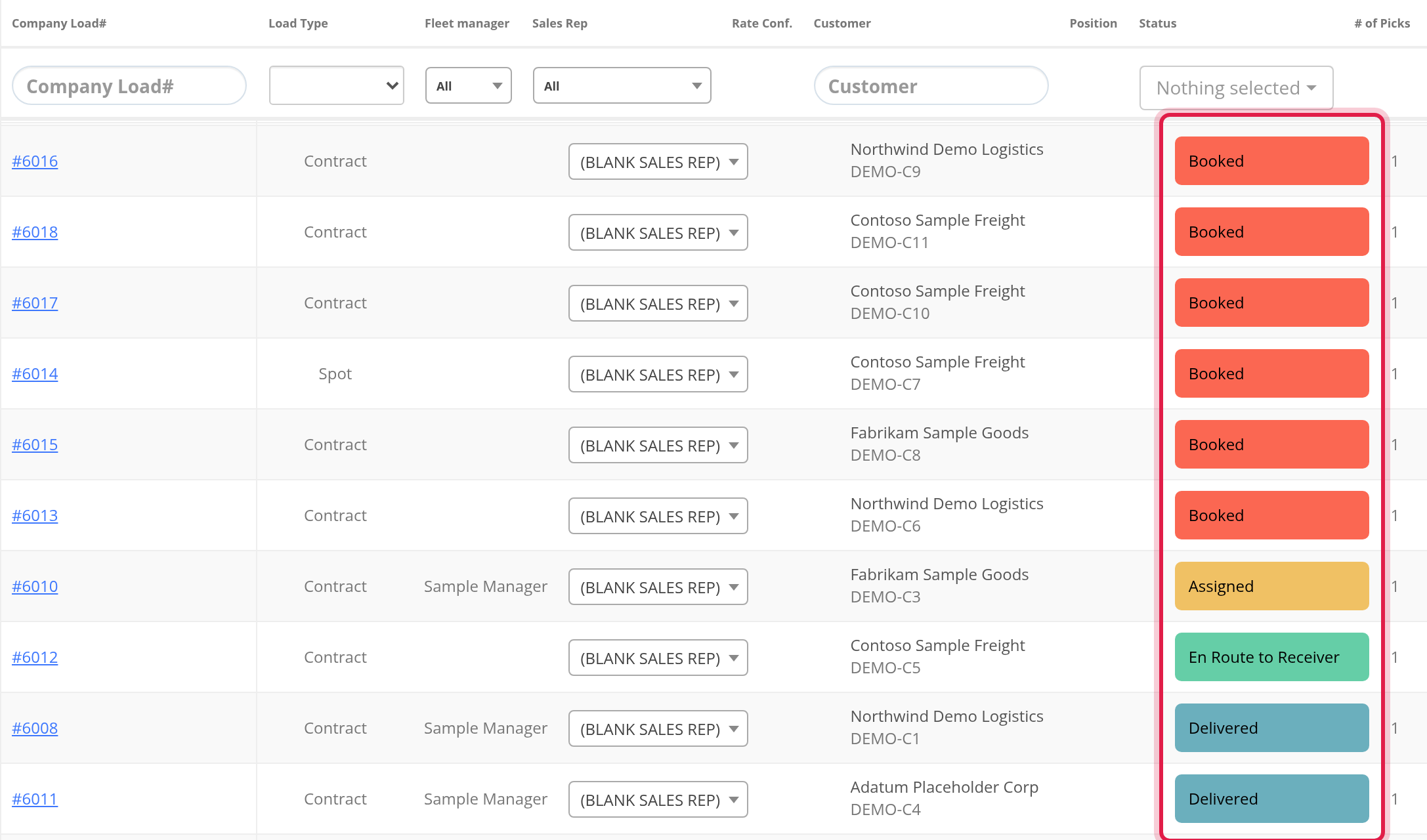
In All Loads, every status has its own colour, so you can read the state of your loads at a glance.
Part 2: Book the load
Create the load with the customer, the stops, the rates and the equipment you need. See Load form: create, copy and edit a load (Add Load) to create it, and Load profile: status, uploads, charges, stops, notes and Load Logs to follow it afterwards. To find a load later, or to change its status without opening it, use All Loads page (Loads → All Loads): find loads, filters, columns, status and Export.
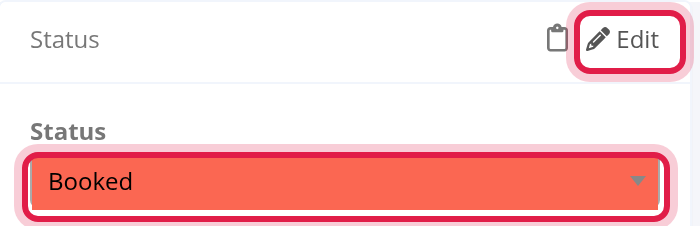
On the load, the Status panel shows the current status. Select Edit to change it.
- A load you copy is a new, unsaved form with the status Booked. Nothing is stored until you save it.
- When the customer is set to Billing Hold, a new load gets the Billing Hold flag. It stays out of the way of billing until you release it (Part 7).
Part 3: Assign a driver
Assign the driver on the stop (in the Stops panel of the load) or from All Loads. The load changes from Booked to Assigned by itself. If your account sends driver notifications, the driver gets an email when they are assigned.
If you remove every driver from the load, it goes back to Booked.
Part 4: Dispatch
Select Dispatch on the load, or the phone icon on the driver's row. Dispatch:
- Checks your rules. If your account requires the driver app time, every driver stop needs a Driver App Time To first.
- Tells the driver. The driver is placed in Pending. A driver who uses the OpenRoad Driver app gets a dispatch email and a push notification.
- Moves an Assigned load to En Route to Shipper. A load that is only Booked stays Booked.
When you dispatch, you can also write the instructions your driver reads: see Driver instructions (EXTRA FEATURE): write, summarize and send the instructions your driver gets with a load.
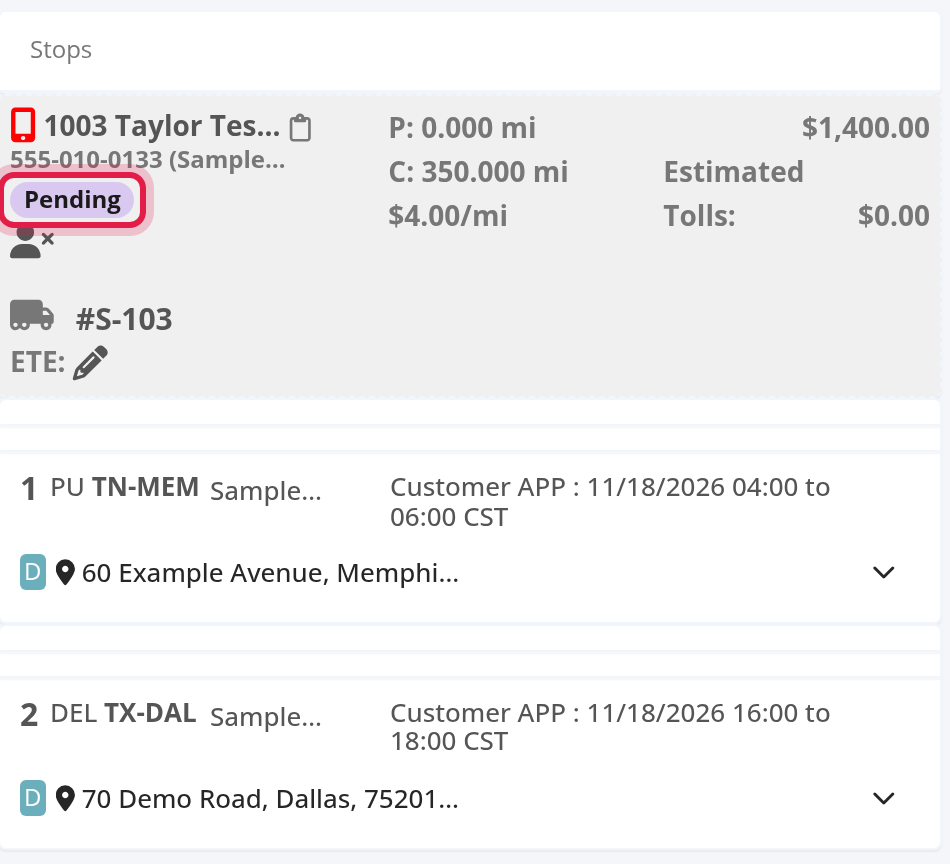
What the driver does in the app. The driver sees the load with a status of their own: Pending, Assigned, Accepted, In Transit or Delivered. The driver taps Accept, then In Transit and Delivered. These change what you see under the driver in the Stops panel. They do not change the status of the load. A driver cannot reject a load in the app: a driver who cannot take a load contacts dispatch. See Using the Driver app.
Under each driver in the Stops panel, a label shows the driver's own status for the load. Here it is Pending.
Part 5: On the road
With GPS, the statuses and the times fill themselves. When the truck arrives at a stop, OpenRoad sets At Shipper or At Receiver and fills Time In. When it leaves, it sets Loaded, En Route to Receiver or, after the last delivery, Delivered, and fills Time Out. It fills a time only when it is empty, so what you typed stays. This needs a GPS or ELD source connected to your trucks, such as Samsara Integration: connect Samsara and match your trucks, trailers and drivers or Motive Integration: connect Motive to OpenRoad TMS (one account or several).
Without GPS, change the status and the times by hand on the load.
Good to know:
- Delayed is never set by itself. Set it by hand when a load is late.
- If your account requires Time In and Time Out, a load cannot be saved as Delivered or Delivered - Pending until every stop has both.
- Customer emails. When the customer has status emails turned on and the load has a notification email, the customer is emailed when the load becomes At Shipper, Delayed, En Route to Receiver, At Receiver, Delivered or Canceled.
Part 6: Delivered, and the paperwork
Your driver sends the documents from the app: the proof of delivery (the bill of lading), lumper receipts and scale tickets. They do not go straight onto the load. They wait on the Unconfirmed Uploads page until accounting confirms or rejects them: see Unconfirmed Uploads: review, confirm or reject the documents your drivers send from the app.
The Unconfirmed Uploads page lists every upload that waits for a decision.
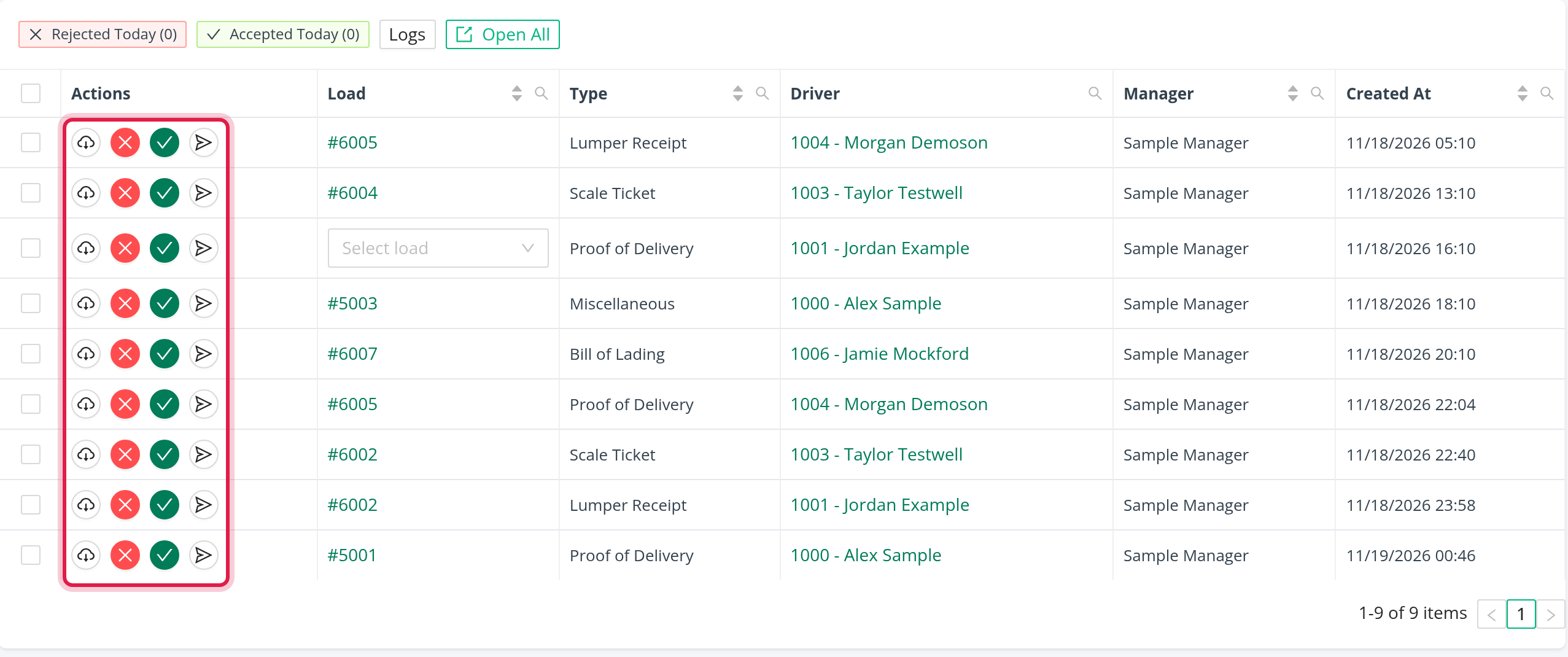
- Confirming a bill of lading sends the confirmation email for it.
- Rejecting a document removes the file.
- Neither changes the status of the load. They only decide whether the load is ready to bill (Part 7).
- A proof of delivery that an office user uploads on the load counts as confirmed at once.
Two statuses are yours to use by hand: Missing Paperwork while a document is still coming, and Delivered - Pending to hold a delivered load before billing. A load never moves to Pending to Bill because a document arrived.
Part 7: Bill the customer
Open the Billing page. It lists your Delivered, Delivered - Pending, Billed, Paid and TONU loads by default, with a button for each status that shows how many loads it holds. For how to work the page, see Billing: review delivered loads, fix what blocks an invoice, bill your customers and export to accounting.
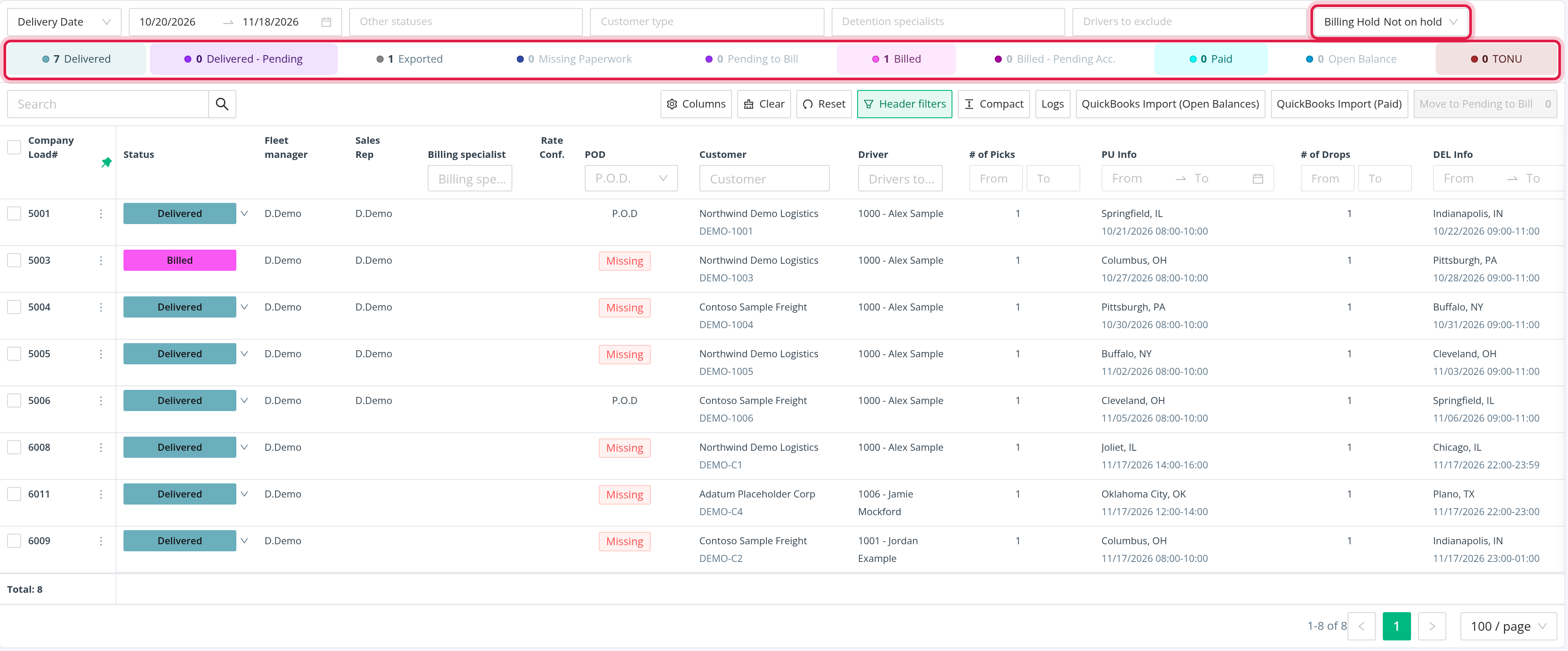
Click a load number to open its drawer. At the top, OpenRoad lists what it found on the load:
- Blocks billing (red): the load cannot be billed until this is fixed. Examples: a linehaul rate of 0 (unless your billing settings allow it), a missing invoice email when the customer has no factoring company, no billing profile or customer, a weight problem, and the requirements of customers who receive invoices by EDI.
- Warning (amber): the load can still be billed, but check it first. Examples: a missing proof of delivery, a proof of delivery that nobody confirmed yet, and the Billing Hold flag.
- Note (grey): for your information, for example that the rate confirmation is missing.
Billing Hold keeps a load out of the way: the page shows loads that are Not on hold by default, and you can switch the filter to All or On hold. A person can set the flag, and it is set at creation when the customer has Billing Hold turned on.
The Bill action sends the invoice to the customer's invoice email, or to the factoring company if the customer has one, and sets the status Billed. A load that was Pending to Bill becomes Billed - Pending Acc. instead. The Export action sends the load to your accounting software and sets Exported (a Delivered - Pending load becomes Pending to Bill). Your logo and invoice text come from Settings → Account → Billing: customize invoices with billing profiles, your logo, company details and invoice text.
Locked statuses. Your account can lock some statuses. Editing a load in a locked status asks for the Load Password, unless you are an Admin or accounting user. The password is set in Settings → Account → Passwords: set the access codes for payroll, loads and fuel transactions, and the team goal.
Part 8: Get paid
When the customer pays, the load becomes Paid. This is done by an import: Import Paid and Import Open Balance in the menu of the Billing page, or the payment import of your accounting integration, such as QuickBooks Online Integration: send invoices and driver settlements to QuickBooks and import payments. A load that is part paid becomes Open Balance and then Paid when the rest arrives. You can also set a status by hand.
Part 9: Pay your driver
A load goes into a driver's weekly payroll or Wages statement by the date of its delivery stop, using the date you chose in Statement Date: Customer App Date, Customer App. Time To or Delivery Time Out. See Settings → Account → Wages: choose the statement date, the statement miles and the Wages fuel fees.
- A load that is Canceled or only Assigned is left out. Every other status is included, so a delivered load is paid even before the customer pays.
- Review, adjust, lock and send the statement: see Driver profile: Statements tab (weekly statements: review, adjust, send and lock) and Wages: the complete guide to driver statements, driver pay, locking, sending and exports.
- Each driver needs a payroll schedule and a compensation first: see Driver profile: Accounting tab (Compensation, Tax, Payment info, Driver Vacation and adjustments).
- Vendors and carriers are paid from carrier payment statements, built for each load.
Part 10: Cancel, TONU, split and copy
- Cancel: set the status Canceled. The drivers and the trailer are removed from the load, and payroll ignores it.
- TONU (truck ordered, not used): set the status TONU. OpenRoad rewrites the load: the miles go to 0 and only the first stop is kept, with a new delivery stop. A TONU load can still be billed, and your driver keeps it in pay.
- Split a load at a trailer drop: see Load Split: hand a load to a second driver at a trailer drop.
- Copy a load: see Part 2.
FAQ
Was this article helpful?
That’s Great!
Thank you for your feedback
Sorry! We couldn't be helpful
Thank you for your feedback
Feedback sent
We appreciate your effort and will try to fix the article