The Billing page is where your accounting team turns delivered loads into invoices. It lists the loads that are ready to bill, shows what is missing on each one (a proof of delivery, an AP e-mail, a rate), lets you fix it on the spot, and sends the invoices to your customers with one click. This article explains the page, the checks that run before an invoice is sent, how to bill one load or many, how to export to your accounting system and where to follow what was sent.
Before you begin
- You need access to Billing in the Accounting menu. Which buttons you see (Bill, Logs, exports, imports, Edit load) depends on your permissions.
- A load is normally billed after it is Delivered, and its proof of delivery (P.O.D) is attached. Drivers send the POD from the OpenRoad Driver app; see Unconfirmed Uploads: review, confirm or reject the documents your drivers send from the app.
- Every customer needs billing information: a Billing preference, a Billing profile and, unless you use a factoring company, an AP E-mail (the address that receives the invoice). Your company details and logo on the invoice come from your billing profile; see Customize invoices.
- If you bill customers for extra charges such as detention or lumper, see Additional Charges: set up charge types, add them to loads and see them on the invoice.
Part 1: Find the loads you want to bill
Open Accounting, Billing. The page shows one row per load, 100 rows per page.
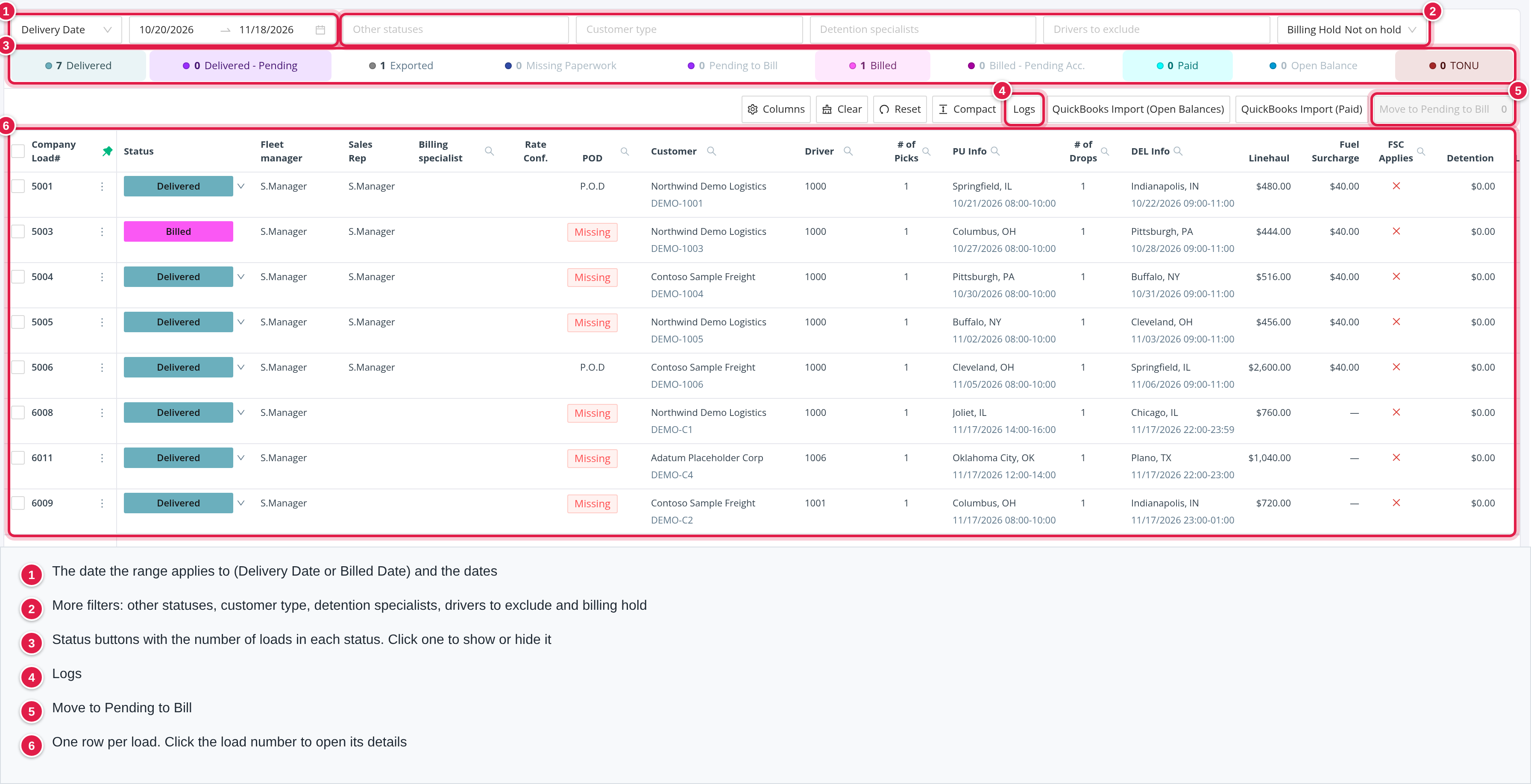
The filters at the top
- Delivery Date or Billed Date: the date the range next to it applies to. Hover over the field to read "The date range in the bar uses this date." When you open the page the range is today, so widen it to see older loads.
- Other statuses: loads that are not delivered yet (Booked, Assigned, En Route to Shipper, At Shipper, Loaded, Delayed, En Route to Receiver, At Receiver).
- Customer type, Detention specialists and Drivers to exclude.
- Billing Hold: All, Not on hold (the default) or On hold.
- Lane rate validation appears only if your account uses lane rate validation (see "Lane rate validation").
The status buttons show how many loads each status holds under your filters. Click a status to show or hide it; at least one status must stay selected. The statuses are Delivered, Delivered - Pending, Exported, Missing Paperwork, Pending to Bill, Billed, Billed - Pending Acc., Paid, Open Balance and TONU. When you open the page, Delivered, Delivered - Pending, Paid, Billed and TONU are selected.
Filters in the column headings. Columns with a magnifying glass icon (Customer, Driver, Billing specialist, Billing preference, Billing profile, AP E-mail, POD and others) have their own filter. Click the icon, type or choose a value and click Search. Each active filter appears as a tag above the table that you can close.
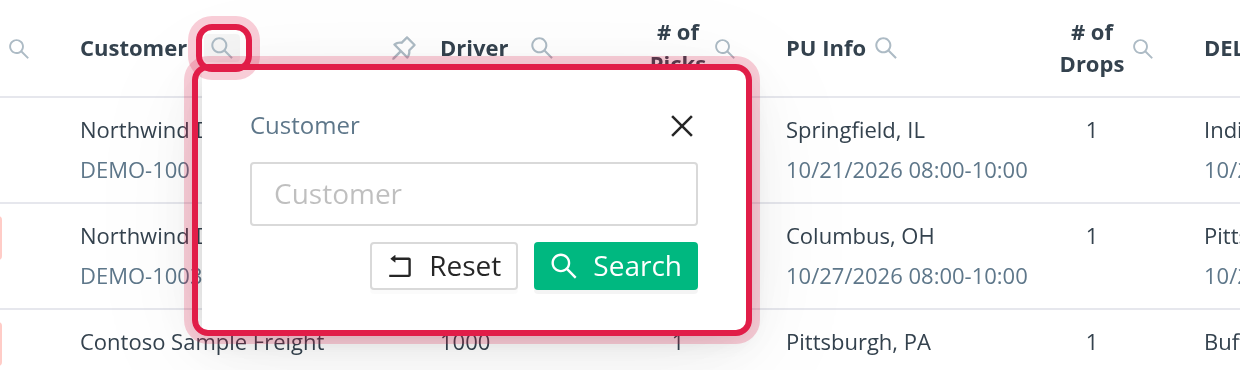
Clear filters puts everything back to the defaults. When nothing matches you see "No loads match these filters".
Part 2: Read the table
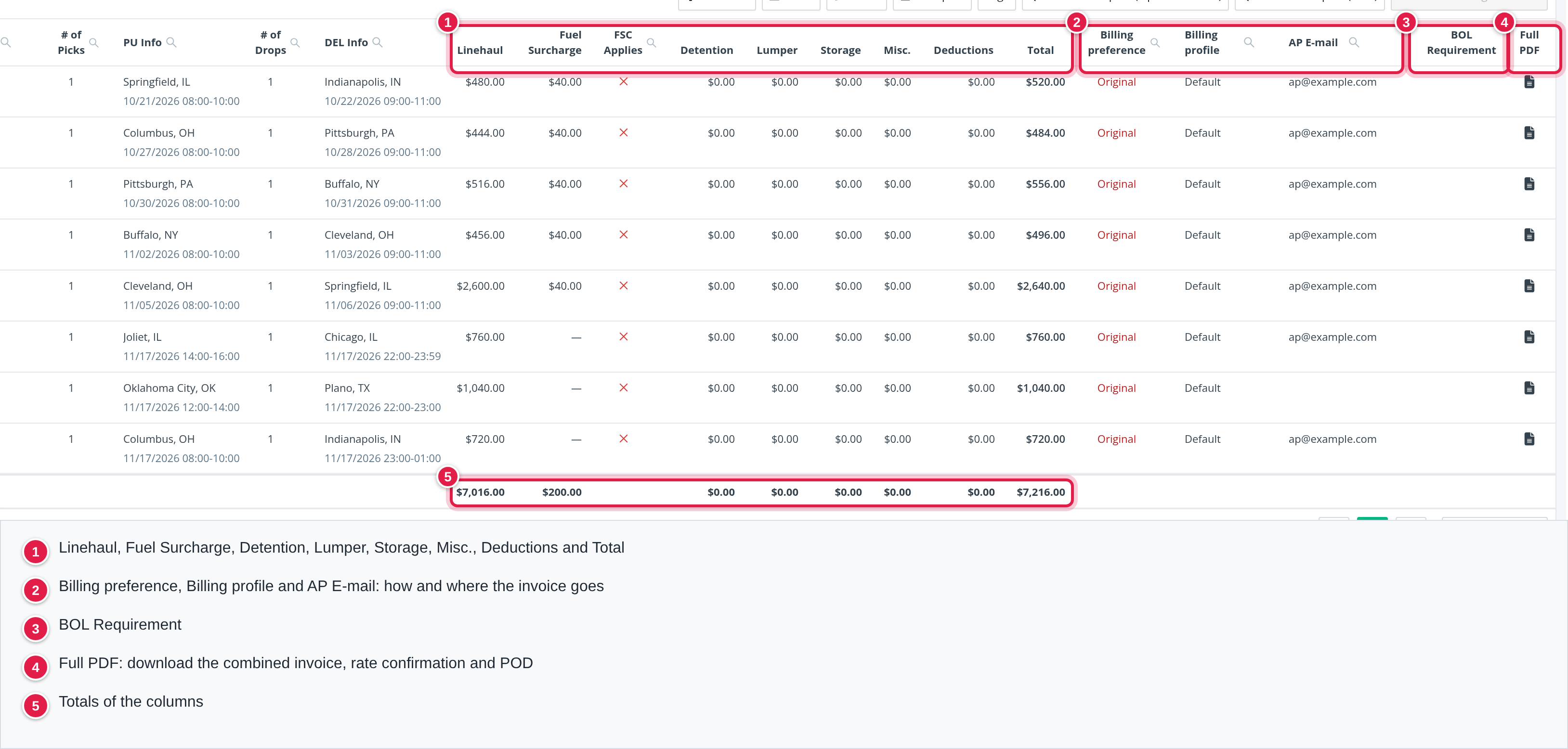
The columns are, from left to right: Company Load#, Status, Fleet manager (Planner on brokerage accounts), Sales Rep, Billing specialist, Rate Conf., POD, Customer, Driver, # of Picks, PU Info, # of Drops, DEL Info, the money columns, Billing preference, Billing profile, AP E-mail, BOL Requirement and Full PDF.
- A red HOLD label next to the load number means the load is on billing hold.
- POD shows the link of the proof of delivery, or Missing in red.
- The money columns are Linehaul, Fuel Surcharge, FSC Applies, Detention, Lumper, Storage, Misc., Deductions and Total. A red cross under FSC Applies means the customer has no fuel surcharge. A Linehaul or Fuel Surcharge amount can be tinted when a rate check found a difference (see "Lane rate validation").
- Full PDF (the file icon, "Download combined PDF") downloads the packet your customer receives: the invoice together with the rate confirmation and the proof of delivery. It is shown only if you have access to it.
- Under the table, Total: N counts all loads that match your filters, Current Page: N the rows on the page, and the money columns are totaled.
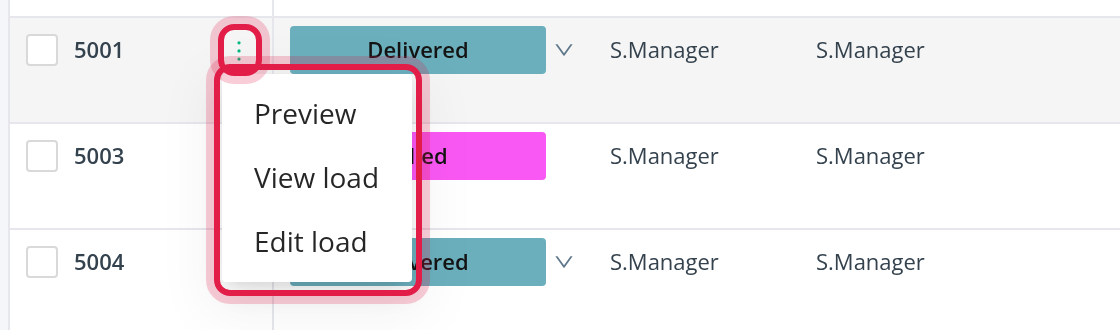
The menu next to each load number (the three dots) has Preview (opens the load drawer, see Part 3), View load and Edit load. If your account locks loads in certain statuses, Edit load asks for a password unless you are an Admin or an Accounting user.
Part 3: Check one load in the drawer
Click a load number, or Preview, to open the drawer on the right. The arrows at the top move to the previous and next load of the list, so you can check the whole page without closing it.
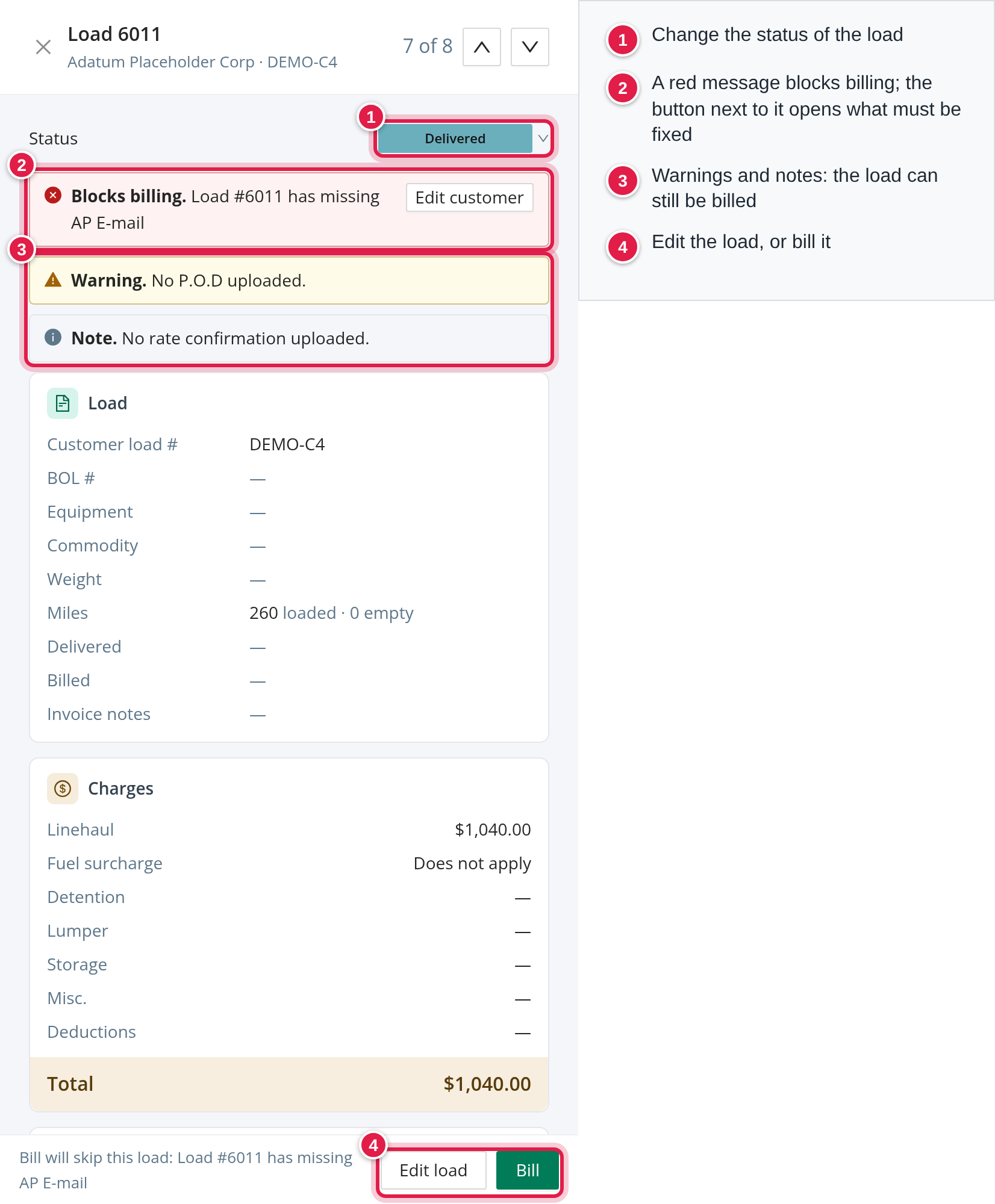
At the top of the drawer, under Status, OpenRoad lists what it found on the load:
- Blocks billing (red): the load cannot be billed until this is fixed. The button next to the message takes you to the fix: Edit customer, Edit load, Confirm (extra invoice details) or Review (a rate difference).
- Warning (amber): the load can still be billed, but check it first. For example "No P.O.D uploaded." or "P.O.D uploaded and not confirmed.".
- Note (grey): for your information, for example "No rate confirmation uploaded.".
What blocks billing. A load is not billed when one of these is wrong: the linehaul is 0.00 (unless the customer's billing settings allow zero-linehaul invoices), the load weight, a missing AP E-mail (when no factoring company is used), a missing billing profile or customer, a customer without a Billing preference, or, for EDI customers, the EDI invoice option or the confirmation of the extra invoice details. A billing hold, a missing or unconfirmed POD and rate differences only warn you.
The drawer then shows the load in cards: Load (customer load number, equipment, commodity, weight, miles, dates, invoice notes), Charges (each billing field and the Total) and Route (pickups and deliveries).
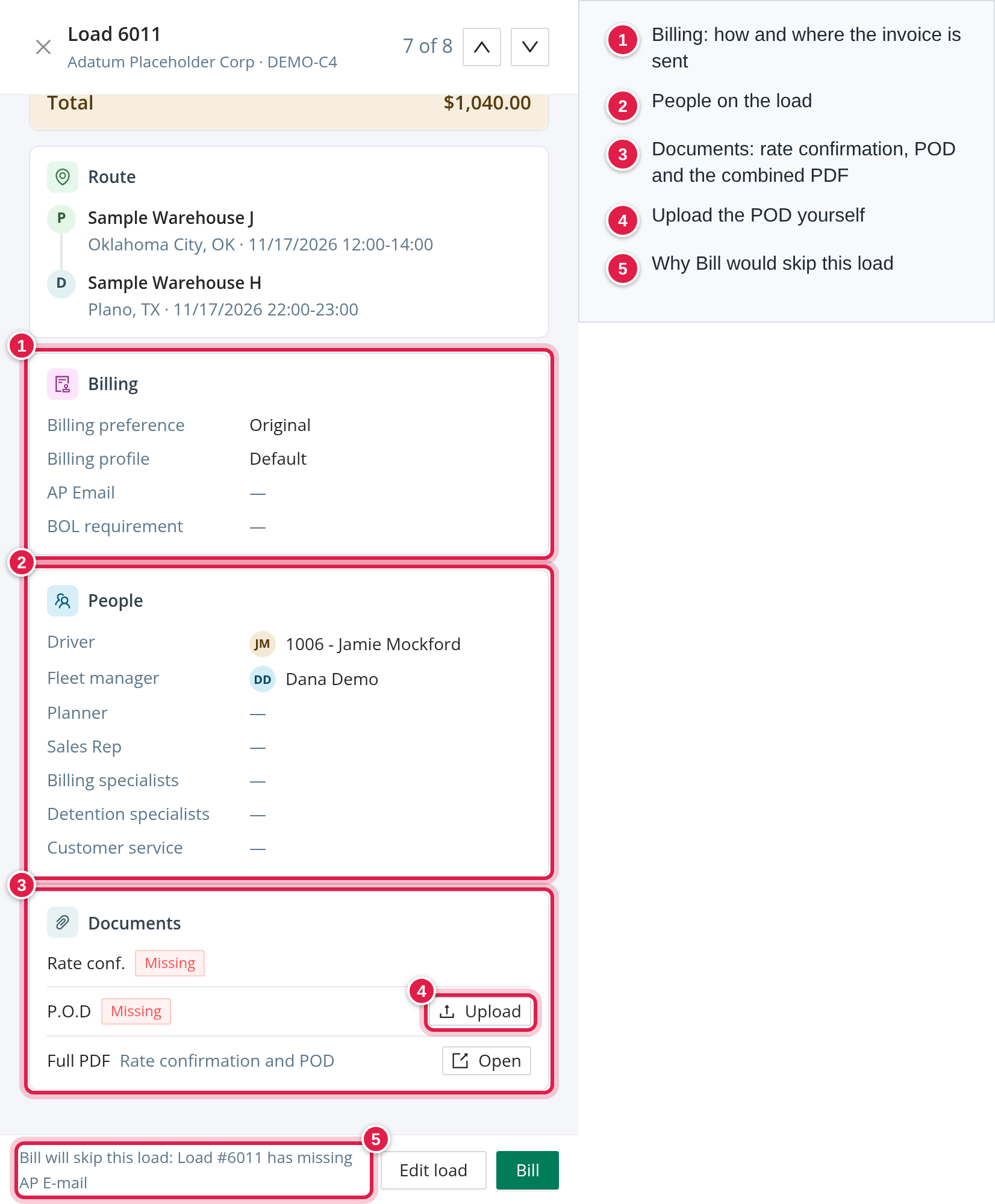
- Billing shows the customer's Billing preference, Billing profile, AP Email and BOL requirement. A missing profile is shown in red.
- People lists the driver, fleet manager, planner, sales rep, billing specialists, detention specialists and customer service.
- Documents shows whether the rate confirmation (Rate conf.) and the P.O.D are uploaded, with a Download button for each. If the load has no proof of delivery, Upload lets you attach the file yourself; you see "P.O.D uploaded successfully.". Full PDF opens the combined packet.
- The footer of the drawer says what will happen: for example "Bill will skip this load: ...", "N warning(s). The load can still be billed." or, for a load that was already billed, "Already billed. Rebill sends a new invoice.".
To change a load's status, use the status list in the drawer or in the table. Choosing Canceled first asks you for a reason.
Part 4: Bill your customers
- Tick the boxes at the start of the rows you want to bill. A bar appears at the bottom of the table.
- Check the summary in the bar: how many loads are selected and their total. "N rebill" counts selected loads that were already billed, and a red tag "N cannot be billed, skipped" counts loads with a blocking message.
- Click Bill. You can also click Bill in the drawer of a single load.
- Confirm "Are you sure you want to bill N loads?" with Yes. Loads that cannot be billed are listed in the window and are skipped; the others are billed.

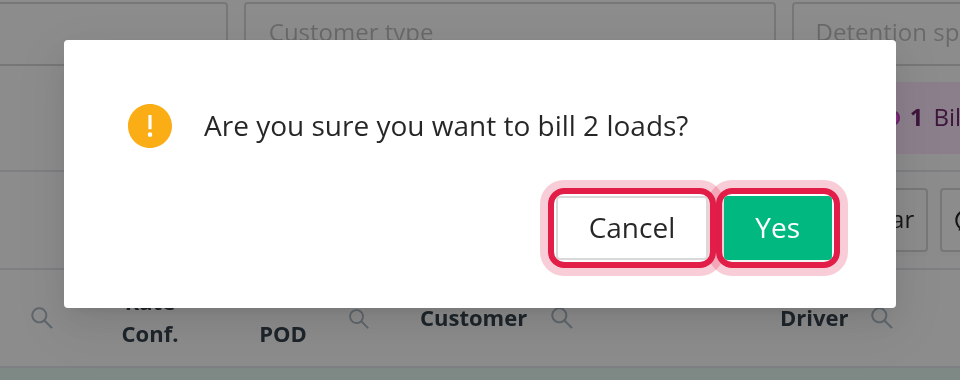
Yes sends the invoices right away. Review the loads first. If you chose Rebill, a new invoice is sent for a load that was already billed.
What happens to each billed load
- OpenRoad saves a billing snapshot of the invoice and sets the load's status to Billed.
- If the customer's billing profile has no factoring company, the invoice is e-mailed to the customer's AP E-mail with the combined PDF.
- If the billing profile uses a factoring company that OpenRoad is connected to, the invoice is uploaded to it instead.
- EDI customers receive their invoice as an EDI document.
- You see "Loads have been successfully billed.". If some loads could not be billed, the page reloads with a red message "N loads not billed" that lists each reason, and a tag "Not billed: N loads" shows only those loads so you can fix them and try again.
Typical reasons: "Load #N cannot be billed — Linehaul rate is 0.00. Please update the Linehaul rate before billing." or "Load #N has missing <field>".
Bill any day. Billing does not have to wait for the payroll period. You can bill as soon as a load is delivered and complete.
Customers that use a portal. OpenRoad does not upload to customer portals. Use Full PDF to download the packet and upload it to the portal yourself.
Part 5: Export to your accounting system
Some buttons in the bar appear only when the integration is switched on for your account. If you do not see an export you need, contact OpenRoad Support at help@openroadtms.com.
- Export to QuickBooks sends the selected loads to QuickBooks as invoices. Only loads in the status Delivered, Delivered - Pending or TONU that are not locked can be exported; otherwise you see "Cannot export. Status must be Delivered, TONU or Delivered - Pending in order to export.". After a successful export the loads move to Exported. Loads without a customer are skipped with the reason "Missing customer". The result of each export is kept in Export Logs.
- Export to Dynamics GP exports Billed loads only. The button shows "(Billed only: N)".
- Export to APEX schedules an export for the factoring company Apex Capital.
- CSV downloads the selected loads as a file.
- Open selected opens every selected load in its own browser tab.
Part 6: Move loads back to Pending to Bill
Move to Pending to Bill (top right of the table, with a count) changes every load in the status Billed - Pending Acc. under your current filters back to Pending to Bill. It is not limited to the rows you ticked: hover over it to read "Moves every Billed - Pending Acc. load in the current filter, not only the selected rows". You are asked "This action will update N load(s) from 'Billed Pending Acc.' status to 'Pending to Bill' status. Do you want to proceed?". The button is disabled when there is nothing to move.
Part 7: Import invoice results
- Import (Open Balance) and Import (Paid) let you upload a CSV file (Download template gives you the right columns) to update loads with the open balances and the paid invoices from your accounting system. They are shown to accounts that do not use the QuickBooks Online integration. You see "File successfully uploaded." and the result appears in the import logs.
- QuickBooks Import (Open Balances) and QuickBooks Import (Paid) appear instead when QuickBooks Online is connected. They schedule the import: "Import for open balances from QuickBooks has been scheduled.".
Part 8: Follow what was sent (Logs)
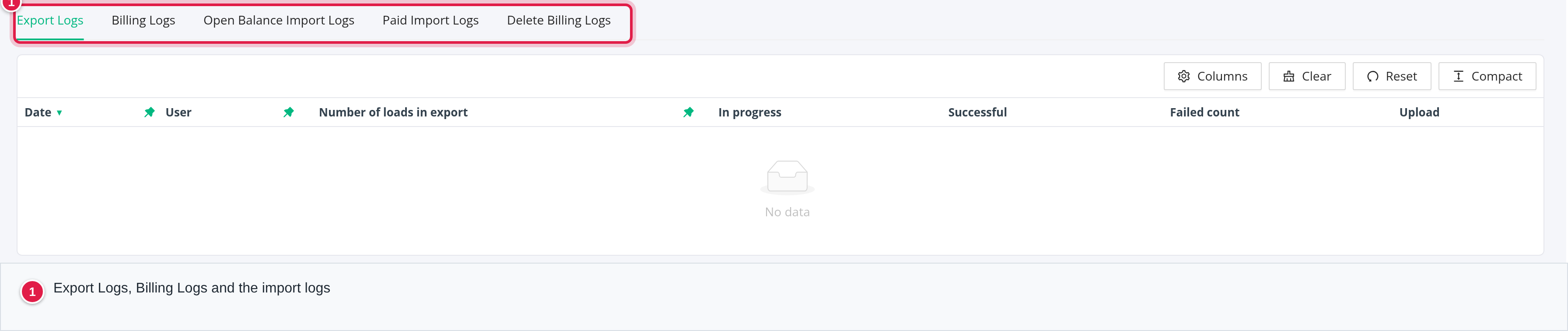
Click Logs to open Billing / Logs. The tabs are:
- Export Logs: every export to an accounting system. It appears only when such an integration is on. Columns: Date, User (Automatic Export if the system did it), Number of loads in export, In progress, Successful, Failed count and Upload (the file).
- Billing Logs: one row for every time someone clicked Bill: Date, User (Automatic Billing if the system did it), Number of loads in bill and Upload.
- Open Balance Import Logs and Paid Import Logs: Date, User, Changes Made, Failures and Original File Name. Click a number under Failures to see the Index in File, the Reason and the Record ID/Number of each row that failed.
- Delete Billing Logs: for Superadmin users only.
Lane rate validation
If your account uses lane rate validation, the page checks contract loads against the contracted award lane of the customer: the linehaul rate, the fuel surcharge estimate and the miles. A difference above the allowed percentage marks the cell and appears in the drawer with the text "<field>: expected X, actual Y (Z% off)". Use Review to see all mismatches of the page, or the Lane rate validation filter to list them. A rate difference never blocks billing: the confirmation window shows how many loads have a rate that does not match and offers Proceed anyway. To resolve one, correct the rate or miles on the load, or update the customer's lane rate settings.
Frequently asked questions
Was this article helpful?
That’s Great!
Thank you for your feedback
Sorry! We couldn't be helpful
Thank you for your feedback
Feedback sent
We appreciate your effort and will try to fix the article