The Tolls page lists every toll your trucks paid and shows the truck and driver each one belongs to. You can bring tolls in by uploading the CSV files from IPASS, PrePass or Bestpass, add a toll by hand, correct one, and follow every import in the log. This article explains each of these and how OpenRoad decides which truck and driver a toll belongs to.
Before you begin
- For OpenRoad to match a toll to a truck and a driver, every toll transponder must exist under Transponders, be Active, have the right type (IPASS, PrePass Tolls or Bestpass) and be assigned to its truck with dates that cover the toll. See "Transponders: keep your toll and scale transponders and the trucks they are on".
- Drivers must be assigned to the truck for the dates of the toll.
- Which buttons you see on the page depends on your permissions.
- Your PrePass tolls can also arrive without any upload. See "PrePass Integration: import PrePass toll transactions into OpenRoad TMS" and "PrePass API Integration: keep your trucks in sync with PrePass".
Part 1: The Tolls page
Open Accounting, Tolls. The table shows the tolls of the current week, newest first, 100 per page.
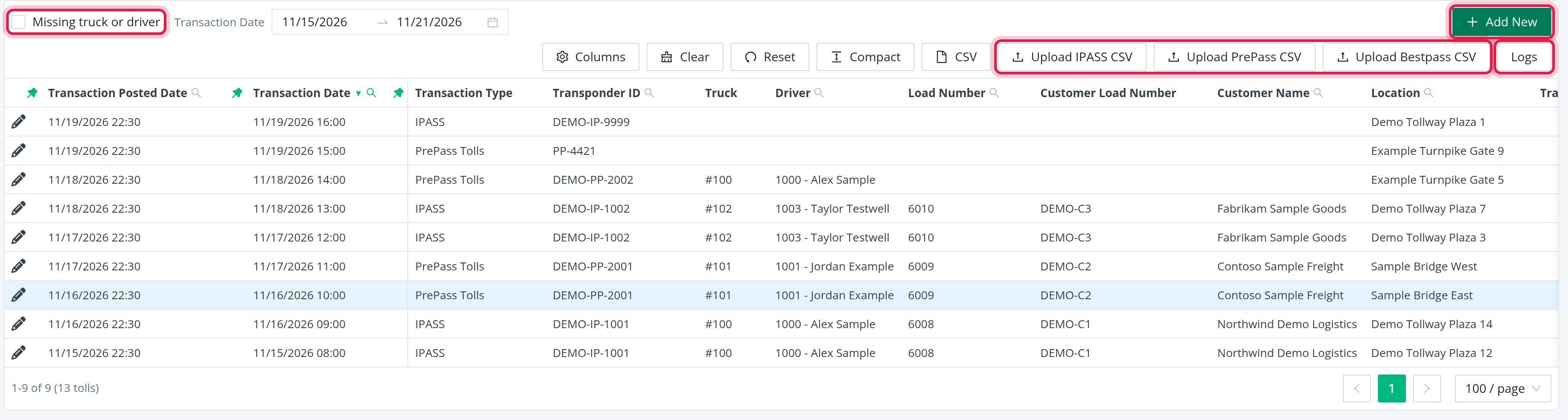
Buttons above the table (each appears only if you have the permission):
- CSV exports the tolls that match your filters.
- Upload IPASS CSV, Upload PrePass CSV and Upload Bestpass CSV import a file (see Part 2).
- Logs opens the import log (see Part 3).
- Add New adds a toll by hand (see Part 4).
Columns: Transaction Posted Date, Transaction Date (the date and time of the toll, used to match the truck and to place the toll in a pay period), Transaction Type, Transponder ID, Truck, Driver, Load Number, Customer Load Number, Customer Name, Location, Transaction Amount, Toll Agency, License Plate Number and License Plate State.
- Load Number, Customer Load Number and Customer Name are not typed in. They come from the driver's first stop that starts after the toll. A toll with no driver has none of them.
- Transaction Amount is shown without a minus sign.
- A row with a light blue background was changed after it was imported (corrected by hand, or updated by an automatic import). White rows were not.
Filters: the Transaction Date range (the current week unless you change it; clear an end of the range to read all time), Transponder ID, Driver, Load Number, Customer Name, Location, Transaction Amount and the tick box Missing truck or driver, which lists only the tolls that still need attention.
Part 2: Upload a toll file
- Click Upload IPASS CSV, Upload PrePass CSV or Upload Bestpass CSV.
- Click Download Template to get a sample file with the right columns.
- Choose your CSV file and click Upload. You see "File successfully uploaded." when it is done.
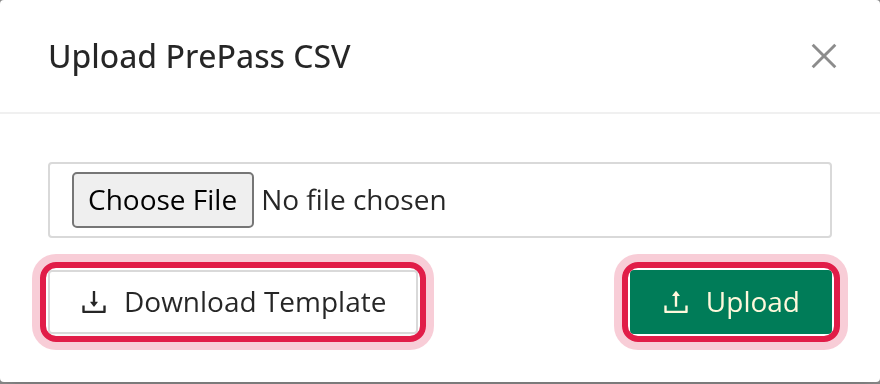
OpenRoad reads the columns by position, so keep the column order of the template. Valid rows are saved; rows with a problem are skipped and listed in the log. The whole file is not refused because of a few bad rows.
| File | Transponder column | Date | Amount |
|---|---|---|---|
| IPASS | TAG ID | Exit Date, for example 10/14/2023 17:58 (month/day/year hours:minutes) | Amount, written like ($1.01) or -1.01 |
| PrePass | ETagID_Plate | Exit_Date (month/day/year, two-digit year) with Exit_Time (hours:minutes) | Toll_Amount, a number |
| Bestpass | TagNo | ExitDate (month/day/year, two-digit year) with ExitTime (hours:minutes) | Amount, written like ($12.33) or $12.33 |
Messages for a file that cannot be read: "No file was given." and "Incorrect file type. Please select a CSV file.". Messages for a row: "Invalid transaction date (...)", "Invalid transponder ID (...)" and "Invalid transaction amount (...)".
IPASS and Bestpass times are read as Central time, PrePass times in your account's time zone. An IPASS tag number that does not start with 0 gets a leading 0, so register your IPASS transponders with the leading 0.
A toll that already exists (same date, transponder, amount and type) is never added twice.
Part 3: Check the import log
Click Logs to see every import, automatic ones included. The columns are Date, User (the person who uploaded, or "System" for an automatic import), Changes Made (tolls added), Invalid (rows with a problem), Skipped duplicates, Missing transponders and Original File Name (a download link). Click Back to return to the tolls.

Click a number in Invalid or Missing transponders to open the Import Log of that file:
- Invalid rows: the Row Number, the row as it was in your file and the Errors.
- Missing transponders: the transponder IDs of the file whose toll got no truck, "These transponders did not exist, were inactive or were not assigned during the import".

How OpenRoad finds the truck and the driver
For every toll OpenRoad looks for:
- An Active transponder with this ID, of the type IPASS, PrePass Tolls or Bestpass, assigned to a truck on the date of the toll. The assignment covers its start date up to, but not including, its end date.
- If none is found, a truck whose license plate equals the toll's transponder value (without a state prefix such as "IL-"), with the same transponder rules.
- If none is found, a driver who has a trailer with that license plate on that date, and that driver's truck.
The driver is the one assigned to the truck on the date of the toll. If nothing matches, the toll is still saved, with no truck and no driver, and its transponder ID is counted under Missing transponders. Transponders of the type PrePass Scales are never used for tolls.
Fix a toll that has no truck or driver
- Best fix: correct the transponder assignment. Create or adjust the transponder and the dates of its truck assignment under Transponders. When you create, change or delete an assignment, OpenRoad matches the tolls of that transponder again for the dates of the assignment: tolls inside the dates get the truck and driver, and tolls that no longer fit are cleared. Changing only a transponder's own details does not match again until one of its assignments is saved. Changing a driver assignment does not match tolls again.
- Quick fix for one toll: open it with the pencil icon and choose the Truck and Driver. This changes only that toll. The assignment is not created, so the next import of the same transponder will leave the truck blank again, and a later assignment change can overwrite your edit.
Part 4: Add or edit a toll by hand
- Click Add New, or the pencil icon on a row. The window is New Toll or Edit Toll.
- Fill in Account Number, Transaction Posted Date, Transaction Date, Transaction Type, Transponder ID, Truck, Driver, Location, Transaction Amount, Toll Agency, License Plate Number and License Plate State. Dates are month/day/year with hours and minutes.
- Click Save.
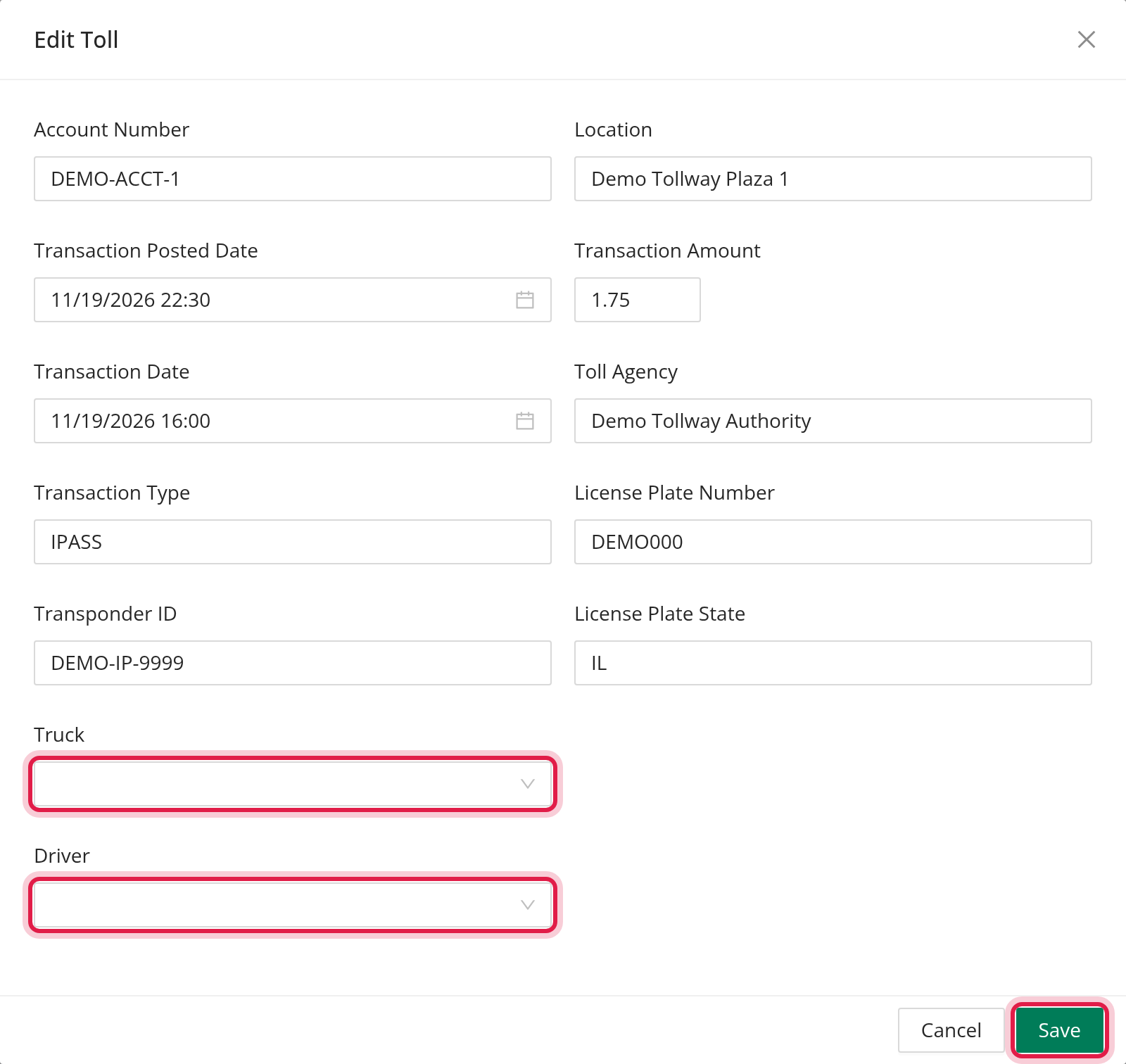
You can only see and change the fields your permissions allow. Two tolls with the same Transaction Date, Transponder ID, Transaction Amount and Transaction Type are not allowed.
Tolls cannot be deleted from this page.
Export the tolls
CSV downloads a file named tolls_<date>.csv with every toll that matches your filters, not only the current page, with the columns of the table. The limit is 100,000 tolls: above it you see "The CSV holds at most 100,000 tolls. Narrow the filters and try again.". The file holds the amounts as they are stored.
Where tolls are used
A driver's tolls (the tolls with that driver for the days of the pay period) are totaled in the Tolls column of the driver's statement and the review of the pay period. A toll without a driver is not counted for anyone, so fix Missing truck or driver before you close a pay period.
Frequently asked questions
Was this article helpful?
That’s Great!
Thank you for your feedback
Sorry! We couldn't be helpful
Thank you for your feedback
Feedback sent
We appreciate your effort and will try to fix the article