Connect your PrePass SFTP site to OpenRoad TMS and your PrePass toll transactions are imported automatically and shown on the Tolls page, matched to the right truck and driver. If you cannot connect, you can upload the same PrePass file by hand.
Before you begin
- Ask your PrePass account representative to create the SFTP site, set up a login and drop your toll transaction files (CSV) there. You need the SFTP host, the username and the password.
- Every PrePass transponder must exist in OpenRoad under Transponders with the type PrePass Tolls and the status Active. See the article "Transponders: keep your toll and scale transponders and the trucks they are on".
- Each transponder must be assigned to its truck, with start and end dates that match when it was on that truck. A toll is matched to a truck by the transaction date, so a missing or wrong date leaves the toll without a truck.
Part 1: Connect PrePass
- Go to Settings → Integrations → PrePass.
- In the Configuration card fill in PrePass Host, PrePass Username and PrePass Password. All three are required.
- Click Test Connection. If it fails, check the values with PrePass.
- Set Integration Status to Enabled. OpenRoad runs the connection check first. If the check fails, the status goes back to Disabled and no tolls are imported.
- Click Save Settings.
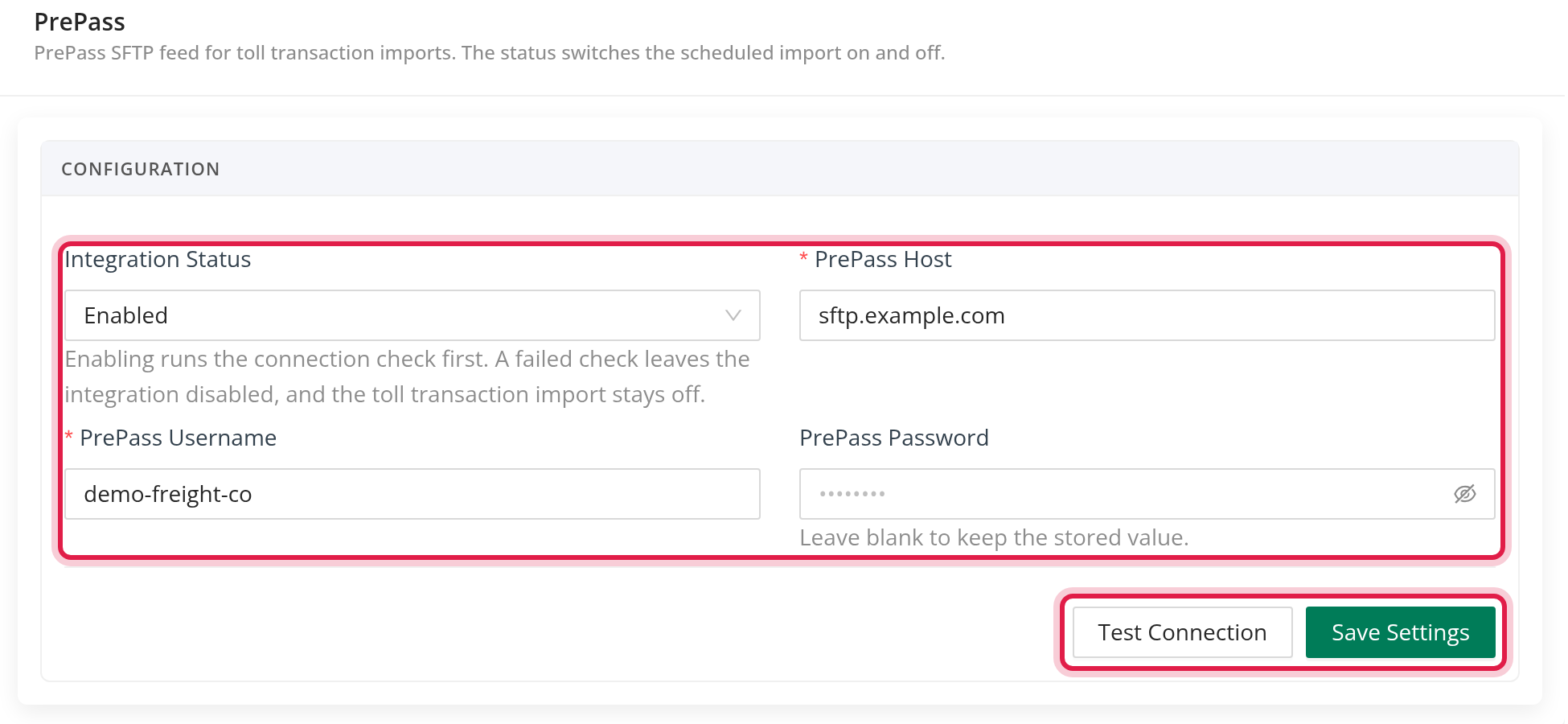
Once a password is saved, OpenRoad never shows it again. If you leave the field blank when saving, the saved password stays.
the import runs only while Integration Status is Enabled.
Part 2: How the import works
- OpenRoad checks your PrePass SFTP site every 6 hours.
- It downloads every CSV file it has not imported before, matched by file name. Each file is imported once.
- OpenRoad saves each file and imports its rows as tolls. A row with the same details as one already imported is skipped.
- Each toll takes its date and time, transponder ID, location, toll agency and amount from the file. Dashes are removed from the amount.
- OpenRoad finds the truck by the transponder: first by the transponder ID, then by the license plate in the transponder ID, and then through the driver's trailer and truck assignments on that date. The driver is the one assigned to that truck on that date.
Allow for the 6-hour check and processing time before new tolls appear.
Part 3: See the tolls and the import results
- Open the Tolls page. Imported tolls are listed there with their truck and driver.
- Click Logs to see every import. Each row shows Date, User, Changes Made, Invalid, Skipped duplicates, Missing transponders and Original File Name.

Missing transponders lists transponder IDs in the file that are not assigned to any truck for that date. Create or assign those transponders (see "Before you begin").
Upload a PrePass file by hand
Use this if you received a PrePass CSV outside the automatic feed.
- Open the Tolls page and click Upload PrePass CSV. You only see this button if your role has been given this permission.
- Use the template link in the window to download the template, then upload your file.
- OpenRoad checks every row: the date must be in the form month/day/year (for example 03/15/26), the time in 24-hour hours:minutes, and the amount a number.
Frequently asked questions
Was this article helpful?
That’s Great!
Thank you for your feedback
Sorry! We couldn't be helpful
Thank you for your feedback
Feedback sent
We appreciate your effort and will try to fix the article