Connect Samsara to OpenRoad TMS and OpenRoad receives the GPS positions of your trucks and trailers and your drivers' hours of service (HOS) automatically. This article shows how to connect your Samsara account yourself, how to name your records in Samsara so they match OpenRoad, and how to check that everything works.
Who can do this: only users with the Super Admin role can connect Samsara.
Before you begin
- You need a Samsara administrator login so you can create an API token (or authorize OpenRoad, see Part 1).
- Your trucks, trailers and drivers must already exist in OpenRoad.
- Each truck and trailer needs a working Samsara device (gateway) installed. OpenRoad can only show positions that Samsara has.
- You do not need to share your Samsara password. OpenRoad uses an API token or your authorization, nothing else.
- The Samsara feature must be switched on for your account. If you do not see Telematics under Settings → Integrations, contact OpenRoad Support at help@openroadtms.com.
- If your OpenRoad account runs more than one company (Driving As), each company has its own connection. Add the company first under Settings → Account → Driving As.
What Samsara sends to OpenRoad
| Data | How often |
|---|---|
| Truck and trailer GPS positions | About every 10 minutes |
| Driver hours of service (duty status and clocks) | About every 3 minutes |
| HOS violations | About every 10 minutes |
| Linking of trucks and trailers to their Samsara device | Twice a day, and right after you save a connection |
| Linking of drivers to their Samsara driver | Every night |
Only active trucks and trailers that are linked to a Samsara device receive positions. Positions are shown on the trucks list, the truck record, the Trailer Organizer map, the Weather Alerts map and the load screen. Hours of service appear in the HOS and HOS Violations tabs of the driver profile and in the Planner.
Part 1: Connect Samsara
You can connect in two ways. If you see the Connect with Samsara button, use it: you authorize OpenRoad in Samsara and have no token to paste. Otherwise use an API token.
Option A: API token
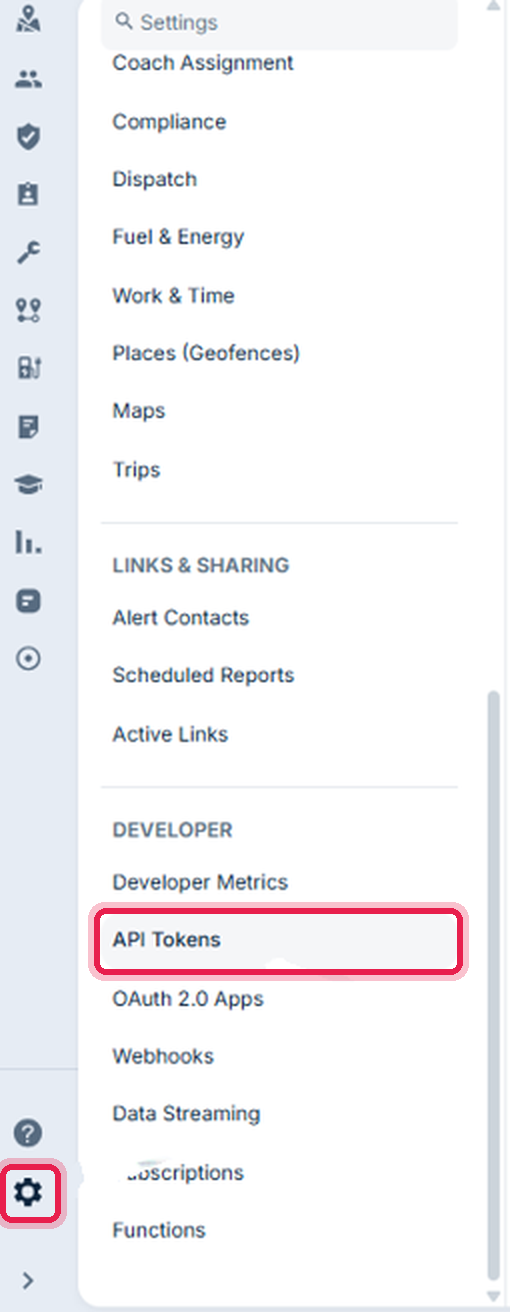
- In Samsara click the Settings gear at the bottom left, scroll to Developer and click API Tokens, then click Add an API Token at the top right.

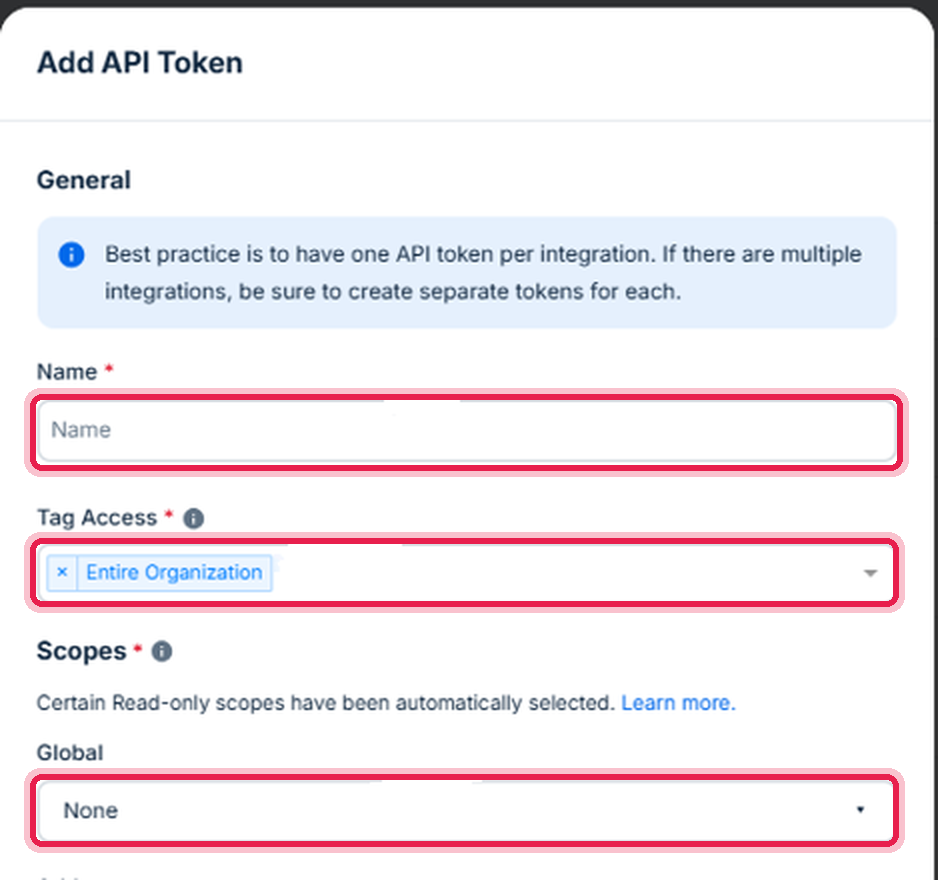
- In Name, enter a name such as OpenRoad TMS. Leave Tag Access as Entire Organization, unless several of your companies share one Samsara organization (see below). Under Scopes, give the token Read access in every category. Add Write access to Messages if you want driver messaging (see "Optional features"). Save, then copy the token.
- In OpenRoad go to Settings → Integrations → Telematics and click Add connection.
- Choose Samsara as the provider and select the Driving As company this connection is for.
- Paste the token. Group ID is optional: fill it in only to limit the connection to one Samsara group. Leave it blank to use your whole Samsara organization.
- Click Connect with API token (or Connect when the OAuth button is not offered).
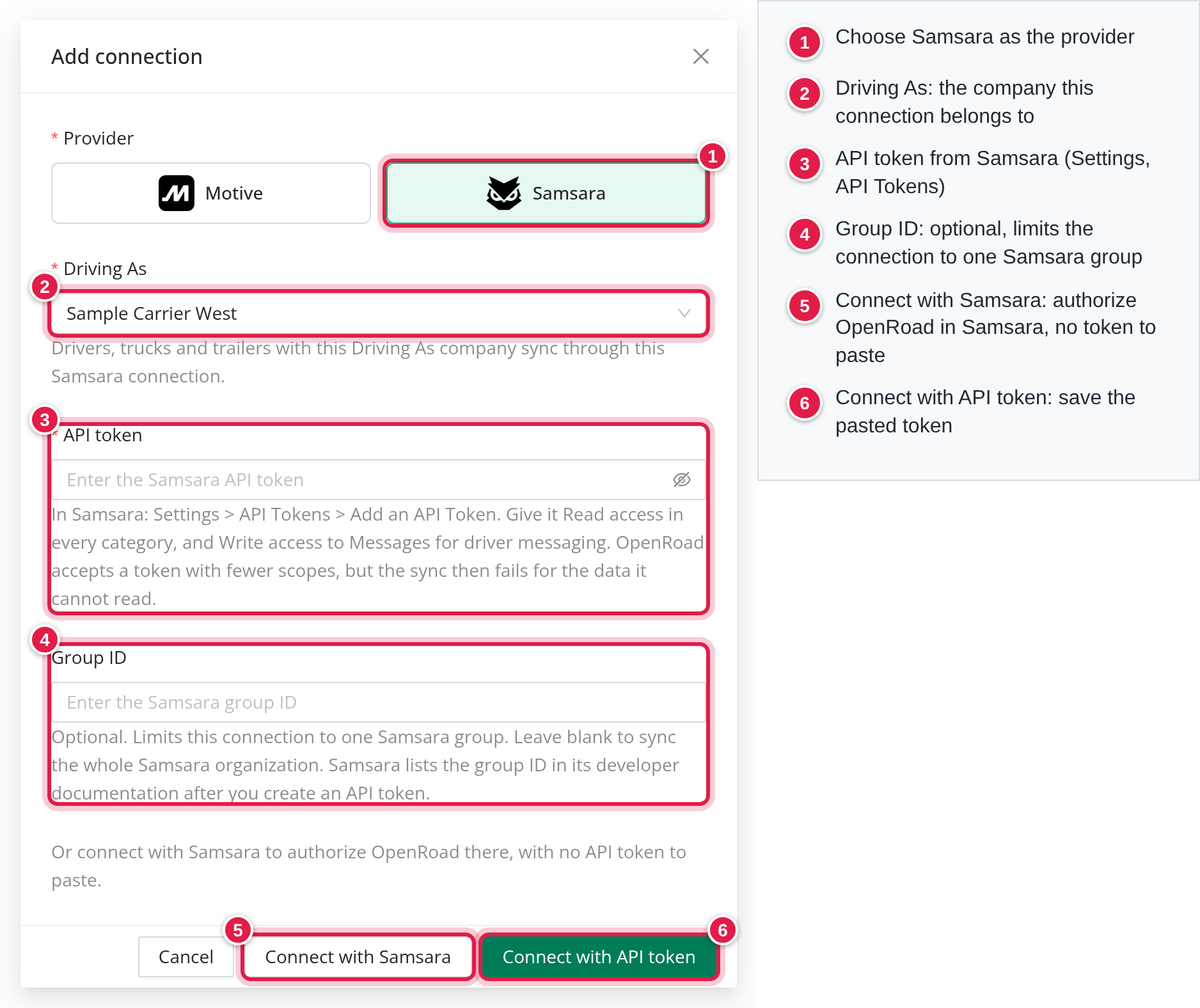
Option B: Connect with Samsara In the Add connection window choose Samsara and the Driving As company, then click Connect with Samsara. Sign in to Samsara and allow OpenRoad. You return to the Telematics page with a confirmation.
OpenRoad checks the connection with Samsara before it saves it. If Samsara refuses, nothing is saved and you see a message:
- "Samsara did not accept this API token." Check the token in Samsara.
- "This API token cannot read vehicles." Give the token the Read Vehicles scope.
- "Samsara could not be reached..." Try again in a few minutes.
Once saved, OpenRoad never shows the token again. To replace it, create a new token in Samsara, edit the connection in OpenRoad and paste it, then delete the old token in Samsara. Do not use Regenerate in Samsara: it stops the old token at once.
Several companies and one Samsara organization
Each Driving As company can have one Samsara connection, and a connection syncs only the trucks, trailers and drivers of its company. The default company's connection also covers records that have no Driving As. The same token cannot be used twice. If two companies use the same Samsara organization, limit each token to its own company's tags in Samsara (Settings → API Tokens → Tag Access); otherwise vehicles with the same name in both companies can be mixed up.
The Telematics page
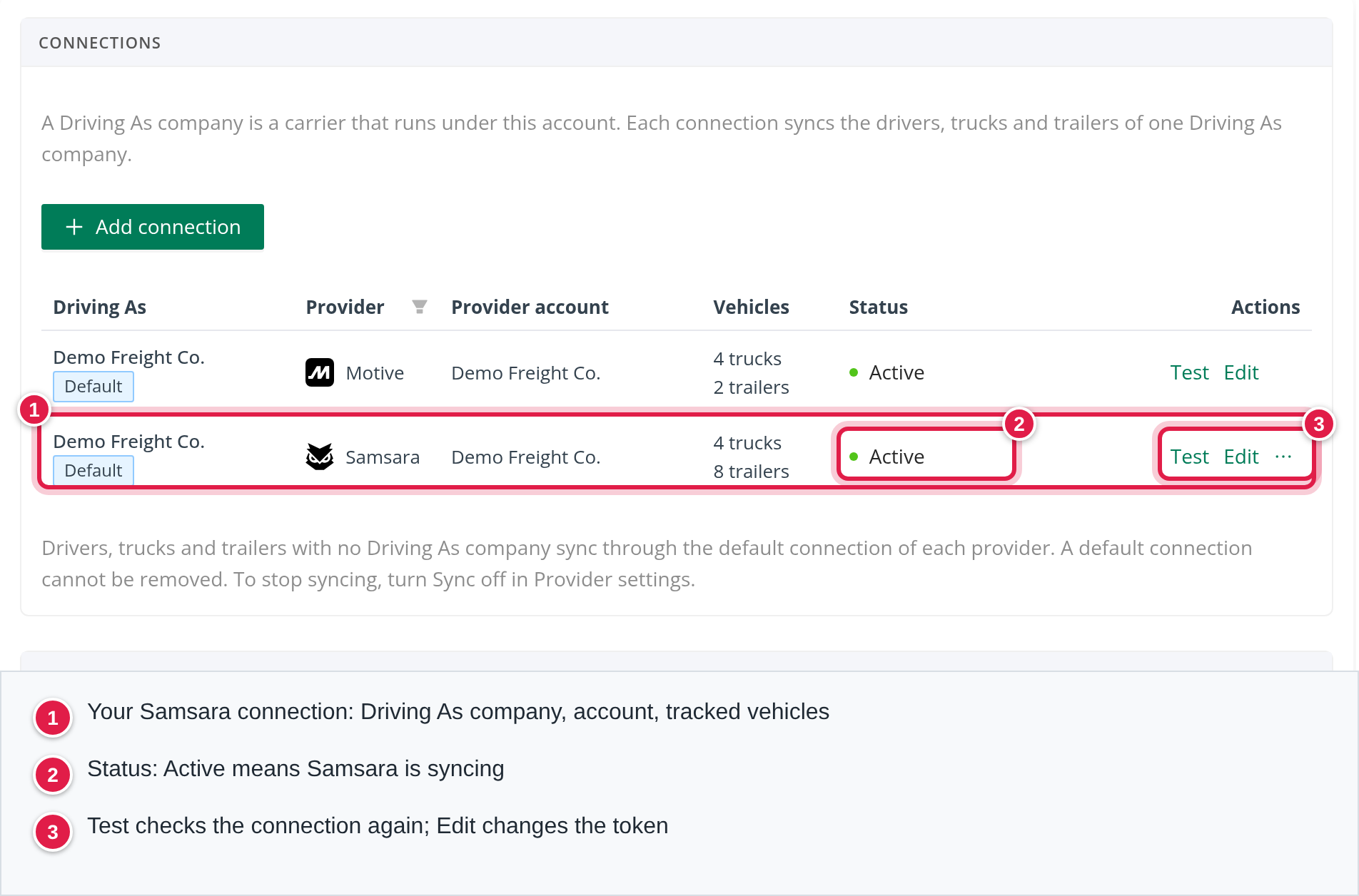
The Telematics page lists each connection with its status: Active, Not connected, Mapping vehicles, Nothing assigned yet, No vehicles, Sync off, Key refused or Needs attention. Use Test to check a connection again. In Provider settings, the Sync switch turns all Samsara syncing on or off for the account.
Part 2: Match your names in Samsara
OpenRoad finds each record in Samsara by its name. A name that does not match is skipped, with no error message.
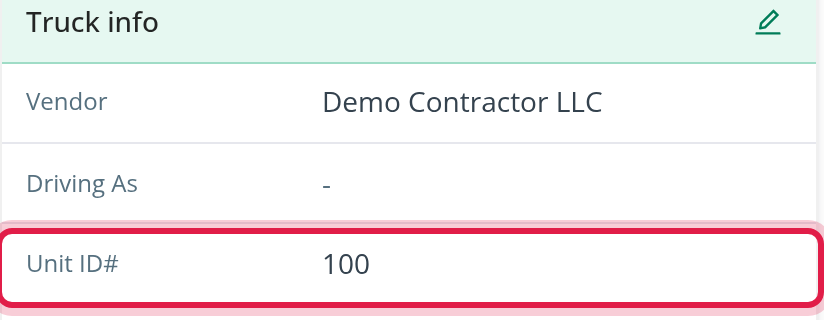
Trucks. The vehicle Name in Samsara must equal the truck's Unit ID in OpenRoad (open the truck and look in Truck info). Capital letters and extra spaces are ignored. Do not add a "#" or any other characters. If two Samsara vehicles have the same name, only one is used.
Trailers. Name the trailer in Samsara Trailer 123, where 123 is the trailer number in OpenRoad. A Samsara name without the word "trailer" is treated as a truck.
Drivers. Put the OpenRoad driver number in the driver's Samsara name. These formats work:
- 1234 John Smith
- 1234 - John Smith
- John 1234 Smith
- John Smith 1234
- John Smith (name only)
The number must match the driver number in OpenRoad exactly, and the names must be spelled the same in both systems (capital letters are ignored, but extra characters are not). Drivers are linked every night, so a change to a driver's name takes effect after the next night. Name-only matching works only when exactly one OpenRoad driver has that first and last name and that driver is not linked to Samsara yet. A one-word name is skipped, and 1234 John is read as first name "1234". Drivers who are not active are not matched for hours of service.
If two Samsara drivers match one OpenRoad driver, both are ignored. Fix the duplicate in Samsara.
Part 3: Check that it works
- On the Telematics page, the connection should read Active. Click Test to re-check it. A success reads "Connected to Samsara" with your organization name.
- About 10 minutes after connecting, open a truck and check that it shows a recent Samsara position.
- The next day, check that your drivers show their Samsara link and that the HOS tab of an on-duty driver is updating.
Optional features
These work through the same connection:
- Driver messaging. Send messages to drivers from the Planner and read their replies (replies are pulled every 5 minutes). Needs the Samsara driver chat preference, the driver's Samsara Messaging setting, a linked driver, and Write access to Messages on the token.
- Status sync. In Provider settings you can choose to sync driver, truck and trailer status to Samsara.
- Trailer assignments. With the Trailer Organizer feature and Enable trailer assignments ticked in Provider settings, OpenRoad creates driver-to-trailer assignments about every 10 minutes from the trailer's GPS position next to a truck, or from an assignment the driver made in the Samsara app. Drivers must be linked first.
- Weather alerts text messages are sent through Samsara messaging.
- Miles per gallon. On the Miles Per Gallon page you can upload a Samsara CSV.
Frequently asked questions
Was this article helpful?
That’s Great!
Thank you for your feedback
Sorry! We couldn't be helpful
Thank you for your feedback
Feedback sent
We appreciate your effort and will try to fix the article