Driver instructions are the text your driver reads for a load: where to check in, which dock to use, what to photograph. You write them on the load or in the Dispatch window, OpenRoad can draft them for you from the load's stops, Customer Procedures and notes, and they reach the driver in the Driver Open Road app, in the dispatch email and, if you choose, as a Samsara or Motive message. This article shows where to write them, how the draft is made, how they are sent and what the driver sees.
Driver instructions is an extra feature. It is switched on per account. If you do not see the Driver Instructions settings page or the instructions in the Dispatch window, contact help@openroadtms.com to have it enabled. Extra charges may apply.
Before you begin
- You need to edit loads and dispatch them. The Dispatch button is for users who may dispatch to drivers. See Load profile: status, uploads, charges, stops, notes and Load Logs.
- The load needs a driver before you can dispatch it.
- To send the instructions as a message, your account needs the Samsara or the Motive integration, and the driver's messaging must be on. See Samsara Integration: connect Samsara and match your trucks, trailers and drivers and Motive Integration: connect Motive to OpenRoad TMS (one account or several).
- Fill in the customer's Customer Procedures. The draft uses them: see Customer profile: all tabs (Overview, Files, Loads, Active Loads, Automatic Load Entry, Additional Charges, Billing Settings, Lane Rates and Load Templates).
Part 1: Where you write the instructions
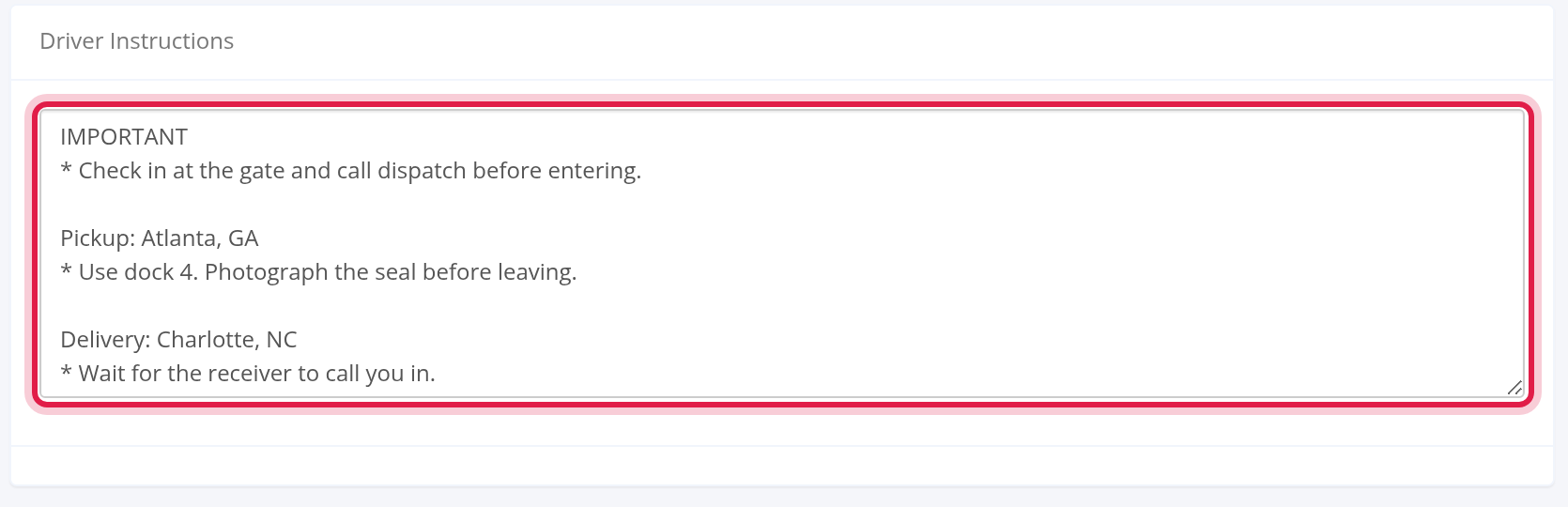
On the load. Open the load and select Edit. In the right column, under Notes, the Driver Instructions panel holds a text box. Type the instructions and save the load.
In the Dispatch window. Open the load and select Dispatch, or select the phone icon on a driver's row in the Stops panel. The Dispatch window has its own Driver Instructions box, filled with the load's current instructions. Part 2 describes it.
Part 2: The Dispatch window
The window opens when your account requires the driver app time. When it does not, Dispatch sends the trip straight away, without this window: you cannot change the instructions at that moment, and no message is sent.
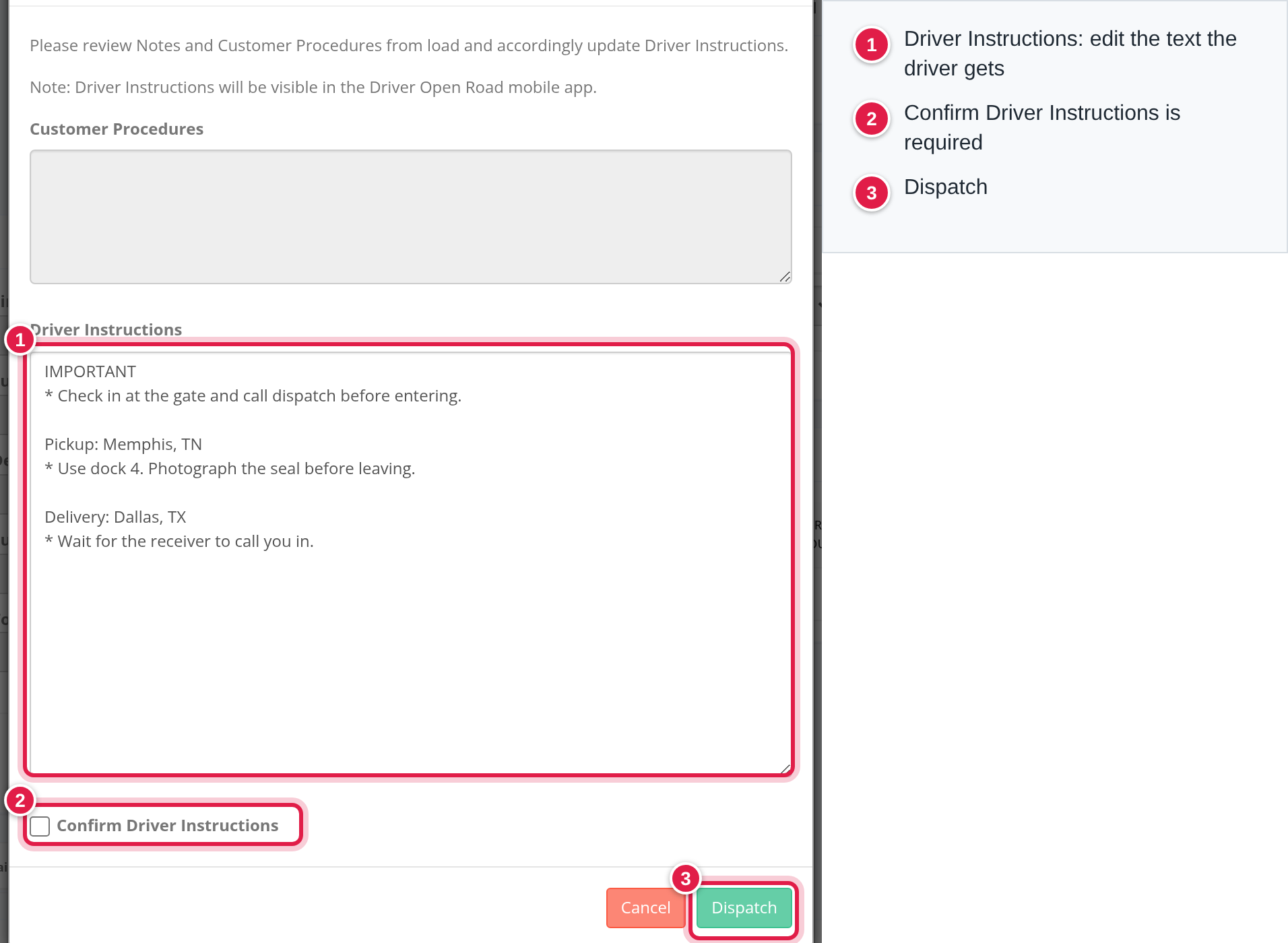
Below the stops, the window shows, in this order:
- A reminder: "Please review Notes and Customer Procedures from load and accordingly update Driver Instructions." and "Note: Driver Instructions will be visible in the Driver Open Road mobile app."
- Customer Procedures: the customer's procedures, read only.
- The load's notes, when the load has them and you may see them, each with the date, the author and a button that copies the text.
- Special handling notes of the stops, when a stop has them and the first stop has no driver yet.
- Driver Instructions: the box to edit. It holds up to 2048 characters.
- Confirm Driver Instructions: you must tick it before you can dispatch.
- Send Motive Message or Send Samsara Message, when your settings and the driver allow it. It is ticked by default. See Part 4.
- Cancel and Dispatch.
Part 3: The draft OpenRoad writes for you
When a Driver Instructions box is empty, OpenRoad fills it with a draft. This happens in the Dispatch window, and on the load when you edit a load that is Booked or Assigned. You do not press a button. A small spinner shows while the draft is made. The draft appears only if the box is still empty. You can edit it, and nothing is sent until you dispatch.
The draft is built from the stops of the load (and the driver's own stops, if you chose a driver), the Customer Procedures, the load's active notes and the special handling of the stops. It is a short list of what the driver must know: an IMPORTANT section and one section per stop, as bullet points. OpenRoad leaves out addresses, e-mail addresses, links, office phone numbers, PO and reference numbers, appointment instructions, rates and money, permits and temperatures. When a document or picture has to be e-mailed, the draft says "to dispatch".
The text starts with a few fixed lines:
- LOAD # and the customer's load number, and PU NUMBER when the load has a different pickup number.
- One line per stop, such as "Pickup: Memphis, TN - Company name".
- Weight, with SCALE AFTER LOADED when the load weighs 40,000 lbs or more or needs a scale.
- Commodity.
When the load has route stops (fuel stops, resets, a CAT scale), they appear as lines before the stop they come before, such as "Fuel Location: City, State". See Route stops (EXTRA FEATURE): add fuel stops, breaks, resets, scale stops and route changes to a load.
Read the draft before you confirm it. It is a draft, and you are responsible for what the driver receives.
Part 4: How the instructions reach the driver
The driver gets the instructions in these places:
- The Driver Open Road app. The instructions are part of the load in the app.
- The dispatch email, in a block called "Load Instructions:", when the load has instructions.
- A Samsara or Motive message, when you tick Send Motive Message or Send Samsara Message in the Dispatch window. The whole text goes as one message.
Which checkbox you see depends on the settings (Part 5) and on the driver:
- Send Motive Message shows when Send driver instructions to Motive is on and the driver uses Motive messaging. A driver who uses Motive messaging gets the message through Motive only, and only when that setting is on.
- Send Samsara Message shows otherwise, when Send driver instructions to Samsara is on, the driver has Samsara Messaging turned on in the driver profile and your account has Samsara.
Part 5: The Settings page
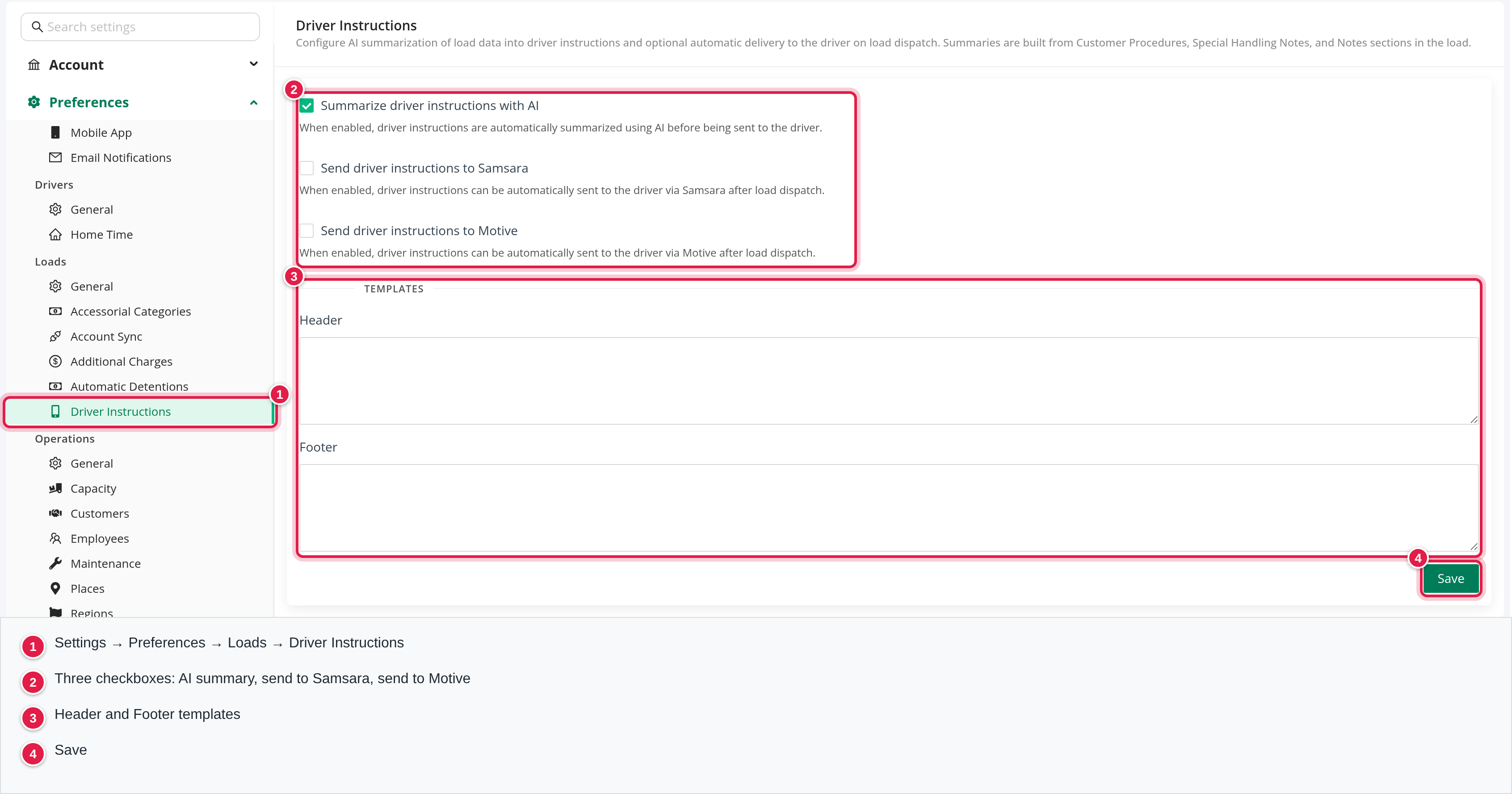
Only a Superadmin can change the settings. Open Settings → Preferences → Loads → Driver Instructions. If you do not see it, the feature is not switched on for your account.
- Select your avatar in the top right corner and choose Settings.
- In the Settings menu on the left, open Preferences, then Loads, and select Driver Instructions.
| Setting | What it does |
|---|---|
| Summarize driver instructions with AI | Turns on the draft of Part 3. It is on by default. It only fills the empty box for you to review: nothing is sent automatically. |
| Send driver instructions to Samsara | Lets the Send Samsara Message checkbox appear in the Dispatch window. |
| Send driver instructions to Motive | Lets the Send Motive Message checkbox appear in the Dispatch window. It shows only when your account has Motive. |
| Header and Footer (under Templates) | Text added before and after the draft, word for word. Use them for what every driver must read, for example a phone number to call. They are added only to the draft OpenRoad writes, not to text you type yourself. |
Select Save to keep your changes. Every save is recorded in Settings → Audit Logs: see Settings → Audit Logs: see who changed which setting and when.
FAQ
Was this article helpful?
That’s Great!
Thank you for your feedback
Sorry! We couldn't be helpful
Thank you for your feedback
Feedback sent
We appreciate your effort and will try to fix the article