The Audit Logs page is a read-only history of the changes made on the Settings pages. For every change it shows when it happened, who made it, which setting it was and what was changed, from the old value to the new one. Use it to find out who switched a notification off, who gave a role new access, or when a company detail was edited. This article explains how to open it, how to read a row and what is not recorded.
Before you begin
- Only a Superadmin can open Settings, and so only a Superadmin can see Audit Logs.
- The page only shows changes saved on the Settings pages. Changes made on other pages, such as editing a user, a driver or a load, are not recorded here.
- Nobody can edit or delete an entry. The page is read-only, and OpenRoad does not delete entries automatically.
Part 1: Open the page
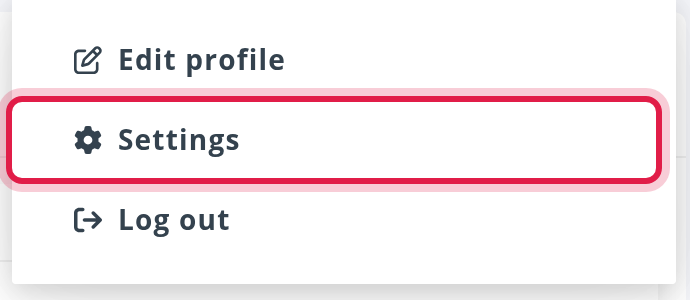
- Select your avatar in the top right corner and choose Settings.
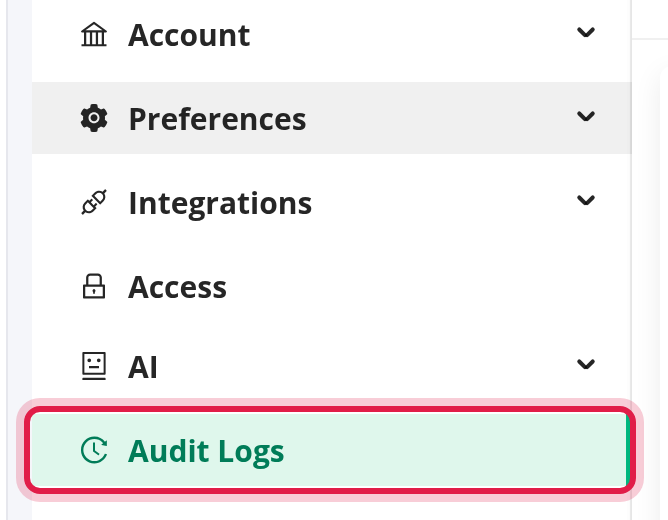
- In the Settings menu on the left, select Audit Logs.
The Audit Logs item is the last one in the Settings menu.
Part 2: Find the changes you are looking for
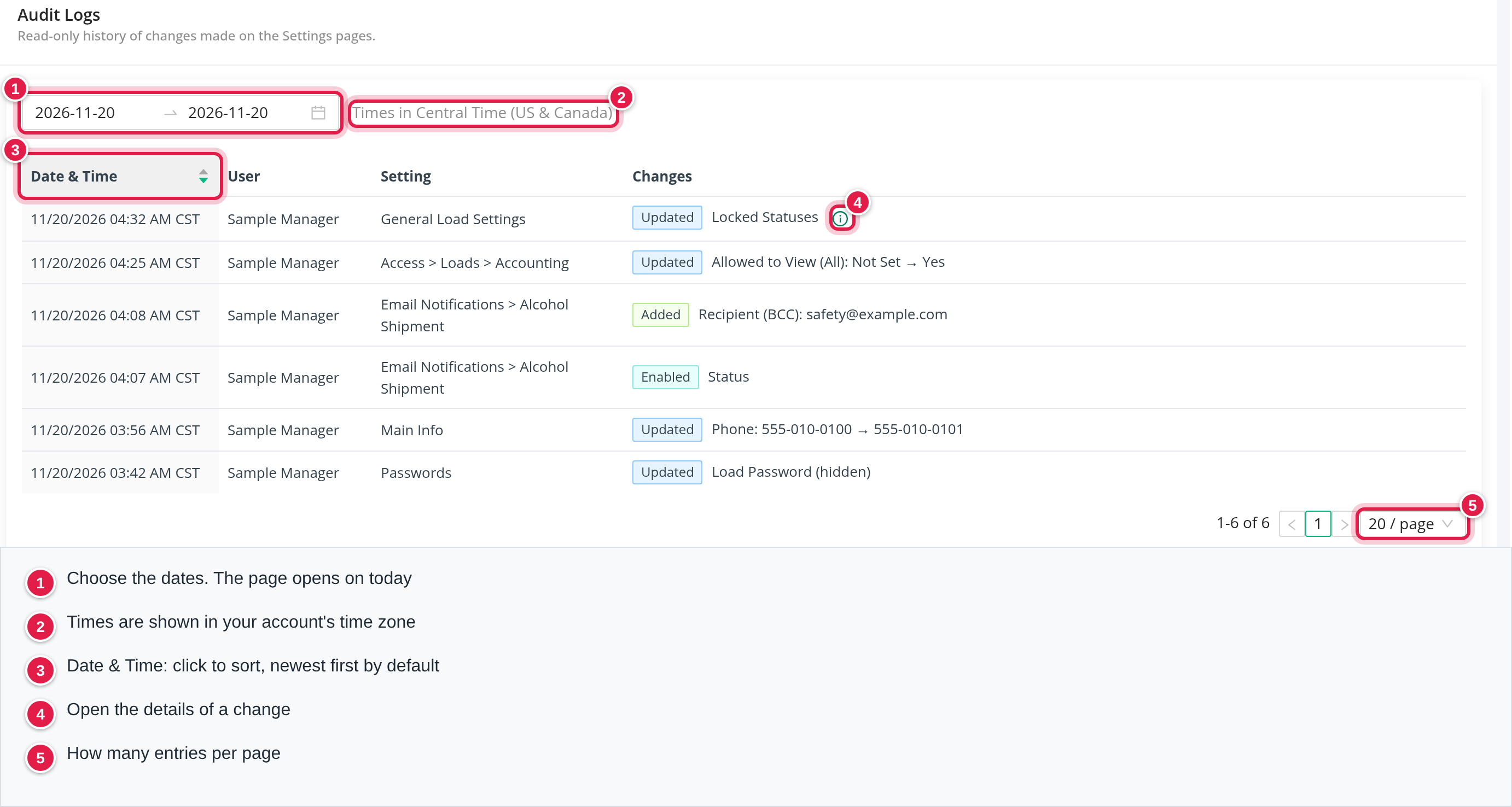
The page opens on today's changes. Use the date range at the top to look at other days: choose the dates, or one of the shortcuts Today, Last 7 days and Last 30 days. Next to the dates you see the time zone, for example "Times in Central Time (US & Canada)". All times on the page are in your account's time zone, not the time zone of your computer.
There is no search box, no filter by user or setting, and no export. To find a change, pick the day, then look down the Setting column.
- Date & Time is the only column you can sort. The newest change is on top. Click the heading to turn the order around.
- Under the table you choose how many entries you see per page: 10, 20, 50 or 100 (20 is the default).
- When there is nothing to show you see "No setting changes in the selected dates".
Part 3: Read a row
| Column | What it shows |
|---|---|
| Date & Time | When the change was saved, for example 11/20/2026 04:32 AM CST. |
| User | The full name of the person who made the change. System means a change made by OpenRoad and not by a person. |
| Setting | The Settings page, and after the sign > the record that was changed, for example Email Notifications → Alcohol Shipment or Access → Loads → Accounting. |
| Changes | A coloured label for what happened, then the field and its values. |
The labels are Added, Updated, Removed, Enabled and Disabled. Enabled and Disabled mean a switch was turned on or off. Added and Removed mean a record, such as a notification recipient, was added or taken away.
How the values look
- Updated: the field, then the old value, an arrow and the new value: "Phone: 555-010-0100 → 555-010-0101".
- Yes and No for switches. An empty value is shown as (none). On Access, a cell that was not set is shown as Not Set.
- Passwords and other secrets are never shown. The row says only "Load Password (hidden)". OpenRoad does not store the old or the new value.
- Long values and lists. When a value is a list or a long text, the row shows only the field name and a small information icon. Select the icon to see the Before and After values side by side.

One save can produce several rows, one per field that changed. They have the same time.
What is recorded
Changes saved on the Settings pages are recorded. Examples are the company details in Main Info, the Passwords page, Email Notifications (switching a notification, adding or removing a recipient), Access (every cell you change), Mobile App, Telematics and Billing.
A few actions on those pages are not recorded: testing a connection, and syncing a list from a provider. Changes made outside the Settings pages are not recorded either.
Good to know
- The name in Setting is the name at the time of the change. If a record is renamed or deleted later, the old row keeps the old name, and rows are not linked to the record.
- Changes made before audit logs were introduced are not shown.
- The related articles show what you can change: Settings → Account → Main Info: your company profile, logo, contact details and tax identifiers, Settings → Account → Passwords: set the access codes for payroll, loads and fuel transactions, and the team goal and Settings → Preferences → Email Notifications: turn each email on or off and choose who receives it.
Frequently asked questions
Was this article helpful?
That’s Great!
Thank you for your feedback
Sorry! We couldn't be helpful
Thank you for your feedback
Feedback sent
We appreciate your effort and will try to fix the article