The Payroll Schedules page is where you define how often your people are paid and on which day. Every driver and every employee is given one schedule. The schedule decides the pay period of their payrolls and wage statements, and the date on which they are paid. This article shows where to find the page, how to add, change and delete a schedule, and how the pay period and pay date are worked out.
Before you begin
- Only a Superadmin can open Settings, so only a Superadmin can add, change or delete schedules.
- Create the schedules first, then assign them. Without a schedule, OpenRoad cannot calculate a person's pay period or pay date. The schedule is chosen on the driver's Compensation card (see Driver profile: Accounting tab (Compensation, Tax, Payment info, Driver Vacation and adjustments)) and on the employee form (see Employee profile: Accounting and Statements tabs (payment, compensation, adjustments, and how statements are calculated)).
- Related article: Wages: the complete guide to driver statements, driver pay, locking, sending and exports.
Part 1: Open Payroll Schedules
- Select your avatar in the top right corner and choose Settings.
- In the Settings menu on the left, open Account and select Payroll Schedules.
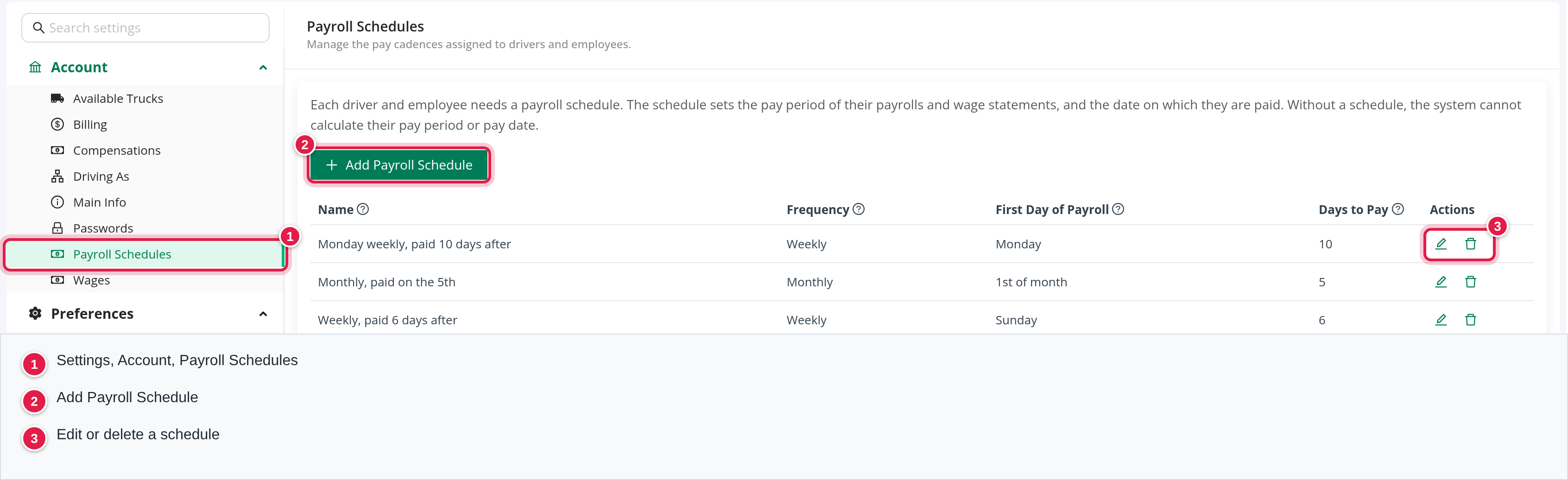
The page shows a short explanation, the Add Payroll Schedule button and a table with one row per schedule:
| Column | What it shows |
|---|---|
| Name | The name people pick when they assign the schedule, for example "NET6 Weekly". |
| Frequency | Weekly or Monthly. |
| First Day of Payroll | For a weekly schedule, the weekday on which each pay period starts. For a monthly schedule it always reads 1st of month. |
| Days to Pay | The number of days between the end of the pay period and the pay date. |
| Actions | The pencil edits the schedule, the trash can deletes it. |
Hover over the question mark next to a column name to read a short explanation.
Part 2: Add a payroll schedule
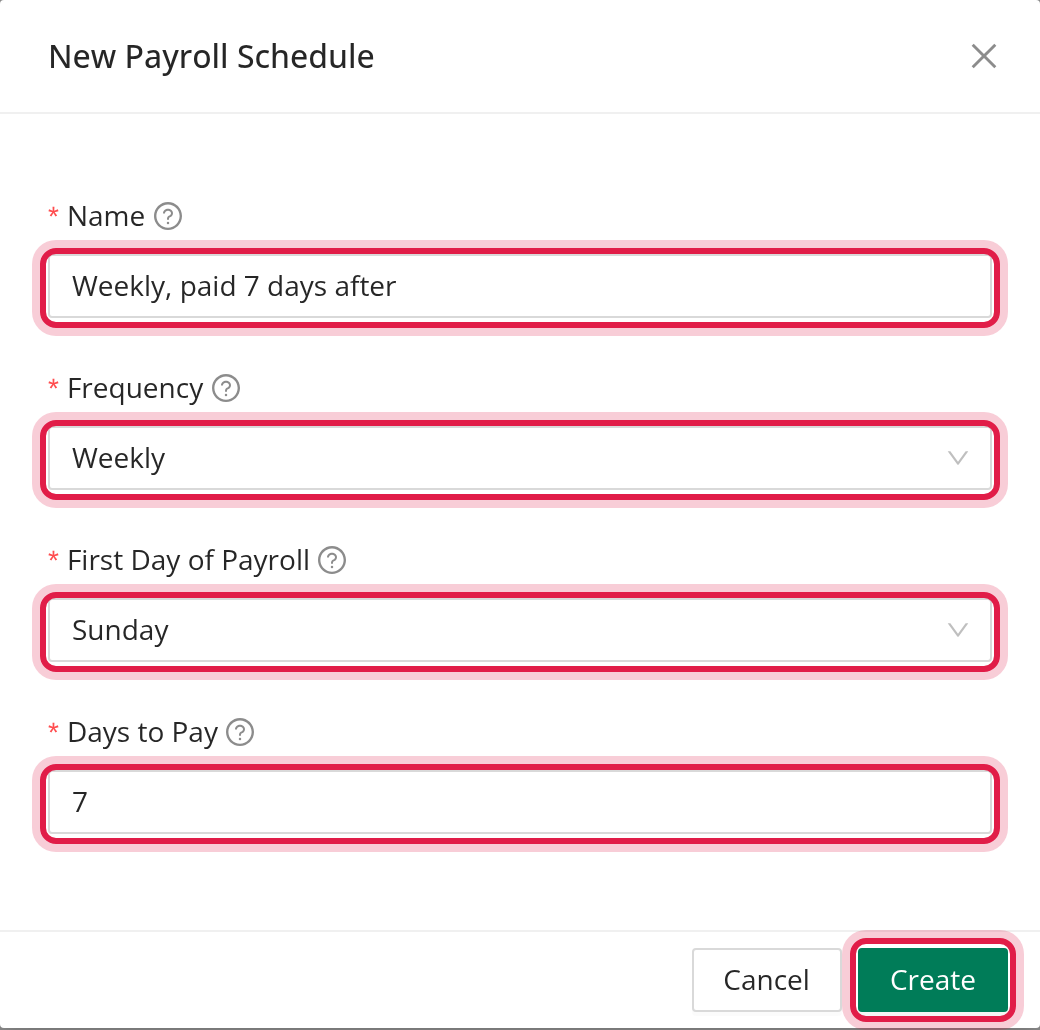
- Select Add Payroll Schedule.
- Type a Name. Choose one that tells people what the schedule does, for example "Monday weekly, paid 10 days after".
- Choose the Frequency.
- For a weekly schedule, choose the First Day of Payroll, from Sunday to Saturday.
- Enter Days to Pay, a whole number of 0 or more.
- Select Create. In the Save changes? window confirm the save. You see "Changes saved successfully."
All fields are required. A new schedule starts as weekly, starting on Sunday, with 0 days to pay.
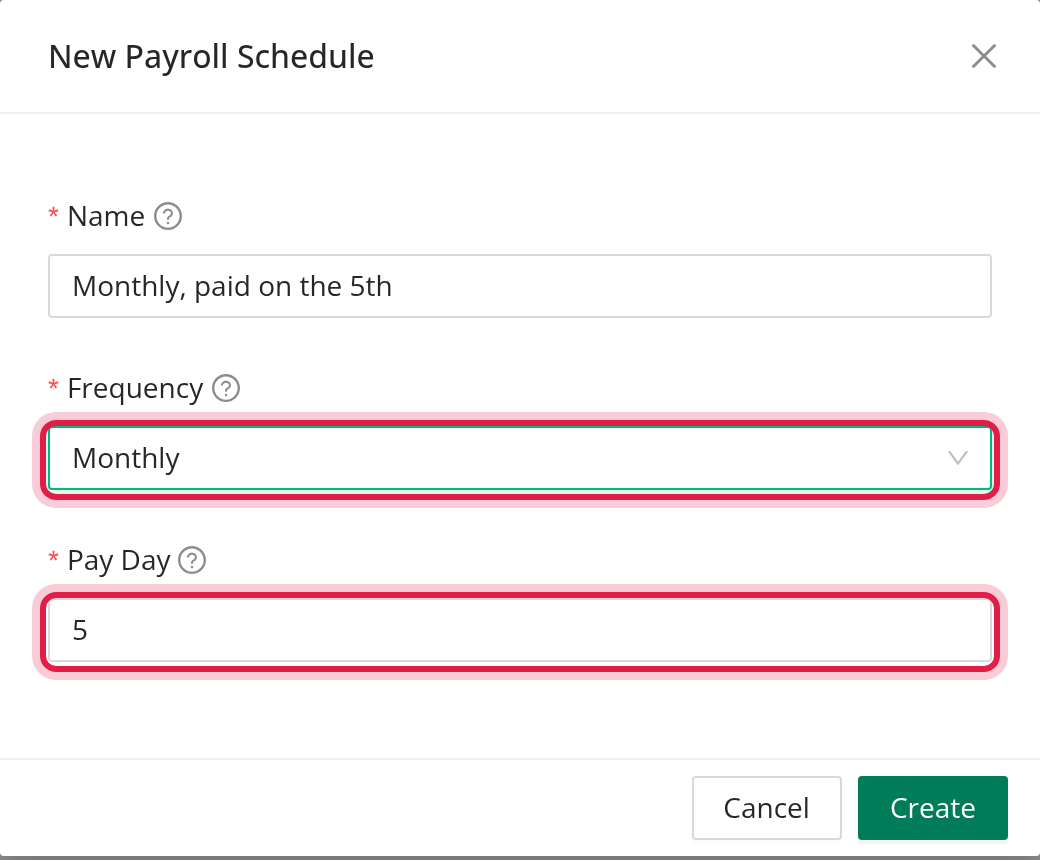
A monthly schedule
When you choose Monthly, the First Day of Payroll field disappears and Days to Pay is renamed Pay Day. A monthly pay period always runs from the 1st to the last day of the month.
Part 3: How the pay period and pay date are worked out
Weekly. Each pay period is 7 days and starts on the First Day of Payroll. The pay date is Days to Pay days after the last day of the period.
Example: With Sunday and 6, the pay period from November 1 to November 7 is paid on November 13. With Monday, the periods run from Monday to Sunday.
Monthly. Each pay period runs from the 1st to the last day of the month. The pay date is Pay Day days after the last day of the month.
Example: With a Pay Day of 5, October is paid on November 5.
Part 4: Change a schedule
- Select the pencil in the schedule's row.
- Change the fields and select Update.
- Confirm the save.
Every driver and employee who uses the schedule is calculated from it, so a change applies to all of them. If only some people should change, add a new schedule and assign it to them instead.
Part 5: Delete a schedule
Select the trash can and confirm. A schedule that is still assigned to a driver or an employee cannot be deleted: OpenRoad tells you to reassign them first. Assign those people a different schedule on their Compensation card or employee form, then delete.
Good to know
- Every add, change and delete is recorded in Settings → Audit Logs: see Settings → Audit Logs: see who changed which setting and when.
- If you leave the window with unsaved changes, OpenRoad asks before discarding them.
FAQ
Was this article helpful?
That’s Great!
Thank you for your feedback
Sorry! We couldn't be helpful
Thank you for your feedback
Feedback sent
We appreciate your effort and will try to fix the article