Settings is where your company decides how OpenRoad TMS works: your company details, how drivers are paid, which emails go out, which integrations are connected and who can see what. This article shows how to open Settings and lists every page of the Settings menu with the article that explains it.
Before you begin
- Only a Superadmin can open Settings. The Settings item appears in the avatar menu for Superadmin users only. To let other people see or change something, a Superadmin sets their rights in Settings → Access: set what each role and each user can see and do.
- Which pages you see depends on your account. Some pages show only when a feature is switched on for your account. If a page you expect is missing, contact help@openroadtms.com.
Part 1: Open Settings
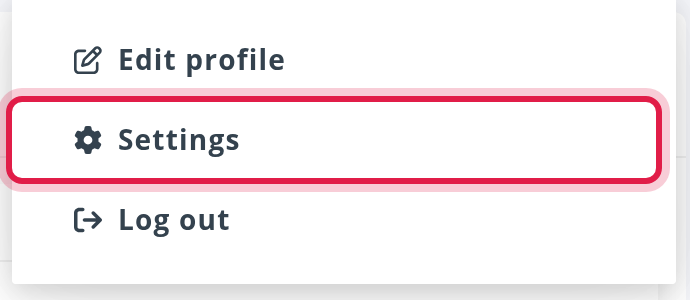
- Select your avatar in the top right corner and choose Settings.
- In the Settings menu on the left, open a section and select a page. To find a page quickly, type its name in the Search settings box at the top of the menu: the menu shows only the matching pages.
Part 2: Account
These pages describe your company and how it pays and bills.
- Account → Main Info: Settings → Account → Main Info: your company profile, logo, contact details and tax identifiers
- Account → Available Trucks: Settings → Account → Available Trucks: copy the public link to share your available trucks
- Account → Payroll Schedules: Settings → Account → Payroll Schedules: set the pay period and pay date for drivers and employees
- Account → Billing: Settings → Account → Billing: customize invoices with billing profiles, your logo, company details and invoice text
- Account → Compensations: Settings → Account → Compensations: create the pay plans (per mile, percentage or flat) your drivers are paid by
- Account → Passwords: Settings → Account → Passwords: set the access codes for payroll, loads and fuel transactions, and the team goal
- Account → Driving As: Settings → Account → Driving As: set up the carriers (MC numbers) your drivers, trucks and trailers work for
- Account → Wages: Settings → Account → Wages: choose the statement date, the statement miles and the Wages fuel fees
Part 3: Preferences
These pages switch features on and tune how they behave. The menu groups them under Drivers, Loads, Accounting and Operations.
- Preferences → Mobile App: Driver app general settings: choose what drivers see and get
- Preferences → Email Notifications: Settings → Preferences → Email Notifications: turn each email on or off and choose who receives it
- Preferences → Drivers → Home Time: Home Time: rules, setup and balance (Settings and the driver Overview tab)
- Preferences → Loads → Additional Charges: Additional Charges: set up charge types, add them to loads and see them on the invoice
- Preferences → Loads → Automatic Detentions: Automatic Detentions (EXTRA FEATURE): detention tracking, email notifications and settings
- Preferences → Loads → Driver Instructions: Driver instructions (EXTRA FEATURE): write, summarize and send the instructions your driver gets with a load
- Preferences → Loads → Fuel Stops Automation: Fuel Stops Automation (EXTRA FEATURE): let OpenRoad add the cheapest fuel stop to a driver's route
- Preferences → Operations → Trailers (and Loads → General, Trailer App times): Trailers settings: DOT warnings, Trailer Types and Trailer App times
- Preferences → Operations → Places: Places: find, add, correct and merge your locations, and set customer details and load flags
- Preferences → Operations → Trailer Organizer: Trailer Organizer: see where every trailer is, assign trailers and manage your yards
- Preferences → Operations → Capacity: Capacity (EXTRA FEATURE): match drivers who will be empty with loads that need a driver
- Preferences → Operations → Weather Alerts: Safety: Weather Alerts (the weather map, drivers in alert areas, comments, SMS and automatic messages)
Part 4: Integrations
That article lists each integration page of the menu and the article that explains it.
Part 5: Access and Audit Logs
- Access: Settings → Access: set what each role and each user can see and do
- Audit Logs: Settings → Audit Logs: see who changed which setting and when
Part 6: AI
These pages set up the automatic readers of your documents and emails.
- AI → Automatic Load Entry: Automatic Load Entry (EXTRA FEATURE): create loads from PDF rate confirmations
- AI → Unconfirmed Uploads Verification: Unconfirmed Uploads Verification (EXTRA FEATURE): let the Verification Robot check your drivers' documents
Part 7: Other pages in the menu
These pages are in the Settings menu but have no article of their own. If you need help with one, contact help@openroadtms.com.
- Preferences → Drivers: General, Elite Score, Driver Regions.
- Preferences → Loads: General, Load Score, Mile Split, Route Planning, Account Sync, Automatic Export, Deviation of Route, Accessorial Categories.
- Preferences → Accounting: Fuel Surcharge & Lane Rates.
- Preferences → Operations: General, Customers, Maintenance, Regions, Need Repair, Safety, Employees.
- Preferences: ADP Categories, Exposed Loads Configurations.
- AI: BOL Weight Extraction, Damage & Shortage Detection.
- Integrations: API Settings, and any integration page that the integrations article does not list.
FAQ
Was this article helpful?
That’s Great!
Thank you for your feedback
Sorry! We couldn't be helpful
Thank you for your feedback
Feedback sent
We appreciate your effort and will try to fix the article