Capacity puts the drivers who are about to become available and the loads that still need a driver on one page, as lists and on a map. For each state or region it shows how many drivers and loads there are and a Capacity Score, so planners see where you are short of trucks or loads. From the map a planner can assign a driver to a load.
Who can do this: to open Capacity you need permission to view it (all default user groups have it, and Superadmin always). The controls that assign a driver to a load and the gear dialog Planning & Booking by Regions are shown only to users of type Capacity, Admin or Superadmin. Other users see the board read only: they can still plan or hide drivers, mark a driver for spot loads, hide and copy loads.
Before you begin
- Capacity is an extra feature. It must be switched on for your account. If Capacity is not under Operations, contact OpenRoad Support at help@openroadtms.com.
- Only active drivers appear. Their availability comes from their loads and their off duty events, see Load profile and Available Trucks.
- To filter by region, create regions and give each planner and booker their regions in the gear dialog (see "Planning & Booking by Regions"). Planners and bookers are users of type Capacity.
- Three settings change what the board shows, in Settings → Operations → Capacity: Minimum Hours Gap Between Events, Time to Unload Truck and the date range From and To (see "How a driver becomes available"). Changes can take up to 15 minutes to show.
- The Hierarchy page shows who your Senior Capacity Managers and substitute planners and bookers are, see Hierarchy.
Open Capacity
In the left menu, select Operations, then Capacity. The page refreshes by itself every minute. Last updated at: shows when the data was last read.
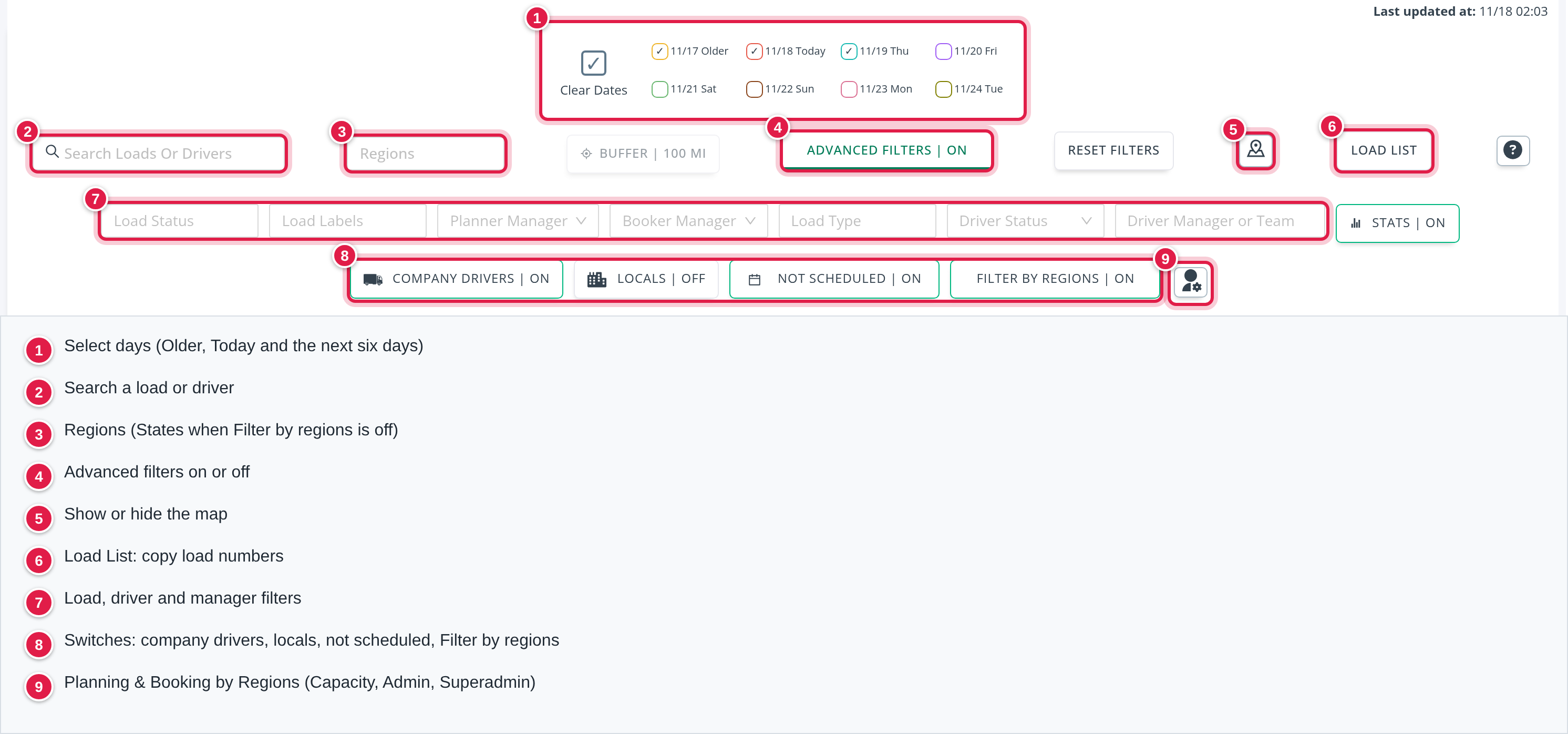
The header
- Select Days / Clear Dates and the day boxes: Older (yesterday and before), Today and the next six days, each in its own colour. They start with Older, Today and Tomorrow ticked. Ticking Today also ticks Older. The days are counted in Central Time (US).
- Search Loads or Drivers: pick a load by its number (as pick-up or delivery) or a driver by number.
- States (or Regions, when Filter by regions is on): choose where to look.
- buffer | N mi: see "Regions and the buffer".
- advanced Filters | on/off: opens the extra filters.
- Reset Filters: clears all filters, returns the buffer to 100 miles and turns Filter by regions on.
- Map View (map icon): shows or hides the map.
- Load List: see "Copy a list of load numbers".
- ? (Capacity Legend): explains every icon and colour.
Your day, state, region, manager, load type and label choices, the buffer and the map layers are remembered in this browser. The page refreshes by itself every minute. Last updated at: shows when the data was last read.
Advanced filters
- Load Status, Load Labels (Hot, Rescheduled, Sealed, High Value, Re-Power, Last Mile, Not Labeled, Preloaded, Ad-Hoc, Short Haul, Regional), Planner Manager, Booker Manager, Load Type (Contract, Spot, Dedicated, Internal and, when your account has them, EDI, EDI (Tenders) and Brokerage), Driver Status (Off Duty, Loaded, Available Now, Spot Required) and Driver Manager or Team.
- Switches: stats (shows or hides the score blocks), company drivers or all drivers (starts on company drivers), locals (off by default, so local drivers are hidden; on shows only local drivers), not scheduled (on by default; off hides loads with no scheduled appointment) and Filter by regions.
| Filter | What it does |
|---|---|
| Load Status | Keeps loads with that status, and also drivers whose last load has that status. |
| Load Labels | A load stays when it matches any of the chosen labels. Drivers stay when their last load is Rescheduled, if you choose that label. |
| Load Type | Contract, Spot, Dedicated, Internal: a load stays when its type is one of those chosen. EDI means an EDI load that has been accepted. EDI (Tenders) means an EDI load that is Booked and not yet accepted. Brokerage means brokerage loads. Each of these choices narrows the list further, so EDI together with EDI (Tenders) shows nothing. |
| Driver Status | Off Duty and Loaded match the kind of block the driver becomes available from. Available Now matches drivers who are empty now. Spot Required matches drivers marked with the S button. While a Driver Status is chosen, the Unassigned loads (U) are hidden and counted as 0. |
| Driver Manager or Team | A driver matches when the driver's manager, or the substitute manager if there is one, or that manager's team is chosen. |
| Planner Manager / Booker Manager | Selects that person's regions, including regions covered as substitute, and turns Filter by regions on. When you first open the page with no regions chosen, your own planner and booker regions are selected for you. |
| company drivers / locals | Company drivers only (default) or all drivers. Local drivers are hidden, or with locals on only local drivers are shown. |
| not scheduled | Off hides loads flagged Not Scheduled. |
The Not Labeled label only finds loads that are marked Preloaded and have none of the other labels.
Drivers: "active drivers & loads"
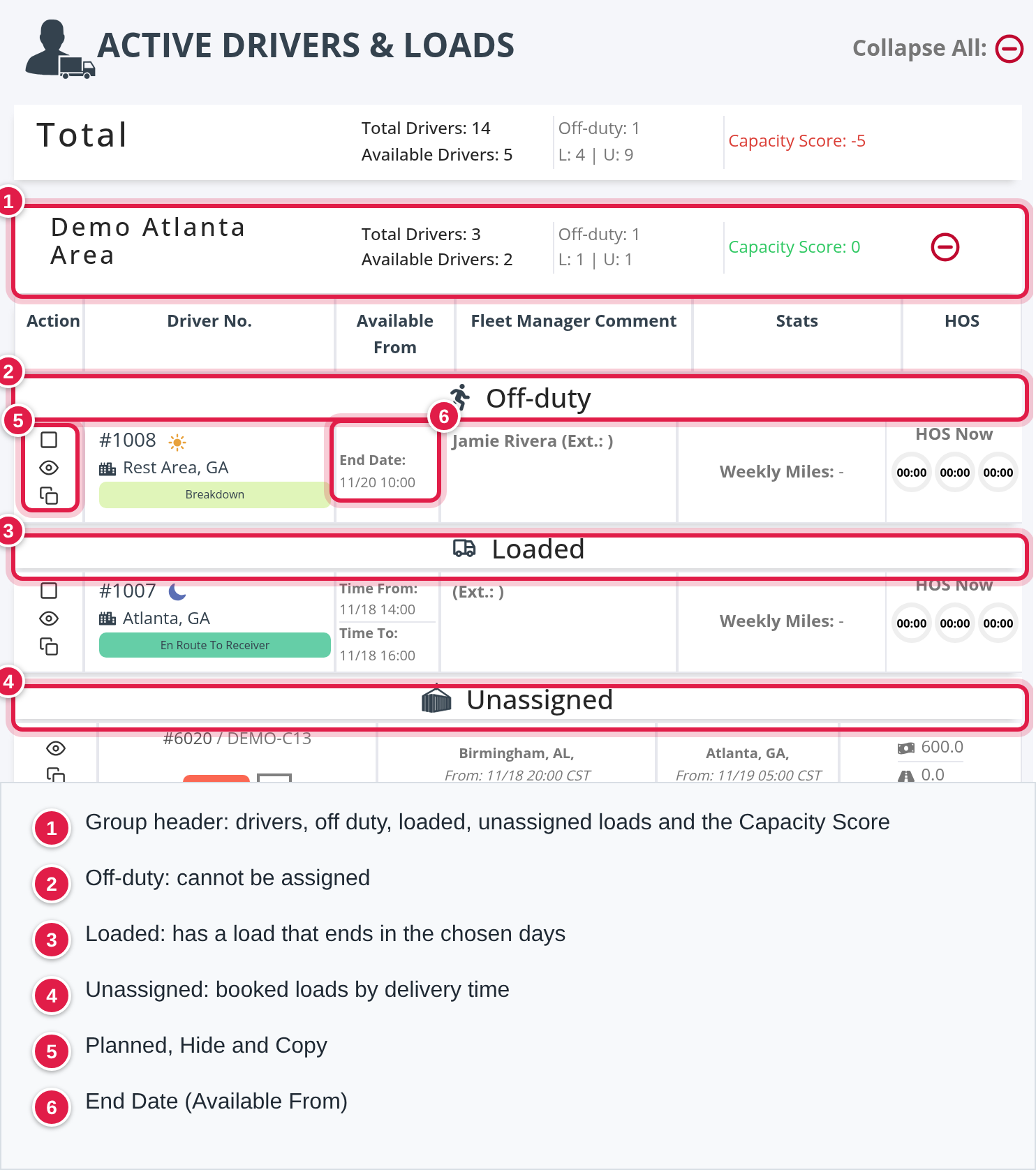
The list on the left groups the drivers who are or will be available by the state, or by the region, where their availability starts (the place where their last load or off duty event ends). Groups are in alphabetical order. Use Collapse All and Expand All. A driver shows under the day on which the block he or she becomes available from ends, so the day boxes you tick decide who is listed. With Older ticked, every earlier day is included too.
A group header shows these numbers. The Total block at the top shows the same numbers for everything on the page.
| Number | Where it comes from |
|---|---|
| Available Drivers | L plus Off-duty: the drivers listed in the group after your filters. Drivers marked Planned or Hidden are still counted. |
| Off-duty | Drivers whose availability starts at the end of an off duty event. |
| L | Drivers whose availability starts at the end of a load (loaded drivers). |
| U | Unassigned booked delivery loads in the group, counted by where they deliver. Each is a driver who will be free there. |
| Total Drivers | Available Drivers plus U. |
| Hidden/Planned | Drivers in the group with a current Planned or Hidden event. Shown only when above 0. |
| Capacity Score | See "Capacity Score". |
| red icon Available now | At least one driver in the group is empty now. |
Each group lists drivers in three parts: Off-duty (the driver becomes available from an off duty event, cannot be assigned until it ends), Loaded (the driver becomes available from a load) and Unassigned (loads with no driver, listed by delivery time). Drivers in each part are in order of the time their availability starts. The columns are Action, Driver No., Available From, Fleet Manager Comment, Stats and HOS.
In a driver row:
- Action: the square (Planned / Not planned), the eye (Hidden / Hide) and Copy.
- The driver number (select it to open the driver) with icons: Driver is grounded, Driver has a pet, Driver has an active Performance Improvement Plan, (R) for a route driver, a sun (AM) or moon (PM), the fleet group, endorsements (HM, T, X, N, TWIC), the last location and the load status or the off duty reason.
- Available From: Empty Now: with how long, or for an off duty driver End Date:. For a loaded driver it shows the last stop's Driver APP: (end of the driver appointment), Time From: and Time To: (customer appointment), HOS ETA: and Next Event:.
- Fleet Manager Comment: the substitute manager (marked Substitute) or the manager with extension, the availability comment and the planner note.
- Stats: Weekly Miles: for company drivers (see "Numbers in the driver pop-up").
- HOS Now: the Drive, Shift and Cycle time left from the driver's last hours-of-service record.
How a driver becomes available
OpenRoad builds a list of "blocks" for every active driver and finds the first moment the driver is free.
1. Which blocks are used.
- A load is a block from the first appointment start of the driver's stops to the end of the driver's last stop. The end is the Time Out of the last stop; if there is no Time Out, the end of the driver appointment (Driver APP); if there is none, the appointment start. Canceled and deleted loads are ignored.
- An off duty event is a block from its start to its end. Vacation cash-outs, balance adjustments and automatic resets are ignored.
- Only blocks in the date window are used: from the beginning of the day From days before today, up to the end of the day To days after today (in the account's time zone). From is 0 to 30 days, To is 6 to 30 days; without a To there is no upper limit. A load counts when its first pick-up or its last delivery is not earlier than the window start and its first pick-up is not later than the window end.
- Blocks that overlap are merged into one.
2. When there is a gap. Between two blocks there is a gap when the time from the end of the first to the start of the next is at least the required gap:
- Minimum Hours Gap Between Events (8 hours) after an off duty event or after a load whose last stop has a Time Out.
- Minimum Hours Gap Between Events plus Time to Unload Truck (8 + 2 = 10 hours) after a load whose last stop has no Time Out.
3. Which gap is shown. A gap is used only if it is still open from now: the next block must also start at least the required gap from the current time. The last block always counts as open. The driver is shown once, using the first open gap: Available From is the block before the gap and Next Event the block after it.
4. Empty now. An off duty event that has ended, or a load whose last stop has a Time Out in the past. A load without a Time Out is never empty now.
A driver with no load or off duty event in the window is not listed.
Example: a driver's last stop has a Time Out at 14:00 today and the next load starts tomorrow at 09:00. The gap is 19 hours, more than 8, so the driver is available from 14:00 and is Empty Now. If there were no Time Out and the driver appointment ended at 16:00, a load starting at 22:00 the same day would be only 6 hours later, less than the 10 required, so that gap is not used.
AM and PM drivers
The sun and moon show the hour at which the driver becomes available, in your account's time zone: AM is before 12:00, PM is 12:00 to 23:59. AM Drivers and PM Drivers on the map show only those drivers.
Retention drivers
A driver can be marked as a retention driver on the driver's profile (this needs the permission to set it, Admin by default). The driver's number is then red on the pin, with a red mark in the pin pop-up (Retention Driver - Needs Planning Attention). Retention Drivers on the map shows only those drivers.
Loads: "Booked & Assigned Loads"
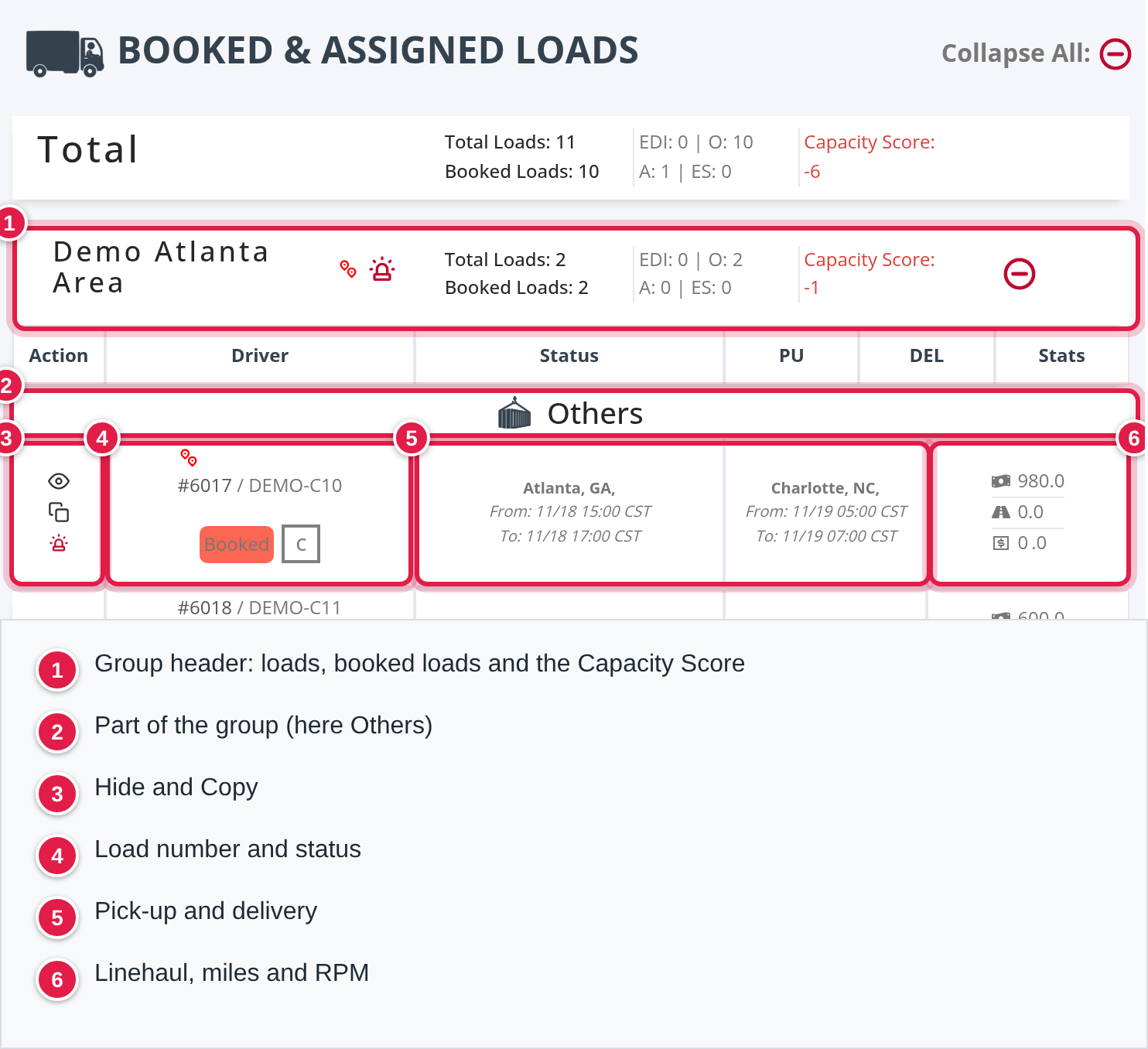
The list on the right shows the loads that need attention, grouped by the state, or region, of the pick-up, in alphabetical order. A group header shows these numbers:
| Number | Where it comes from |
|---|---|
| Total Loads | All loads in the group after your filters. |
| Booked Loads | EDI plus O: loads that are not Assigned and not En Route To Shipper. |
| EDI | Booked loads received by EDI. |
| O | Other booked loads, not EDI. |
| A | Loads with status Assigned. |
| ES | Loads with status En Route To Shipper. |
| Has Urgent Loads | Shown when at least one load in the group is a Same Day load. |
| Capacity Score | See "Capacity Score". |
The group name also shows small icons for the labels that at least one load in the group has. Parts: EDI, Others, Assigned, En Route To Shipper (and Brokerage Loads if your account has them). Loads are in order of their earliest appointment. The columns are Action, Driver (Capacity, Admin and Superadmin users only), Status, PU, DEL and Stats.
A load is listed when its status is Booked, Assigned, En Route To Shipper, At Shipper, Picked Up, En Route To Consignee, At Consignee or Delayed, it is not on hold (delayed loads are always shown), its pick-up appointment is in your days, and:
- it has no driver on a stop, or
- it is Delayed, or
- it has a driver and is Assigned or En Route To Shipper.
Each load needs both a pick-up and a delivery stop. A load with several pick-ups or deliveries shows its first pick-up and last delivery. Split loads are shown as several pick-up and delivery pairs: each pick-up with the next delivery after it.
In a load row:
- Status: the planner manager, the status, a square for the load type and a square T-1, T-2 or T-3 for the customer tier.
- Stats: Linehaul, Fuel Surcharge (when above 0), Miles and RPM.
- RPM: the rate per mile entered on the load; when it is 0, the linehaul divided by the miles, with two decimals.
Hide (the eye) collapses a load, and Copy copies its information. Both work only in your browser and nothing is saved for others.
Capacity Score
Capacity Score = Available Drivers minus Booked Loads, calculated for each state or region and for the whole page.
- Available Drivers are the drivers shown in the group after your filters (L plus Off-duty). U is not part of it.
- Booked Loads are the loads in the group that are not Assigned and not En Route To Shipper.
- A drivers group is placed by where the driver's availability starts. A loads group is placed by the pick-up.
- The number is green when it is 0 or more and red when it is below 0. A positive number means more drivers than loads, a negative one means loads without a driver.
- Total Drivers is Available Drivers plus the loads in Unassigned.
Example: a state has 3 loaded drivers, 2 off duty drivers and 4 booked loads, plus 1 assigned load. Available Drivers is 5, Booked Loads is 4, so the score is +1. The assigned load does not change it.
When Filter by regions is on, drivers and loads that are in none of your regions are not listed and are not in the group numbers.
The map
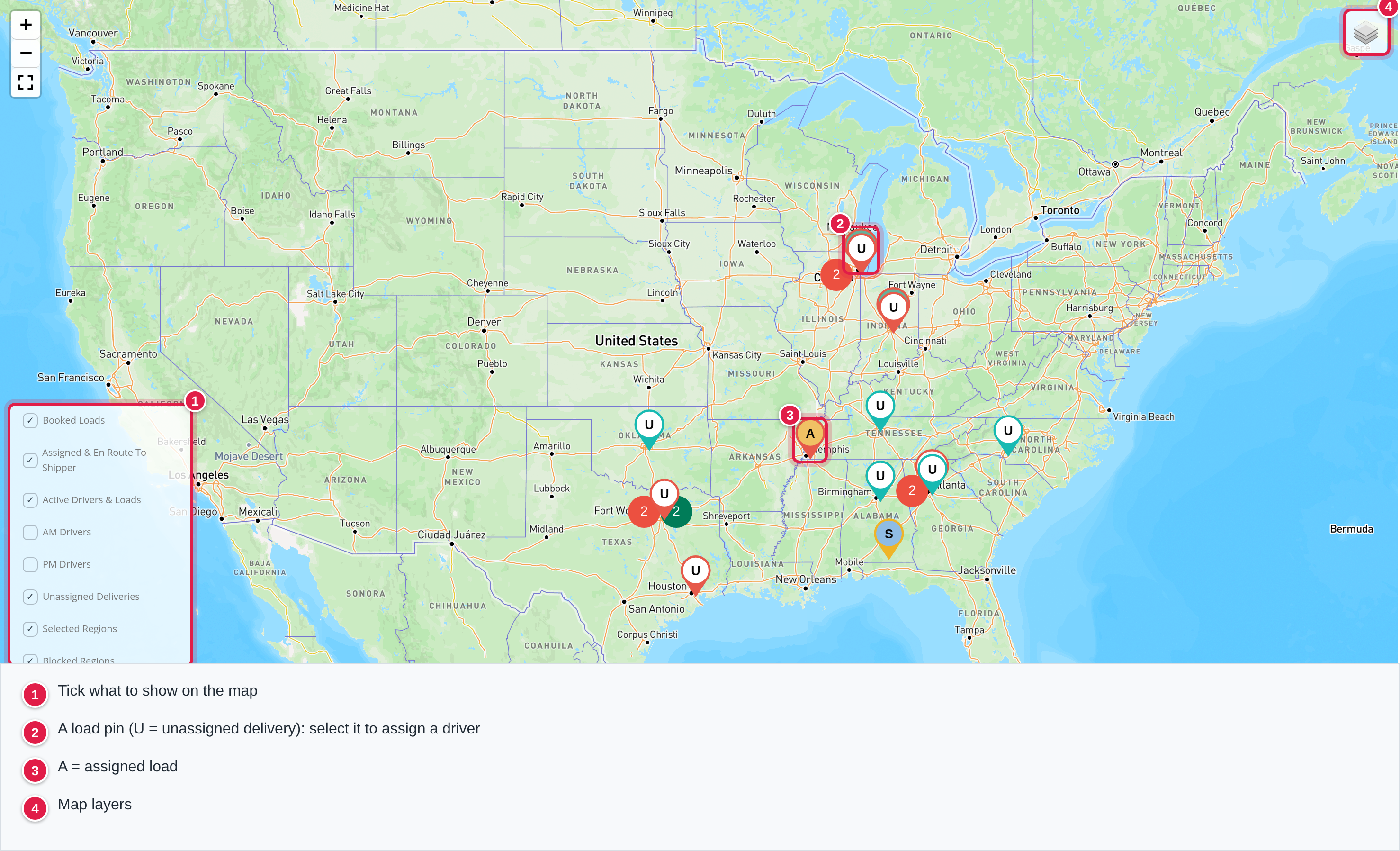
Tick what to show above the map: Booked Loads, Assigned & En Route To Shipper, Active Drivers & Loads, AM Drivers, PM Drivers, Unassigned Deliveries, Selected Regions, Blocked Regions, EDI Tenders (with EDI), Rescheduled (when your account uses it) and Retention Drivers. EDI Tenders (Booked EDI loads not yet accepted) are shown only when this box is ticked. Pins within a short distance of each other are grouped in a numbered cluster. A cluster of loads is marked when it holds a Same Day load, and a cluster of drivers when it holds a driver who is available now.
| Pin | Meaning |
|---|---|
| Driver pin (at the place where availability starts) | Blue: marked available for spot (S). Green: available now. Light gray: otherwise. The number is the driver number, red for a retention driver. A sun or moon marks AM or PM. Drivers with a Planned or Hidden event are in the list but not on the map. |
| Load pin (at the pick-up) | C contract or S spot, blue; purple for EDI; red for a Same Day load; A (orange) assigned; ES (green) en route to shipper; purple B brokerage. |
| White U (at the delivery) | Unassigned delivery. |
| Pin border and pointer | The colour of the day: for a load the day of the pick-up appointment, for a driver the day the driver becomes available. Yesterday and older amber, today red, tomorrow teal, then purple, green, brown, pink and olive for the days after. A date more than six days ahead is amber again. |
- A Same Day load is one created on the same calendar day as its pick-up appointment starts (the code compares the creation day with the pick-up day, not with today).
- The legend also explains the load icons (Hot, Rescheduled, Short Haul, Regional, Flatbed, Last Mile, Re-Power, Sealed, High Value, Ad-Hoc, Not Scheduled, Preloaded) and the customer tier badges T-1, T-2 and T-3. A load with several of these flags shows several icons.
- Regions are drawn as outlines, the buffer as an orange line made of short dashes, and blocked regions in red.
Select a driver pin to see the driver's name, type, endorsements, truck, trailer, home, load (with its total), phone, the Drive, Shift and Cycle dials, Weekly Miles:, End Date: (off duty drivers), Driver APP:, Customer APP: (or Trailer APP: for a trailer stop), OTD:, Fleet Group:, Region Group(s):, the Next Event: and the comments. Buttons: Search Loads in Load Boards (when allowed), Set Driver, Copy Driver Info and the round S button.
Numbers in the driver pop-up
| Number | Where it comes from |
|---|---|
| Weekly Miles | The driver's total miles (loaded plus empty) from the most recent weekly statistics. Shown for company drivers. |
| OTD | On-time delivery over the last 13 weeks: the current week and the 12 before it. Of all the driver's pick-up and delivery stops in those weeks, the share that were late is taken off 100: OTD = 100 - (late stops / stops x 100). A stop is late when it has a service failure reason of Driver related, Traffic delay or Accident, charged to this driver and not marked non-preventable. Shown only when there are stops. Colour: green from 95%, orange from 90% to below 95%, red below 90%. |
| Drive, Shift, Cycle | Time left (hours:minutes) from the driver's last hours-of-service record. The ring shows the share of the limit that is left: 11 hours drive, 14 hours shift, 70 hours cycle. |
| Fleet Group | The driver's fleet group. Region Group(s) are the region groups that include that fleet group. |
| Next Event | The next block after the gap: an off duty event with its reason, place and times, or the next load with its first pick-up and times. |
Assign a driver to a load
Only Capacity, Admin and Superadmin users.
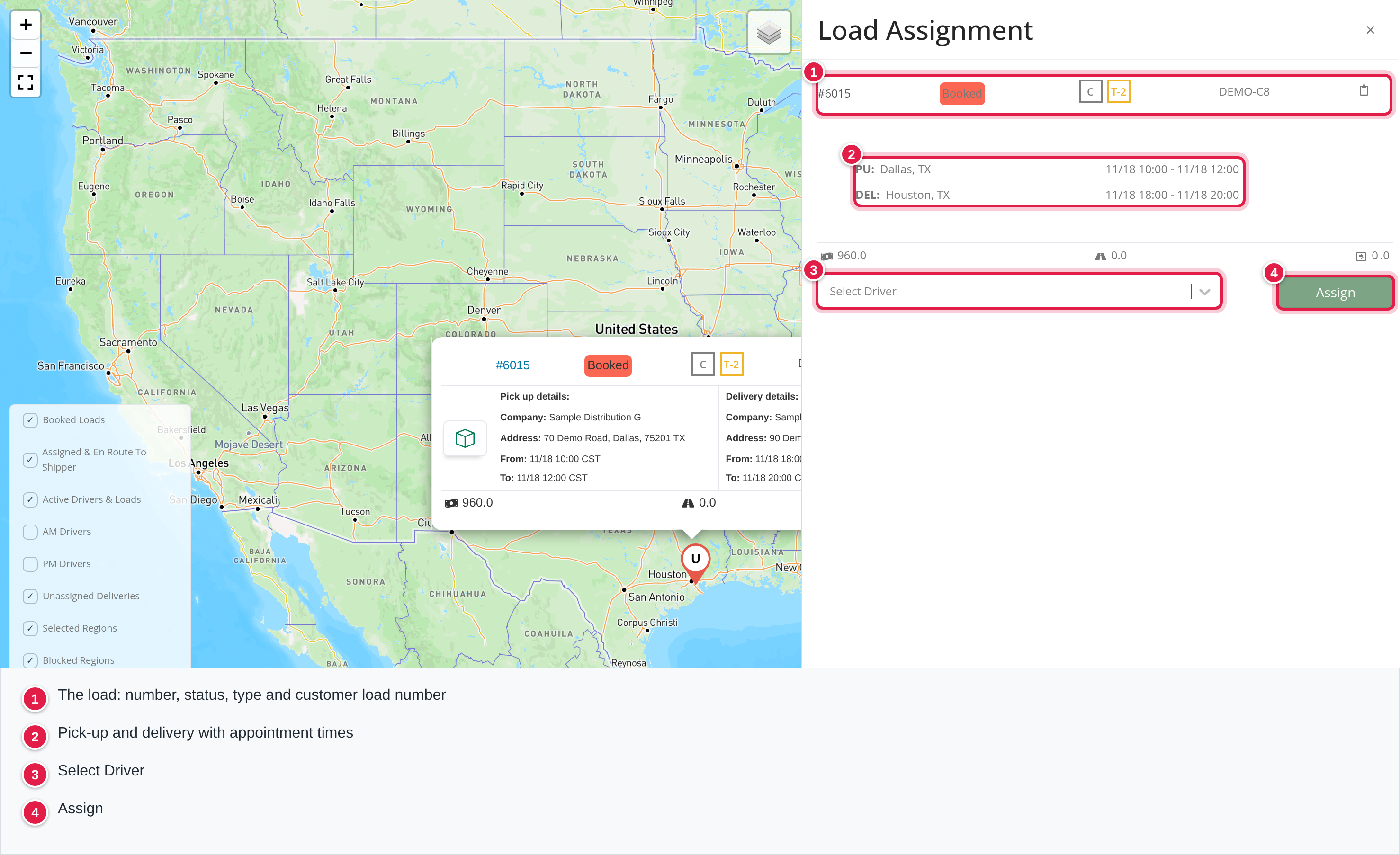
- Select a load pin. The drawer Load Assignment opens with the pick-up and delivery.
- Choose the driver in Select Driver, or select Set Driver in a driver's pin.
- Select Assign. Confirm Do you want to assign driver: #... to the #... load?
- You see Success with the driver and load, or Error with the reason.
What happens: the driver is set on the load's first pick-up and last delivery (for a split load, on the stops of that pair), the load changes from Booked to Assigned and the miles are recalculated. If the load has no planner manager yet, you become its planner manager. The driver's spot mark is cleared. When your account has the setting, the driver gets a "load assigned" notification after a delay. The load's link is copied to your clipboard. After the next refresh the driver leaves the list and the load moves to Assigned.
You cannot assign when:
- the load is on hold (Load on hold),
- a stop already has a driver,
- the driver's license or documents have expired (unless your account allows it), shown as the name and the fields with "- expired",
- an EDI load is over the customer's hard balance limit.
Plan, hide or mark a driver
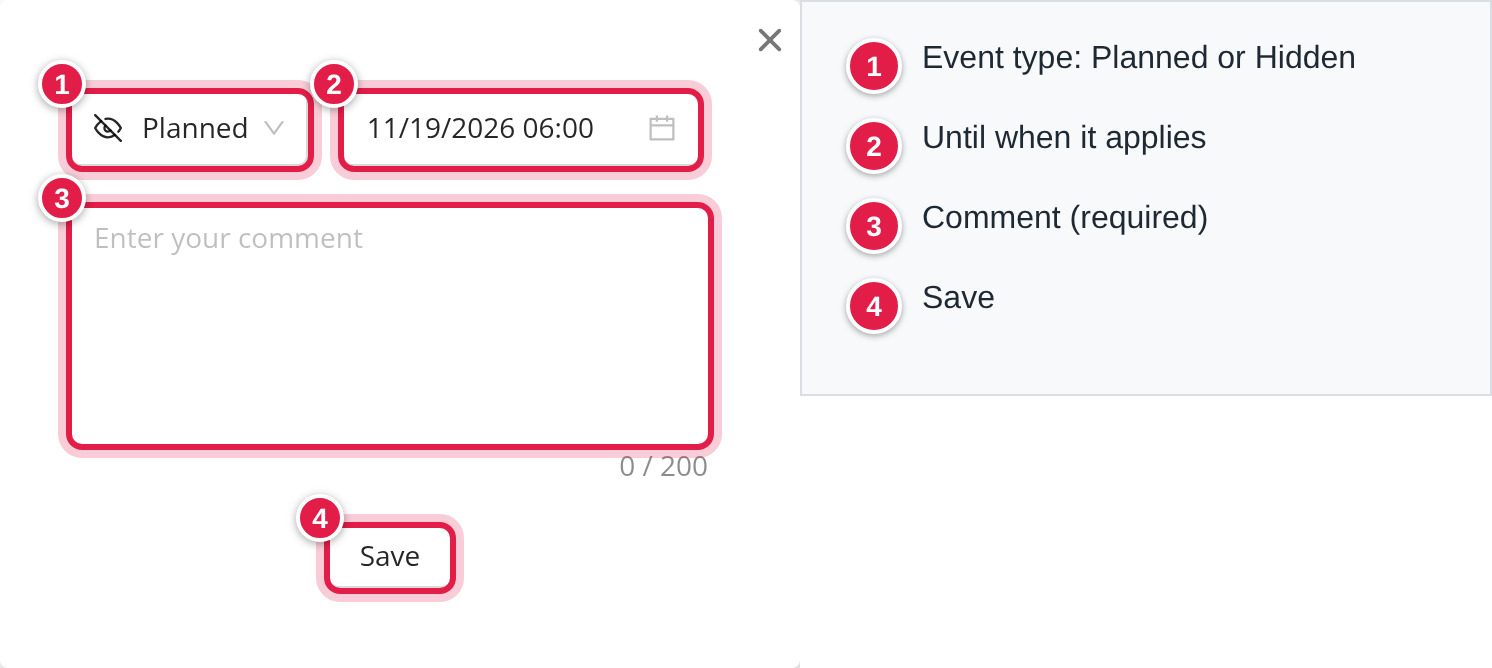
- Planned or Hidden: select the square or the eye in a driver row. In Select Event Type choose Planned or Hidden, set the date and time until it applies (starts tomorrow 06:00 in your account's time zone, never in the past), write Enter your comment (required) and select Save. Delete removes it. A new event replaces the driver's earlier one, and an event counts only until its date and time. Everyone with Capacity access sees it with the author and Applies Until:. The driver stays in the list as one line, still counted in Available Drivers, also counted in Hidden/Planned, and is not drawn on the map. Messages: Driver event saved successfully.
- S: marks the driver as available for a spot load, so the pin turns blue and Spot Required finds the driver. Select it again to remove it. The mark is shared and cleared when the driver is assigned.
Regions and the buffer
- Filter by regions | off: filters by the US state where the driver's availability starts and by the state of the load's pick-up (and of the delivery for Unassigned loads).
- on: with no region chosen nothing is filtered. With regions chosen it matches by the first digits of the zip code (a region is a list of three-digit zip prefixes), or, with a buffer, by map position. Groups are the regions.
- buffer | N mi: widens the chosen regions by that distance (0 to 500 miles, 5 mile steps, starts at 100). Set the number and select Apply. It needs Filter by regions on and at least one region. A driver matches by the place where the driver's availability starts, a load by its pick-up point and an unassigned delivery by its delivery point. When the widened area is too detailed to use, the zip prefixes of the chosen regions are used instead. With the buffer at 0 only the region itself counts.
Copy a list of load numbers
Select Load List. Filter by Capacity Manager, CSR and Status (Booked and Picked Up to start), tick loads or use Selected (n) and All (n) to copy the customer load numbers, one per line. Nothing is saved.
Planning & Booking by Regions (gear icon)
Only Capacity, Admin and Superadmin. The window has five tabs.
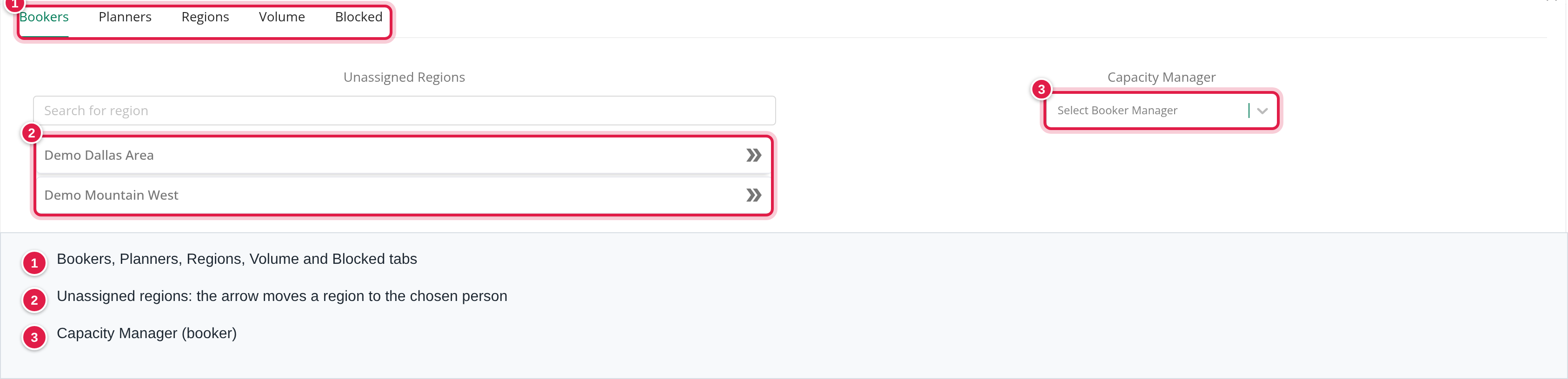
- Bookers and Planners: pick a Capacity Manager and use the arrow (Add Assignment) to move a region from Unassigned Regions to that person. Remove it with the cross (Remove Assignment). Each region has one planner and one booker through this window.
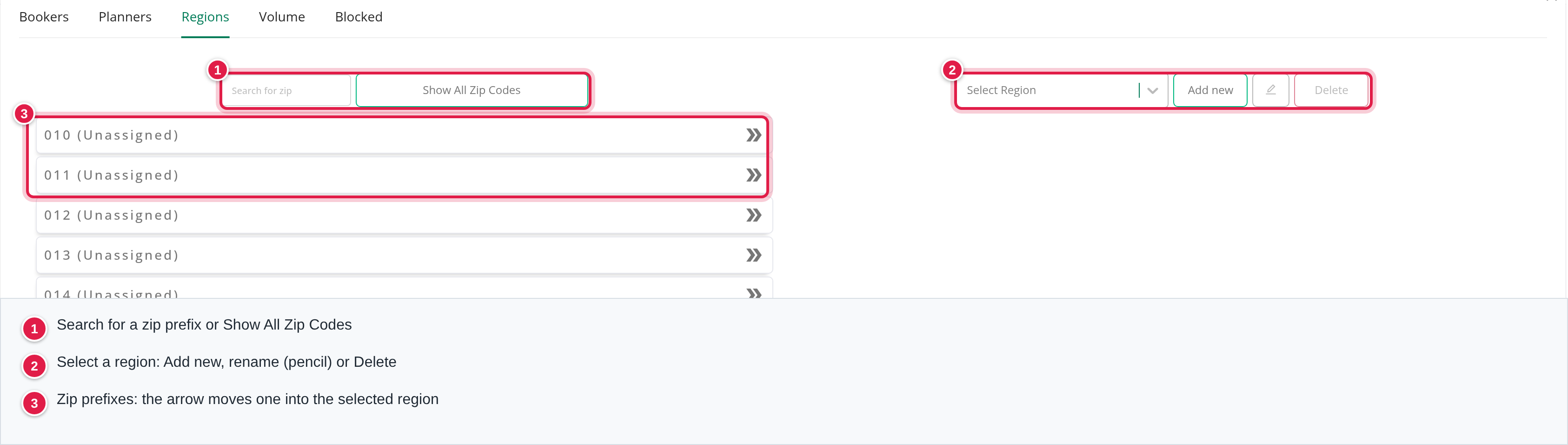
- Regions: create regions from three-digit zip prefixes. Use Add new (Enter Region's Name), the pencil (Rename region) and Delete. Move a prefix into the selected region with the arrow. A prefix that is already in another region asks Reassign Zip Code. A prefix belongs to only one region. Region names must be unique, and a region that still has zip prefixes cannot be deleted.
- Blocked: move regions into Blocked regions. They are drawn in red on the map. It does not stop assignments.
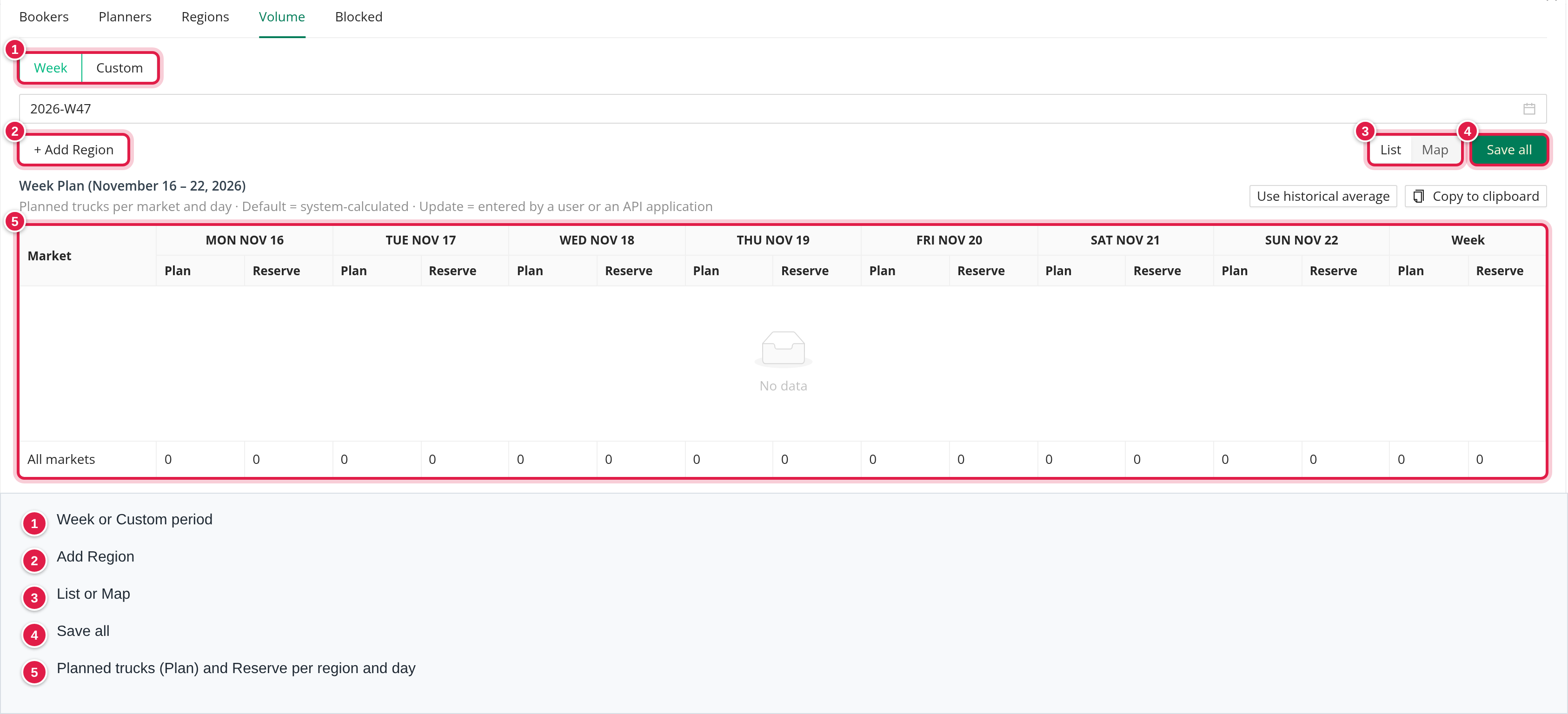
- Volume: the planned number of trucks per region and day, for your own planning. Choose Week or Custom (up to 92 days), add regions with + Add Region, switch List or Map and select Save all. For each day and fleet group (Local, Short Haul, Regional, OTR, Dedicated, Flatbed) you enter a Plan and a Reserve. Use historical average fills a week from history, Copy to clipboard copies the table and Apply Monday to all weekdays (M-F) copies Monday's numbers. The tab needs the Region volume permission (Admin and Capacity users by default). The volume numbers are not used elsewhere on the Capacity board.
| Number | Where it comes from |
|---|---|
| Plan (entered) | The whole number you type for a day and fleet group. A day you edit is tagged Update (entered by a user or an API application). |
| Reserve | A whole number from 0 up to the Plan of the same fleet group. A higher Reserve shows Reserve cannot exceed Plan and Save all stays disabled. It is 0 unless you enter it. |
| Plan (Default, system-calculated) | When nothing is entered, the average of the same weekday over the last four weeks, split evenly over the six fleet groups. Tagged Default; hover over the tag to see the four dates. |
| Week and Weekly totals | The sum of the seven days; the footer All markets adds all regions. |
| Missing Capacity Plan | A day with no entered plan and no history for the region. |
The historical average. For a day, the app takes the same weekday in the last four weeks before the week of that day (for a future day, before the current week). Weeks that contain a US holiday are skipped and the next earlier week is used: New Year's Day (1 January), Memorial Day, 4 July, Labor Day, Thanksgiving and 25 December. For each of the four days it counts the loads whose first pick-up falls on that day in the region (zip prefix, in your account's time zone), without canceled loads and without loads of test drivers. The result is (total of the four days + 2) divided by 4, rounded down to a whole number, which is the average rounded to the nearest whole number (halves up).
Even split. The total is divided by 6; what is left over goes one each to the first fleet groups in the order Local, Short Haul, Regional, OTR, Dedicated, Flatbed. Example: a total of 20 gives Local 4, Short Haul 4, Regional 3, OTR 3, Dedicated 3, Flatbed 3.
Default or entered. A day saved as Default stores no numbers and is recalculated from history each time you open it; a day with entered numbers (Update) keeps them. If several saved plans cover a date, the one saved last wins.
FAQ
Was this article helpful?
That’s Great!
Thank you for your feedback
Sorry! We couldn't be helpful
Thank you for your feedback
Feedback sent
We appreciate your effort and will try to fix the article