Available Trucks shows every active driver whose truck becomes empty on the days you choose, grouped by team or by state, with a map of where each truck will be empty. Two more lists show drivers with a planned event and drivers who are off duty. Use it to find the next truck for a load, set a driver off duty and leave comments on a truck. This article also explains how each truck's empty time is worked out, so you can tell why a truck is on a given day or not on the list at all.
Who can do this: you need permission to open Available Trucks. By default that is Dispatcher and Capacity users, plus Admin and Superadmin. Creating, editing or deleting off duty events uses the same permission (Accounting and Safety users have it for the lists and windows, but not for opening the page unless a Superadmin gives it to them).
Before you begin
- Available Trucks is an extra feature. It must be switched on for your account. If Available Trucks is not under Operations, contact OpenRoad Support at help@openroadtms.com.
- The page works from your loads. A driver is listed because of the stop times on the driver's loads, so the Time Out (or, when empty, the appointment From time) of the driver's last stop must be correct. See Load profile.
- Only active drivers appear. A canceled load never makes a driver available, and neither does a load where the driver is not on any stop.
- The Fleet manager on the driver decides the team and dispatcher a truck is listed under (see "Which team and dispatcher a truck is listed under").
Open Available Trucks
In the left menu, select Operations, then Available Trucks. The page has three parts: filters at the top, lists on the left and a map on the right.
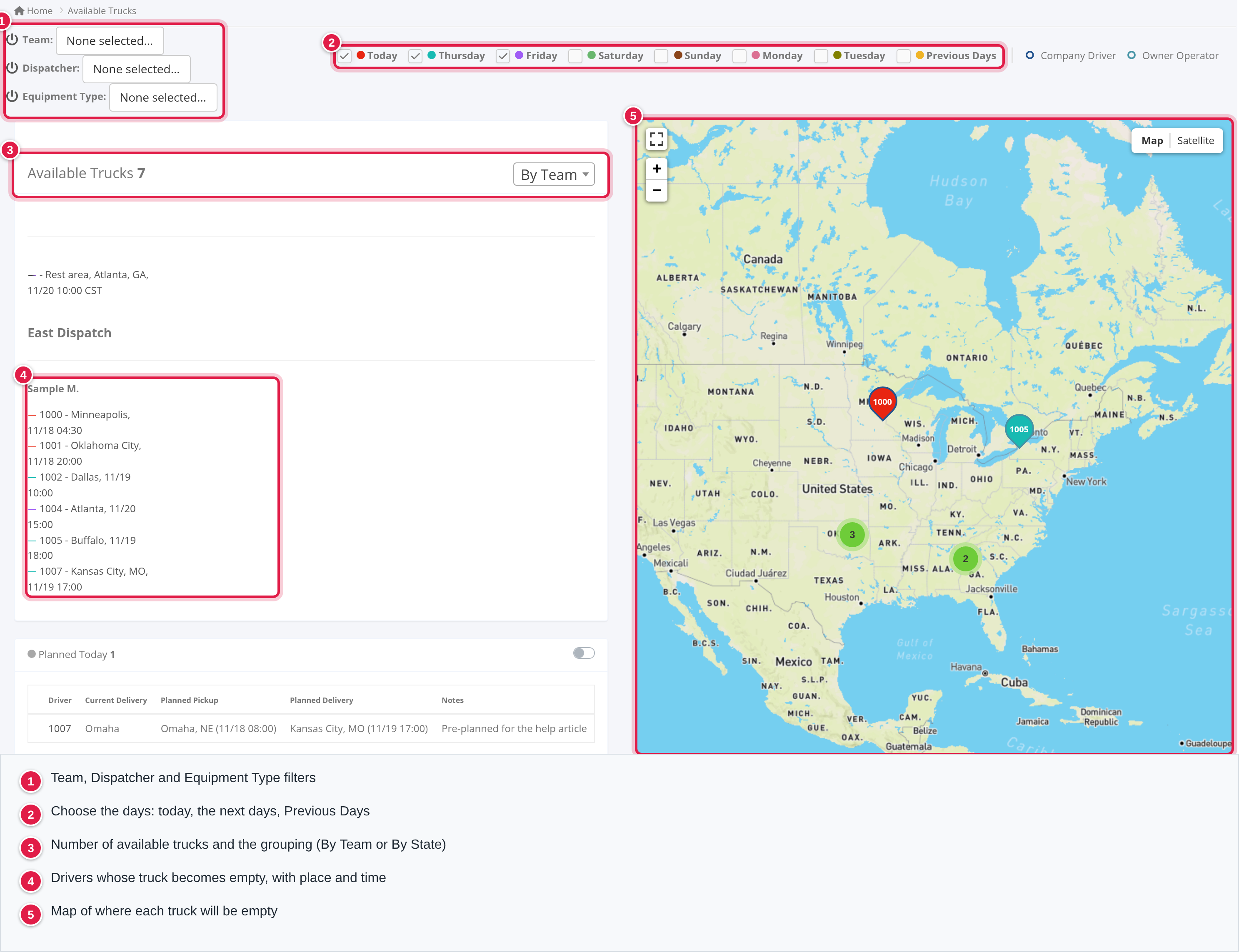
Filters
- Team: choose one or more teams. A Dispatcher user starts with their own team selected. Use the power icon to clear the selection.
- Dispatcher: choose one or more dispatchers.
- Equipment Type: shows only if your account has trailer types. It keeps drivers who have a trailer of that type assigned on the chosen days (see Driver Assignments).
- Day boxes: tick Today, any of the next six weekdays, and Previous Days. You can tick several at once. OpenRoad remembers your ticks. Days use your account's time zone.
- Clusters: ON/OFF (bottom left of the map): groups close markers together. OpenRoad remembers your choice.
How a truck's empty time is worked out
Every active driver has up to three "latest" events: the last load, the last planned event and the last off duty event. Canceled loads are ignored. For each driver, the page takes whichever of these three ends latest: that is the driver's newest event, and it decides when and where the truck is empty.
| Part | Rule |
|---|---|
| Event for a load | One event per driver and load. It starts at the first stop of the driver on that load (Time In, or the appointment From time when there is no Time In). It ends at the last stop of the driver on that load (Time Out, or the appointment From time when there is no Time Out). |
| Where the truck is empty | The city and state of the driver's last stop on the load. |
| Which day the truck is on | The day (in your account's time zone) on which the newest event ends. A truck is listed when that day is one you ticked. With Previous Days, trucks whose newest event ended before today are listed too. |
| Time shown in the row | For a load: the Time Out of the last stop; if empty, the ETE (estimated time empty) saved on the driver card; if that is empty too, the end of the event. Planned and off duty rows show the end of the event. |
| Which event wins | The one that ends latest. A planned or off duty event that ends after the load hides the load's day; a later load hides an earlier planned or off duty event. |
| Planned events | When a driver is put on a new load, the driver's planned events are deleted. |
The ETE only changes the time in the row, not the day. The truck stays on the day of the last stop's end. Set the ETE with the pencil next to ETE: on the driver card (shown while the last stop has no Time Out).
OpenRoad rebuilds a driver's event in the background whenever a load is saved or its stops change, when a driver is added to or removed from a load (the old event of a removed driver is deleted), and when a driver's stop times are updated by tracking, for example when the truck departs. Allow a moment after saving before checking the page.
The Available Trucks list
This list has a count and a drop-down to group the drivers by team or by state. Each row reads: driver number, city and state where the truck will be empty, and the time.
- A driver whose newest event is later than the load (for example a planned or off duty event, or a later load) is not shown on the day the first load ends.
- Select the pin icon on a row to zoom the map to that truck. Select the row text to open Update Status (see below).
Empty now
When the truck has been empty for more than a minute, the row says Empty now with the hours and minutes since the truck became empty. For a load the count starts at the Time Out (no Time Out, no Empty now); for a planned or off duty event it starts at the end of the event.
| Time empty | Look of the label |
|---|---|
| 1 to 120 minutes | plain |
| 121 to 300 minutes | orange border |
| 301 minutes or more | red border |
Colours on the map
- The marker colour is the day the truck is empty: today is red, the next days are cyan, purple, green, brown, pale violet and olive, and days before today are yellow.
- Off duty and planned trucks use half black and half gray markers.
- The marker border is blue for a company driver and green for any other driver type (the legend ovals Company Driver and Owner Operator show this).
Which team and dispatcher a truck is listed under
The driver's Fleet manager (the person's name and team) is copied onto each event when it is created. The list headings (By Team) and the Dispatcher filter use that copy. The copy is refreshed on the driver's current events (those that have not ended) when:
- the driver's number, first name, driver type or Fleet Manager is changed on the driver, or
- a dispatcher's name or Team is changed on the user.
Events that already ended keep the old values. The Team filter works slightly differently: it keeps trucks whose stored dispatcher is an active user who is now in one of the chosen teams. The Team drop-down lists the teams of active users; the Dispatcher drop-down lists active dispatchers.
The driver card
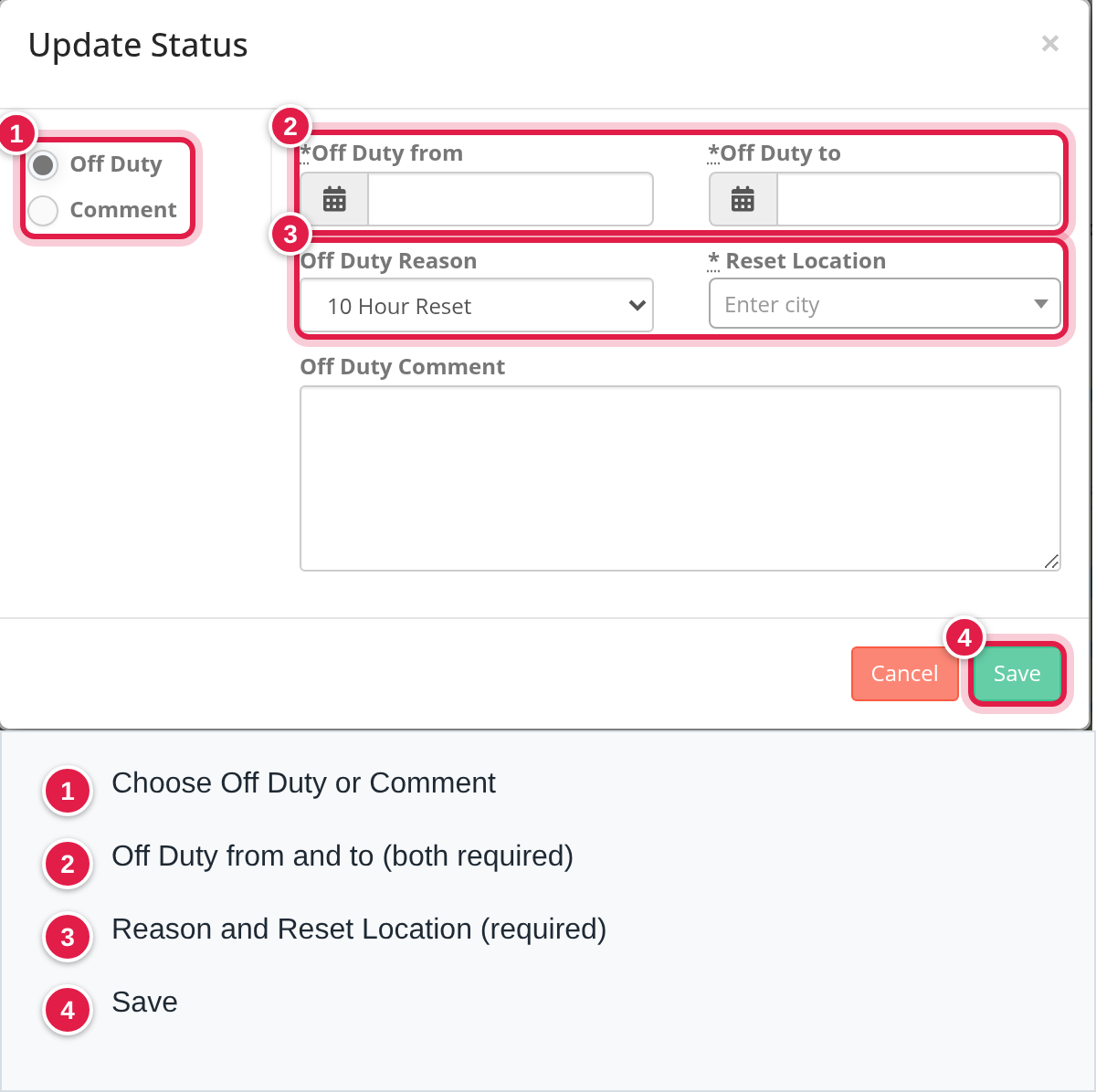
Select a marker on the map. The card shows the driver's name and number, the phone number (with a copy icon), Equipment Type (the type of the driver's current trailer), the dispatcher and extension, TWIC card: Yes when set, endorsements, the load summary, the Break, Drive, Shift and Cycle clocks when the driver has hours-of-service data, the latest comment with its time, and Empty Location. Open Load opens the load in a new tab and Update Truck Status opens the Update Status window.
For a driver who is planned or off duty, the card shows the planned pickup and delivery or Off Duty with the reason, the time range and Reset Location.
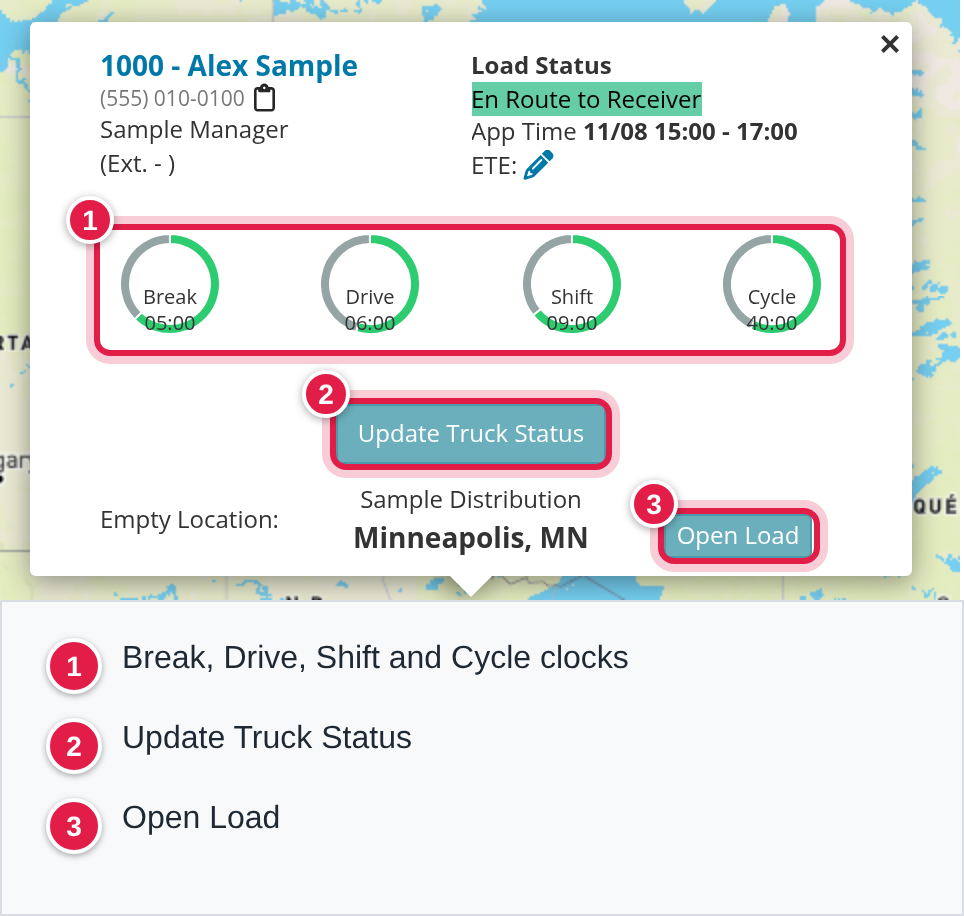
Planned Today
This panel shows drivers whose newest event is a planned event (no load or off duty event ends later). The list is not limited to today, whatever the day boxes say. The columns are the pin, Driver, Current Delivery, Planned Pickup, Planned Delivery and Notes. A switch shows the planned drivers on the map.
Select a driver number to edit the planned event or select the red Destroy and confirm Are you sure? to delete it.
Off Duty
This panel shows drivers whose newest event is an off duty event that has not ended yet (it must end now or later). They are grouped by reason, each with a count and a switch to show the group on the map: 10 Hour Reset, 34 Hour Reset, Home Time, Unapproved Off, Vacation, Medical, Bereavement, Breakdown, Weather, Layover, Paid Layover and Not Paid Layover. The columns are the pin, Driver, Current Delivery, Time, Reset Location, Notes and HOS.
Select a driver number to edit the event, or Destroy to delete it.
The Planned Today and Off Duty panels do not follow the Team, Dispatcher and day filters. Only Equipment Type applies to them.
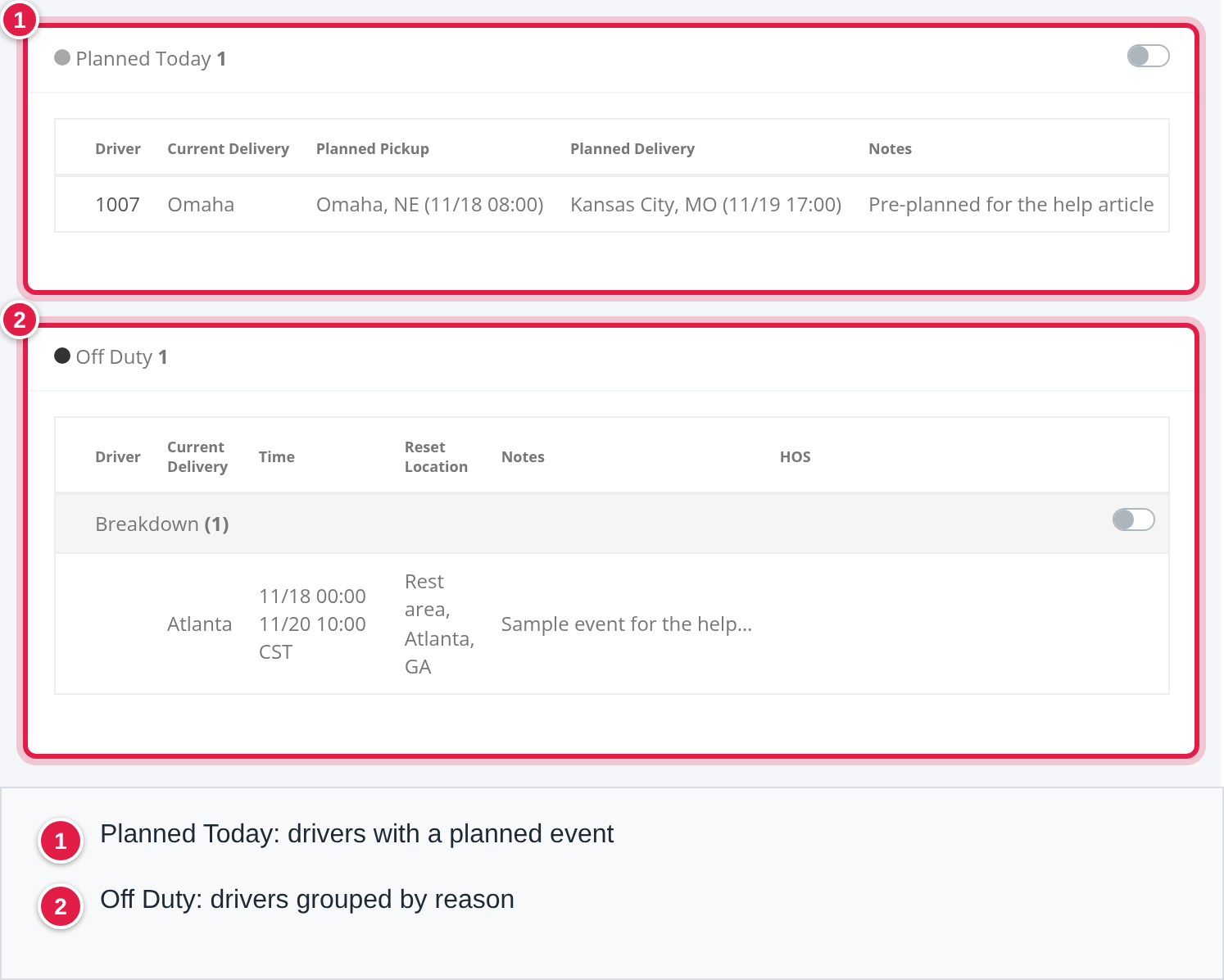
Set a driver off duty or add a comment
- In the Available Trucks list, select the driver's row (or Update Truck Status on the driver card). The window Update Status opens.
- Choose Off Duty or Comment.
- For Off Duty, fill in Off Duty from and Off Duty to (both required), Off Duty Reason, Reset Location (required, search for an address) and, if you want, Off Duty Comment. The reasons you can pick are 10 Hour Reset, 34 Hour Reset, Home Time, Unapproved Off, Vacation, Medical, Bereavement, Breakdown, Weather, Paid Layover and Not Paid Layover. The times use the time zone of the reset location.
- For Comment, type the text in Comment.
- Select Save. You see Record saved successfully. and the lists refresh.
The comment is shown on the driver card with its time. When a driver is put on a new load, the comment is moved to the driver's comment history and cleared.
Rules and messages:
- The end time cannot be before the start time.
- Cannot overlap Planned drivers: the new off duty time overlaps a planned event of the same driver. The same check works the other way round for planned events.
- End date is longer than the Home Time limit of N days: the driver has Home Time turned on and the event is longer than your account's limit.
- Saving Unapproved Off, Medical or Bereavement also sends an off duty notification email.
Loads cannot be created, edited or deleted here. They follow the load itself.
Good to know
- The lists are read from live data each time the page loads, when you change a filter or tick a day. To reload the page by itself, set Locations refresh rate in your user profile: a number of seconds from 0 to 120, where 0 turns it off.
- The page has no export.
A driver is not in the Available Trucks list
- Open the driver's recent loads and check the Time Out of the last stop and the appointment times. A wrong or missing time moves the truck to another day or hides it. Fix it on the load.
- Check for a later planned or off duty event, or a later load. That event is the truck's newest one. Edit or Destroy it if it is wrong.
- Tick Previous Days if the truck was free before today.
- Check that the driver is active and that the load is not canceled.
- Check that the Team, Dispatcher and Equipment Type filters are not hiding the driver. If the driver's Fleet Manager changed recently, check that the filter matches the dispatcher stored on the truck's event.
- Refresh the page.
Public Available Trucks link
Superadmins can share a public map of available trucks with outside partners. The link is shown in Settings under Available Trucks (Public link, with a copy icon). Anyone who has the link can open the page without logging in, so share it only with partners you trust.
The public page is not the same data as the page above:
- Source: it reads a saved copy of your data, not the live events. The copy is rebuilt by a scheduled background job. Refresh Data on the public page only reloads that copy; it does not rebuild it, so allow for the delay.
- What is in the copy: for each day from yesterday to four days from today, the last stop of each active driver on that day, from loads that are not canceled, provided the driver has no later stop within that window. Planned and off duty events are not part of it, and drivers with a planned or hidden flag are left out.
- What it shows: day boxes for today and the next four days (no Previous Days), an Equipment Type filter when your account has trailer types, Refresh Data and Clusters: ON/OFF. It lists drivers by state with the driver number, the dispatcher's name (first name and last initial), phone and email, the date and the city. The marker border is orange when the driver delivered 3 or more hours ago and red at 5 hours or more.
Because of the different source and timing, the public numbers can differ from Available Trucks.
FAQ
Was this article helpful?
That’s Great!
Thank you for your feedback
Sorry! We couldn't be helpful
Thank you for your feedback
Feedback sent
We appreciate your effort and will try to fix the article