Driver Assignments records which truck and which trailer each driver uses, and for which dates. You see each driver's current equipment at a glance, assign a truck or a trailer, change the dates later and review the history of every driver. The dates matter beyond this page: tolls, fuel, miles by state and equipment cost in the KPI are all matched to drivers through them.
Who can do this: you need permission to open Driver Assignments. By default that is Dispatcher, Capacity and Accounting users, plus Admin and Superadmin. Dispatcher and Capacity users can also assign, edit and change trailer assignments. Deleting an assignment is not given to any role by default: it is available to Admin and Superadmin users, or to users a Superadmin has given the delete permission.
Before you begin
- Add the drivers, trucks and trailers first. A driver shows on this page when the driver is active, suspended new or pre-hired (only active drivers can get a trailer).
- The Truck list offers only trucks that are active, not leased out, in service and with valid expirations. Your account can allow out-of-service units or expired inspections in its settings. A truck whose preventive maintenance is overdue can also be blocked when your maintenance integration is set to do that.
- If your account has no driver that can be assigned, OpenRoad shows "Sorry. no active drivers were found".
Open Driver Assignments
In the left menu, select Operations, then Driver Assignments.
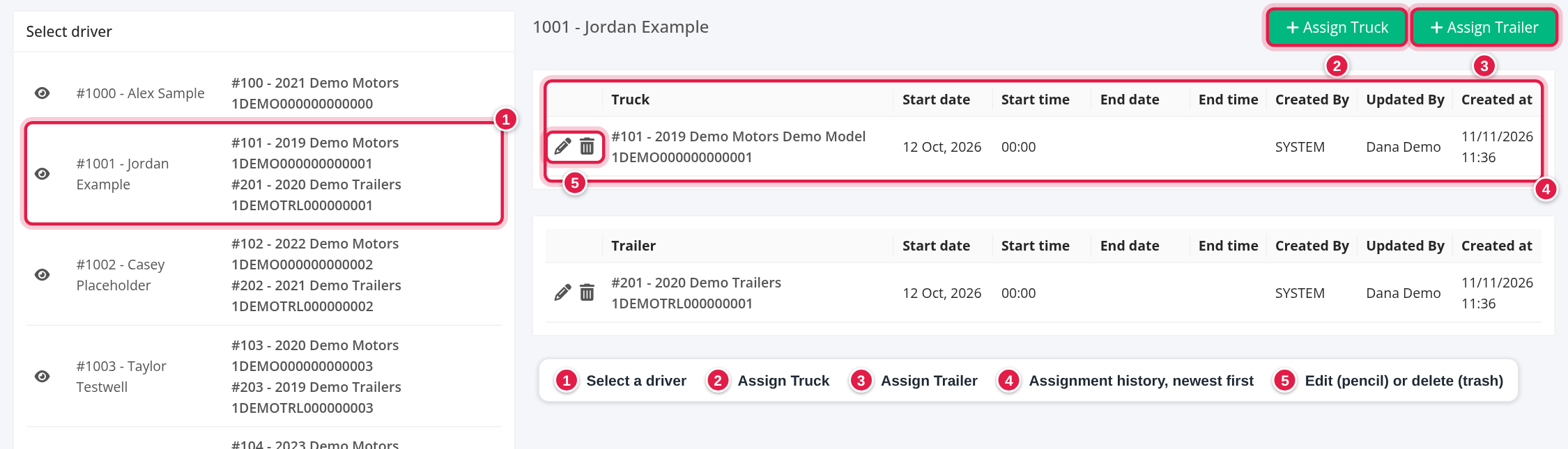
- Left card, Select driver: every driver in driver-number order, as #number - name. Under each name you see the driver's current truck and trailer (select them to open the truck or trailer in a new tab). Team drivers carry the label Team Driver. Select a driver to load that driver's assignments. The first driver opens by default.
- Right side: the driver's name (a link to the driver's profile), the buttons Assign Truck and Assign Trailer, and two tables, one for Truck and one for Trailer.
The tables
Each row is one assignment, newest created first. The columns are Truck or Trailer (number and details such as year, make and VIN; a link to the unit unless it was deleted), Start date, Start time, End date, End time, Created By, Updated By and Created at. An assignment without an end date is open. Created By shows the user who made the assignment, or a system label when OpenRoad made it automatically (see "Assignments OpenRoad makes for you").
What "current" means
The truck and trailer shown under a driver's name are the assignments that are current right now: the Start date is before now and the End date is empty or not yet reached. If several qualify, the one with the latest start is shown. Everything else that reads "the driver's truck" (for example "currently assigned" lists) follows the same rule.
Assign a truck or a trailer
- Select the driver in the left card.
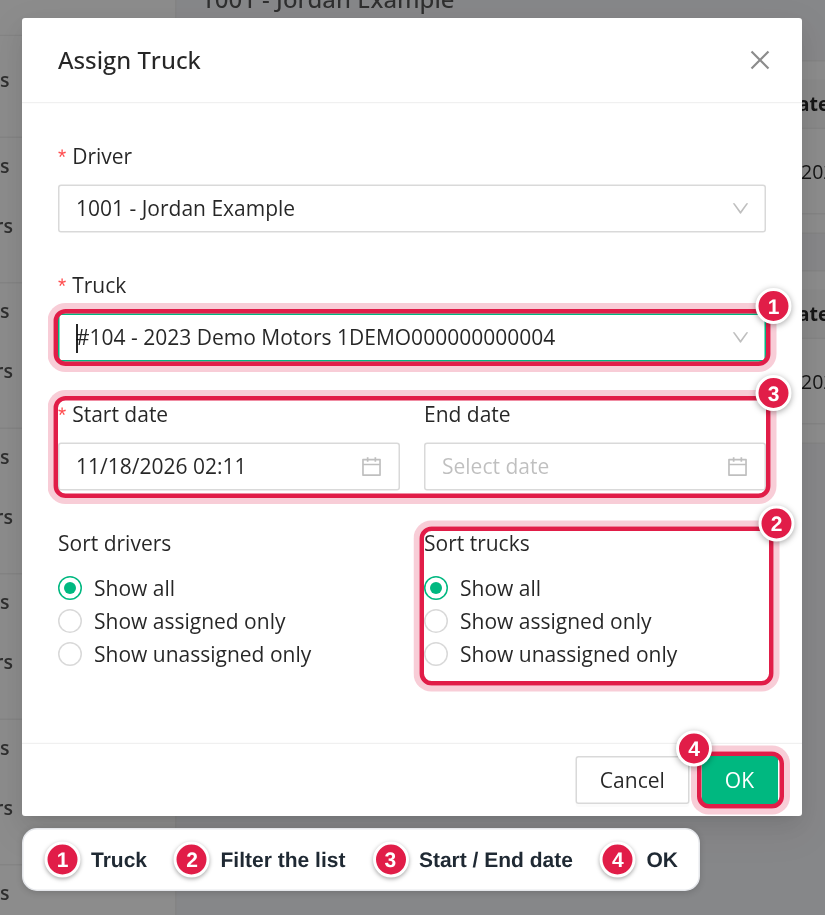
- Select Assign Truck or Assign Trailer. The window opens.
- Check Driver (it starts as the selected driver).
- Choose the Truck or Trailer. The radio buttons above the list filter it: Show all, Show assigned only or Show unassigned only. For trucks the list starts on Show unassigned only; for trailers on Show all. The driver list has the same three choices.
- Set Start date (required, date and time; it starts as the current time) and, if you know it, End date. Leave End date empty for an open-ended assignment.
- Select OK. The window closes and the tables update. Cancel closes it without saving.
An item counts as assigned when it has an assignment with no end date, and unassigned when it has none or all of them have ended.
To move a truck to another driver, first give the old assignment an End date (edit it), then create the new assignment starting at or after that time.
Dates and overlap rules
OpenRoad treats an empty End date as "open ended". Two periods overlap when they share time; a period that ends at exactly the moment the next one starts does not overlap.
| Rule | Applies to | What happens |
|---|---|---|
| A driver can have only one truck at a time | Trucks, on create and on edit | "Cannot overlap assignments for these trucks: ..." |
| A truck can have only one driver at a time | Trucks, on create and on edit | "Truck is already assigned to other driver(-s): ..." Not checked for team drivers. If your account uses slip seating and the truck is marked for it, two drivers may share a truck; a third is refused. |
| Out-of-service equipment | Trucks and trailers, on create and on edit | "Equipment is out of service and cannot be assigned." unless your account allows it. |
| Trailer already assigned | Trailers, on create only | "Trailer has active assignment already" when the newest assignment of the same trailer is still open at the new start (or, with an end date, ends before the new end). |
| Driver already has a trailer | Trailers, on create only | "Trailer is already assigned to driver: ..." by the same test on the driver's newest trailer assignment. |
| Trailer still at a location | Trailers, on create only | "Trailer is already assigned to location: ..." when the trailer's newest location is still open. End the location first. |
- Start and end must be filled the right way round: the end cannot be before the start.
- Trailer rules are checked only when a trailer assignment is created. Editing the dates of an existing trailer assignment does not run them again.
What an assignment changes
- The driver's truck and trailer on this page, in the driver's profile and in every list that shows a driver's equipment come from the current assignment (see "What current means").
- Truck assignment email: when you save a truck assignment that starts today or later, the driver gets a truck assignment email. A start date on an earlier day sends no email.
- Truck and its safety manager: while a truck assignment is open or ends in the future, the truck's fleet safety manager is set to the driver's.
- Miles by state: saving, changing or deleting a truck assignment recalculates the miles by state that fall inside its dates, for the truck and for the driver.
- Ending a driver: when a driver is disabled, every open truck assignment of that driver is ended at that moment.
Assignments OpenRoad makes for you
When a load has trailer drop-off or trailer pickup stops with a driver, OpenRoad can create or end the driver's trailer assignment and record the trailer's location by itself. These assignments show a system label in Created By. If a load cannot do this because it would overlap an existing assignment, the load shows the "overlapping assignments" message. End the old assignment first.
Where the dates are used
| Page or report | How it uses the assignment |
|---|---|
| Tolls | A toll is linked to its truck through the transponder (see Transponders); the driver is the driver assigned to that truck on the toll's date. A driver's tolls are the tolls of the truck for the dates of each truck assignment. |
| Fuel | A fuel card transaction belongs to a truck when the driver on the transaction had that truck assigned at the time of the transaction. The truck's fuel list is built the same way. A purchase made with a truck number that belongs to a different driver at that time is flagged. |
| Miles by state and IFTA | Miles are split between trucks using the driver's truck assignment at the time of each trip. |
| KPI equipment cost | The monthly payment (and the other monthly equipment costs) of each active truck and trailer is split by assignment. For a reporting period, the cost for a driver type is the minutes the equipment was assigned to that type of driver in the period multiplied by the monthly cost divided by 43,800 (730 hours a month times 60 minutes). Whatever part of the period the unit was not assigned goes to Other. |
| KPI trucks per driver type | Counts active trucks that have an assignment covering the current moment, by driver type (and team or local driver). |
| Available Trucks | The Equipment Type filter keeps drivers who had a trailer of that type assigned on the chosen day. |
Edit an assignment
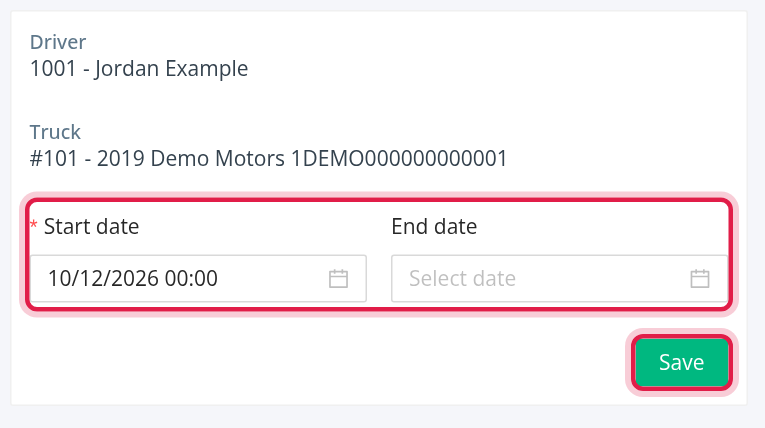
Select the pencil in the row (you need edit permission). You can change only Start date and End date. Driver and Truck or Trailer are shown but cannot be changed: delete the assignment (if you may) or end it and create a new one. Select Save.
Delete an assignment
Select the trash icon (only shown with the delete permission) and confirm Are you sure?. The assignment disappears from the tables. Deleting a truck assignment also recalculates the driver's miles by state. If you cannot delete, change the dates with the pencil instead.
Team drivers
Drivers marked as team drivers show Team Driver. Who is paired with whom is kept on the driver's profile, not on this page. A team driver can be assigned to a truck that another driver already has.
FAQ
Was this article helpful?
That’s Great!
Thank you for your feedback
Sorry! We couldn't be helpful
Thank you for your feedback
Feedback sent
We appreciate your effort and will try to fix the article