The load profile is the page of one load. It shows the status, the documents, the customer and rates, every stop with its driver, the notes and the history of changes. From the same page you can edit the load, dispatch it to the driver, copy it, invoice it or delete it. There are no tabs: everything is on one page.
Who can do this: you need permission to view loads. Every button and field has its own permission, and your administrator can hide or lock fields for some roles, so you may see fewer buttons than listed here.
Before you begin
- Open a load from the All Loads page (Loads > All Loads): find loads, filters, columns, status and Export by selecting its Company Load#.
- Entering and editing every field is covered in Load form: create, copy and edit a load (Add Load).
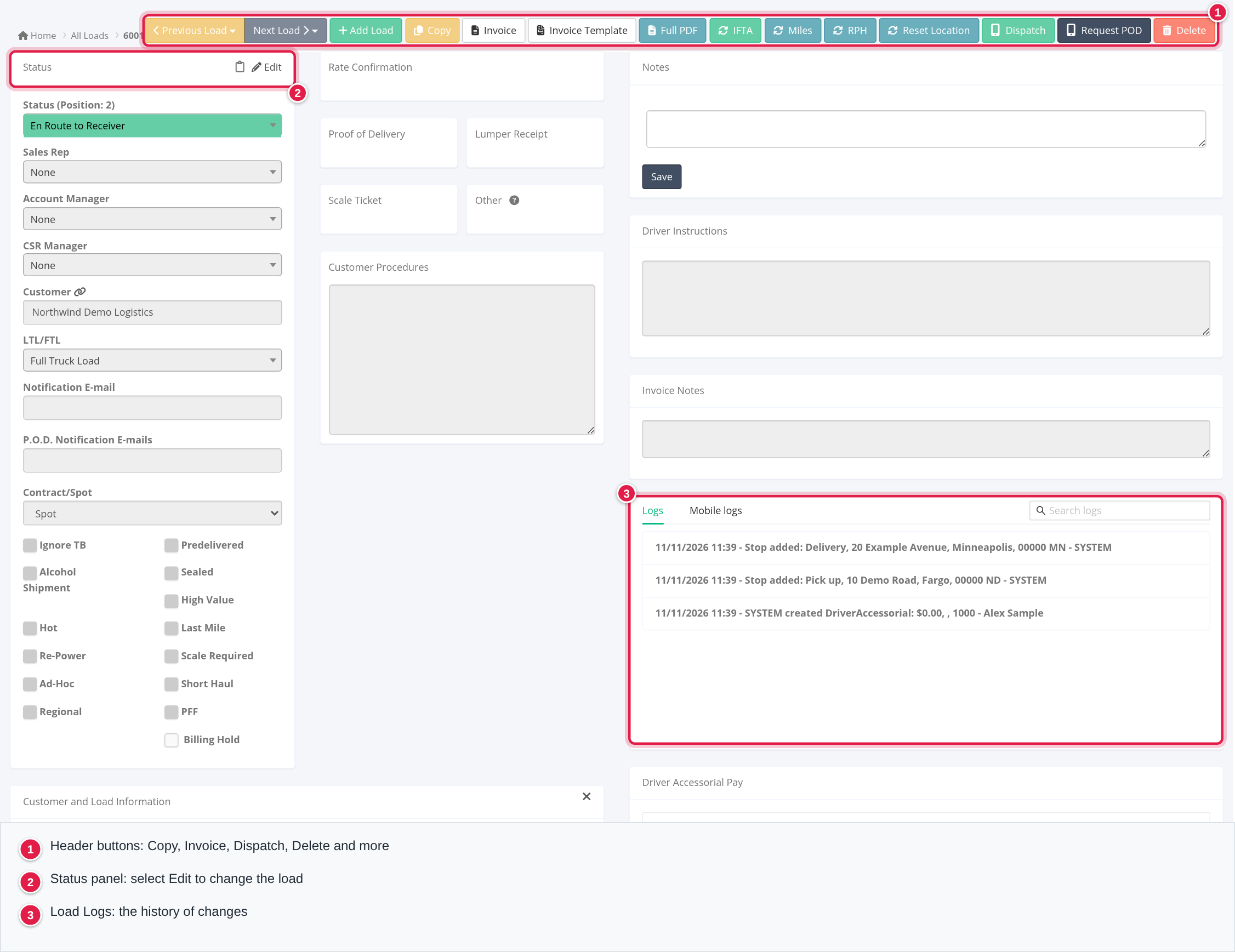
The page from top to bottom
- Header buttons (top right).
- Warnings at the top of the page. They are explained in Load warning messages and driver assignment errors: what they mean and what to do.
- Status panel on the left, with the Uploads next to it.
- Customer and Load Information, which you can collapse.
- On the right: Notes, Driver Instructions, Invoice Notes, SMS Logs (only when the load has some) and Load Logs.
- Stops and the Map.
The header buttons
Each button shows only when you have the permission, and some need an account feature.
- Previous Load and Next Load: the neighbouring loads of the same driver.
- Add Load and Copy: a new load form, empty or filled from this load.
- Invoice and Invoice Template: the invoice as a PDF. Full PDF: the load's documents combined in one PDF. Files in the Other box are not included.
- Credit Memo: for an Exported load, when your account has credit memos. It asks "This will create a credit memo billing snapshot for this load. Do you want to proceed?"
- Billing Snapshots: opens the snapshots of this load, when your account has them.
- Rebill: for a Billed or Pending to Bill load of a customer that is not on factoring. It asks Are you sure? If the extra invoice details are not confirmed yet, the button is red and reads Confirm extra invoice details.
- IFTA, Miles and RPH: recalculate mileage and revenue per hour. See Reset Location: set where a driver's empty miles start (and the IFTA, Miles and RPH buttons).
- Reset Location: opens a window to reset the driver's location on the load. Afterwards the stop shows Reset Address: and Reset Time:.
- Dispatch: sends the load to the driver (see below).
- Request POD: sends the driver a text message asking for the proof of delivery. Not for brokerage accounts.
- Request: Request TONU, Request Lumper, Request Detention or Request Driver Assist. Each opens an email with the text prepared.
- Delete: Are you sure? then "Record deleted successfully."
Status and flags
The Status panel shows the status, the sales rep, account manager, CSR manager, customer, LTL/FTL, notification emails, Contract/Spot and the option boxes. Select the pencil to edit. If the status is locked in your account and you are not an admin or accounting user, you are asked for a password first.
The statuses are Booked, Assigned, En Route to Shipper, At Shipper, Loaded, Delayed, En Route to Receiver, At Receiver, Delivered, Delivered - Pending, Exported, Missing Paperwork, Pending to Bill, Billed, Billed - Pending Acc., Paid, Open Balance and Canceled. Any status can be picked while editing. Things that happen by themselves:
- Adding a driver to a Booked load makes it Assigned. Removing every driver makes it Booked again.
- Dispatching an Assigned load makes it En Route to Shipper.
- Changing to Delivered or Billed records that date.
- Changing to Canceled removes the drivers and clears the trailer locations.
- Customers with status emails switched on are emailed when the status becomes At Shipper, Delayed, En Route to Receiver, At Receiver, Delivered or Canceled, for spot and contract loads with notification emails.
- A load cannot be set to Delivered while a stop is missing Time In or Time Out: "Load Missing Time in or Time Out. Please fill-in."
There is no separate billing status. The invoicing state is the status itself (Pending to Bill, Billed, Exported, Paid, Open Balance), together with the Billing Hold box.
Uploads
The boxes are Rate Confirmation, Proof of Delivery, Lumper Receipt, Scale Ticket, Other and, if your account uses it, Bill of Lading.
- Drag files into a box or select it. Uploading needs the load to be saved and in edit mode.
- Each file shows its name, a green download button and, in edit mode, a red X (Are you sure?).
- A file that someone has not checked yet has a Confirm file button.
- With Automatic Load Entry on, a new load shows Start Automatic Load Entry. See Automatic Load Entry (EXTRA FEATURE): create loads from PDF rate confirmations. A load made that way shows "This load was generated by an automated OCR process. Double-check the values against the Rate Confirmation!"
- Customer Procedures shows the customer's instructions, read-only.
Customer and Load Information
Customer Load#, equipment, weight, commodity, customer rep, contacts, miles, the rates (Linehaul Rate, Fuel Surcharge, Detention, Lumper, Storage, Misc., Deductions), the Total and CAD. Additional Charges list each extra charge with its amount. If your account locks financial fields, the rates are read-only on an existing load.
Notes and instructions
- Notes: type a note and select Save. Newest first. Needs permission to add notes.
- Driver Instructions: text the driver sees.
- Invoice Notes: up to 1,000 characters.
Stops
The Stops panel is grouped by driver.
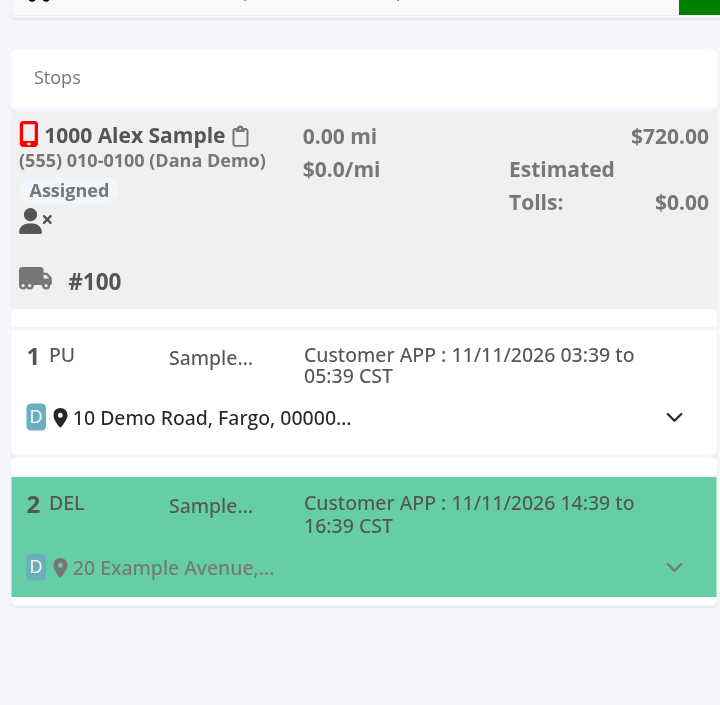
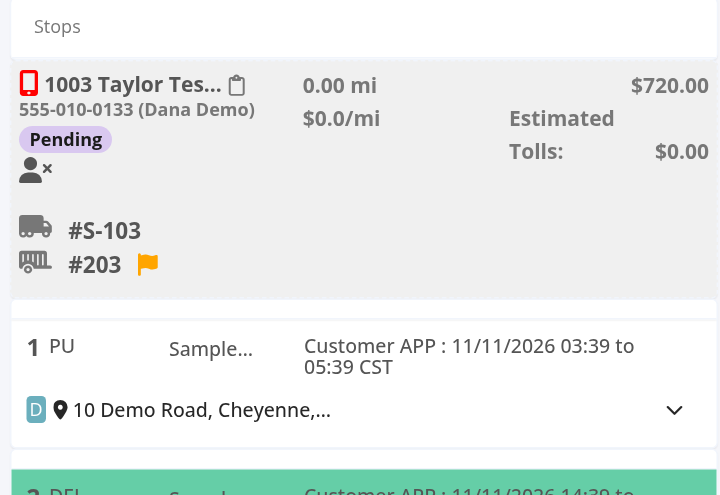
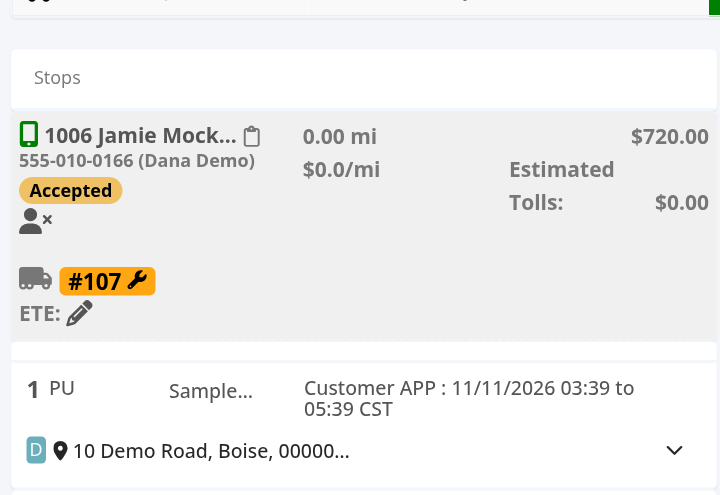
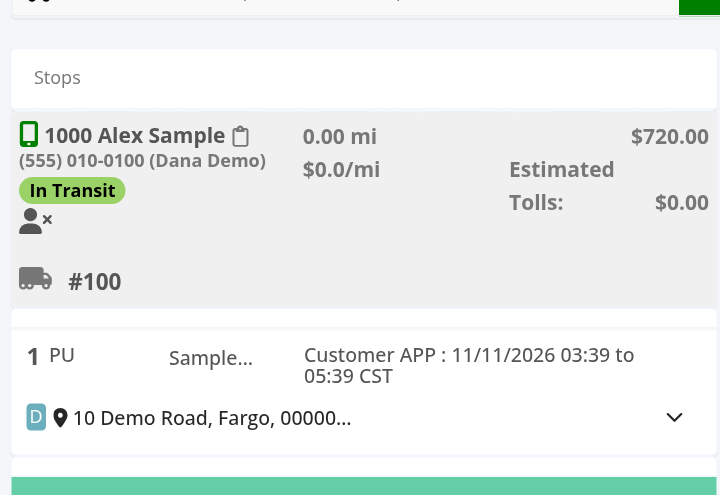
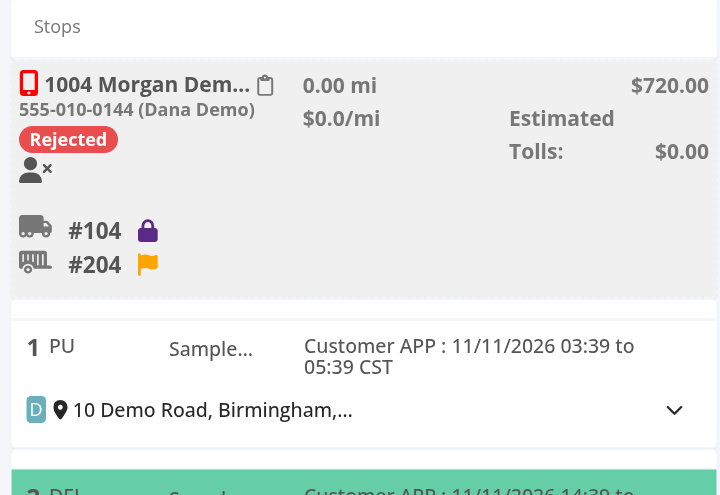
- For each driver: a phone icon (green "Dispatch was accepted at …" or red "The dispatch was not accepted yet. …" which opens Dispatch), the driver, the truck and trailer, miles, the rate per mile, and the driver's linehaul and charges.
- Loads without a driver have a No Driver Assigned list. Pick a driver to assign them. Accounting users cannot.
- Each stop is a card: the number, PU or DEL (or Pickup Trailer or Drop Trailer), the company, the customer appointment, the driver time, the ETA and the miles to the next stop. Expand it to see the fields. See the load form article.
- Load Split (edit mode): see Load Split: hand a load to a second driver at a trailer drop.
- Map: the route with the stops.
Dispatch a load
- Select Dispatch (green phone). The load needs a driver, and you must not be in edit mode.
- In Dispatch, check the customer windows for each stop and fill Driver App. Time To. It is required if your account says so.
- Confirm. The load goes to the driver, and the status becomes En Route to Shipper if it was Assigned.
Driver status from the mobile app
Under each driver in Stops there is a coloured label with the driver's status for this load, and a phone icon. The driver answers in the OpenRoad Driver app and the label changes by itself.
| Label | Colour | What it means |
|---|---|---|
| Assigned | The driver is on the stops, but you have not dispatched the load yet. | |
| Pending | Purple | You dispatched the load. The driver has not answered yet. |
| Accepted | Yellow | The driver accepted the load in the app. |
| In Transit | Green | The driver started the trip. |
| Delivered | Blue-grey | The driver reported the delivery. |
| Rejected | Red | The driver rejected the load. |
- The phone icon is red until the driver accepts. Hover it to read "The dispatch was not accepted yet. Please click if you would like to dispatch the load to the driver." and select it to dispatch. It turns green after the driver accepts, with "Dispatch was accepted at" and the time.
- When you dispatch, the driver gets an email and a notification if the driver uses the OpenRoad Driver app. Dispatching again does not change a status the driver already has.
- The driver can accept, reject, start the trip and report the delivery in the app. A rejection can carry a note, which you can read in Load Logs under Mobile logs.
Load Logs
Load Logs is the history of changes to the load. It shows on saved loads, in view and in edit mode, on the right. You need permission to view or edit loads.
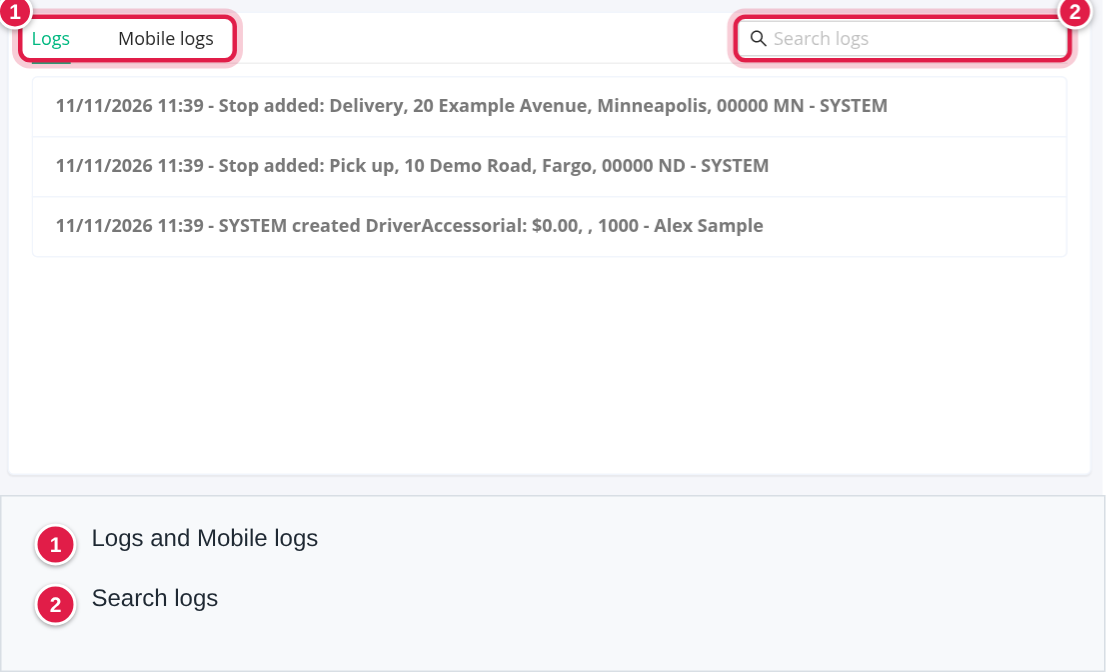
- Three sub-tabs: Logs (the default), Mobile logs and, if your account uses Samsara routing, Samsara Logs.
- Logs: newest first. Each line is one change: the time, what changed and who did it. A field change reads
Field: before: old - after: new - User. Lines also say when a stop was added or removed, when the load was dispatched to a driver, and when notifications were sent. Changes made by the system show SYSTEM, and changes made through an integration show its name. - Search logs (only on the Logs tab) finds the words you type in the lines and highlights them. There are no other filters.
- Mobile logs: what the driver did in the mobile app, such as changing the load status.
- Samsara Logs: the route requests and route events sent to Samsara.
- It logs changes to the load, its notes, stops, detentions, additional charges, driver accessorials and uploaded files. It does not log computed values such as miles, ETA and position.
FAQ
Was this article helpful?
That’s Great!
Thank you for your feedback
Sorry! We couldn't be helpful
Thank you for your feedback
Feedback sent
We appreciate your effort and will try to fix the article