Use Load Split when one driver pulls the load to a drop point, leaves the trailer there, and a second driver picks the trailer up and finishes the delivery. OpenRoad adds the two trailer stops for you, gives the later stops to the second driver and splits the charges between the drivers.
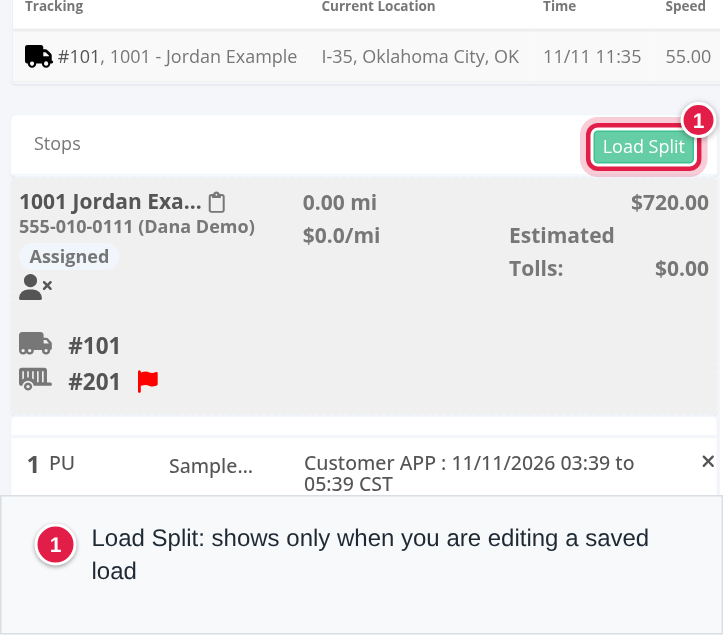
Who can do this: dispatcher, capacity, accounting and admin users. The button only shows on a saved load that you are editing.
Before you begin
- The load must be saved and have a driver on at least one stop. Without a driver the window only says "Please assign a driver to this load before making a split".
- Know where the trailer will be dropped: the company and the address, and the date and time of the drop.
- Open the load and select Edit. See Load profile: status, uploads, charges, stops, notes and Load Logs.
Split a load
- Open the load and select the pencil in the Status panel to edit it.
- In the Stops panel, select the green Load Split button.
- Fill in the Load Split window. The fields are:
| Field | What to enter | Required |
|---|---|---|
| Saved Locations (or Places, if your account uses Places) | Pick a saved place to fill in the address for you. | No |
| Company Name | The company at the drop location. | Yes |
| Phone | A phone number for the drop location. | No |
| Address | Start typing and pick one of the suggestions (US and Canada). Street #1, City, State and Zip Code are filled in for you. | Yes |
| Position | Where the trailer is dropped. See "How Position works" below. | Yes, it is already filled in |
| Trailer Drop App. | The date and time of the drop. | Yes |
| Driver | The driver who picks the trailer up. The list shows your active drivers, with number, name and phone. Leave (BLANK DRIVER) to choose later. | No |
| Driver Linehaul | The amount for the second driver. It only shows when your account does not use split charges (see below). | No |
How Position works
Position is the number of a stop on the load, the number you see on the left of each stop in the Stops panel. The trailer is dropped right after the stop with that number.
- The list holds the numbers of the stops the load has now. There is no empty choice.
- It starts on the position of your last pickup, because the trailer is normally dropped once the load is picked up.
- If the load has only two stops, or fewer, the field is greyed out and fixed on 1.
For example, a load has stop 1 Pick up, stop 2 Pick up, stop 3 Delivery and stop 4 Delivery. If you choose Position 2, the Drop Trailer stop and the Pickup Trailer stop are added right after stop 2, and the two deliveries follow them. The first driver keeps the two pickups and the drop. The driver you choose gets the Pickup Trailer stop and the deliveries.
- Select Save. You see "Record saved successfully." and the page reloads.
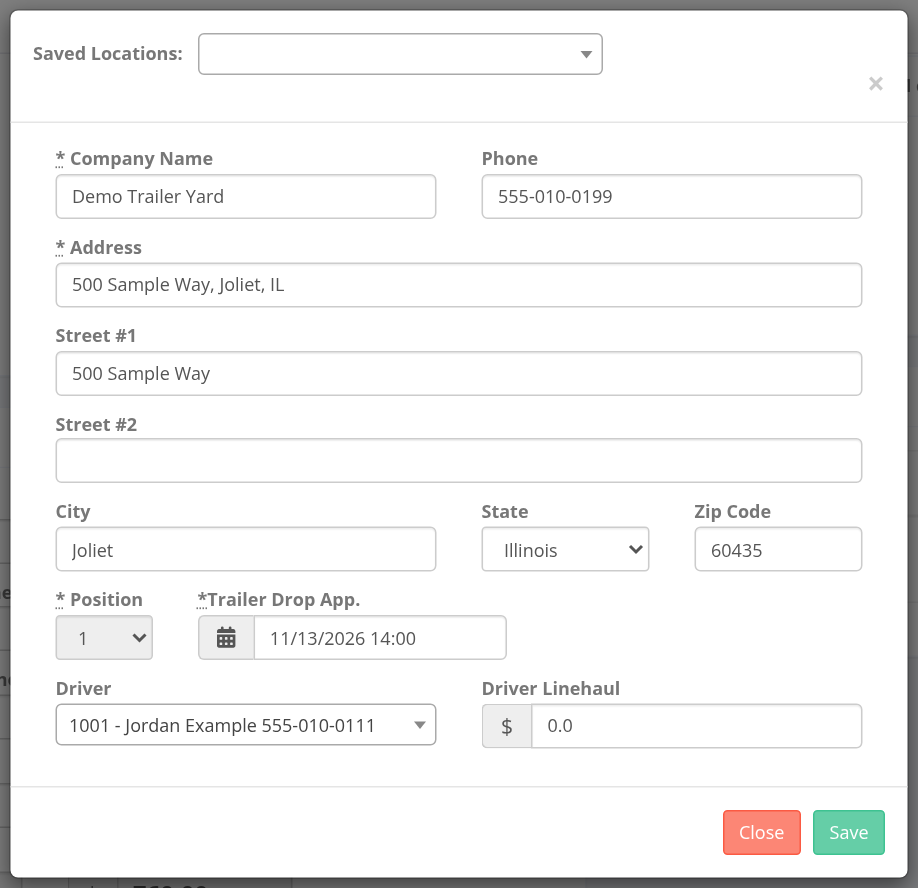
If Company Name, Address or Trailer Drop App. is empty, the field turns pink and nothing is saved.
What you get
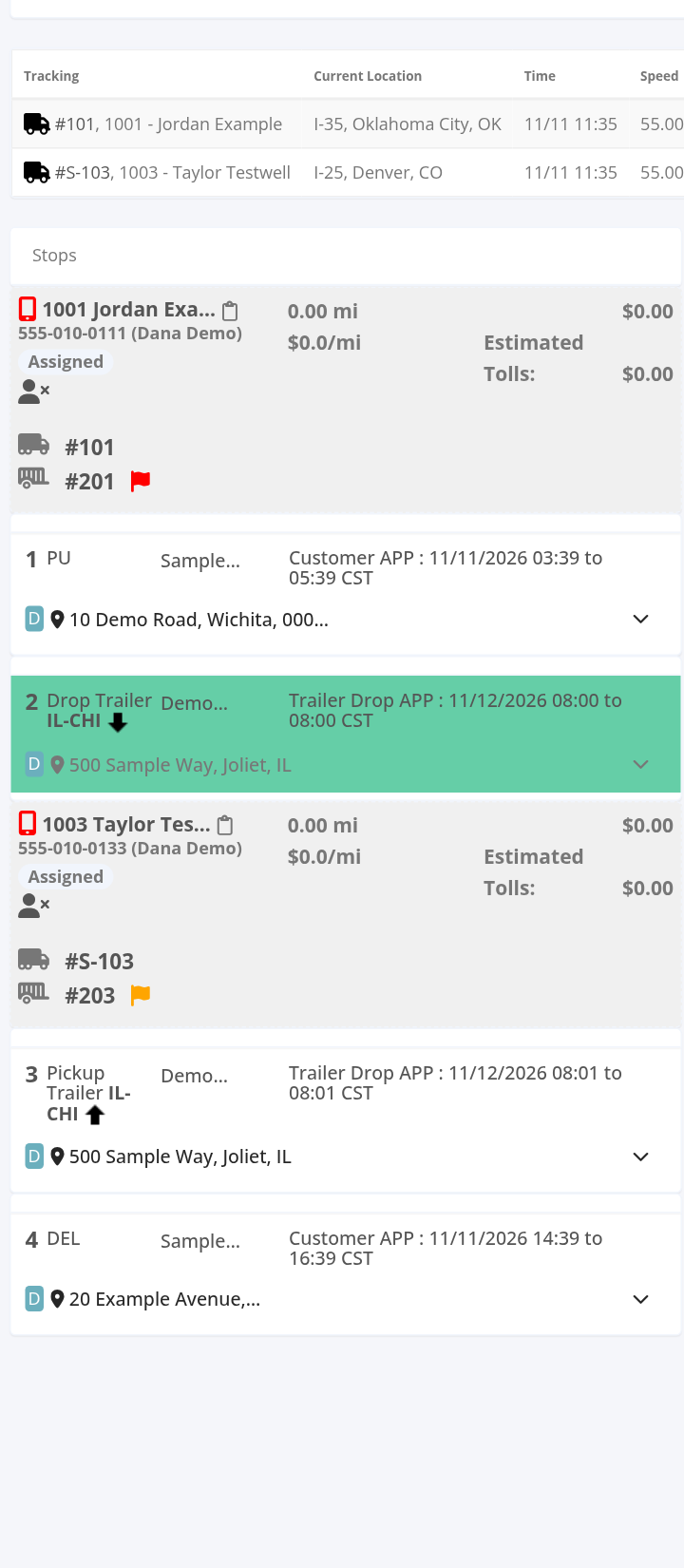
OpenRoad adds two stops after the position you chose:
- Drop Trailer: the address you entered, at the time you entered, marked Internal. It keeps the first driver, and the trailer is fully loaded.
- Pickup Trailer: the same address, one minute later, also Internal. It belongs to the driver you chose.
The driver you chose gets the Pickup Trailer stop and every stop after it, up to and including the next Drop Trailer (or to the end of the load). The first driver keeps everything up to the Drop Trailer. The stops are grouped per driver in the Stops panel. Drop Trailer shows a down arrow and Pickup Trailer an up arrow.
Also happens when you save:
- Fuel stops, route changes, scale stops and rest stops that were added to the stops are removed. Add them again if you need them.
- The load shows in the Quicksplit Loads section of the Loads page.
- If you chose a driver and your account sends driver notifications, the driver is told about the load.
- The load status is not changed by the split.
If you left Driver blank, the second group shows No Driver Assigned. Pick a driver there when you know. It only fills the stops that have no driver.
Charges on a split load
- Without split charges (the default): type Driver Linehaul in the window. The Pickup Trailer stop gets that amount, and the Drop Trailer stop gets the rest of the load's linehaul, never less than zero.
- With split charges (an account feature): the window has no Driver Linehaul. Select Edit Charges next to Load Split to open Additional Charges by destination. The charges are shared by the miles of each stop. Each charge in the stops must add up to the load's total for that charge. If not, you see for example "Negative or blank values in Load charges are not allowed" or that a charge in the stops does not match the total.
Undo a split
There is no undo button.
- Edit the load.
- Select the X on the Drop Trailer stop and on the Pickup Trailer stop, and confirm Are you sure?
- Save.
When no trailer stop is left, every stop's driver linehaul goes back to zero and the charges per stop are deleted. Enter the load charges again.
FAQ
Was this article helpful?
That’s Great!
Thank you for your feedback
Sorry! We couldn't be helpful
Thank you for your feedback
Feedback sent
We appreciate your effort and will try to fix the article