Hierarchy shows how your company is organised: offices, the teams in each office, the fleet managers in each team and their drivers. It is also where you assign the people responsible for each team and driver: team managers, safety and maintenance managers, substitute managers and the director of operations. It shows you gaps (a team with no manager, a driver with no safety manager) so you can fix them. This article also explains how every number and tag on the page is calculated.
Who can do this: you need permission to open Hierarchy. By default that is Dispatcher, Capacity and Accounting users, plus Admin and Superadmin. Changing an assignment needs the assign permission for that role, which by default only Admin users have. A Substitute Manager can also be set by Accounting, Dispatcher and Capacity users.
Before you begin
Hierarchy is built from data you keep elsewhere. It does not create teams or people.
- On each user, fill in the Office and the Team. A user without an office is not on the page. A user without a team is in no team. Only active users appear. See Users: find, add and edit a user.
- On each driver, set the Fleet Manager. Only active drivers with a fleet manager are counted. See Adding a driver.
- The Capacity tab shows only when Capacity is switched on for your account, see Capacity (EXTRA FEATURE).
Open Hierarchy
In the left menu, select Operations, then Hierarchy.
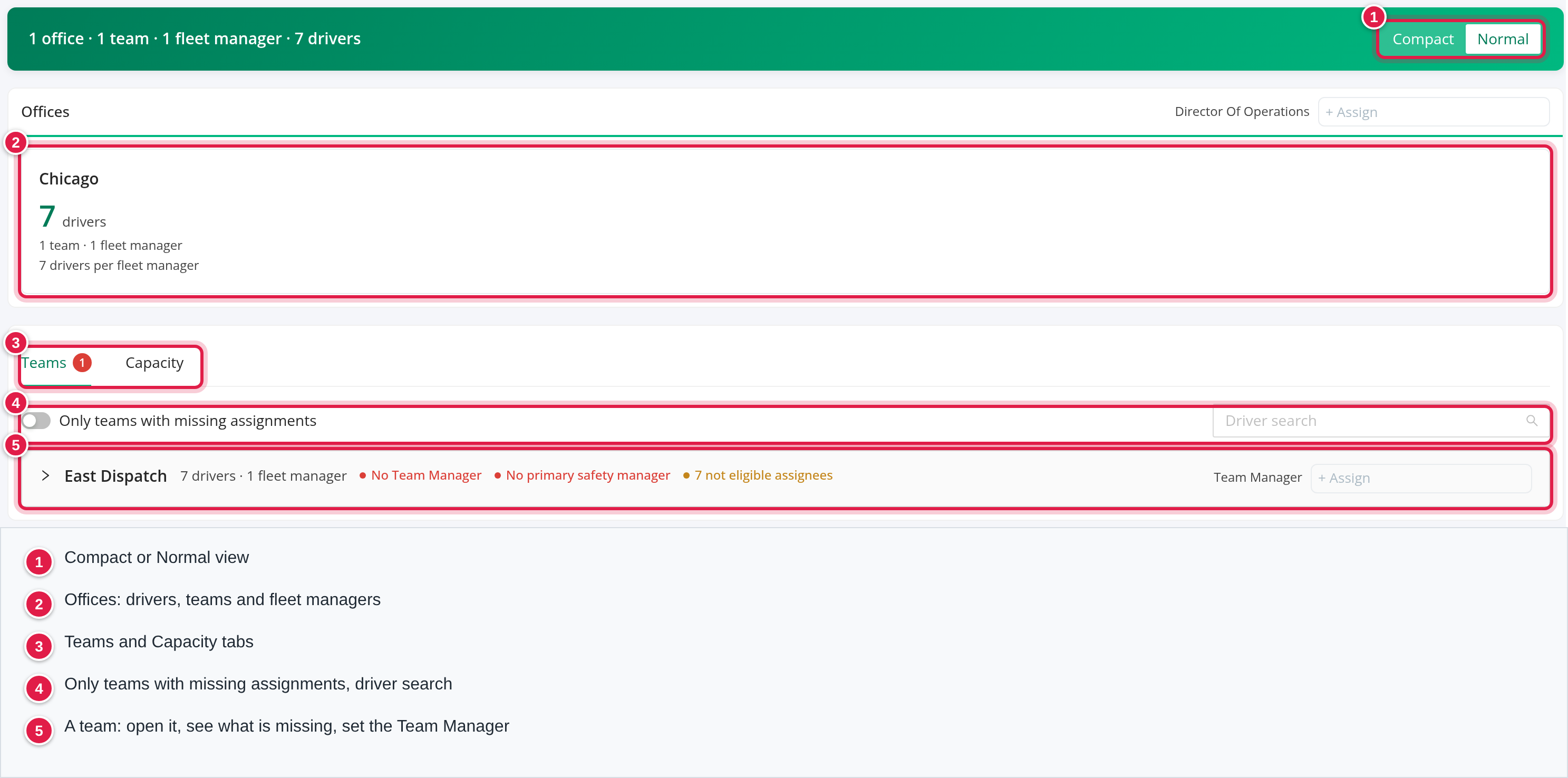
At the top you see a summary such as 2 offices · 5 teams · 9 fleet managers · 80 drivers. Compact and Normal change the row spacing (your choice is remembered in the browser).
How the numbers are calculated
The page starts from the active users that have an Office; users that also have a Team form the teams. Then it counts drivers.
| Number | How it is calculated |
|---|---|
| Office | One tile per Office value among those users. |
| Team | One team per Team name. A team name used in two offices is one team on the Teams tab, and counts once in each office tile where it has users. |
| Fleet manager | A user (Accounting, Admin, Capacity, Dispatcher, HR, Maintenance, Superadmin or Client type) who is the Fleet Manager of at least one active driver. |
| Drivers of a fleet manager | The active drivers whose Fleet Manager is that user. |
| Drivers of a Safety user | The active drivers whose fleet safety manager is that user (see "Change an assignment"). These drivers are also counted in the team and office totals. |
| Drivers of a team or office | The sum of the drivers of all users in it. A driver who has both a fleet manager and a Safety user in the same team is therefore counted twice. |
| Covered Drivers | The active drivers that have this user as their Substitute Manager. |
| drivers per fleet manager (office tile) | Drivers of the office divided by its fleet managers, rounded to a whole number; 0 when the office has no fleet manager. |
| Summary line at the top | Offices and teams as above; fleet managers and drivers are the totals over all teams. |
A person can appear in the table of a team without being a fleet manager (for example a Safety user): the row simply shows 0 drivers or the drivers they cover as safety manager.
Offices
One tile per office. It shows the number of drivers, the number of teams and fleet managers, and the number of drivers per fleet manager.
- Director Of Operations: choose the person in the list (Superadmin and Admin users with an office). It saves at once: "Director Of Operations has been saved successfully." It cannot be left empty.
The Teams tab
The tab label shows a red number: how many teams show at least one problem tag (red or amber, see below).
- Only teams with missing assignments: switch on to see just those teams. When there are none you see "Every team has its assignments".
- Driver search: type a driver number or name. The page opens the driver's team, expands the fleet manager's row and highlights the driver.
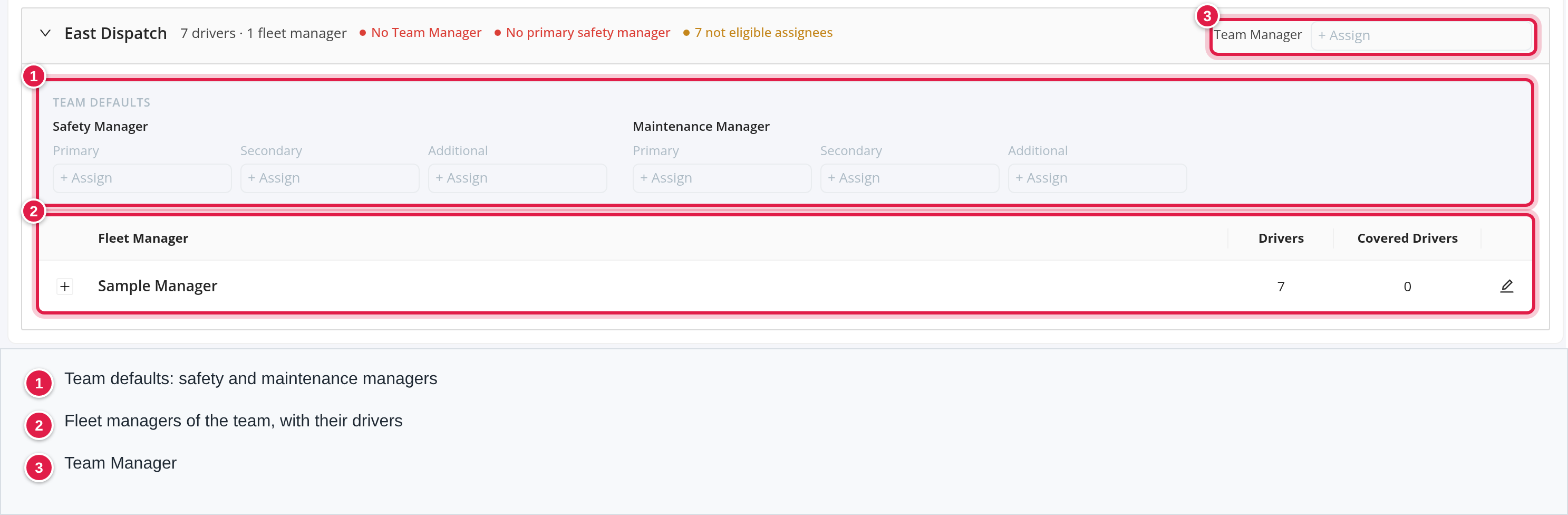
Each team is a panel you can open. Its header shows the team name, the numbers of drivers and fleet managers and coloured tags for problems. On the right, Team Manager is chosen from Superadmin, Admin and Dispatcher users and cannot be left empty.
Inside a team:
- Team defaults: Safety Manager and Maintenance Manager, each with Primary, Secondary and Additional. Safety people are chosen from Superadmin, Admin and Safety users; maintenance people from Superadmin, Admin and Maintenance users (only users with an office are offered). The team's Primary safety manager cannot be left empty; the others can be cleared.
- A table of the team's users with Fleet Manager, Drivers and Covered Drivers. The pencil opens the person's user page in a new tab.
- Open a row to see the drivers: number, name, phone, Target (the driver's sales target), the compliance tag (None when empty), and the driver's own Safety Manager and Maintenance Manager (Primary, Secondary, Additional) and Substitute Manager. The pencil opens the driver's profile. The Substitute Manager is chosen from Superadmin, Admin and Dispatcher users, and not the driver's own fleet manager.
Change an assignment
- Select the name (or + Assign when it is empty).
- Type in the search box and choose a person. Where it is allowed, use the x to clear.
- The change saves at once. A green message confirms it.
There is no Save button, and Hierarchy cannot add or delete teams, offices or people.
What a change does:
| You change | What else happens |
|---|---|
| Team Safety Manager (any level) | Saved for the team. The person is also written to every active driver of the team's users who has nobody at that level yet. Clearing it removes that person from the team's drivers at that level (drivers with someone else keep them). |
| Team Maintenance Manager (any level) | Saved for the team, then written to every active driver of the team, replacing whoever the driver had at that level. Clearing it clears that level for every driver of the team. |
| A driver's Primary Safety Manager | Also becomes the driver's fleet safety manager (the person counted as the driver's safety manager in the drivers-per-user numbers above). Clearing it clears that too. |
| A driver's Substitute Manager | Saved on the driver and a notification about the change is sent. The message says that the Substitute Manager in Load Planner updates after the next data refresh, and that you can refresh Load Planner yourself. |
| A driver's Fleet Manager (on the driver, not on this page) | The driver's three maintenance manager levels are replaced with the maintenance managers of the new fleet manager's team (empty levels stay empty). |
If you lack permission, you see an access denied message and nothing is saved.
Problem tags and colours
Only two colours are used.
- Red means a gap. It is shown for a team when:
- No Team Manager: the team has no Team Manager. - No primary safety manager and No primary maintenance manager: the team has no Primary at that level. These two are shown only if your company has assigned that role anywhere (to any team or driver). - N drivers without primary safety manager: how many of the team's drivers have no Primary safety manager (same condition: only if safety managers are used anywhere).
- Amber means an assignee that should not be there. The page checks the team manager, the team safety and maintenance managers and every driver's safety and maintenance managers (not the substitute manager):
- N terminated assignee(s): the person is no longer active. - N not eligible assignee(s): the person is not in the list offered for that role, for example because of the user type, because the user has no office, or because the user no longer exists.
Pick an active, eligible user from the list to replace them.
The Capacity tab
The tab shows only with Capacity on. Team Capacity shows the number of Capacity users (active Capacity-type users with an office), Planning regions and Booking regions (the totals over those users). Senior Capacity Managers are set with three lists, Primary, Secondary and Tertiary, chosen from Superadmin, Admin, Capacity and Dispatcher users (they cannot be left empty). The table lists each Capacity user (most regions first) with Planning Regions, Booking Regions, Substitute Planner and Substitute Booker. Open a row to see the regions by state. Choosing a substitute applies to all of that person's planner (or booker) assignments, and removing it removes it from all of them.
Region map (Show map / Hide map) colours the regions by planner or booker (buttons Planner and Booker, Info for the legend). It shows only regions that have both a planner and a booker. The map data is kept for up to 24 hours but is refreshed as soon as a planner or booker assignment changes. Regions and who plans and books them are set in Capacity, see Capacity (EXTRA FEATURE).
Where Hierarchy is used in other pages
What you set here shows up in the pages your planners and customer service staff work in.
- Capacity (EXTRA FEATURE) uses the planners, bookers and regions from the Capacity tab. Choosing a Planner Manager or Booker Manager there selects that person's regions, including regions they cover as Substitute Planner or Substitute Booker. In the driver lists, the Fleet Manager Comment column shows the driver's Substitute Manager (marked Substitute) or the fleet manager.
- Load Planner shows the driver's Substitute Manager in place of the fleet manager when one is set, and sorts drivers with a substitute together; it updates after its next data refresh.
- Customer Service (EXTRA FEATURE) shows on each driver of a load the driver's manager and extension, or the Substitute Manager marked Substitute. The CSR and Account Manager shown there come from the customer, see Customers: start here.
- Available Trucks groups trucks by the fleet manager's team and filters by the fleet manager; those values follow the driver's Fleet Manager and the user's Team.
- The drivers list shows each driver's safety and maintenance managers (Primary, Secondary and Additional) as set here.
FAQ
Was this article helpful?
That’s Great!
Thank you for your feedback
Sorry! We couldn't be helpful
Thank you for your feedback
Feedback sent
We appreciate your effort and will try to fix the article