Customer Service is a board for the people who look after customers. Pick the customers you work with and see all of their loads on one page: booked loads, loads on the road and finished loads, with the stops, appointment times, arrival and departure times, drivers, flags and notes. You can fix times, mark flags, leave notes, preload a trailer and change a load's status without opening each load.
Who can do this: you need permission to view Customer Service. By default that is Admin, Dispatcher and Capacity users, plus Superadmin. Changing data on the page needs the update permission, which the same users have. Notes and flags have their own permissions (also Admin, Dispatcher and Capacity by default). Accounting users cannot change a load's status here.
Before you begin
- Customer Service is an extra feature. It must be switched on for your account. If Customer Service is not under Operations in the left menu, contact OpenRoad Support at help@openroadtms.com.
- Your customers must exist and not be inactive, see Customers: start here. Set the customer's Account Manager and customer service representative (CSR) on the customer, so the page can show them and filter by them. The drivers' managers and substitute managers shown on the load cards are set in Hierarchy.
- Loads need real stop data: appointment times, and Time In and Time Out as drivers arrive and leave. See Load profile.
- Some parts show only when your account has the matching option: Load Score, the Carrier Service Level card (setting Carrier OTP% and OTD% in Settings → Preferences → Loads validations), the Preventable / Non-preventable and Accountable driver fields (service failure accountability) and EDI tags (EDI).
Open Customer Service
In the left menu, select Operations, then Customer Service. The page starts empty until you pick customers.
The top bar
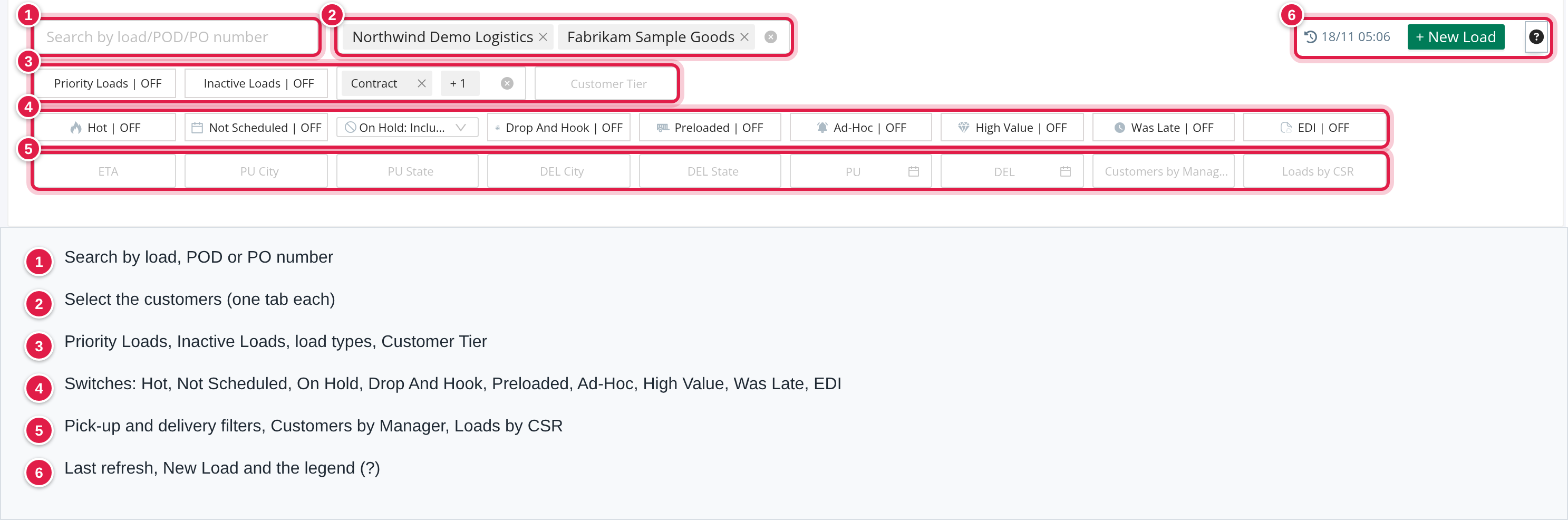
- Select a customer: choose one or more customers. The page shows three of them as tags and then +N. Drag the tags above the list to change the order of the tabs. Close the list to load the customers' loads. OpenRoad remembers your customers in this browser.
- Search by load/POD/PO number: type to filter the loads on screen by customer load number, OpenRoad load number, bill of lading (MBOL) or the PO number of any stop. Press Enter to also look the load up in all your customers: the page adds the load's customer, opens its tab and the Booked Loads or Active Loads list, whichever the load belongs to.
- Date range and Search: only when Inactive Loads is on (see below).
- Updated at: the time of the last refresh. The page refreshes by itself every 60 seconds (the finished loads list too, when it is open), so changes made by others appear after the next refresh. Days such as Today and Yesterday are counted in Central Time (US).
- + New Load: opens the new load form in a new tab.
- ? (CSM Legend): explains the icons.
Filters
All filters work on the loads already on the page. The filters that narrow the list together (a load must match every one that is set) are: All Load Types, Load Score, Customer Tier, Drop And Hook, Ad-Hoc, High Value, the city, state and date filters, the search box and Filter by CSR. The flag switches Hot, Not Scheduled, Preloaded, Was Late and EDI work differently, see the table.
| Filter | What it does |
|---|---|
| Priority Loads | One combined list of every active load marked Hot whose last delivery appointment ends between the start of yesterday and the end of tomorrow. It replaces the customer selection. Not available together with Inactive Loads. |
| Inactive Loads | Shows finished loads (see "Inactive loads"). |
| All Load Types | Contract, Spot, Dedicated, Internal. Starts on Contract and Dedicated, so spot and internal loads stay hidden until you add them. Leave it empty for all types. |
| Load Score | Grades A to F (only when Load Score is on for your account). Loads without a score are hidden while a grade is chosen. |
| Customer Tier | Tier 1, Tier 2, Tier 3. Picking tiers selects all customers of those tiers. |
| Hot, Not Scheduled, Preloaded, EDI | In the Booked and Active lists a load stays if it matches at least one that is switched on. EDI means an EDI load that has not been accepted yet. |
| Was Late | Loads that have a late stop (see "Was Late"). While it is on, the other four switches above no longer narrow the list further. |
| On Hold | Include (default), Only or Exclude. With Only or Exclude, that choice alone decides. |
| Drop And Hook, Ad-Hoc, High Value | The load must have a drop and hook stop, or be flagged Ad-Hoc, or High Value. |
| PU City, PU State, DEL City, DEL State | The load must have a pick-up (or delivery) stop in a chosen city or state (the whole name, any capitalisation). |
| PU and DEL (a date) | The load must have a pick-up (or delivery) stop whose appointment starts on that date, read in the stop's time zone. |
| Customers by Manager | Adds every customer where the chosen person is the account manager or the CSR. |
| Loads by CSR | One combined list of active loads whose own CSR Manager is the chosen person. |
In finished-loads mode Hot also narrows the list, Preloaded shows the preloaded loads, and there are also States, Load (load numbers) and Service Failure Reasons (including Missing Service Failure Reasons).
Was Late. A stop is late when its Time In (read to the minute) is after the end of its customer appointment. Trailer stops are never late. Stops with no Time In or no appointment end are not late.
Customer tabs and lists
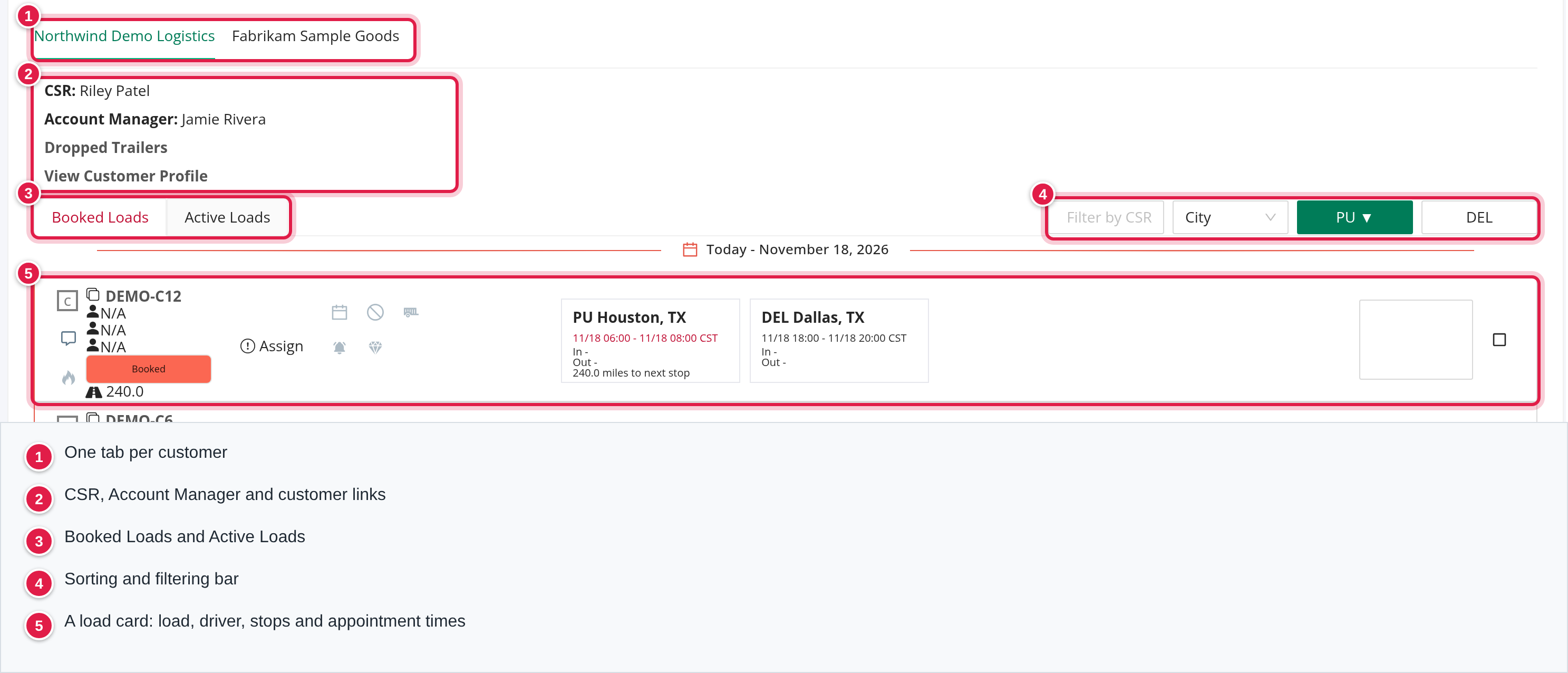
There is one tab per customer. If you picked more than 8 customers, use Show More and Show Less. An orange EDI tag means the customer has a booked EDI load that is not yet accepted.
Above the list you see, per customer:
- Carrier Service Level (only when the account setting is on): On-Time Pickup and On-Time Delivery as rings for YTD (since 1 January), Month and Week (Sunday to Saturday), with a line for the last 12 weeks and vs last wk. The eye icon hides or shows the card for all customers (it is remembered for you). The numbers are explained in "Carrier Service Level" below.
- CSR: and Account Manager: (Not assigned when empty), the links Dropped Trailers (opens the Trailer Organizer for this customer) and View Customer Profile, and the latest Customer Service Notes note of the customer.
Below that are the lists:
- Booked Loads: loads with the status Booked. The tab text flashes red when a booked load has a pick-up due today.
- Active Loads: every other active load: Assigned, At Shipper, Picked Up, En Route To Shipper, En Route To Receiver, At Receiver and Delayed.
- Inactive Loads: see below.
Which loads are in which list. The tab shows loads with a status the page tracks as active: Booked, Assigned, En Route To Shipper, At Shipper, Picked Up, En Route To Receiver, At Receiver and Delayed. Booked Loads holds those with the status Booked; Active Loads holds all the others. A load of the customer with any other status appears only under Inactive Loads.
Grouping and order. Loads are grouped by the date of their first pick-up appointment, read in the stop's time zone, under a heading such as Today, Tomorrow or Yesterday, with the weekday and date for other days. Date groups are in date order and No Pickup Date is last. The sorting bar has Filter by CSR, a column list (City, State, Time From, Time To, Time In, Time Out) and the PU and DEL buttons. They choose which stop of the load is compared: the first pick-up or the first delivery, by the chosen column. Select the active button again to switch between ascending and descending. It starts on City, PU, descending, and your choice is remembered. Loads are sorted by that value first and then placed in their date group, so the sort order is kept inside each group; loads with the same value keep the order of their first pick-up time.
Inactive loads
Switch on Inactive Loads, choose the dates and select Search. By default it covers the last 7 days. Finished loads are those with a status of Delivered, Delivered Pending, Billed, Pending To Bill, Paid, Exported, Missing Paperwork, Open Balance, Canceled or TONU. A load is included when its first pick-up or its last delivery appointment is on or after the start of your range and its first pick-up starts before the end. Only the statuses in the list are counted as finished. Lists are shown 50 per page here and in the Priority Loads and Loads by CSR views.
A load card
- Left: a letter for the load type (Contract, Spot, Dedicated, Internal), a comment icon (Leave a load note) with the number of notes, and the Hot flame.
- Load: the customer load number (select it to open the load, hover to copy it), the MBOL number, Planner Manager (shown when the load's planner is a Capacity user), Account Manager and CSR Manager (N/A when empty), the status chip and Miles. Assign next to CSR Manager appears whenever you are not the load's CSR.
- Flags: Not Scheduled, On-Hold, Preloaded (with the trailer number), Ad-Hoc, High Value. A red EDI Pending appears on a booked EDI load that is not accepted, and a red EDI Cancelled Load when the customer has asked to cancel. In finished-loads mode a late stop shows its service failure reason, or Missing SFR.
- Stops: each stop shows its label (PU, DEL, DT for a trailer delivery, PT for a trailer pick-up), city and state, the appointment window with time zone, In: and Out: and the miles to the next stop. A small urgent icon appears when a service failure reason is needed or entered (red while it is missing). A hook icon marks Drop and Hook. The appointment turns red in two cases: a pick-up on a Booked load whose appointment date is today or earlier, and a delivery on an active load (not Booked) that has no Time In and whose appointment date is before today. Dates are read in the stop's time zone. The Booked Loads tab text flashes red when any booked load has such a pick-up.
- Miles (next to the status): the load's miles. miles to next stop under a stop: for a load with exactly two stops, the load's miles on the first stop; otherwise the loaded miles of the driver's route leg to the next stop when there is one, or else the miles stored on the next stop. The last stop shows none.
- Load Score: shown only when the account has Load Score and the load has a score. See "Load Score".
- Note box: a free-text note about the load.
- Drivers: the driver number (link), the duty status tag (OFF, SB, D, ON, PC, YM, DC; blue for D, ON and YM, amber for SB, PC and DC, red for OFF), the driver's manager and extension, or the substitute manager marked Substitute, and Driver is grounded when it applies. The tag and dials are not shown in finished-loads mode. Hover for the truck and trailer, the full duty status and the Break, Drive, Shift and Cycle dials: each shows the time left (hours:minutes) from the driver's last hours-of-service record against the limit of 8 hours for a break, 11 hours drive, 14 hours shift and 70 hours cycle. The copy icon copies the driver's name, phone, truck and trailer.
- Far right: the CS Done checkbox and links to the RC (rate confirmation) and BOL documents.
What you can do on a load
Clicks save right away. There is no Save button unless a window says so.
Flags. Select Hot, High Value, Not Scheduled, On-Hold, Ad-Hoc or CS Done to turn it on or off. Not Scheduled is offered on Booked and Active loads. On-Hold is offered on Booked loads, and on an Active load only to take it off hold.
| Flag | What turning it on does |
|---|---|
| Hot | Marks the load as time-sensitive. It then appears in Priority Loads (when active) and can be found with the Hot filter here and the Hot label on the Capacity board. |
| High Value | Marks the load as high value (a High Value label in Capacity and the filter here). Can add an automatic note when your account has that setting on. |
| Not Scheduled | Marks a load whose pick-up or delivery appointment is not scheduled (a Not Scheduled icon and filter in Capacity too). Also recalculates the Load Score. |
| On-Hold | Adds the automatic load note "Load is ON HOLD" and a line in the load's history (turning it off removes the note). A driver cannot be assigned to a load on hold, and the Capacity board does not list it. Also recalculates the Load Score. |
| Ad-Hoc | Marks the load as Ad-Hoc (the Ad-Hoc filter and icon). |
| Preloaded | See "Preload a trailer". |
| CS Done | A checkbox only; it is saved on the load. |
OpenRoad does not set Hot, Ad-Hoc and High Value by itself on this page.
Notes.
- The note box on the card saves when you click outside it. Click out before you close the page, or the text is lost.
- The comment icon opens a box: type your text and select Save to add a normal load note, or Cancel.
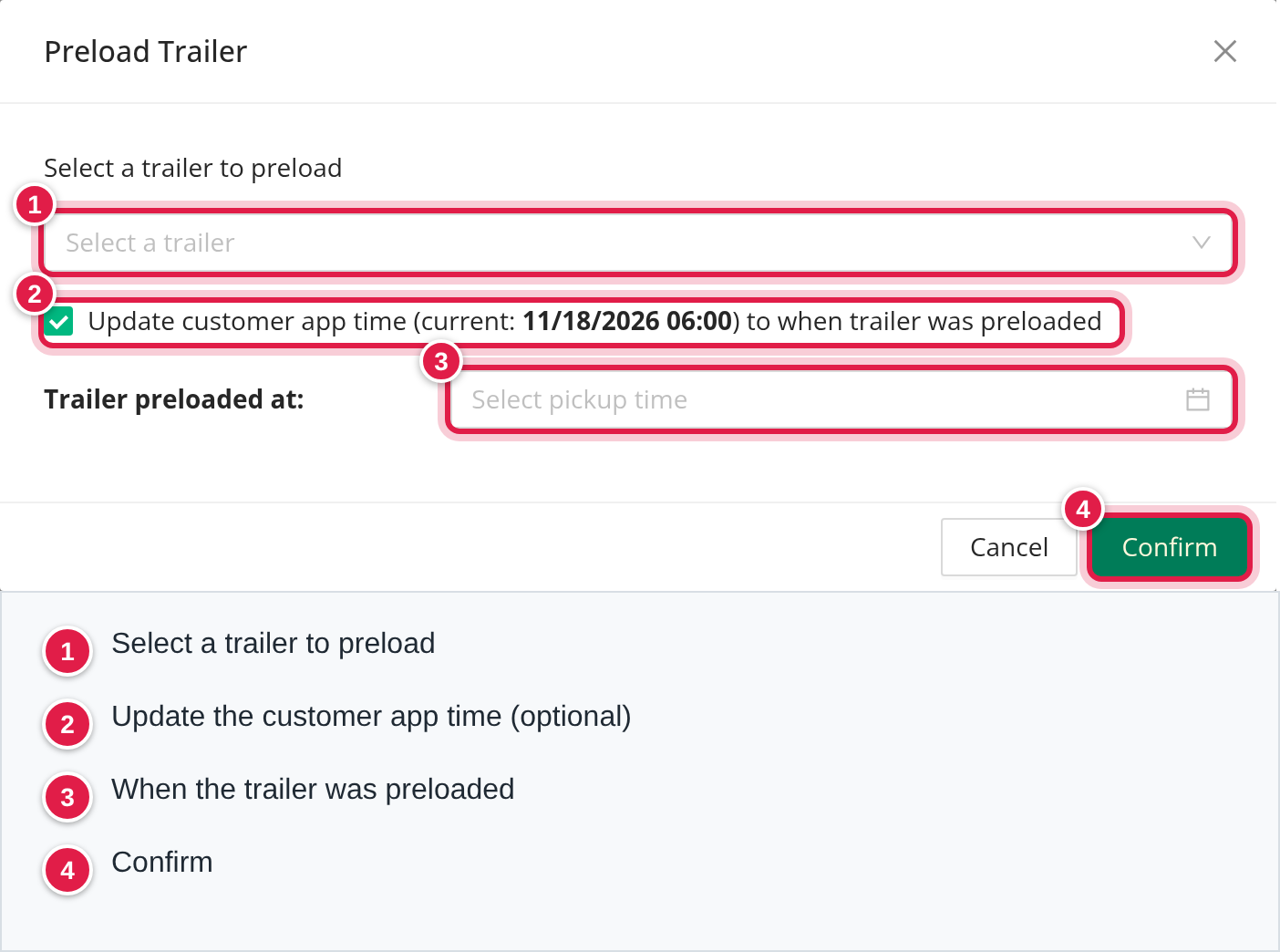
Preload a trailer. Select Preloaded when it is off.
- In Preload Trailer, choose the trailer under Select a trailer to preload. If the trailer is out of service you see a warning and must confirm with Yes, Assign Anyway.
- Keep the box Update customer app time (current: ...) to when trailer was preloaded ticked if the customer's pick-up time should change, and choose Trailer preloaded at:. You need a time, and the time from must be before the time to.
- Select Confirm.
OpenRoad flags the load as preloaded, assigns the trailer, adds the load note "Preloaded #...", updates the first pick-up's customer appointment and adds a note "Customer App Time updated from ... to ...". It also emails the first driver's manager that the load has been preloaded. Select Preloaded again to undo it: the trailer, the flag and the "Preloaded" notes are removed and the original appointment time comes back.
Unmark Drop and Hook. Select the hook icon, then Yes, unmark.
Change the status. Select the status chip, search the list and pick a status. A status the account has locked shows a lock and cannot be picked. Be careful:
- Saving the status updates the load's availability, and can send the customer a status email and an EDI 214 status update, when those are set up for the customer. The customer email goes for At Shipper, Delayed, En Route To Receiver, At Receiver, Delivered and Canceled when the customer has load status notification e-mail on.
- Canceled removes all drivers from the load and removes the trailer. OpenRoad may first ask Unassignment reason (Select why the driver is losing this load.).
Assign yourself as CSR. Select Assign next to CSR Manager to make yourself the CSR of this load.
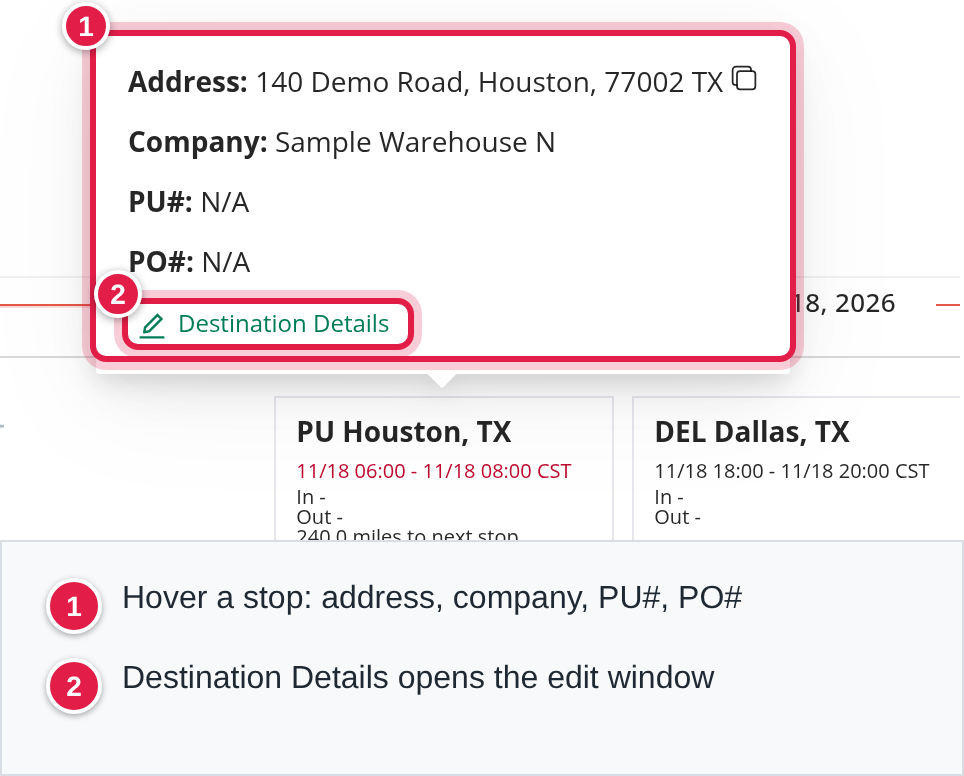
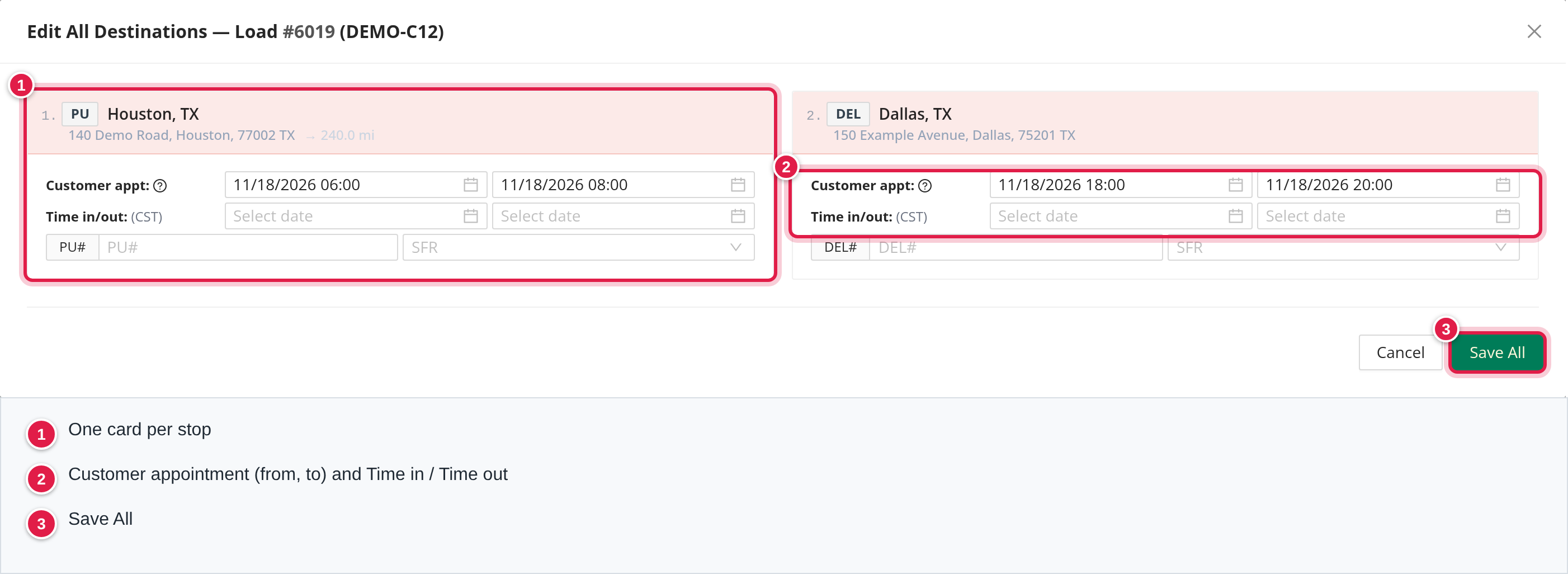
Edit the stops. Hover over a stop to see its address, company, order number (PU#, DEL#), PO# and View Place. Select Destination Details to open Edit All Destinations - Load #.... It has a card per stop:
- Customer appt: (for a trailer stop Trailer appt:), from and to. You need the permission to edit customer app times, otherwise the tooltip says to contact your manager. Dates are limited to one year ahead.
- Time in/out: with Now buttons. Future times are not allowed, and times are read in the stop's time zone. If your account has the time in/out lock on and you lack the permission to edit them, a time that was entered becomes read-only after the account's grace period.
- PU#, DEL#, Trailer PU# or Trailer DEL#.
- SFR (service failure reason): shown only on stops that are late or already have a reason, never on booked loads or trailer stops. With service failure accountability on, you also choose Preventable or Non-preventable, and the Accountable driver when the reason is driver-related.
- Changed fields get an amber outline and the stop says Unsaved. Select Save All (it is disabled until something changed, when the load is locked, or while a service failure is incomplete). Cancel with unsaved changes asks Discard Changes or Keep Editing. A stop that fails to save is marked Error and a red message explains why.
A stop is late when its Time In is after the end of its appointment. Entering a late Time In therefore makes the stop late and asks for an SFR. Saving stops can also send an EDI 214 update to customers that have it on.
Carrier Service Level
The card appears when the setting Carrier OTP% and OTD% is on. It has two sets of rings, On-Time Pickup (pick-up stops) and On-Time Delivery (delivery stops).
Percentage = (stops - failed stops) / stops x 100, rounded to one decimal.
- Stops are the pick-up (or delivery) stops of the customer's loads that have a driver, on loads that are not Booked, Canceled or TONU. A stop belongs to the day, week, month or year in which its load's last delivery is due.
- A stop failed when its service failure reason is one that Settings marks as the carrier's fault for pick-ups (or for deliveries), and either the reason is a "rescheduled" type, or its Time In is more than 60 seconds later than the end of the customer appointment.
- No stops gives a grey ring with a dash.
| Ring or item | Period |
|---|---|
| YTD | 1 January to today |
| Month | The current calendar month |
| Week | The current week, Sunday to Saturday |
| 12-week line | One point per week (Sunday to Saturday) for the current week and the 11 before it. Hover to see the week, the percentage, the stops and the late stops. |
| vs last wk | This week's 12-week point minus last week's, in percentage points (arrow up in green, down in red). Shown only when both weeks have stops and the change is not 0. |
Colours of the rings and the line: green from 95%, amber from 85% to below 95%, red below 85%. Under the rings you see No loads delivered yet this week. when the week has no stops. The info icon next to the title lists the top carrier-late reasons of the year so far (up to eight, with counts).
Load Score
When Load Score is on for your account, a load card can show a grade and score from 0 to 100 (also the Load Score filter). Load Score = points earned / points possible x 100, rounded to two decimals. The grade comes from the score rounded to a whole number:
| Grade | Score |
|---|---|
| A | 90 and above |
| B | 80 to 89 |
| C | 70 to 79 |
| D | 55 to 69 |
| F | below 55 |
The points come from four parts, each worth the maximum points your account sets in Settings: Truck Use (full points when the idle time is at or below a set limit, none at or above another limit), Wasted Time (falls as idle days add up: half the points at half a truck day), Window Width (wider appointment windows score higher; a fixed time scores lowest) and Appointment Hour (daytime appointments score full, night and early morning less). A load where every stop has a flexible window scores 100 when it can be done on time. The score is recalculated when the Not Scheduled or On-Hold flag changes. Open the score to see the modelled run.
Good to know
- Priority Loads, Loads by CSR and Inactive Loads each clear or replace the customer selection and cannot be combined.
- A locked load, or a stop of a locked load, cannot be edited.
- Your customers, sorting, manager filter and the On Hold choice are remembered per browser.
FAQ
Was this article helpful?
That’s Great!
Thank you for your feedback
Sorry! We couldn't be helpful
Thank you for your feedback
Feedback sent
We appreciate your effort and will try to fix the article