OpenRoad TMS can connect to your telematics provider, fuel cards, toll accounts, factoring company, accounting software and more. Every connection has its own page under Integrations in Settings. This article shows how to find those pages, why your list may look different from another company's, and which article explains each integration in detail.
Before you begin
- Only a Superadmin can open Settings. If you cannot see Settings, ask a Superadmin in your company. See Settings → Account → Main Info: your company profile, logo, contact details and tax identifiers for the way to Settings.
- You only see the integrations your account uses. An integration appears in the menu once it has been set up for your account, and many also need OpenRoad to switch the feature on first. Your list is therefore not the same as another company's.
- Some integrations are optional features and charges may apply. Ask OpenRoad Support (help@openroadtms.com) before you plan on one.
Part 1: Find the Integrations pages
- Select your avatar in the top right corner and choose Settings.
- In the Settings menu on the left, open Integrations. Each item under it is one integration page.
- Select the integration you want. The page opens on the right.
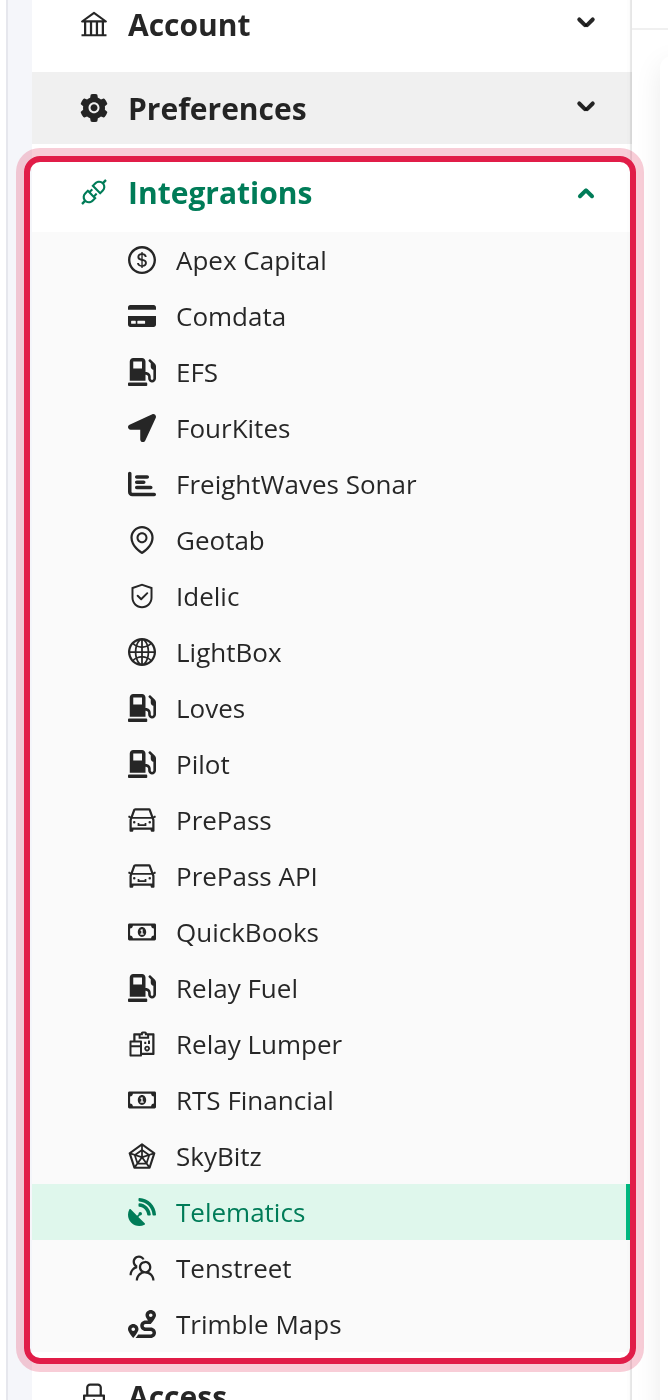
You can also type the name in the Search settings box at the top of the Settings menu: the menu shows only the matching items.
Motive and Samsara share one page, Telematics. Older links to the separate Motive and Samsara pages open Telematics.
Part 2: What each integration does and where to read about it
Select the integration you need to open its article.
Telematics, tracking and driver safety
| Settings item | What it does | Article |
|---|---|---|
| Telematics (Motive) | GPS, hours of service and device data from Motive. | Motive Integration: connect Motive to OpenRoad TMS (one account or several) |
| Telematics (Samsara) | Matches your trucks, trailers and drivers with Samsara. | Samsara Integration: connect Samsara and match your trucks, trailers and drivers |
| FourKites | Sends load tracking to FourKites. | FourKites Integration: send load tracking to FourKites |
| SkyBitz | Shows the location of leased trailers tracked by SkyBitz. | SkyBitz Integration: see the location of leased trailers tracked by SkyBitz |
| Idelic | Shows each driver's Idelic safety score. | Idelic Integration: see each driver's Idelic safety score in OpenRoad TMS |
Fuel, tolls and lumper payments
Invoicing, factoring and accounting
| Settings item | What it does | Article |
|---|---|---|
| RTS Financial | Sends invoices to RTS for factoring. | RTS Integration: send invoices to RTS for factoring |
| Apex Capital | Factors your invoices with Apex and tracks payments. | Apex Capital Integration: factor your invoices with Apex and track payments in OpenRoad TMS |
| QuickBooks | Sends invoices and driver settlements to QuickBooks and imports payments. | QuickBooks Online Integration: send invoices and driver settlements to QuickBooks and import payments |
Hiring
| Settings item | What it does | Article |
|---|---|---|
| Tenstreet | Turns Tenstreet driver applications into drivers. | Tenstreet Integration: turn Tenstreet driver applications into drivers in OpenRoad TMS |
Other items you may see. Your menu can also show LightBox, Geotab, Trimble Maps, FreightWaves Sonar, Macropoint, Sage Intacct, Fleetrock and a few more, depending on your account. Contact OpenRoad Support if you need help with one of them.
Part 3: Start using an integration
- Check your Integrations menu. If the integration is there, open it and follow its article.
- If it is not there, it has not been set up for your account. Contact OpenRoad Support (help@openroadtms.com). OpenRoad switches integrations on and tells you what is needed from your provider.
Frequently asked questions
Was this article helpful?
That’s Great!
Thank you for your feedback
Sorry! We couldn't be helpful
Thank you for your feedback
Feedback sent
We appreciate your effort and will try to fix the article