Create Relay lumper codes for your stops. A driver uses the code to pay the lumper fee at the delivery location. When Relay reports the charge, OpenRoad adds the amount to the load, saves the receipt on the load and can move the load to the next status and ask your customer for a revised rate confirmation.
Before you begin
- The Relay Lumper feature must be switched on for your account. If you do not see Relay Lumper under Settings, Integrations, contact OpenRoad Support at help@openroadtms.com.
- Only a Superadmin can open and change the Relay Lumper settings.
- You need your Relay Lumper API Key from Relay.
- Each stop where a code is used needs a place with a full street address, city, state and zip. Without it Relay rejects the code.
- Codes are created per stop, one code per stop.
Part 1: Connect Relay Lumper
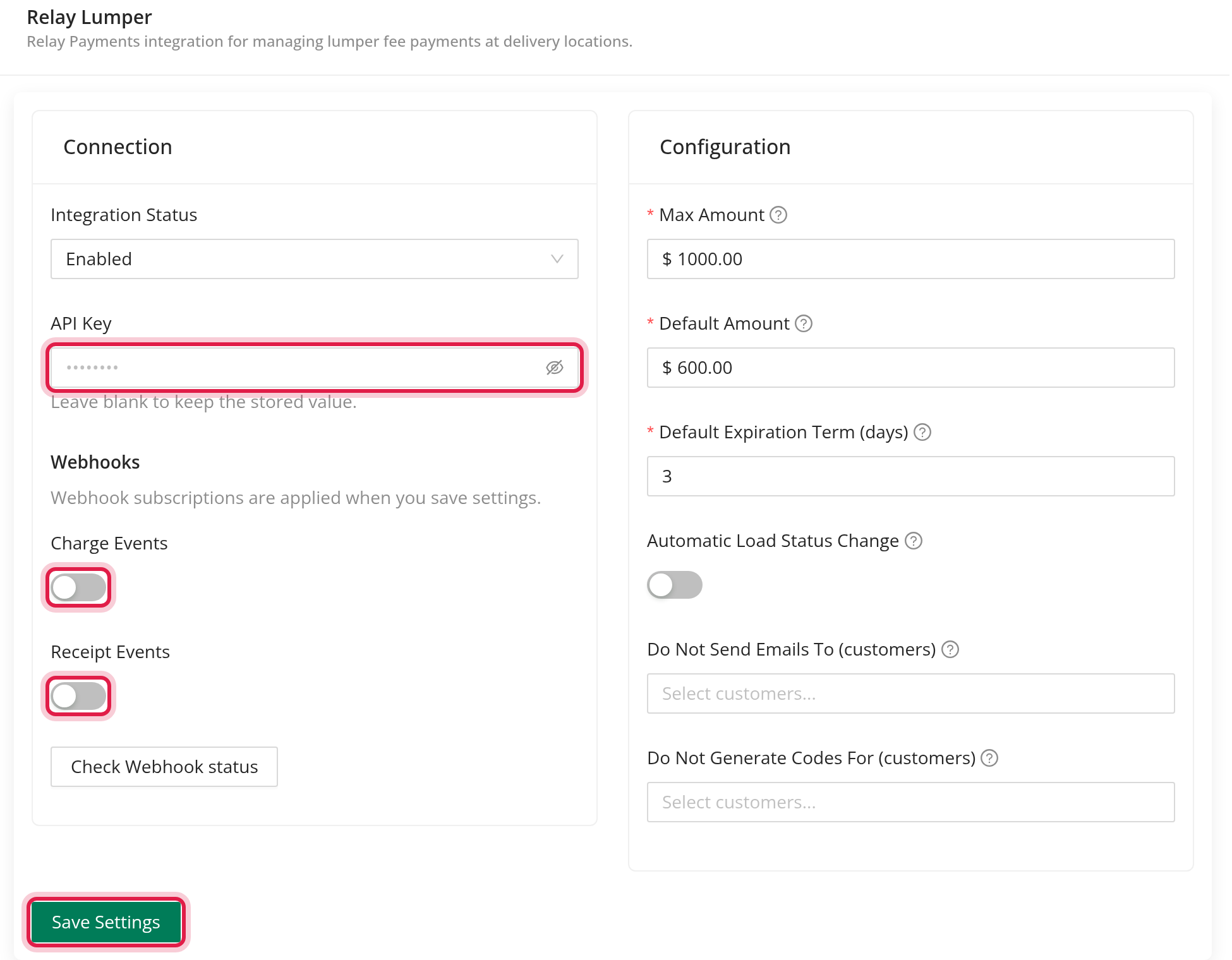
- Go to Settings, Integrations, Relay Lumper.
- In the Connection card set Integration Status to Enabled and enter the API Key. The key is never shown again after saving.
- Under Webhooks switch on Charge Events and Receipt Events. Webhooks tell OpenRoad when a code is used and send the receipt. OpenRoad registers them in Relay when you save; you do not enter any address or secret.
- In the Configuration card set:
- Max Amount: the most a code can be for, from $1 to $2,500 (default $1,000). - Default Amount: the amount of codes OpenRoad creates by itself, from $1 up to Max Amount (default $600). - Default Expiration Term (days): days added to the customer appointment time. With 3, a March 1 appointment expires March 4 at the same time. - Automatic Load Status Change: when on, choose Change to, the status the load moves to after the lumper charge is received while the load is Delivered (default Delivered - Pending). - Do Not Send Emails To (customers): loads of these customers get no lumper email. - Do Not Generate Codes For (customers): no codes are created automatically for these customers.
- Click Save Settings.
- Click Check Webhook status to see, for each webhook, whether it is Subscribed (the "Set" and "Fetched" columns should match).
Part 2: Lumper codes on a load
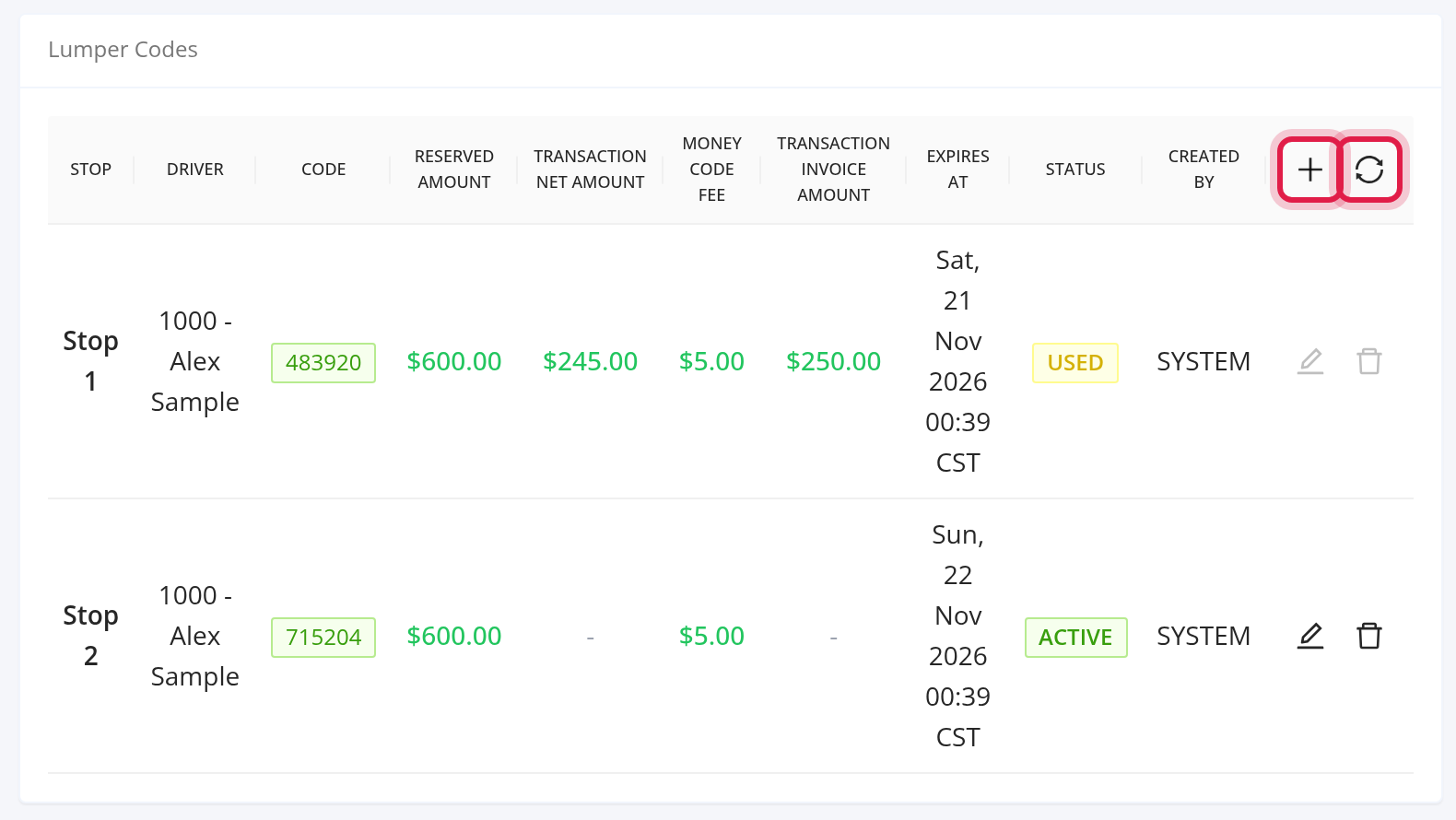
Open a load. The Lumper Codes panel lists the codes of its stops: STOP, DRIVER, CODE, RESERVED AMOUNT, TRANSACTION NET AMOUNT, MONEY CODE FEE, TRANSACTION INVOICE AMOUNT (includes the Relay service fee), EXPIRES AT, STATUS and CREATED BY. Times are shown in Central time.
Create a code
- Click + (Create new lumper code).
- Choose the stop, the maximum amount and the expiry date and time (it must be in the future).
- Click Submit.
The code is added to the stop's special handling as "Relay Lumper Code: <code> Valid Until: ..." and a line is written to the load log.
OpenRoad also creates a code by itself when a stop gets its place through load building, using the default amount and expiry, unless the customer is in Do Not Generate Codes For.
Statuses: Active, Used and Inactive.
- Edit works only on Active codes.
- Delete does not work on Used codes. An active code is deleted in Relay as well.
- A code created outside OpenRoad (in Relay) is managed in Relay and cannot be edited or deleted here.
- Click the sync icon ("Fetch latest updates from Relay") to refresh the codes. It can be used once a minute. It also pulls in codes created outside OpenRoad whose note matches the load.
If Relay refuses a request you see "Relay responded with: <message>".
Part 3: What happens when the code is used
- Relay tells OpenRoad about the charge. The code becomes Used and the amounts appear in the table.
- The load note records it, for example "Stop 2 Driver 14 Relay code used: $250.00".
- The load's lumper total is recalculated. It is the sum over all codes of the load of the amount including the Relay fee.
- The receipt from Relay is saved on the load as a lumper receipt upload.
- If Automatic Load Status Change is on and the load is Delivered with a lumper total above zero, the load moves to the Change to status.
- OpenRoad then sends the customer an email "Lumper Request - Load <number>" with the receipts attached and the text: "Please send a revised rate confirmation with a $<amount> lumper added." It goes to the notification email of the load or the customer. If neither has one, a note on the load says the customer was not informed. The email is sent only when Relay Lumper Notification to Customer is switched on in Email Settings; it starts switched off.
Reports
- Accessorial Codes (Fuel Management) lists the Relay codes with Type Relay, together with the other money codes. Choose a date range, filter by Status, and use Refresh Codes to update the codes on the page (up to 100 at a time).
- Every Monday at 7:00 AM OpenRoad emails the Relay Lumper Weekly Summary (a CSV of the past 7 days' codes: code, generated and used time, who created it and the load number). Nothing is sent when there were no codes. It starts switched off; switch on Relay Lumper Weekly Summary in Email Settings to receive it.
- OpenRoad also refreshes all codes four times a day, at 5:00, 11:00, 17:00 and 23:00.
Frequently asked questions
Was this article helpful?
That’s Great!
Thank you for your feedback
Sorry! We couldn't be helpful
Thank you for your feedback
Feedback sent
We appreciate your effort and will try to fix the article