Connect QuickBooks Online to OpenRoad TMS and you can post your customer invoices and your driver and owner-operator settlements straight into QuickBooks from OpenRoad, then bring back which invoices were paid and what each customer still owes. This article explains how to connect, what to map, what each export sends and how to fix errors.
Who can do this: only users with the Super Admin role can open Settings → Integrations → QuickBooks. QuickBooks Online must also be switched on for your account. If you do not see QuickBooks Online as a type, contact OpenRoad Support at help@openroadtms.com.
OpenRoad also has a QuickBooks Desktop type. It produces a file that you import into QuickBooks Desktop yourself. This article covers QuickBooks Online, where OpenRoad posts the data directly.
Before you begin
- You need a QuickBooks Online company and a user there who can authorize OpenRoad.
- In QuickBooks Online, create the products and services (items) you want each charge type to use, and the accounts for driver pay. See Part 2.
- Only one QuickBooks Online company can be connected to an OpenRoad account.
Part 1: Connect QuickBooks Online
- Go to Settings → Integrations → QuickBooks.
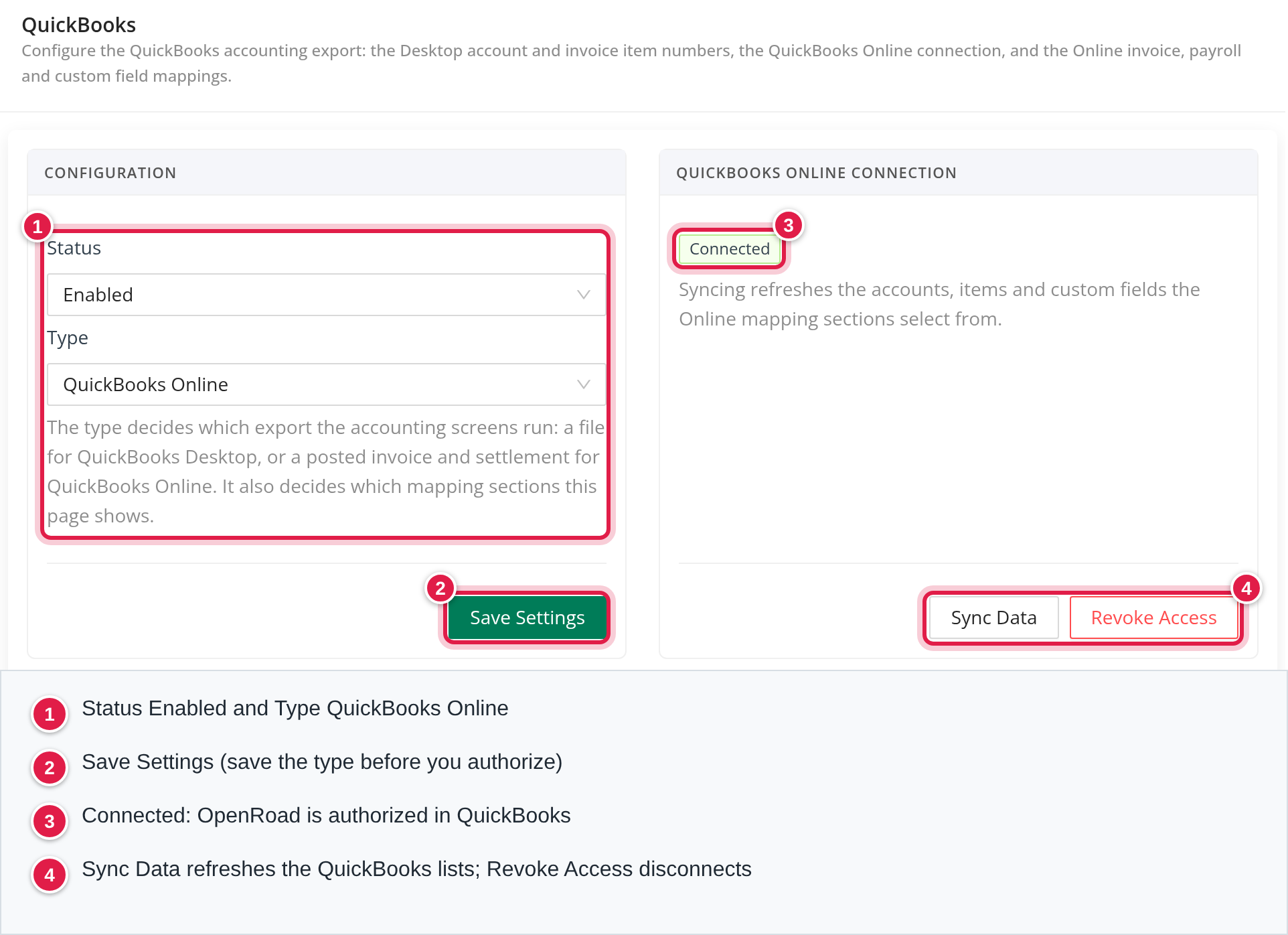
- In the Configuration card set Type to QuickBooks Online and Status to Enabled, then click Save Settings. Save the type before you authorize.
- In the QuickBooks Online Connection card click Authorize Access. You are taken to Intuit's sign-in page. Sign in and allow OpenRoad.
- You return to OpenRoad with the message "QuickBooks Online authorization successful, and data synchronized." The status tag now reads Connected.
OpenRoad never stores your QuickBooks password. It keeps a secure authorization that it renews automatically.
nothing is exported or imported unless Status is Enabled.
Once connected you can use:
- Sync Data to refresh your QuickBooks accounts, items and custom fields in OpenRoad. It also runs automatically right after you authorize. Customers, vendors and payment terms are refreshed in the background. Run it again after you add a new item or account in QuickBooks.
- Revoke Access to disconnect. This also removes the synced lists and all Online mappings from OpenRoad, so you set the mappings again after you reconnect.
Part 2: Set up your mappings
After you connect, the mapping sections open on the same settings page. Fill them in before your first export.
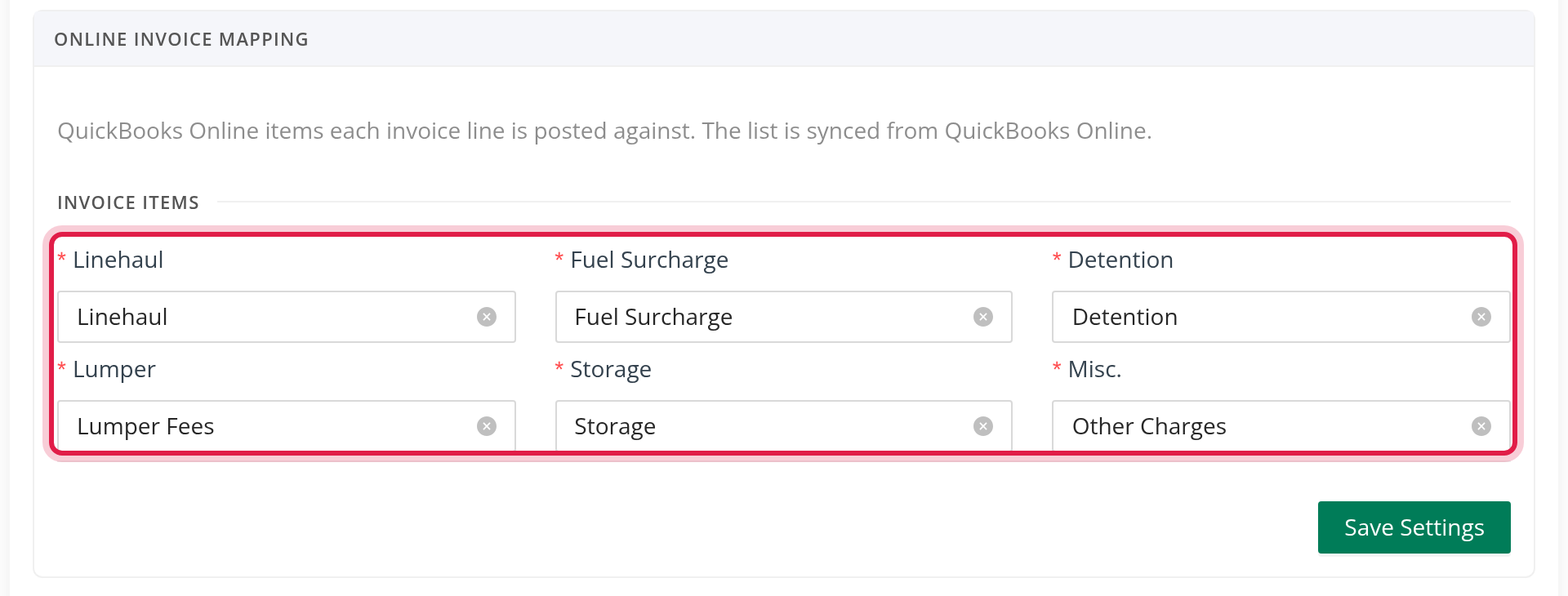
Online Invoice Mapping. Pick the QuickBooks Online product or service that each charge uses: Linehaul, Fuel Surcharge, Detention, Lumper, Storage and Misc.. If a mapping is missing when you export, OpenRoad stops with "Mappings for products and services are required to export invoices to QuickBooks Online."
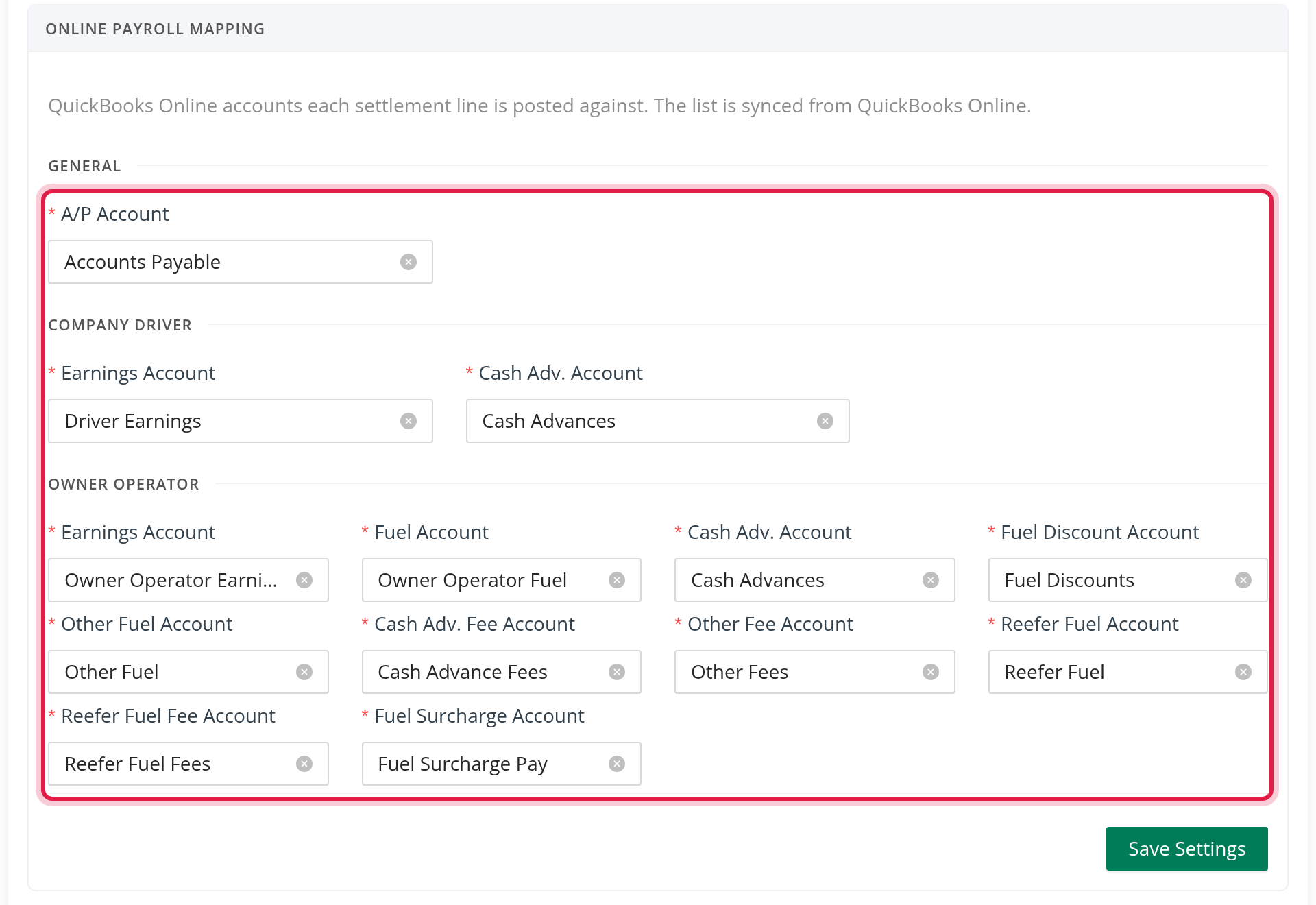
Online Payroll Mapping. Pick the QuickBooks accounts used for settlements. All fields are required in the form:
- General: the A/P account.
- Company Driver: the Earnings and Cash Adv. accounts.
- Owner Operator: the Earnings, Fuel, Cash Adv., Fuel Discount, Other Fuel, Cash Adv. Fee, Other Fee, Reefer Fuel, Reefer Fuel Fee and Fuel Surcharge accounts.
If a mapping is missing when you export a payroll, OpenRoad stops with "Mappings for chart of accounts are required to export payrolls to QuickBooks Online."
Online Preferences. Optional. In Customer Load# choose a QuickBooks custom field that should carry your customer's load number on each invoice.
Taxes and deductions. When you add a tax or deduction to a driver, choose a QuickBooks Online Account for it. A tax line without an account is flagged and cannot be exported.
Customers need no mapping. OpenRoad matches each customer to a QuickBooks customer by the exact name. If there is no match, OpenRoad creates the customer in QuickBooks when it sends the first invoice. The customer's payment terms are matched to your QuickBooks terms.
Part 3: Export invoices
- Open the Billing page and select the loads you want to send.
- Click Export to QuickBooks.
- OpenRoad sends the invoices in the background. You see "Invoices have been sent to QuickBooks Online. This process may take some time to complete."
What each invoice contains:
- One invoice per load. The invoice number is the load number.
- The customer, the customer's e-mail and billing address, and the memo Customer Load#: <number>.
- A linehaul line for each driver, described City, ST to City, ST, and lines for detention, lumper, storage, misc and fuel surcharge when the amount is above zero. Each line uses the item you mapped.
- No taxes are sent, and no payment terms are set on the invoice itself (terms come from the customer).
Each load needs a customer and at least one driver. A load that already has an invoice with that number in QuickBooks is not sent again: it fails with "Duplicate invoice found with DocNumber". Temporary problems, such as a time-out at QuickBooks, are retried up to 5 times.
Part 4: Export driver and owner-operator settlements
- Open the payroll you want to send and use its export action.
- OpenRoad sends the settlement as a bill: the vendor is the driver or company (created or updated in QuickBooks by name), the due date is the settlement date, and the bill date is the end of the pay period. Each pay item is an expense line on the account you mapped.
- You see "Payrolls have been sent to QuickBooks Online. This process may take some time to complete."
OpenRoad does not check whether a bill for that payroll already exists in QuickBooks. Export each payroll once.
Part 5: Import payments and open balances
On the Billing page two buttons bring information back from QuickBooks. They run only when you click them.
- QuickBooks Import (Paid): checks the invoices of billed loads from the last year. A load whose invoice balance is zero becomes Closed; a load that is partly paid becomes Open Balance. A load is skipped, with a reason, when no load matches, more than one load matches, or nothing has been paid yet.
- QuickBooks Import (Open Balances): updates each active customer's open balance from QuickBooks.
You see "Import for paid invoices from QuickBooks has been scheduled." or "Import for open balances from QuickBooks has been scheduled." The results appear in the logs.
Check the results
Open Billing, Logs. The Export Logs tab lists each export with its date, user, size and the number of loads in progress, successful and failed, and you can expand it to see every load. The Paid Logs and Open Balance Logs tabs show the imports. If some loads failed, you also see "N load(s) failed and were not sent; open Export Logs to see each reason." Failed loads are listed on the QuickBooks Billing Review screen.
Troubleshooting
| What you see | What to do |
|---|---|
| "You have not granted access to QuickBooks Online. Please authorize access to proceed." | Go to Settings → Integrations → QuickBooks and click Authorize Access. |
| "Mappings for products and services are required..." | Fill in Online Invoice Mapping (Part 2). |
| "Mappings for chart of accounts are required..." | Fill in Online Payroll Mapping (Part 2). |
| "Duplicate invoice found with DocNumber: ..." | An invoice with that number is already in QuickBooks. Check it there. |
| "Load ... has no customer." / "No drivers assigned to this load." | Add the customer or driver to the load and export again. |
| "Duplicate record in QuickBooks for customer ..." | Two customers with that name exist in QuickBooks. Merge or rename one. |
| "Failed to refresh QuickBooks Online OAuth token." | Revoke Access, then Authorize Access again, and re-check your mappings. |
| "Oops! Something went wrong while processing your QuickBooks Online request..." | Try again. If it repeats, contact OpenRoad Support. |
Frequently asked questions
Was this article helpful?
That’s Great!
Thank you for your feedback
Sorry! We couldn't be helpful
Thank you for your feedback
Feedback sent
We appreciate your effort and will try to fix the article