Connect RTS to OpenRoad TMS and, when you bill a load whose customer is set to RTS factoring, OpenRoad uploads the invoice to RTS for you and emails you a confirmation. You set up three things once: the RTS connection, a billing profile that uses RTS, and the customers that bill through it.
Before you begin
- Ask your RTS account representative to set up your FTP site and give you the host, username, password and your client code.
- You need access to Settings → Integrations and Settings → Account → Billing, and permission to edit customers.
Part 1: Connect RTS
- Go to Settings → Integrations → RTS Financial.
- In the Configuration card fill in RTS Host, RTS Username, RTS Password and RTS Client Code. All four are required.
- Click Save Settings, then click Test Connection. If the test fails, check the values with RTS.
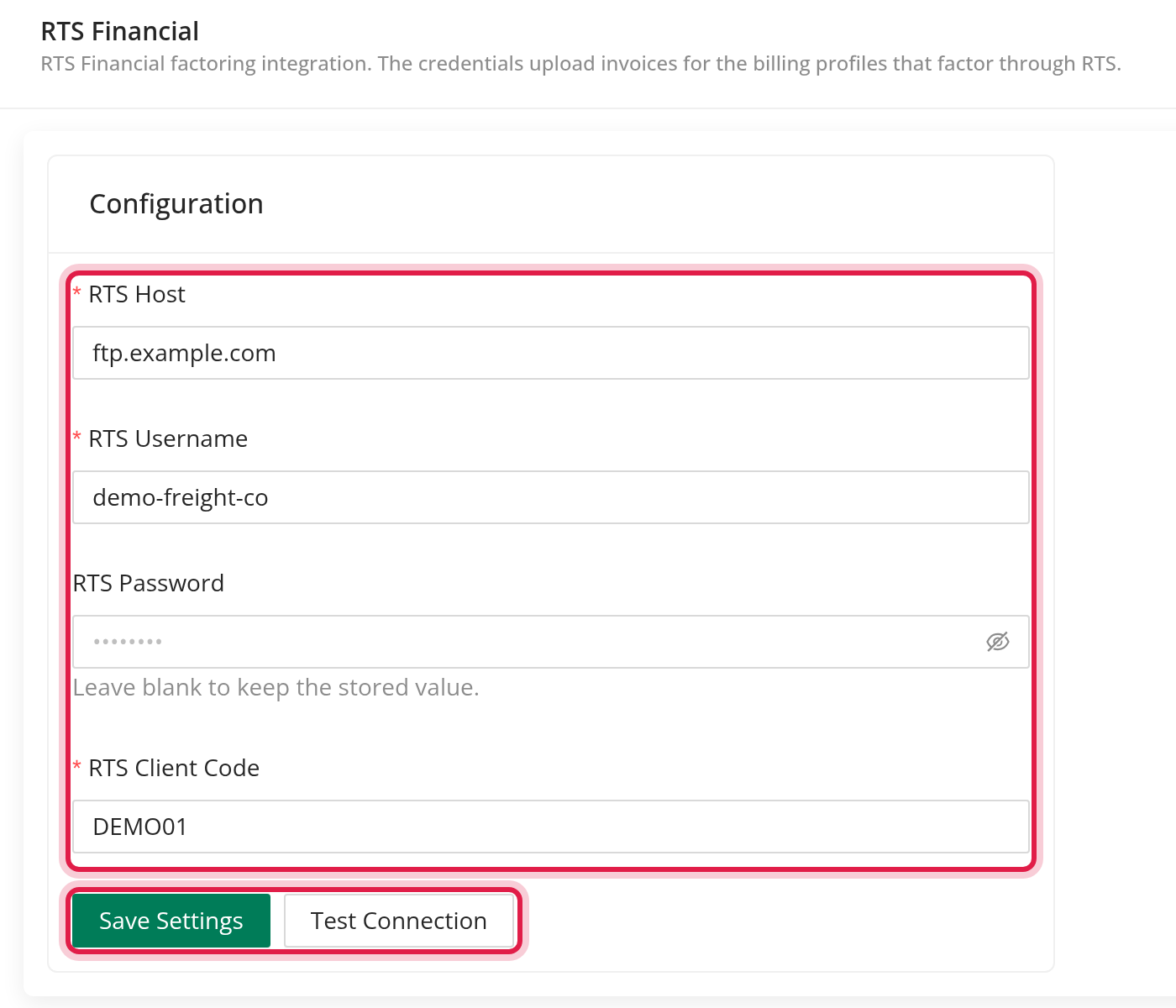
Once a password is saved, OpenRoad never shows it again. If you leave the field blank when saving, the saved password stays.
Part 2: Create a billing profile that uses RTS
- Go to Settings → Account → Billing.
- Select a billing profile or create a new one.
- Set Factoring to RTS. OpenRoad checks the RTS connection first. If the check fails, Factoring goes back to None.
- Save the profile.
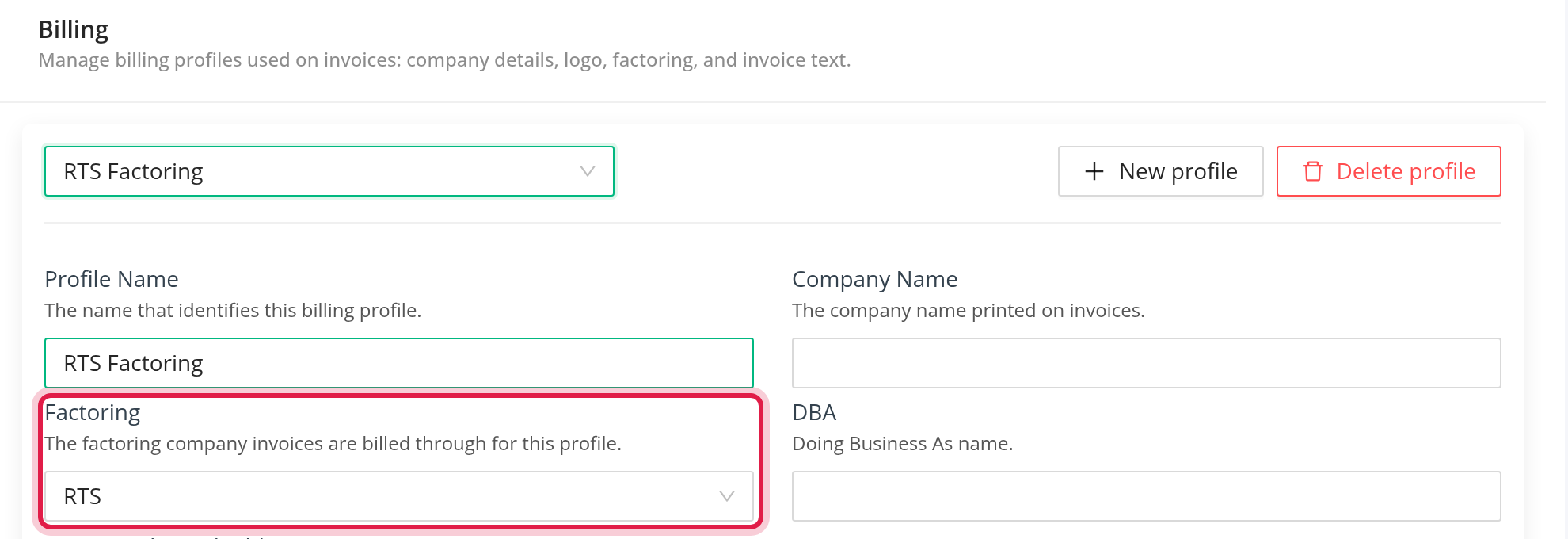
Invoices made with an RTS profile carry the RTS notice of assignment and remittance details instead of your own custom notice.
Part 3: Choose the customers that bill through RTS
- Open the customer's profile and click Edit.
- In Billing profile, select the profile that has Factoring set to RTS.
- Save the customer.
What happens when you bill a load
- You bill the load as usual. OpenRoad groups the loads by each customer's billing profile.
- For loads with an RTS profile, OpenRoad creates the billing file and uploads in the background to your RTS FTP site: the invoice PDF of each load, and one CSV file for the whole billing run, named with the number of the billing run.
- OpenRoad checks that each uploaded file is on the RTS site and has the same size as the local one. If a file is missing, the upload reports an error.
- When it is done, the user who billed receives an email "RTS Billing succeeded" with the billing file attached.
The CSV has one line per load with these columns: Client (your RTS client code), Invoice#, DebtorNo and Debtor Name (both the customer name), Load# (the customer load number), InvDate (the date of the upload) and InvAmt (the load total).
Frequently asked questions
Was this article helpful?
That’s Great!
Thank you for your feedback
Sorry! We couldn't be helpful
Thank you for your feedback
Feedback sent
We appreciate your effort and will try to fix the article