Connect Apex Capital to OpenRoad TMS and you can send your customer invoices to Apex for factoring straight from OpenRoad, with the supporting documents, and see them marked paid when Apex funds them. This article explains how to connect, how to set up your billing profile and customers, what is sent to Apex and how payments come back.
Who can do this: only users with the Super Admin role can open and save the Apex Capital page in Settings. The Apex feature must also be switched on for your account. If you do not see Apex Capital under Settings → Integrations, contact OpenRoad Support at help@openroadtms.com.
Before you begin
- You need an Apex Capital account. The Apex login you use to connect must be linked to exactly one carrier in Apex. If it has none or several, OpenRoad cannot bind a carrier and no invoice can be sent.
- The customers you bill must exist in Apex as brokers. OpenRoad finds the Apex broker of each customer by the customer's MC number first, and then by the company name, so keep the MC number or the exact company name the same in both systems.
- Create a billing profile that uses Apex (see Part 3).
Part 1: Connect Apex
- Go to Settings → Integrations → Apex Capital.
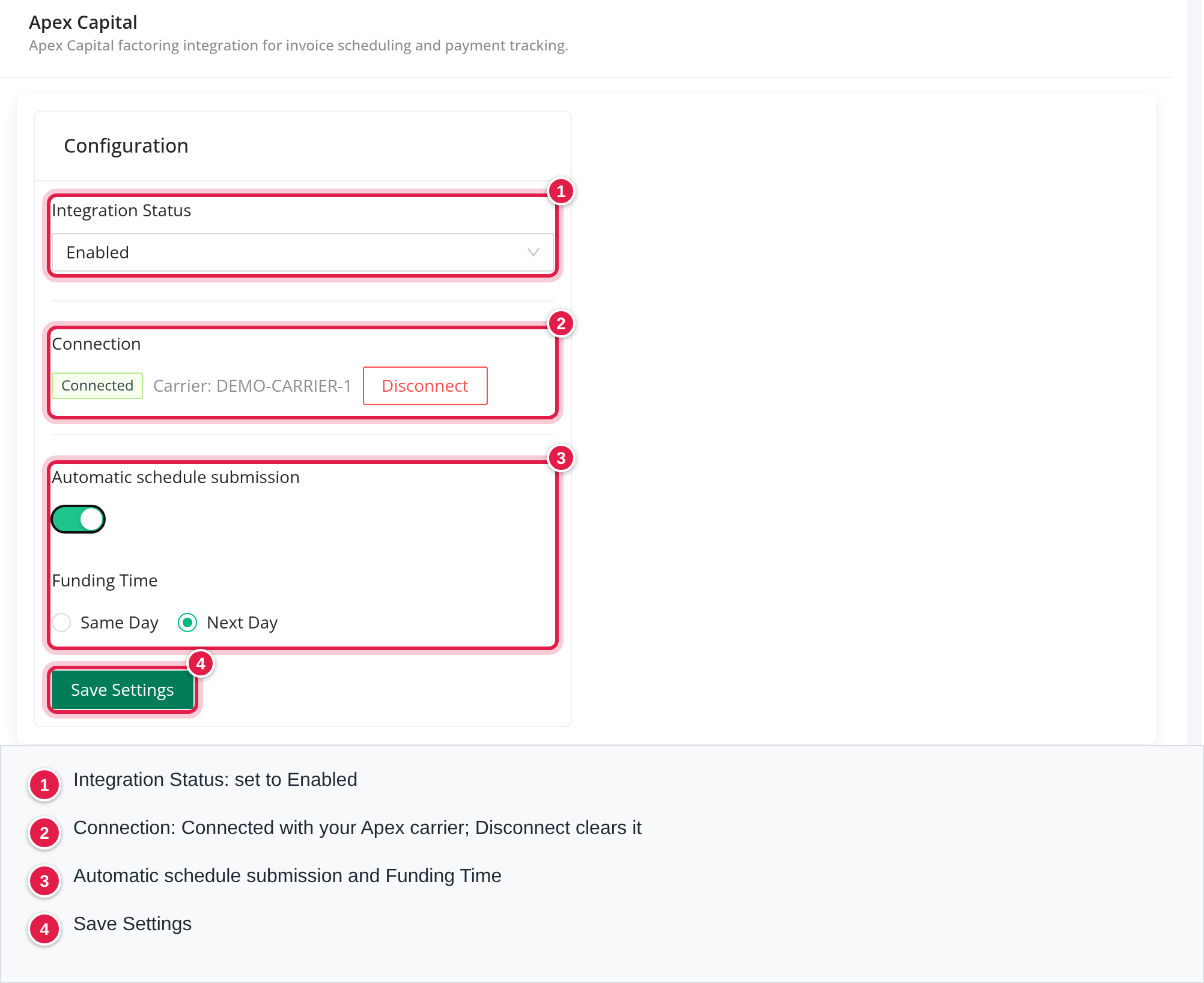
- In the Configuration card click Login with Apex.
- Sign in to Apex and allow OpenRoad. Your Apex username and password are never entered or stored in OpenRoad.
- You return to OpenRoad with the message "Apex connected successfully." The Connection row now shows Connected and your Carrier.
- Set Integration Status to Enabled and click Save Settings.
If the connection fails you see "Failed to connect to Apex. Please try again." Try again, and if it repeats contact OpenRoad Support.
If you reconnect and the Apex login is bound to a different carrier than before, OpenRoad shows an Apex carrier changed window. If that is not the right Apex account, click Disconnect, log in again with the right account, and only then export invoices.
Part 2: Choose how invoices are scheduled
In the same card:
- Automatic schedule submission: when this is on, OpenRoad submits the accepted invoices to Apex as a funding schedule right after it sends them.
- Funding Time: shown when the switch is on. Choose Same Day or Next Day.
Click Save Settings after you change them. If the schedule cannot be submitted, the reason is recorded in the export log.
Part 3: Set up the billing profile
- Go to Settings → Account → Billing.
- Select a billing profile or create a new one.
- Set Factoring to APEX, and save the profile.
- Open each customer you factor through Apex and set its Billing profile to this profile.
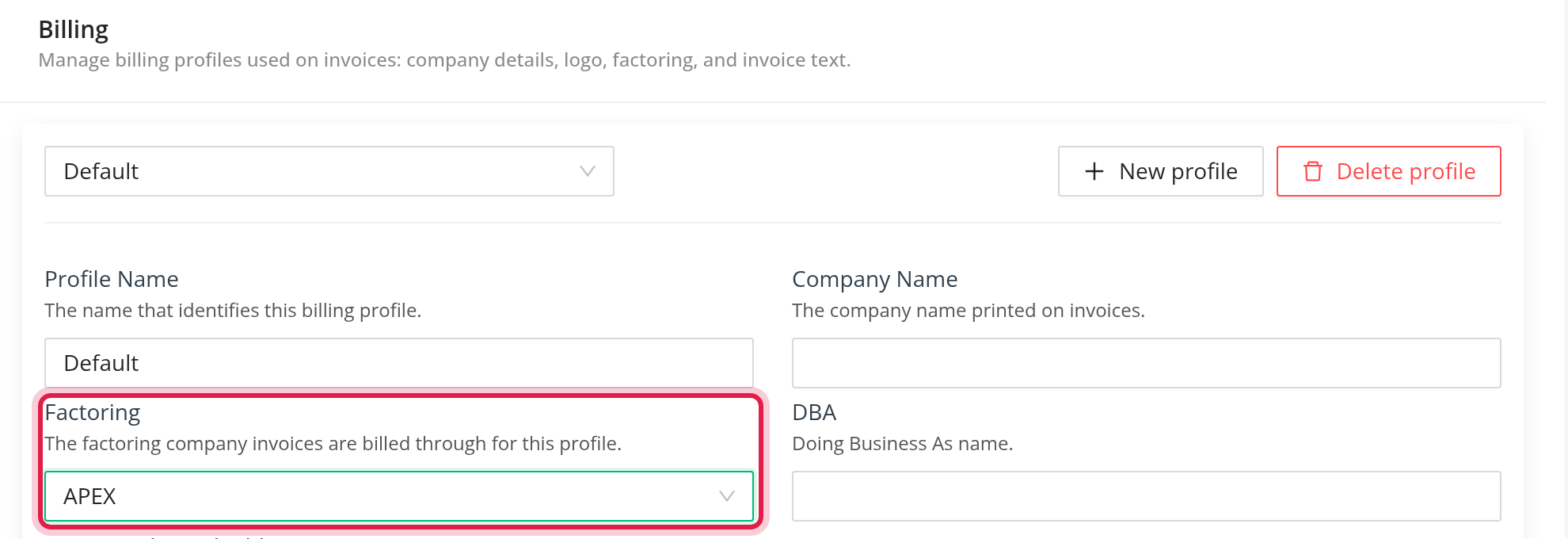
Choosing APEX does not check the Apex connection. Invoices made with an Apex profile print an assignment notice: "This invoice has been assigned and is payable only to: Apex Capital", with Apex's remittance address. The notice is fixed and cannot be edited.
Part 4: Send invoices to Apex
Billing loads whose customer uses an Apex profile sends them to Apex. You can also select loads on the Billing page and click Export to APEX. You see "Apex Capital export has been scheduled." and OpenRoad works in the background.
For each load OpenRoad:
- Finds the Apex broker of the customer (see "Before you begin"). If none is found, the load fails with "No Apex broker found for customer ...".
- Creates the invoice in Apex. The invoice number is the load number. The reference is the customer load number, or the load number when that is blank. The invoice also carries the equipment type, the pickup and drop-off locations with their dates, the driver, and these lines when the amount is above zero: Line Haul Amount, Fuel Surcharge, Detention, Lumper and Other (Charge).
- Uploads one combined PDF to Apex: the OpenRoad invoice followed by the rate confirmations, confirmed BOLs, lumper receipts and scale tickets of the load. Files that are not PDFs are converted, and a file that cannot be converted is skipped.
- Moves the load to Billed - Pending Acc.
If Apex already has an invoice with that number, OpenRoad uses the existing Apex invoice. If a load fails, it goes back to its previous status and the reason is recorded.
Check the result. Open Billing, Logs. The export log lists the loads in progress, successful (with the Apex invoice) and failed (with the reason), and it also shows any problem with the funding schedule.
if the document upload fails after the invoice was created, only the invoice exists in Apex and the problem is not shown on screen. Export the load again to upload its documents.
Part 5: Payments come back automatically
Apex tells OpenRoad about payments, and OpenRoad updates the loads:
- When Apex funds an invoice, the load becomes Paid.
- When Apex posts a payment above zero but the invoice is not funded, the load becomes Open Balance.
- A load is matched to the Apex invoice by its load number. Loads that are Billed, Open Balance, Billed - Pending Acc. or Exported can move. Loads that are already Paid are left alone.
- Paying an invoice also updates the customer's available balance.
The updates arrive when Apex sends them. They do not depend on a button or a schedule in OpenRoad. Apex has to be set up to send them to OpenRoad: if paid invoices are not updating, contact OpenRoad Support.
Disconnect
Click Disconnect in the Connection row and confirm Disconnect Apex?. This clears the stored Apex session and the carrier, and it clears the Apex broker saved for every customer. Click Login with Apex to connect again. If Apex stops accepting the connection, the page shows Not Connected and you log in again.
Troubleshooting
| What you see | What to do |
|---|---|
| "Failed to connect to Apex. Please try again." | Try Login with Apex again. |
| "Missing Apex settings: apex_access_token, apex_carrier_id" | Connect Apex. If you are connected, check that the Apex login has exactly one carrier. |
| "No Apex broker found for customer ..." | Check the customer's MC number and company name against Apex. |
| "Missing customer" | The load has no customer. Add it and export again. |
| "Apex returned no invoice_id" | Apex did not accept the invoice. Check the log and try again. |
| "Apex API unauthorized" / Not Connected | Log in with Apex again. |
| "Apex token refresh failed" | Log in with Apex again. |
| Paid invoices stay at Billed - Pending Acc. | Contact OpenRoad Support to check that Apex sends payment updates. |
Frequently asked questions
Was this article helpful?
That’s Great!
Thank you for your feedback
Sorry! We couldn't be helpful
Thank you for your feedback
Feedback sent
We appreciate your effort and will try to fix the article