Connect SkyBitz to OpenRoad TMS and the GPS positions of your leased trailers are collected automatically, so you can see where they are without logging in to each leasing company's portal. Positions appear in the Trailer Organizer and in the trailer's location fields, together with a link to the leasing company's portal.
Who can do this: only users with the Super Admin role can open the SkyBitz page in Settings. If you do not see SkyBitz under Settings → Integrations, the SkyBitz feature is not switched on for your account: contact OpenRoad Support at help@openroadtms.com.
Before you begin
- Ask each leasing company (or SkyBitz) for a SkyBitz API Client ID and Client Secret for your OpenRoad TMS integration, and for the address of the leasing company's trailer portal login page.
- The leasing company must exist in OpenRoad as a vendor. See Vendors.
- The Unit ID# of each leased trailer in OpenRoad must be the same as the asset ID the leasing company uses in SkyBitz.
never post a Client Secret in chat messages or tickets that other people can see.
Part 1: Turn the integration on
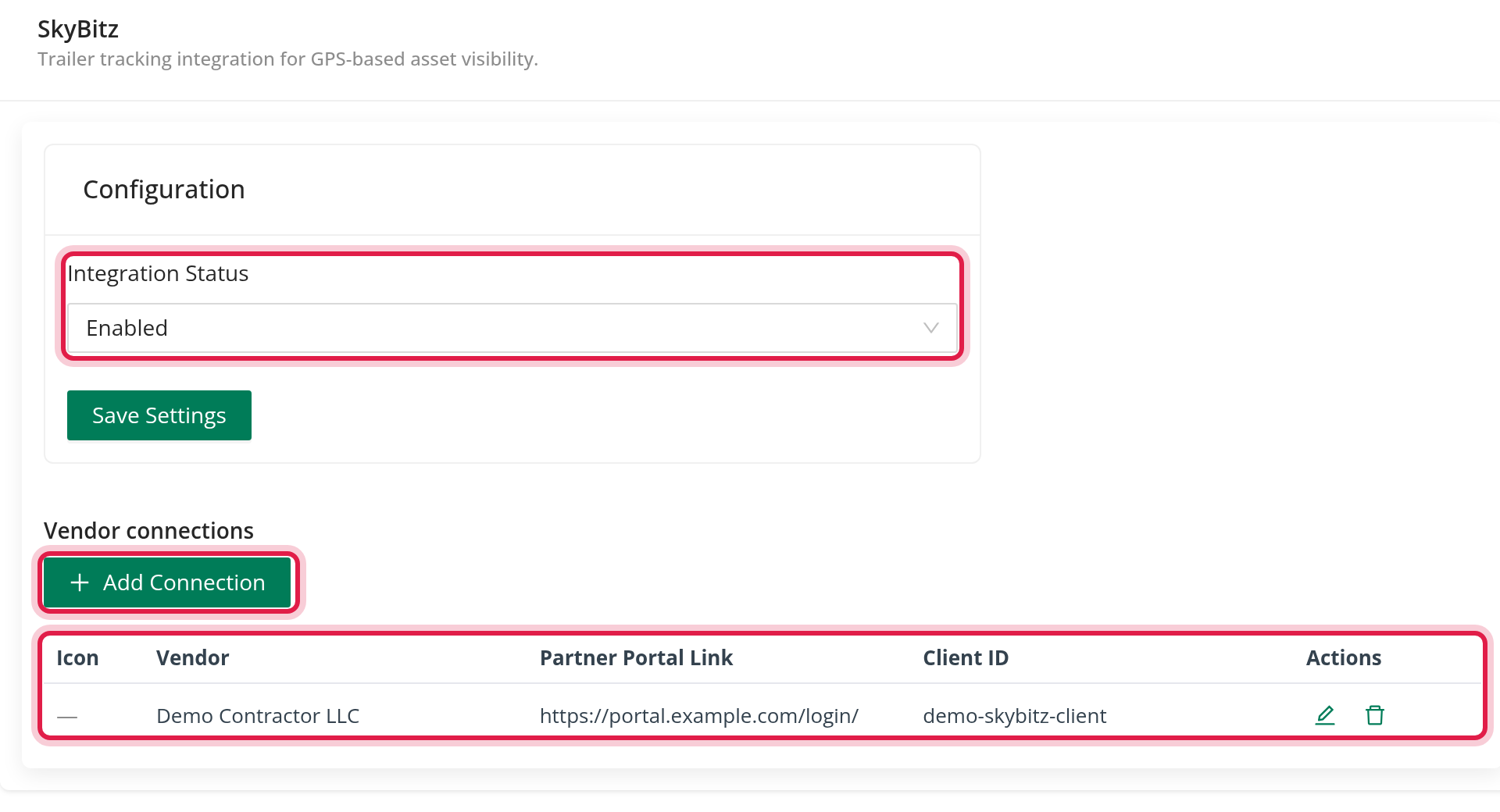
- Go to Settings → Integrations → SkyBitz.
- In the Configuration card set Integration Status to Enabled and click Save Settings.
Part 2: Add a vendor connection
Add one connection for each set of SkyBitz credentials. One connection can cover several vendors, but a vendor can belong to only one connection.
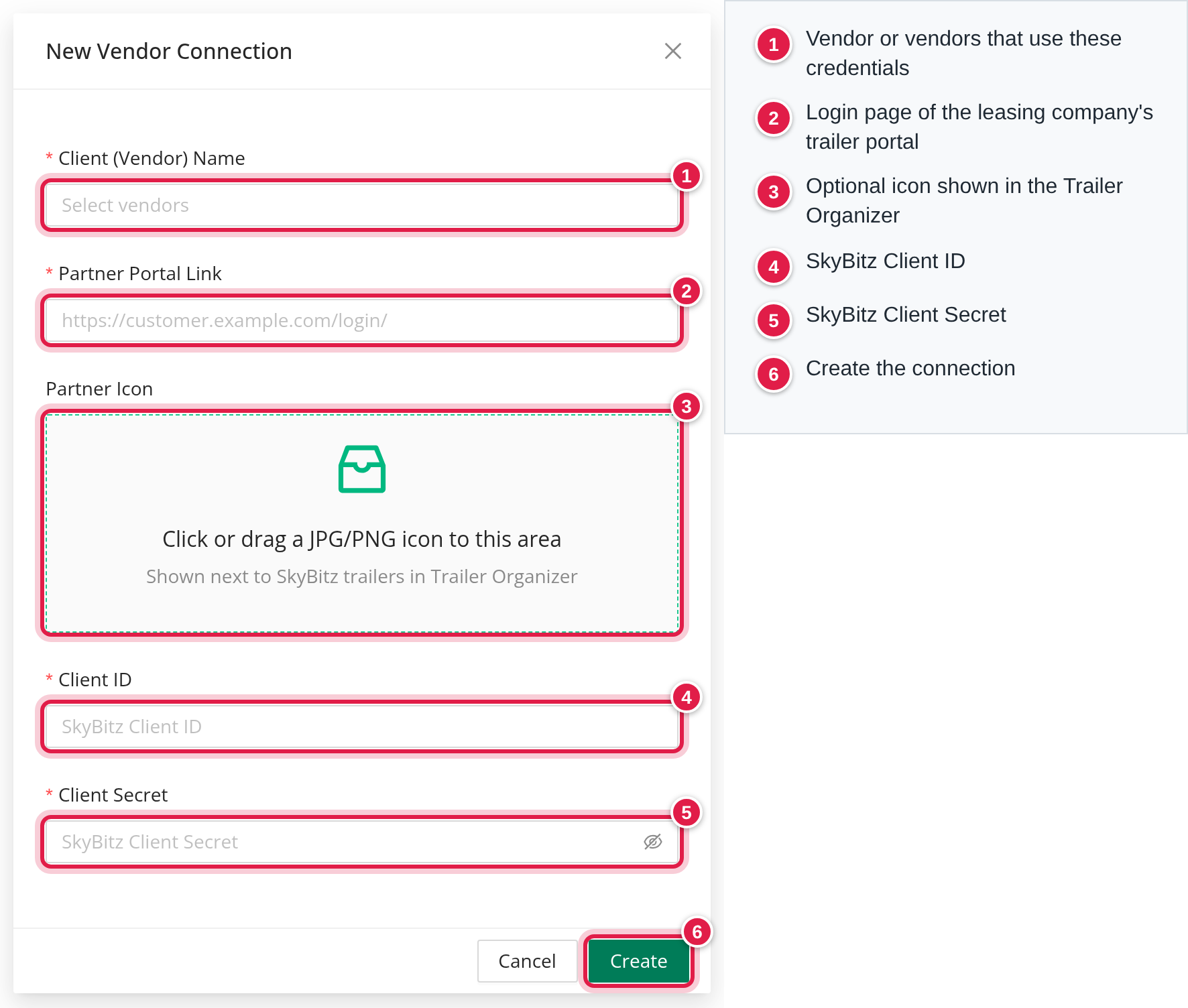
- In the Vendor connections table click Add Connection.
- In Client (Vendor) Name select the vendor or vendors that use these credentials.
- In Partner Portal Link enter the login page of the leasing company's trailer portal, starting with http:// or https://. This is required.
- Optional: upload a Partner Icon (JPG or PNG, up to 5 MB). It is shown next to SkyBitz trailers in the Trailer Organizer.
- Enter the Client ID and Client Secret. Both are required.
- Click Create.
Use the edit icon in Actions to change a connection. The saved secret is never shown; leave the field blank to keep it. Use the delete icon to remove a connection, after confirming.
Part 3: Turn on tracking for each trailer
- Open Trailers, then the trailer.
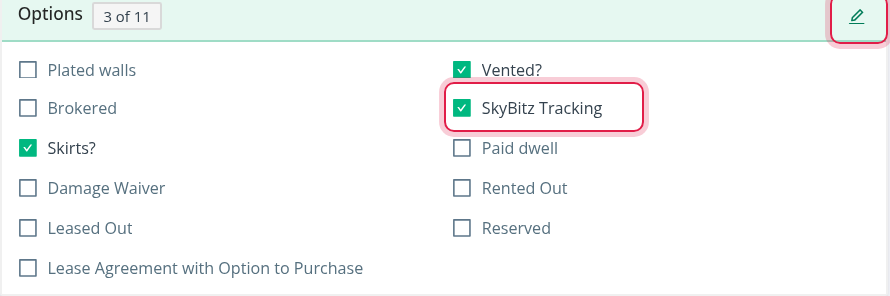
- In the Options card click the edit icon and tick SkyBitz Tracking.
- Make sure the trailer's Unit ID# is the same as the leasing company's SkyBitz asset ID (capital letters and extra spaces are ignored), and that the trailer's vendor is one of the vendors of a connection.
- Save the trailer.
Only active trailers with SkyBitz tracking turned on are updated.
What you get
- About every 10 minutes OpenRoad collects the SkyBitz positions and saves the latitude, longitude, address and time on each matching trailer. If the trailer has not moved, the saved address is kept.
- A SkyBitz position is treated as out of date when it is more than 60 minutes old.
- In the Trailer Organizer, the trailer shows that it is tracked by SkyBitz, with the partner icon and a link to the leasing company's portal. The link is your Partner Portal Link followed by the trailer's Unit ID#. See Trailer Organizer.
Frequently asked questions
Was this article helpful?
That’s Great!
Thank you for your feedback
Sorry! We couldn't be helpful
Thank you for your feedback
Feedback sent
We appreciate your effort and will try to fix the article