Trailer Organizer shows your trailers by yard and by customer location: which are empty and which are loaded, how long they have been there, which driver has them, and which need repair or have stale GPS. Your team can assign a trailer to a yard, a load or a driver, unassign it, and set up the yards. When your trailers have GPS, OpenRoad places them in your yards by itself.
Who can do this: you need permission to view Trailer Organizer. By default every user group has it, and assigning, driver assignment and unassigning need only that permission. Add Yard, the pencil and the trash icons need the Places create, update or delete permission (by default only Dispatcher users can add and edit). The Organizer note of a trailer can be edited by Admin and Dispatcher users by default. A Superadmin changes these in Settings → Access, area Places and Yards.
Before you begin
- Trailer Organizer is an extra feature. It needs both Places and Trailer Organizer switched on for your account. If Trailer Organizer is not under Operations, contact OpenRoad Support at help@openroadtms.com.
- Yards come from Places. A yard is a place with a radius and a trailer pool, see Places.
- Trailers must be added and active. Only trailers with the status Active appear. See Adding a trailer.
- GPS is needed for automatic placement. The trailer needs a GPS position from Samsara, Motive, SkyBitz or another connected provider. Without GPS you manage the trailer by hand.
- Settings. A Superadmin sets the radius, grace period and GPS age limits in Settings → Preferences → Operations → Trailer Organizer (see "Settings and automatic behaviour").
Open Trailer Organizer
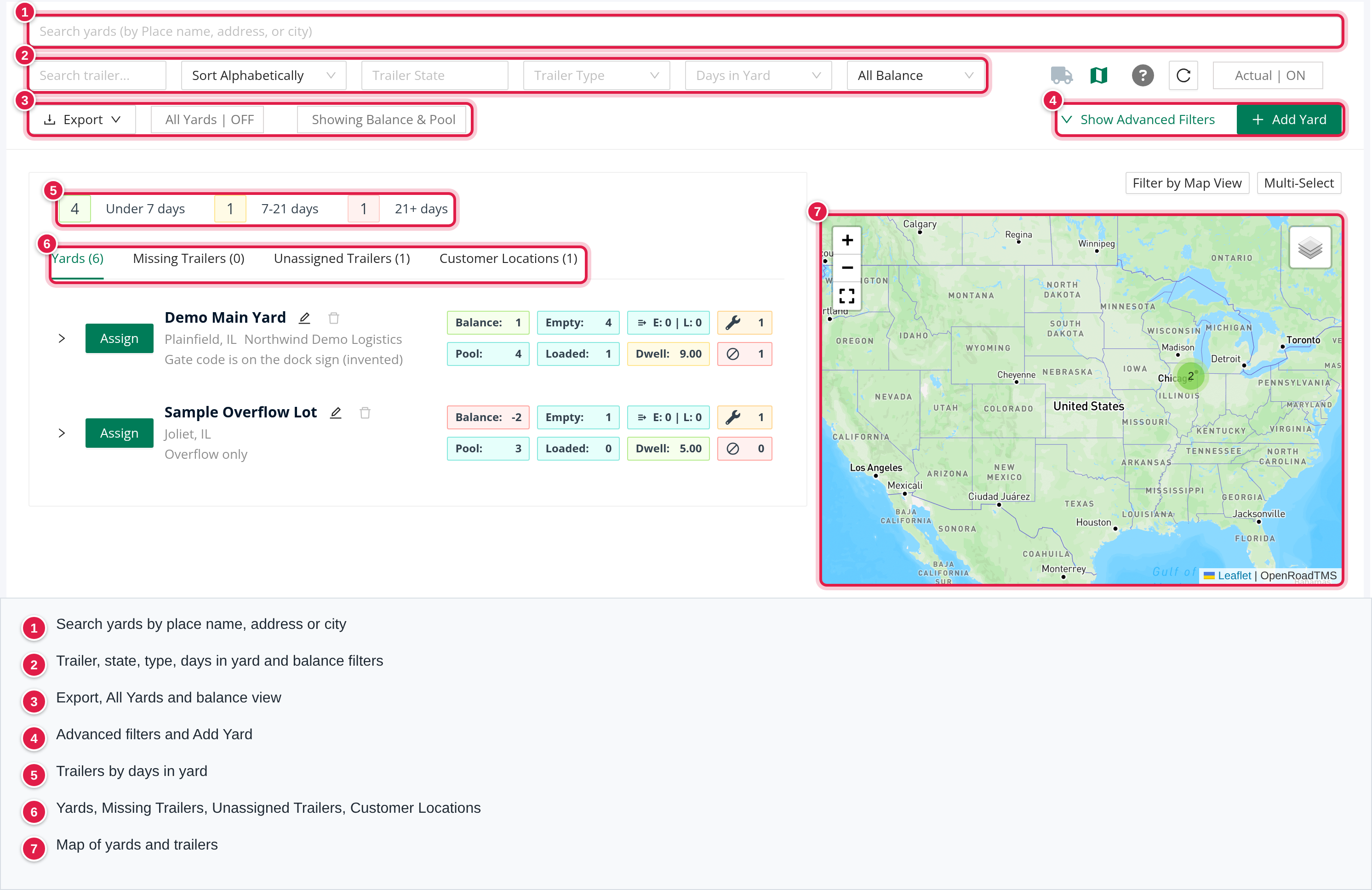
In the left menu, select Operations, then Trailer Organizer. The page has filters on top, a card on the left with day counters and four tabs, and on the right a map and a Customers panel.
Tabs
- Yards (n): every yard with its trailers.
- Missing Trailers (n): see "Where a trailer is listed".
- Unassigned Trailers (n): active trailers with no current driver assignment and no current location.
- Customer Locations (n): places that are not yards where trailers were placed by GPS or by hand. See "Where a trailer is listed" for the exact rules of each tab.
OpenRoad remembers the tab you used last.
Day counters
Three tags above the tabs count the trailers listed on the current tab by how long they have been there: Under 7 days (green), 7-21 days (yellow) and 21+ days (red).
- A trailer counts under Under 7 days below 7 whole days, under 7-21 days from 7 up to and including 21 whole days, and under 21+ days above 21. The days are counted from the start of the trailer's stay, rounded down.
- On the Unassigned Trailers tab the tags count the days the trailer has been unassigned: the whole days since the end of its last driver assignment or last location, whichever is later (or since the trailer was added, if it never had either).
- The tags follow your filters, the date window and the Actual switch, and they count the trailers in the lists, not only those confirmed by GPS.
The day badge on each trailer row is calculated differently, see "Days on site" below.
Filters
- Search yards (by place name, address or city) and Search trailer... (by trailer number, make or model).
- Sort: Sort Alphabetically, Main Customer, Balance (low to high or high to low), Pool and Dwell.
- Trailer State: Needs Repair, OOS, Restricted Use, GPS Outdated, Ready, Paid Dwell, Flatbed, Attention. Ready means not out of service, no repair needed, no attention flag and GPS not outdated (a trailer that needs only restricted use is still Ready).
- Trailer Type: All, Empty, Loaded. Days in Yard: All, 0+ up to 21+.
- All Balance, Positive Only, Negative Only: shown only while the map is on and the pins show Showing Balance & Pool.
- Show only assigned trailers (truck icon), Hide Map / Show Map, Trailer Legend (?) and Reset all filters (it reloads the page).
- Actual (Yards tab, on to start): on shows each trailer once, in its latest place, and hides the Moved lists. Turn it off to see the trailers that have moved on (see "What the Actual switch changes").
- All Yards (on the Customer Locations tab: All Places): off hides yards that have no trailers in the date window and a pool of 0.
- Showing Balance & Pool / Showing Count: what the map pins show.
- Show Advanced Filters: customers, Manager, Brokered: Include / Only / Exclude, and a date range with Search. The dates start at now until the end of today, so choose earlier dates to look back.
- Export: Export trailer list and, on the Yards tab, Export trailer yards download CSV files. Nothing is changed.
Read a yard
A yard row shows:
- Assign (button), the yard name (a link to its place), the pencil Edit Trailer Yard and the trash icon, the city and state, the main customer and the yard note.
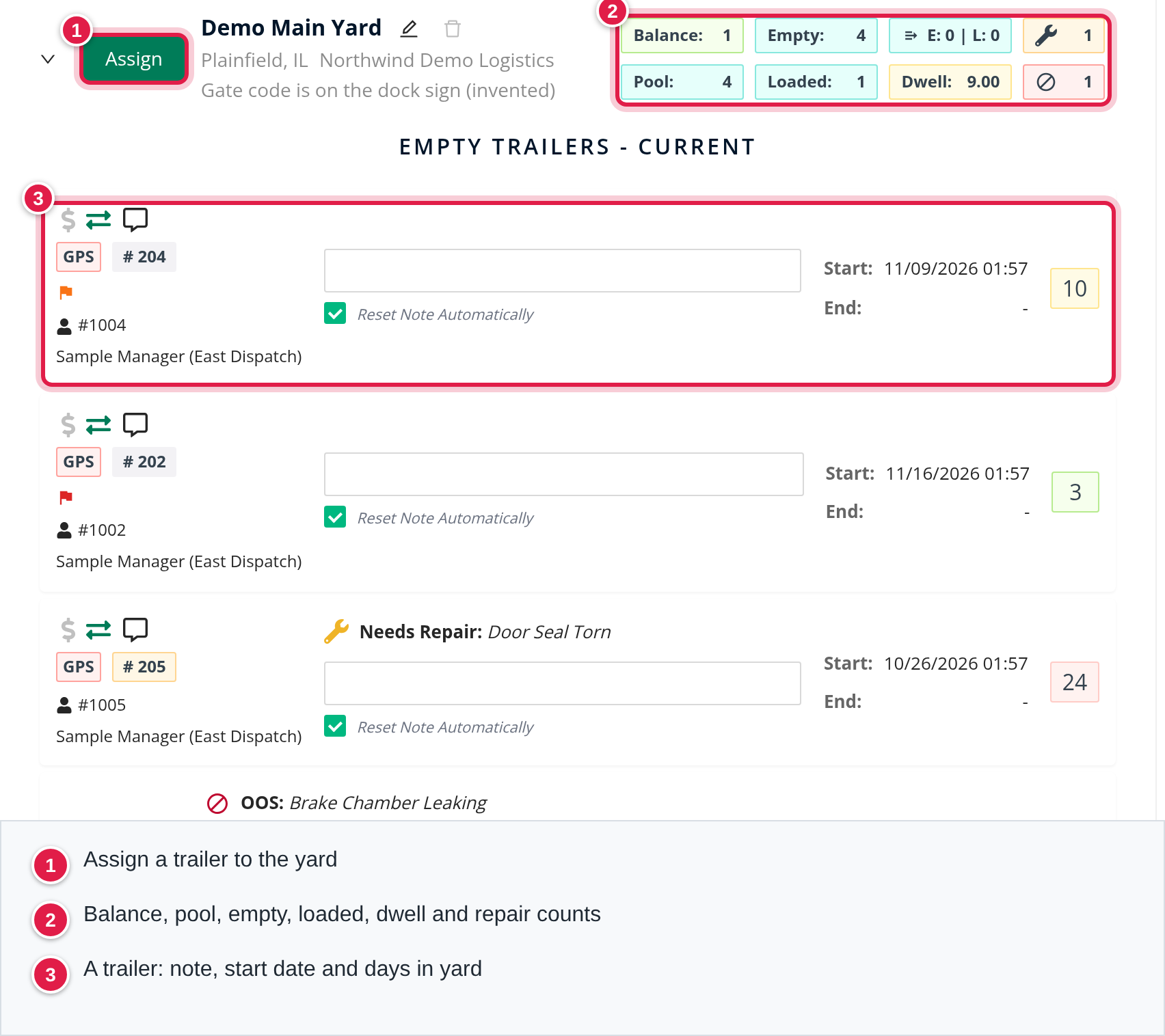
- Balance, Pool, Empty, Loaded, E: n | L: n, the wrench and the circle-slash counts, and Dwell. Each one is explained below.
How the numbers on a yard are calculated
All of these use the trailers listed under the yard for your date range and filters. A trailer is confirmed by GPS when its last GPS position is inside the yard: inside the yard's site area, or closer to the yard's pin than the yard's Radius. A trailer without a GPS position is never confirmed.
| Number | Meaning and formula | |
|---|---|---|
| Pool | The target number of trailers you set on the yard. | |
| Empty | Trailers marked empty at this yard that are confirmed by GPS. Trailers marked "to be moved" are included until they actually leave. Each trailer counts once. | |
| Loaded | The same for trailers marked loaded. | |
| Balance | Empty + Loaded - Pool. Green at 0 or more, red below 0 (the yard is short of its pool). A trailer that is not confirmed by GPS is not counted, so it lowers the balance. | |
| **E: n \ | L: n** | On the Yards tab: the empty and loaded trailers listed under the yard that are not confirmed by GPS (they moved on, or have no GPS position). On the Missing Trailers tab: the empty and loaded trailers that have a later location planned. |
| Wrench (orange) | Trailers listed under the yard that are marked Needs Repair. | |
| Circle-slash (red) | Trailers listed under the yard that are marked Out of Service. | |
| Dwell | The average days on site of the trailers confirmed by GPS: the total of their days on site divided by Empty + Loaded. It shows 0.0 when no trailer is confirmed, and is colored with the same green, yellow and red as the day badge. |
The repair and out-of-service numbers count the trailers in the yard's lists, so with Actual off they also include trailers in the Moved lists. A trailer marked both is counted in both numbers.
Example: a yard with a pool of 4, 3 empty and 1 loaded trailers confirmed by GPS has a balance of 0. If one more empty trailer arrives, the balance is 1. If one of the 4 loses its GPS signal, the balance is -1.
On the Missing Trailers tab the same boxes count only the missing trailers, so Balance there is the number of missing trailers minus the pool and Dwell is 0.0 (a missing trailer is not confirmed by GPS). On Customer Locations the boxes show Empty, Loaded, the wrench and the circle-slash, counting every trailer listed, with no balance, pool or dwell.
The number in each tab label is the number of trailer rows listed on that tab with your filters, not the number of yards.
Open a yard to see the lists Empty trailers - Current, Empty trailers - Moved, Loaded trailers - Current and Loaded trailers - Moved. Current means the trailer is confirmed by GPS in the yard, Moved that it is not. The Moved lists show only when Actual is off. Yard Activity lists the recent Bobtail Pickups (No Trailer Dropped) (tag BOBTAIL) and Trailer Swaps (tag SWAP) of the last days set in Activity Period.
Days on site
The number in the colored box at the right of a trailer row is the days the trailer has been at the place. It counts from the start of the stay up to the end date (or now), rounded up to a whole day, so a trailer that arrived an hour ago shows 1. Rows at the same place that follow each other with less than 12 hours between them (looking back up to 35 days) count as one stay, and the Start date shows the start of that stay. The box is green below 7 days, yellow from 7 to below 21 and red from 21 days. Hover for On site for N days. The filter Days in Yard (0+ up to 21+) keeps the trailers whose badge shows that many days or more.
If the trailer was in the other status at the same place just before (for example empty before it was loaded), a second small box shows how many days, with the tooltip Was Empty for N days.
A trailer row
- The trailer number (a link to the trailer's Assignments tab) coloured red for Out of Service, orange for Needs Repair and teal for Suspended.
- Icons: $ (Paid Dwell, click to switch), Brokered Trailer, Flatbed, an arrow for Trailer will be moved to another location, the green arrows Assign trailer, the GPS provider (View in the provider) and Trailer Notes (Last 60 Days).
- Tags: orange GPS when the position is outdated, Rented Out, Leased Out, Restricted Use, and Attention when the GPS device is not connected.
- The driver number (red if the driver is suspended), the load number and the fleet manager.
- Start: and End:, and the days on site (hover for On site for N days). Several rows at the same place less than 12 hours apart count as one stay.
- A text box for the Organizer note (up to 500 characters, saved when you pause typing), the trash icon Clear note and the box Reset Note Automatically (on to start: the note belongs to the current place and is cleared when the trailer moves). A gold tag shows a Note from previous location.
Assign a trailer
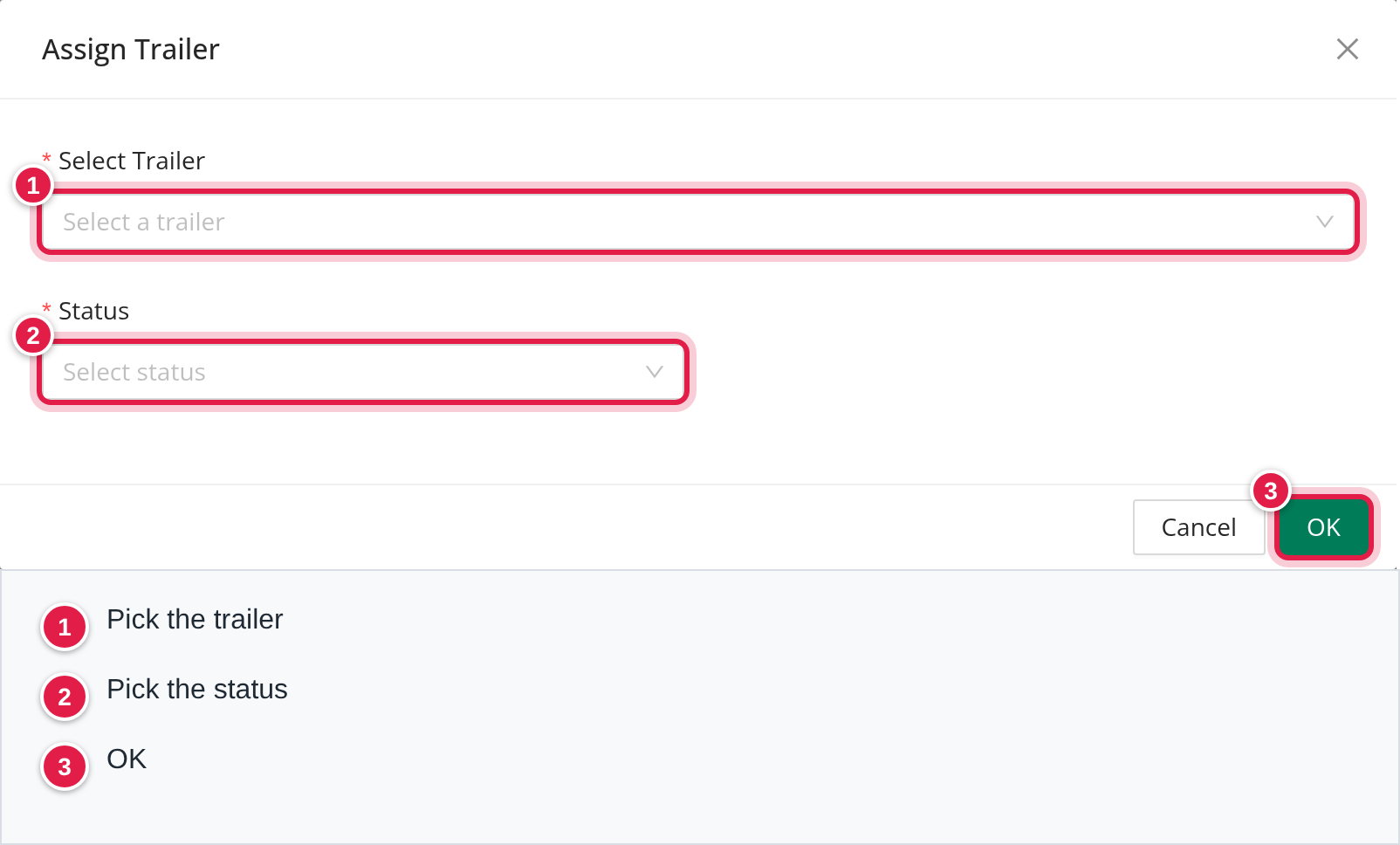
Select Assign on a yard, the green arrows on a trailer, or Assign on the Unassigned tab. The window Assign Trailer opens. Choose Select Trailer (a trailer out of service asks you to confirm with Yes, Assign Anyway). Then choose how to assign it with Assign to.
To a yard or place, empty
- Choose Yard or Place and set Status to Empty.
- On the Unassigned tab, choose Select a yard. The list starts with the Closest Yards and Closest Places (by distance from the trailer's GPS), then All Yards.
- Set Assignment Period: a start (required) and an end (optional).
- If the trailer already has a location, Close Previous Location At appears (one minute ago to start).
- Select OK.
Saving ends the trailer's current location and its open driver assignment at the closing time (one minute before the start of the new assignment if you leave the suggested value), and puts the trailer in the new place. A trailer cannot have two overlapping locations or assignments: the end must be after the start.
To a load, loaded
- Choose Yard or Place and set Status to Loaded.
- In Select Load, choose a load. The list holds booked and assigned loads that are not LTL and have no trailer yet, plus the trailer's last load.
- Select OK.
The trailer is set on every stop of the load, with the times of the stops. The Assignment Period is hidden because it comes from the load. Mark as Still Loaded (shown when the trailer is marked empty and has a last load) changes it back to loaded on that load.
To a driver
Choose Driver, then the Driver (only drivers without a trailer are listed) and the Assignment Period start, then OK. The trailer's current locations end at the start time and its previous driver assignment ends one second before. The end time of the assignment is optional and must be after the start.
Unassign
Choose Unassign, set Unassign At and select OK. The trailer's open locations and driver assignment end at that time (never before their own start). A trailer is listed on the Unassigned Trailers tab when it has no current driver assignment and no current location.
Change empty or loaded in the same yard
Select the green arrows on the trailer. The same window opens with the opposite status chosen. Nothing changes until you select OK.
A trailer that is Leased Out cannot be assigned from here.
Where a trailer is listed
| Tab | A trailer is listed here when |
|---|---|
| Yards | It has a location at a yard in your date range (and no later location at another place in that range). Empty and Loaded count the ones confirmed by GPS. With no filters, only yards that have a pool above 0 or a trailer in the date range show; All Yards shows every yard. |
| Missing Trailers | All of this is true: its current location row was made automatically by the GPS sync, has no end date and has started, and the trailer is not confirmed by GPS in the yard (its position is outside the radius or the site area, or it has no readable position). Trailers you assigned by hand, and trailers on active loads, are deliberately not listed. |
| Unassigned Trailers | The trailer is Active and has no current driver assignment and no current location. |
| Customer Locations | The location is at a place that is not a yard, is not part of a load stop (these come from GPS or from you), and overlaps your date range. |
Which status a trailer gets is described in "How trailers are placed". A trailer whose location is replaced by a later one at another place moves to the new place's list and, with Actual off, stays in the old yard's Moved lists.
What the Actual switch changes
Actual (Yards tab only, on to start, remembered in your browser) controls how moved trailers are shown.
- On: each trailer is listed once, at its latest location (the one with no end date, or the latest end date), and the Moved lists are hidden. Balance and the other counts are not changed by the switch, because they only count trailers confirmed by GPS.
- Off: trailers that have moved on, or that are not confirmed by GPS, are also listed, in the Moved lists, with the place they moved to when there is one ("Moved to ... on ..."). A trailer still in the yard whose next location is already planned shows "To Be Moved to ... on ...".
There is no separate GPS switch. GPS decides which trailers count as in the yard (see above), and a trailer whose GPS is older than the Samsara Outdated Threshold shows the orange GPS tag.
Customer locations
This tab lists places that are not yards where trailers sit (by GPS or by hand). A place header has Assign and a button Create Yard from this location, which opens Create Yard from Location.
Create, edit and delete a yard
Create. Select Add Yard (on the Customer Locations tab it is Add Place). Radius and Trailer Pool must be 0 or more. In Create Trailer Yard, fill in Name, Full Address, Street, City, State, Zip (the latitude and longitude come from the address or from clicking the map), then under Trailer Yard Information the Radius (meters), the Trailer Pool (0 or more) and a Yard Note. Select Save. If a similar place exists you are asked to use it instead (Create Yard at Selected Place), or to create a new place and yard.
Edit. Select the pencil, Edit Trailer Yard. You can change the Radius, Trailer Pool and Yard Note, or search for another place to use as the yard (the yard takes that place's name).
Delete. Select the trash icon and confirm Delete Trailer Yard. The trash icon is enabled only when no trailers are listed under the yard and its pool is 0. If it is grayed out, turn on All Yards to find yards you can delete.
Settings and automatic behaviour
Settings are in Settings → Preferences → Operations → Trailer Organizer.
- Radius (meters, 500 if empty) and Grace Period (minutes, 1 to 780, 720 if empty): they apply to customer places (places that are not yards). A trailer is placed in a customer place when its position is inside the place's site area, or within the radius of its pin if there is no site area, and every GPS position of the last grace period is there too.
- Samsara Outdated Threshold (minutes, 30 if empty): a GPS position older than this is ignored for placing and the trailer gets the GPS tag (for SkyBitz trailers it is at least 60 minutes).
- Activity Period (1 to 7 days, 4 if empty): how far Yard Activity looks back.
How trailers are placed
- Only Active trailers with no open driver assignment are placed, and only with a fresh GPS position (not older than the threshold above).
- A yard takes a trailer straight away when the position is inside the yard's site area, or within the yard's own Radius of its pin (the closest yard wins). A yard does not use the grace period or the settings above.
- If no yard matches, a customer place takes the trailer once the grace period is met (the place the trailer is already in is preferred; otherwise the closest place).
- When the trailer is already at another place and the GPS now matches a new one, the old location is closed one minute before the new one starts. A trailer that is still inside its current place is left alone.
- Empty or loaded. The new location is empty when the trailer's previous location was tied to a delivery stop that is not drop and hook and already has a departure time. It is loaded when the previous location was tied to any other stop. With no stop behind it, it keeps the previous status, or empty if there is no previous location.
- A trailer without GPS is never confirmed in a yard, so while Actual is on it sits in the hidden Moved list.
- Samsara drivers. With Settings → Integrations → Telematics → Samsara → Enable trailer assignments ticked, OpenRoad pairs trailers with drivers from Samsara. A pairing made from the trailer being attached to the driver's truck is preferred over one the driver entered in Samsara, and holds while the truck and the trailer are within 10 miles and the pairing was refreshed in the last 12 hours.
- When a load goes to En Route To Receiver and the driver's trailer differs from the load's trailer, the load gets the driver's trailer. This is skipped for preloaded loads and for split loads with a second driver.
FAQ
Was this article helpful?
That’s Great!
Thank you for your feedback
Sorry! We couldn't be helpful
Thank you for your feedback
Feedback sent
We appreciate your effort and will try to fix the article