Connect OpenRoad TMS to PrePass through the PrePass API. OpenRoad can add, update and remove your trucks on PrePass, compare each truck with what PrePass holds, and import your PrePass toll transactions. Every request is recorded in a history on the truck.
this is the PrePass API integration. The older PrePass integration that imports toll files from an SFTP site is a separate setting. See "PrePass Integration: import PrePass toll transactions into OpenRoad TMS".
Before you begin
- The PrePass API feature must be switched on for your account. If you do not see PrePass API under Settings → Integrations, contact OpenRoad Support at help@openroadtms.com.
- Ask PrePass for your API Client ID and Client Secret, and have your PrePass account number (the customer ID, 1 to 6 digits). If you also keep owner operator trucks on a second PrePass account, have that number too.
- Have your IFTA and IRP account numbers and their state or province codes. They are required when you turn the integration on.
- Only a Superadmin can open and save the PrePass API settings.
- Every truck needs a VIN, a Unit, a State code and a License plate (or the temporary license plate option), and an Ownership Type. Without them the truck cannot be sent. See the article "Adding a truck".
Part 1: Connect PrePass
- Go to Settings → Integrations → PrePass API.
- In the Configuration card fill in:
- Client ID (required). - Client Secret (required the first time). Once saved it is never shown again. Leave the field blank when saving to keep the saved secret. - Company Account Number: the PrePass customer ID used for every truck whose Ownership Type is not Owner Operator Owned. One number, 1 to 6 digits, required. - Owner-Operator Account Number (optional): the PrePass customer ID for Owner Operator Owned trucks. It must be different from the company number. Leave it blank to keep those trucks out of PrePass. - IFTA Account # and IFTA State, IRP Account # and IRP State. The state is a two-letter code. These are required when Integration Status is Enabled.
- Set Integration Status to Enabled.
- Click Save Settings.
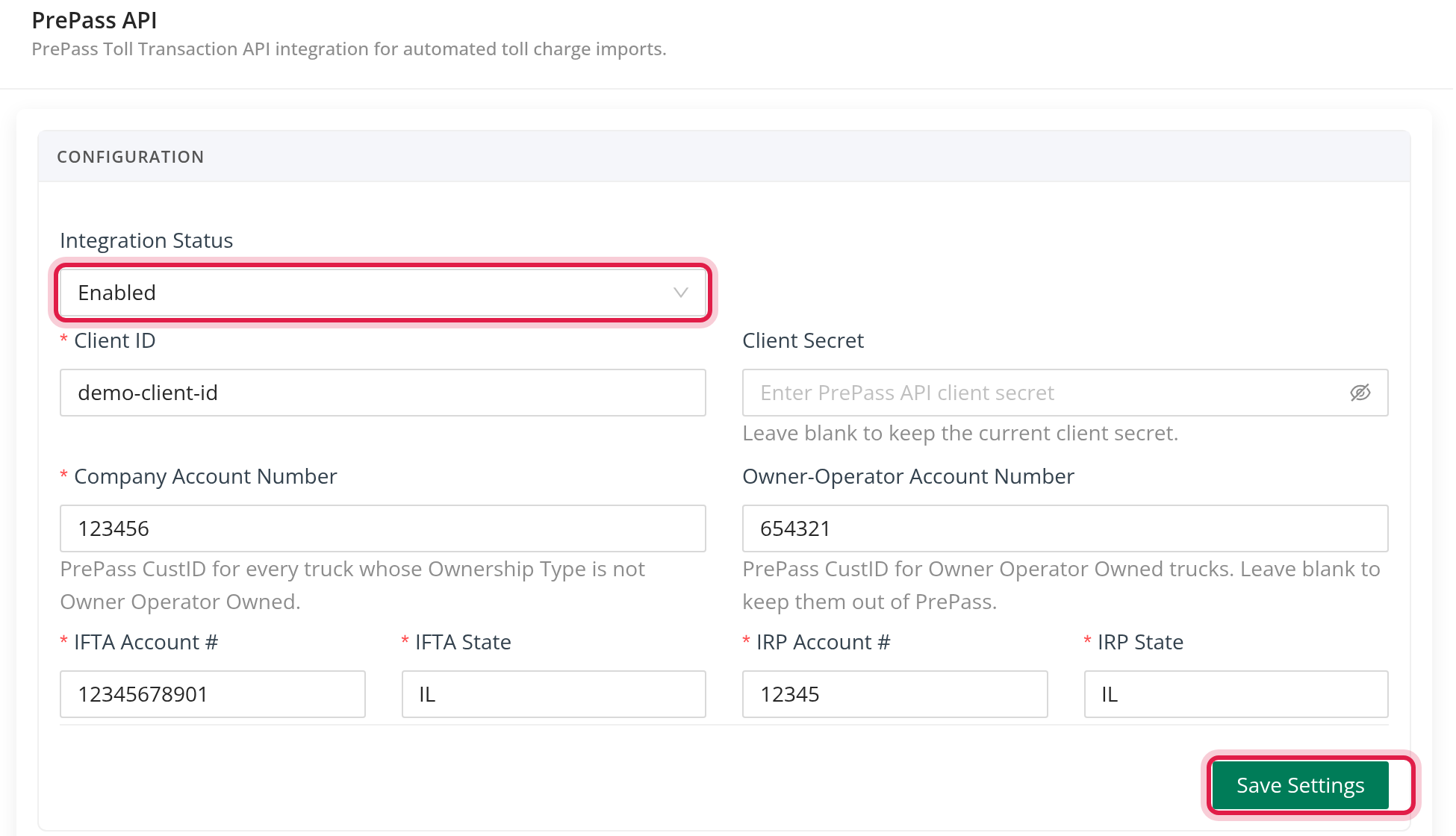
with Integration Status set to Disabled, nothing works: no truck sync, no comparison and no toll import.
There is no Test Connection button on this page. OpenRoad checks your credentials the first time it sends a request to PrePass. If they are wrong, the request fails and the reason shows in the truck's PrePass history.
Part 2: Choose what OpenRoad does (Fleet Sync)
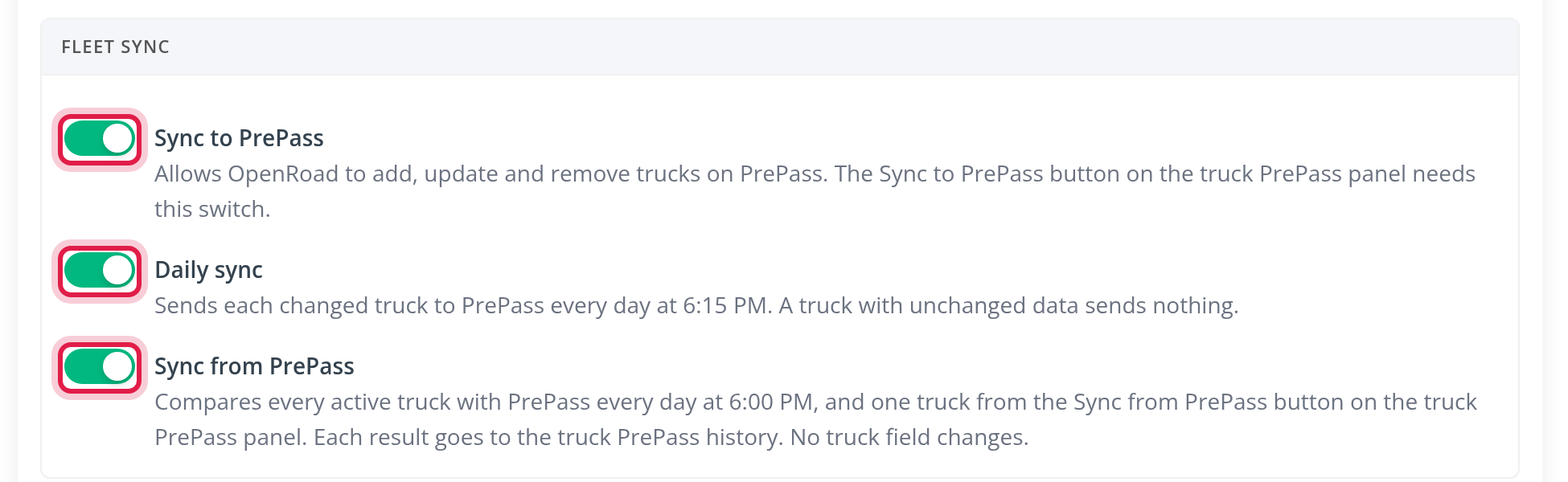
The Fleet Sync card has three switches. Each one saves as soon as you click it.
- Sync to PrePass: lets OpenRoad add, update and remove trucks on PrePass. The Sync to PrePass button on a truck needs this switch. Turning it off also turns off the daily sync and asks you to confirm.
- Daily sync: available only while Sync to PrePass is on. Every day at 6:15 PM OpenRoad sends each changed truck to PrePass. A truck whose data has not changed sends nothing. When you turn it on, OpenRoad tells you that the daily run sends every active truck and removes each inactive truck that PrePass still holds.
- Sync from PrePass: every day at 6:00 PM OpenRoad compares every active truck with PrePass. You can also compare one truck with the Sync from PrePass button. Each result goes to the truck's PrePass history. This switch never changes a truck in OpenRoad, and it works on its own, without the other two.
Saving a truck does not send anything by itself. A change reaches PrePass at the next daily run, or when you click Sync to PrePass on the truck.
Part 3: Work with one truck
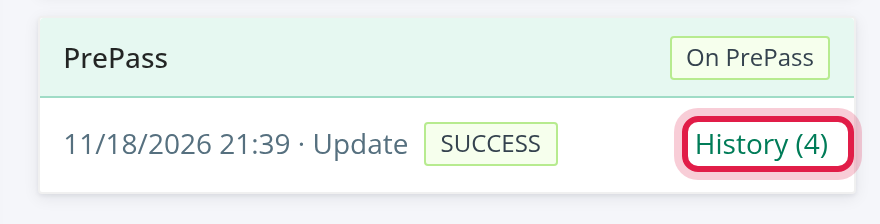
Open a truck. The PrePass card shows a badge, On PrePass or Not on PrePass, and the last request with its time, action and status. Click History to open the PrePass history.
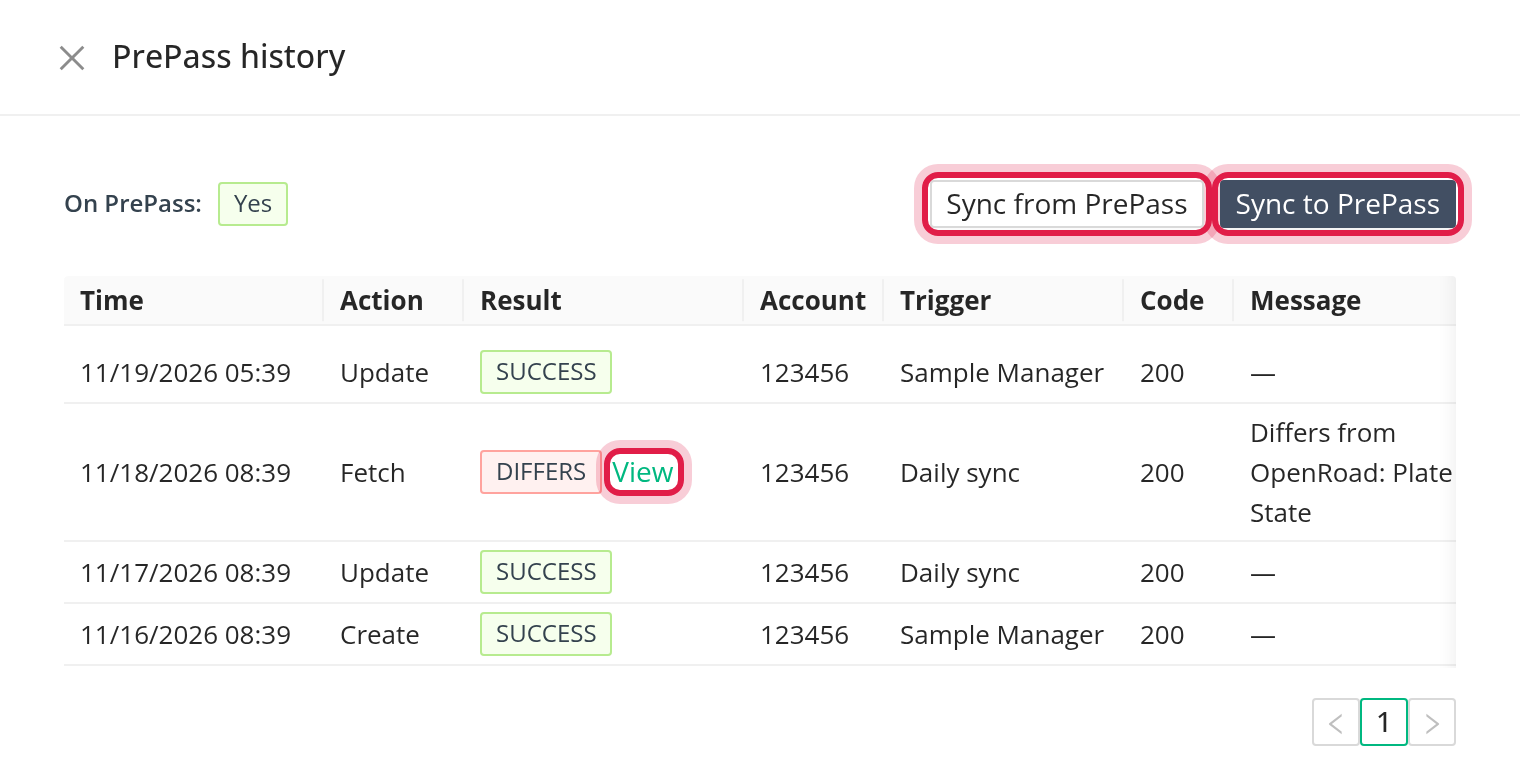
In the history panel:
- On PrePass shows Yes, No or Unknown.
- Sync to PrePass sends this truck now. An inactive truck is removed from PrePass instead. You see one of: "Truck added to PrePass", "Truck updated on PrePass", "Truck removed from PrePass", or "PrePass already holds the current truck data".
- Sync from PrePass compares the truck with PrePass and logs the result. It changes nothing on the truck.
- The table lists every request with Time, Action (Create, Update, Delete, Fetch), Result, Account, Trigger (the person, or "Daily sync" for automatic runs), Code and Message. Long messages open with Show more.
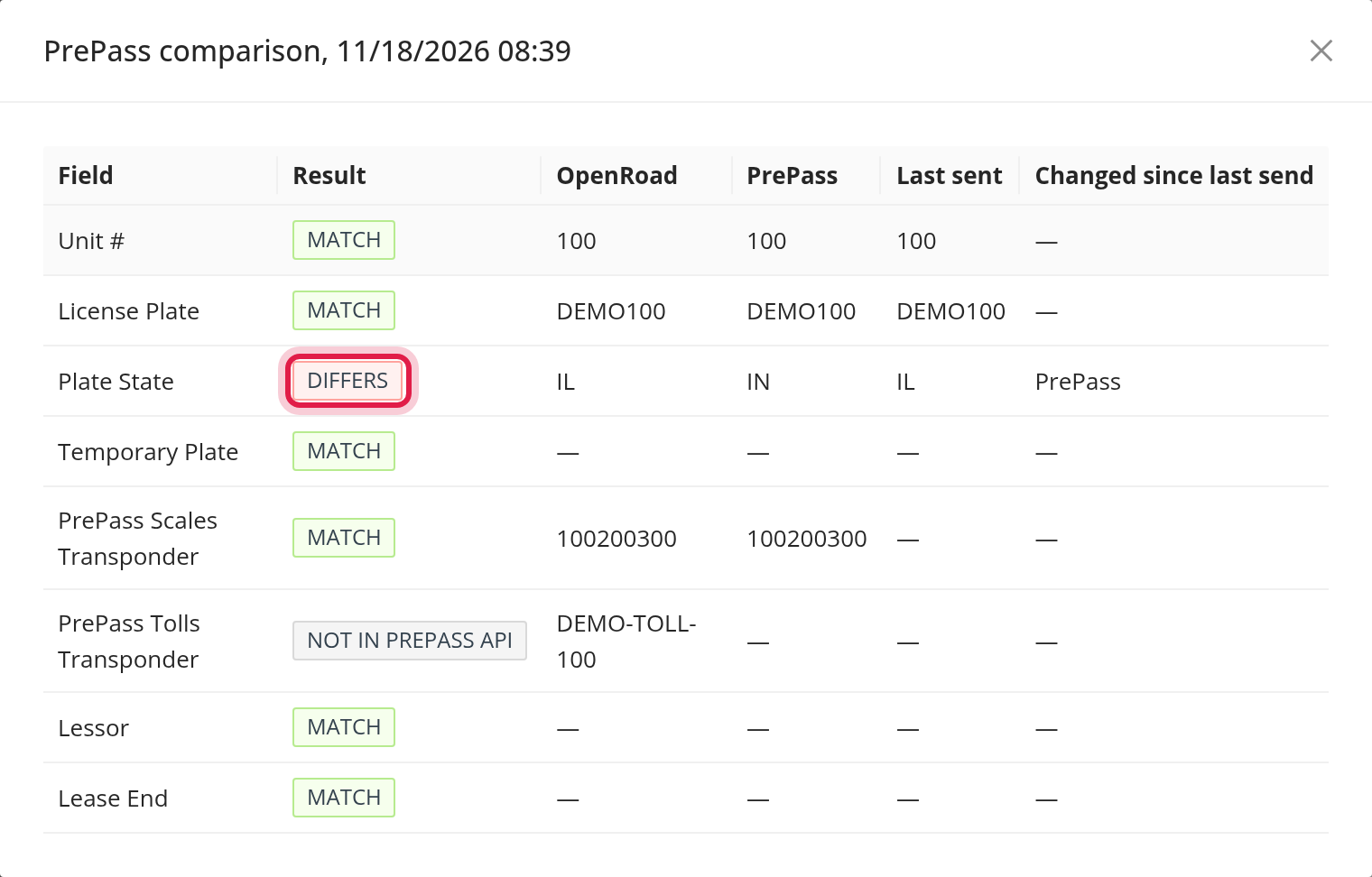
- For a comparison the result is MATCH, DIFFERS or NOT IN PREPASS. Click View to see each field side by side: Unit #, License Plate, Plate State, Temporary Plate, PrePass Scales Transponder, PrePass Tolls Transponder, Lessor and Lease End. PrePass Tolls Transponder always shows "NOT IN PREPASS API", because PrePass does not keep toll tags in its vehicle data.
What OpenRoad sends for a truck
| PrePass field | Taken from |
|---|---|
| VIN | The truck's VIN |
| Vehicle number | The truck's Unit (8 characters at most) |
| License plate | State code and license plate, or the temporary plate option |
| Declared weight | Always 80,000 |
| IRP and IFTA | The account numbers and states from the settings (sent when the truck is first added) |
| Vehicle color | Sent only if the truck color is exactly one of: Black, Blue, Brown, Gold, Gray, Green, Maroon, Orange, Purple, Red, Silver, Tan, Yellow, White |
| Transponder | The truck's current active transponder of type PrePass Scales with 9 to 12 digits (sent when the truck is first added). Toll transponders are never sent |
| Lease | Only for a leased truck with a lender: the lender and the Lease End date (the end of the current year if blank) |
Which PrePass account a truck goes to depends on its Ownership Type: Owner Operator Owned uses the owner-operator number, all other types use the company number. If the Ownership Type changes, OpenRoad removes the truck from the old PrePass account and adds it to the new one. A truck with no Ownership Type is not sent.
Toll transactions
While the integration is enabled, OpenRoad also imports your PrePass toll transactions through the API every 3 hours, looking back 2 days.
When a truck cannot be synced
A Superadmin sees the card Trucks PrePass cannot take on the PrePass API settings page. It lists the active trucks whose last request to PrePass failed, with Unit (a link to the truck), PrePass account, Reason and Last attempt. When nothing failed it says "No truck failed its last PrePass request". Messages you may see:
- "Ownership missing: set the truck Ownership Type to sync it with PrePass".
- "No PrePass company account number in Settings" or "No PrePass owner-operator account number in Settings".
- "Missing truck fields for PrePass: ..." followed by the missing fields.
- "Invalid PrePass vehicle fields: vehicleNumber exceeds maxlength 8".
- "Missing PrePass settings: ..." (for example the IFTA or IRP number).
- Any message from PrePass itself is shown as PrePass wrote it.
Fix the cause, then click Sync to PrePass on the truck.
Good to know
- Only trucks are synced, not trailers.
- A request that PrePass accepts is queued by PrePass, so "added" can take a moment to appear in your PrePass account.
- The history is never deleted.
Frequently asked questions
Was this article helpful?
That’s Great!
Thank you for your feedback
Sorry! We couldn't be helpful
Thank you for your feedback
Feedback sent
We appreciate your effort and will try to fix the article