Transponders lists every toll and scale transponder your company owns and records which truck each one is on, and for which dates. Those dates are what links toll charges to the right truck and driver.
Who can do this: you need permission to open Transponders. By default that is Dispatcher, Capacity, Accounting, Safety, HR and Maintenance users, plus Admin and Superadmin. The same roles can add and edit transponders and assignments. Deleting is not part of any default role: it is available to Admin and Superadmin users, or to users a Superadmin has given the delete permission.
Before you begin
- Add your trucks first, see Adding a truck. The Truck list offers active trucks that are not leased out.
- Tolls take their truck and driver from the transponder assignment that covers the toll's date, so keep the assignment dates correct. This applies to the types IPASS, PrePass Tolls and Bestpass. PrePass Scales assignments are stored but not used for tolls.
- Keep the driver assignments of the trucks correct too, see Driver Assignments: the driver on a toll is the driver of the truck on that date.
Open Transponders
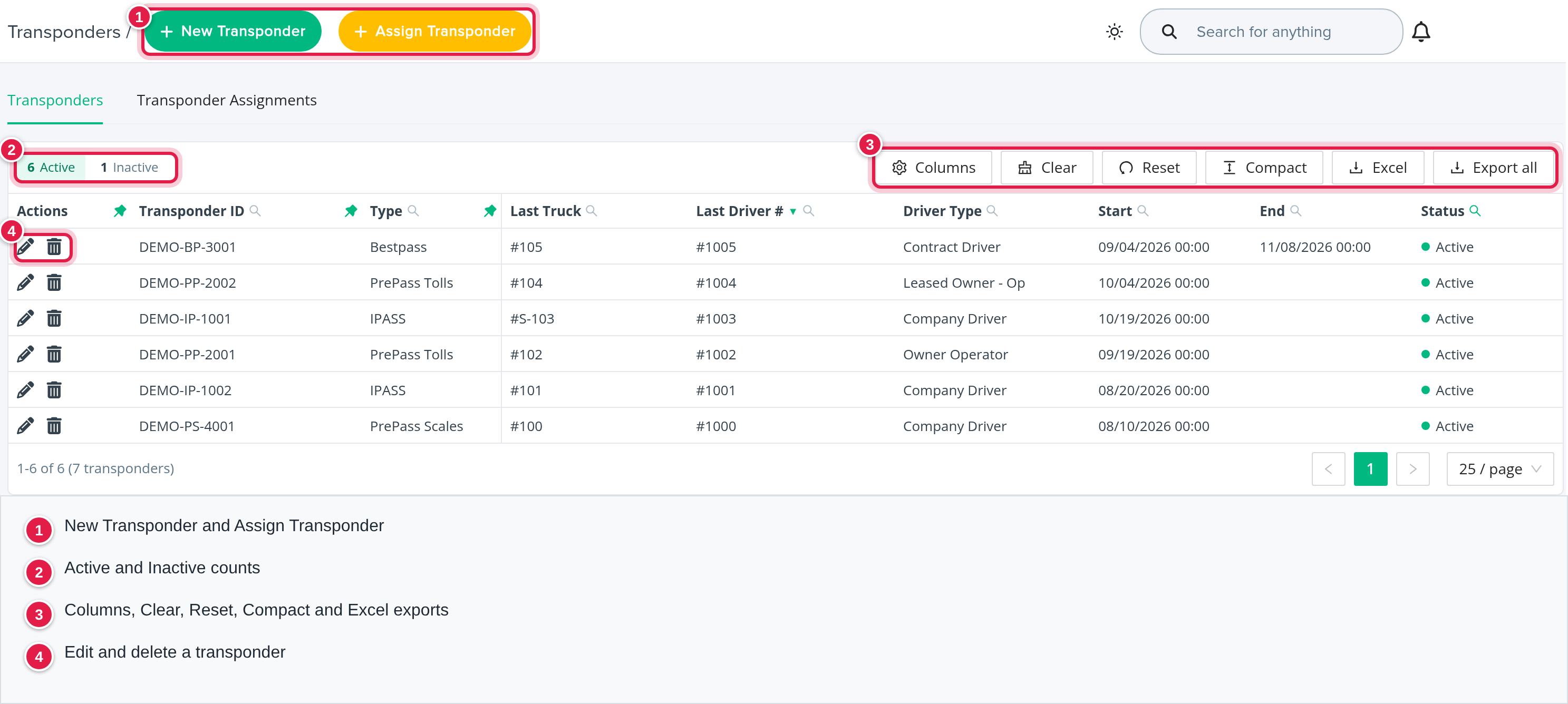
In the left menu, select Operations, then Transponders. The page has two tabs: Transponders and Transponder Assignments. The buttons New Transponder and Assign Transponder are in the top bar.
The Transponders tab
Columns: Actions (pencil, and trash if you may delete), Transponder ID, Type, Last Truck, Last Driver #, Driver Type, Start, End and Status. Select the truck or driver to open it.
Where the columns come from
| Column | How it is derived |
|---|---|
| Last Truck, Start, End | From the transponder's latest assignment: an assignment with no end date comes first; otherwise the one with the latest end date. If the transponder was never assigned, these are empty. |
| Last Driver # | The latest driver assignment of that last truck, over all time: an open one comes first, otherwise the one that ended last. It is the truck's latest driver, which can be a different driver from the one who had the truck during the transponder's own dates. |
| Driver Type | The driver type of that last driver. |
| Status | Active or Inactive, set by you (see below). |
Start and End show the dates of the latest assignment, not the transponder's whole history. Use the Transponder Assignments tab for the history.
Active and Inactive
Status is a label you set on the transponder. It does not end assignments by itself. What it changes:
- Only Active transponders are used when tolls are matched to trucks and drivers. Tolls for an Inactive transponder get no truck and no driver from it.
- The Status filter starts on Active, so inactive transponders are hidden from the list until you change the filter.
- A transponder that has assignments cannot be deleted. Mark it Inactive instead.
- When a truck is set to inactive, its transponder assignments with no end date get an end date of that moment, and a note about it is added to the truck.
Filters: Transponder ID, Type (PrePass Scales, IPASS, PrePass Tolls, Bestpass), Last Truck, Last Driver #, Driver Type, Start and End (date range) and Status.
Status starts on Active, so inactive transponders are hidden until you change this filter.
Use Excel (the current page) or Export all to download an .xlsx file.
Add a transponder
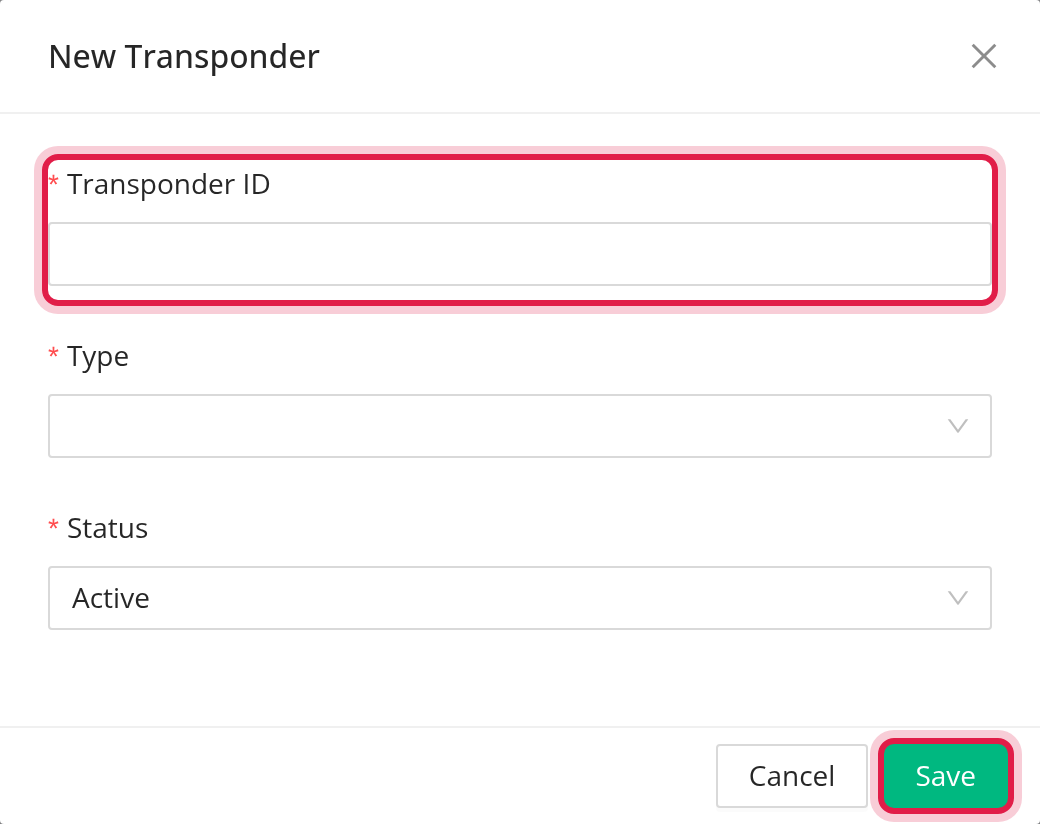
- Select New Transponder.
- Enter the Transponder ID, choose the Type and the Status (Active or Inactive; all three are required).
- Select Save.
There is a single Transponder ID field, whatever the type. The ID must be unique within its type: the same ID can exist under another type, but not twice under the same type.
Edit a transponder
Select the pencil in the Actions column. You can change Transponder ID, Type and Status. The ID must stay unique within its type. Set a transponder to Inactive when you stop using it.
Assign a transponder to a truck
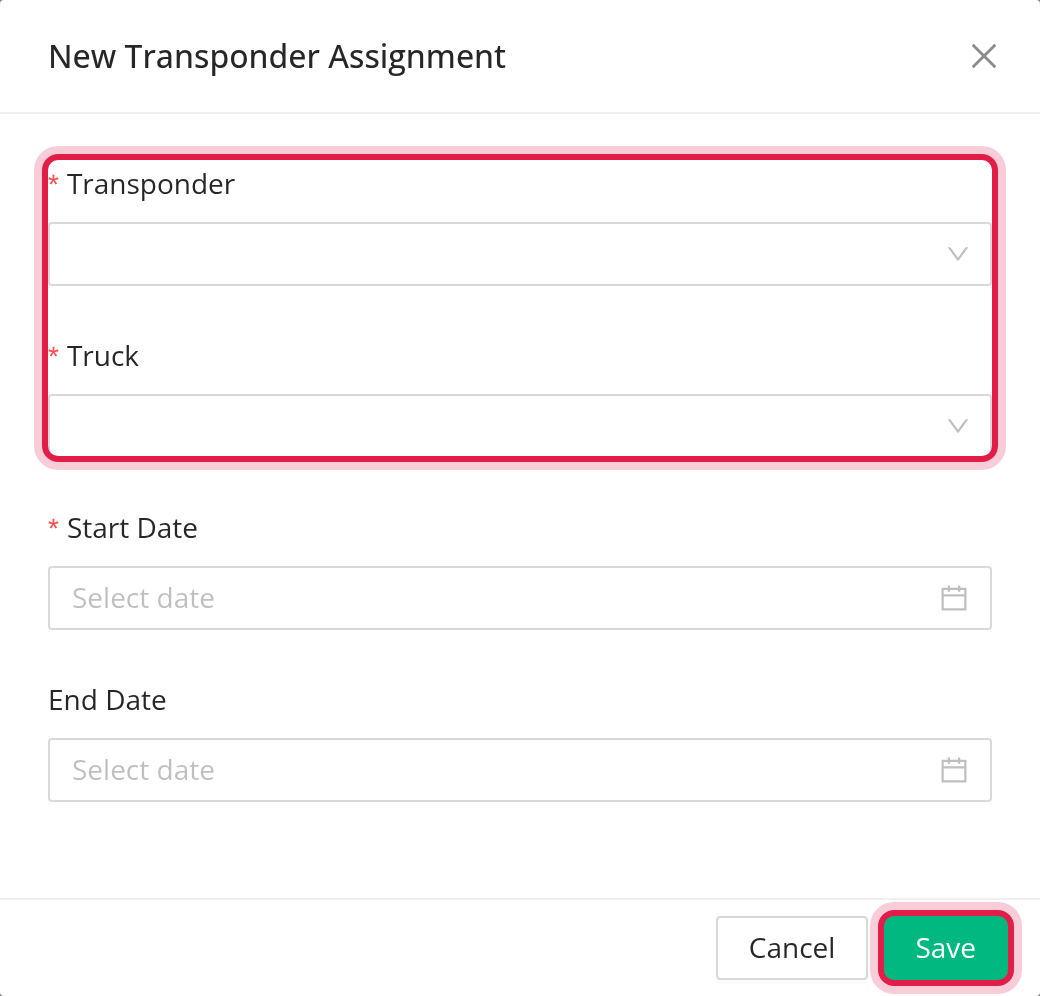
- Select Assign Transponder. The window New Transponder Assignment opens.
- Choose the Transponder (listed as ID and type, including inactive ones) and the Truck (listed as number, year, make and VIN).
- Set Start Date (date and time, required). Set End Date if you know it; leave it empty while the transponder is still on the truck.
- Select Save.
Rules:
- A transponder cannot be in two overlapping assignments: "Transponders with such IDs are assigned for the given time already". An empty End Date counts as open ended, and an assignment that ends exactly when the next one starts does not overlap.
- The end date cannot be before the start date.
- Two different transponders can be on the same truck, and a truck can have a transponder of each type.
How tolls use the assignments
A toll has a transponder ID, a type and a date. OpenRoad finds the toll's truck and driver this way:
- It looks for an assignment of an Active transponder with the toll's ID and the toll's type (IPASS, PrePass Tolls or Bestpass) that covers the toll's date. The truck of that assignment is the toll's truck.
- If there is none, it takes the part of the toll's ID after a two-letter prefix such as "IL-" as a license plate and looks for a truck with that plate that has an active transponder of the same type on the toll's date.
- If there is still none, it looks for a trailer with that license plate, finds the driver who had that trailer on the toll's date, then that driver's truck, and uses that truck's transponder of the same type.
- The toll's driver is the driver who had that truck assigned on the toll's date. No truck means no driver.
When this runs:
- When tolls are imported (IPASS, PrePass or Bestpass files): each toll is matched as above. Tolls that find no truck are listed as missing transponders in the import log.
- When you save, change or delete an assignment: tolls with that transponder ID dated inside the assignment's dates are matched again. On a change, the tolls of the old dates lose their truck and driver first, then tolls in the new dates are matched. On a delete, the tolls in its dates lose their truck and driver.
- Matching is not repeated when you change a driver assignment or a transponder's Status. Re-save the transponder assignment to match the tolls again.
Where the result is used: the toll's truck and driver decide which truck and driver the toll cost is shown against on the Tolls page and in the truck's and driver's toll lists. Equipment cost in the KPI is calculated from the trucks' monthly payments and the Driver Assignments; transponder assignments do not enter into it.
The Transponder Assignments tab
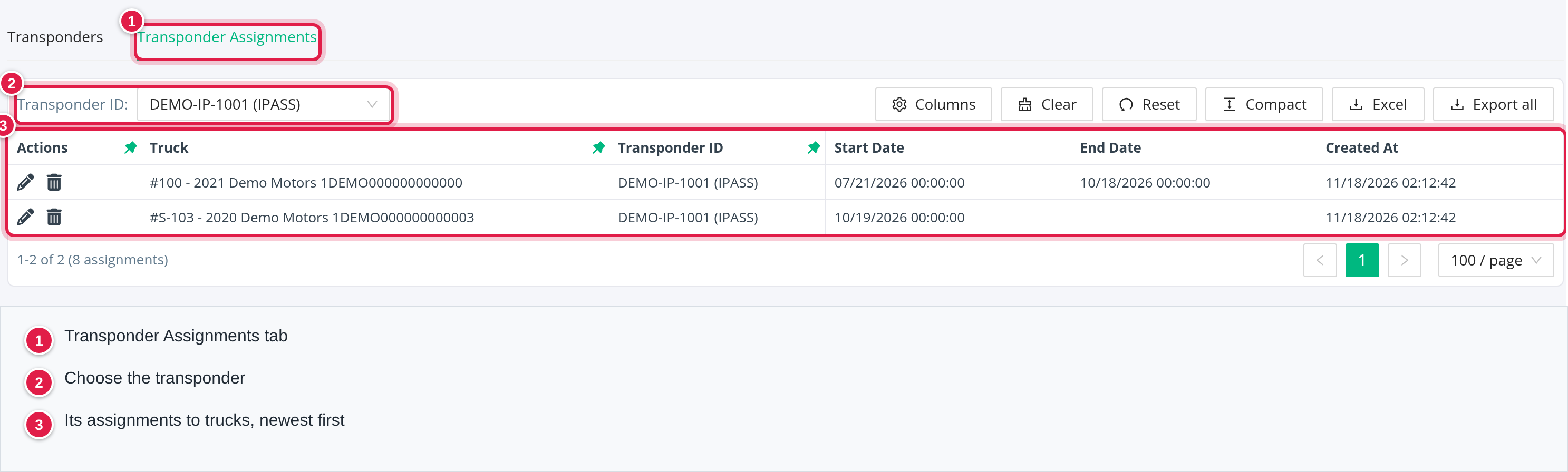
This tab shows the history of one transponder at a time. Pick it in the Transponder ID filter (it starts with the one you used last, or the first in the list). The columns are Truck, Transponder ID (ID and type), Start Date, End Date and Created At. Export with Excel or Export all.
Move a transponder to another truck
- Open the Transponder Assignments tab and choose the transponder.
- Select the pencil on the current assignment and set its End Date (in Edit Transponder Assignment you can change the transponder, truck, start and end).
- Select Assign Transponder and add the new truck with a Start Date at or after that end.
Delete
The trash icon (only with delete permission) removes an assignment after Are you sure?; tolls in its dates lose their truck and driver. A transponder that has assignments cannot be deleted. Mark it Inactive instead.
FAQ
Was this article helpful?
That’s Great!
Thank you for your feedback
Sorry! We couldn't be helpful
Thank you for your feedback
Feedback sent
We appreciate your effort and will try to fix the article