Connect your Comdata account to OpenRoad TMS and your drivers' Comdata fuel purchases and cash advances are imported automatically, with no files to upload. They appear on the Fuel Transactions page and, once a card is assigned to a driver, with that driver.
Who can do this: only users with the Super Admin role can open the Comdata page in Settings. If you do not see Comdata under Settings → Integrations, contact OpenRoad Support at help@openroadtms.com.
Before you begin
- Ask your Comdata representative for your Comdata web services username and password.
- Your drivers must exist in OpenRoad, and each Comdata card must be registered and assigned to its driver (see Part 3).
never post your Comdata password in chat messages or tickets that other people can see.
Part 1: Connect Comdata
- Go to Settings → Integrations → Comdata.
- In the Configuration card fill in Comdata Username and Comdata Password. Both are required.
- Click Test Connection. OpenRoad checks the login with Comdata and shows the result. If it fails, check the values with Comdata.
- Set Integration Status to Enabled. OpenRoad runs the connection check first. If the check fails, the status goes back to Disabled and nothing is imported.
- Click Save Settings.
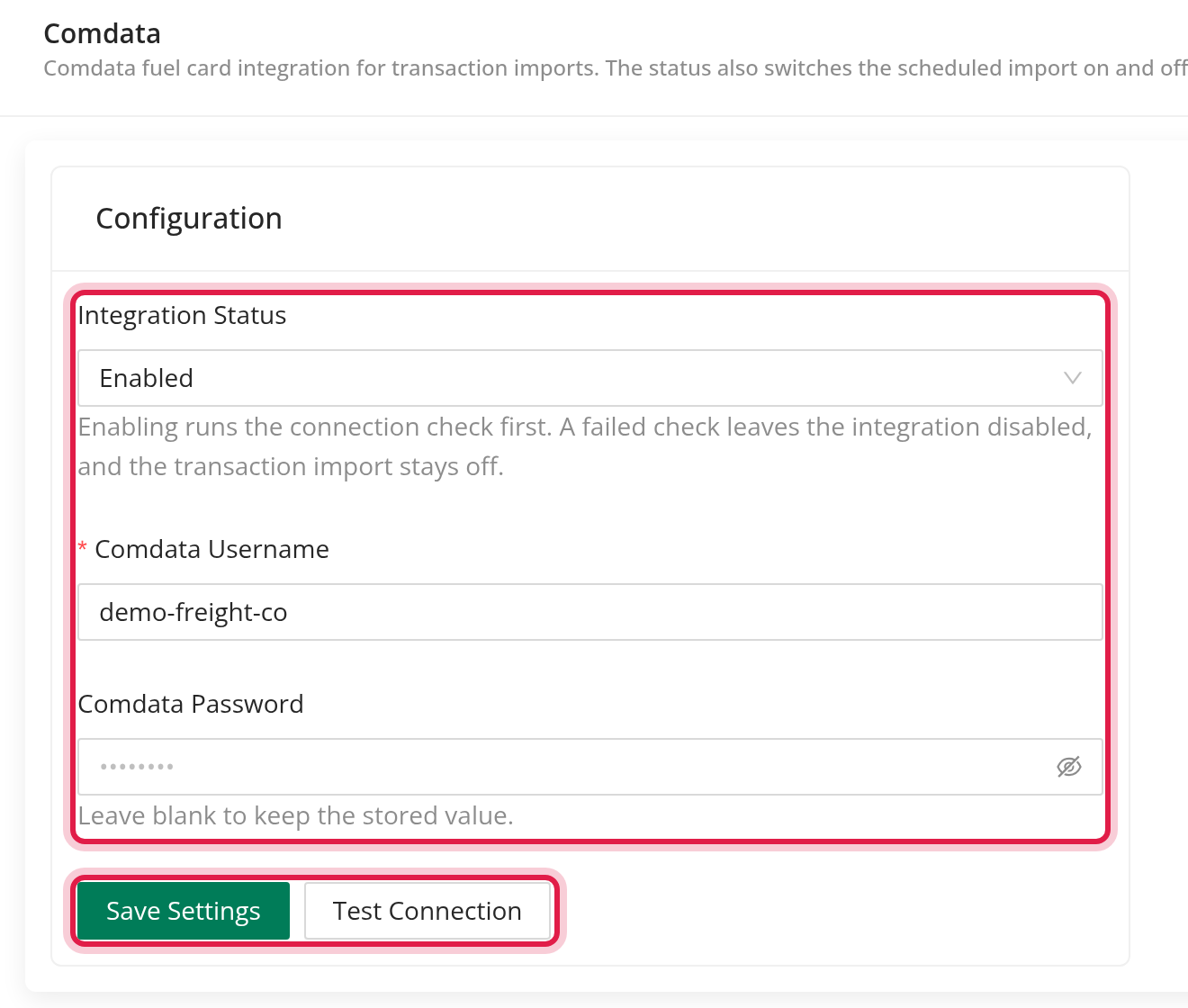
Once a password is saved, OpenRoad never shows it again. If you leave the field blank when saving, the saved password stays.
the import runs only while Integration Status is Enabled.
Part 2: How the import works
- OpenRoad checks Comdata every 2 hours.
- Each run asks Comdata for the transactions from yesterday (in your account's time zone) until now, so recent purchases and any change Comdata makes to a recent transaction are picked up.
- Fuel purchases (diesel, reefer, oil and other products and fees) and cash advances are imported. A declined transaction is stored as cancelled.
- A transaction that was already imported is updated, not added twice, so a repeat run is safe.
- Each transaction takes the card type Comdata.
Allow for the 2-hour check before new purchases appear.
Part 3: Register and assign your Comdata cards
OpenRoad does not create Comdata cards for you. A transaction is imported even when its card is unknown, but it shows no driver. For each driver:
- Go to Fuel, Fuel Cards and click New Fuel Card.
- Enter the card number exactly as it appears on your Comdata transactions, select Comdata as the card type and Active as the status, and save.
- Click Assign Fuel Card, select the card, the driver and the start date, and save. Leave the end date empty while the driver still uses the card.
A transaction is linked to the driver whose assignment covers the date and time of the purchase. The card number must match exactly: a missing or mistyped digit leaves the transaction without a driver. See Fuel Cards page.
Part 4: Review your transactions
- Open Fuel, Fuel Transactions.
- Choose your date range and set the Type filter to Comdata.
- Check that each transaction shows a driver.
Frequently asked questions
Was this article helpful?
That’s Great!
Thank you for your feedback
Sorry! We couldn't be helpful
Thank you for your feedback
Feedback sent
We appreciate your effort and will try to fix the article