Connect Motive to OpenRoad TMS and the GPS positions of your trucks and trailers and your drivers' hours of service flow in automatically. OpenRoad pulls GPS positions about every 10 minutes and hours of service about every 3 minutes, and checks the connection of each truck, trailer and driver to Motive about once an hour for ELD gateway status. This article covers your first Motive connection and, if you run more than one company, how to connect additional Motive accounts to the same OpenRoad account.
Who can do this: only users with the Super Admin role can open the Telematics page and the Driving As page in Settings.
Before you begin
- The Motive feature must be switched on for your account. If Motive is not offered under Settings → Integrations → Telematics, contact OpenRoad Support at help@openroadtms.com.
- Make sure Sync is turned on for Motive in the Provider settings section of Settings → Integrations → Telematics.
- Make sure your drivers, trucks and trailers exist in OpenRoad with VINs, unit numbers, trailer numbers and driver numbers that match Motive (see "How OpenRoad matches your Motive records").
- For each Motive account you connect you need an API key from that account (see Part 1).
Part 1: Create an API key in Motive
- Log in to the Motive account whose vehicles you want to connect.
- In the left menu, scroll down to the Platform section and select Developers.
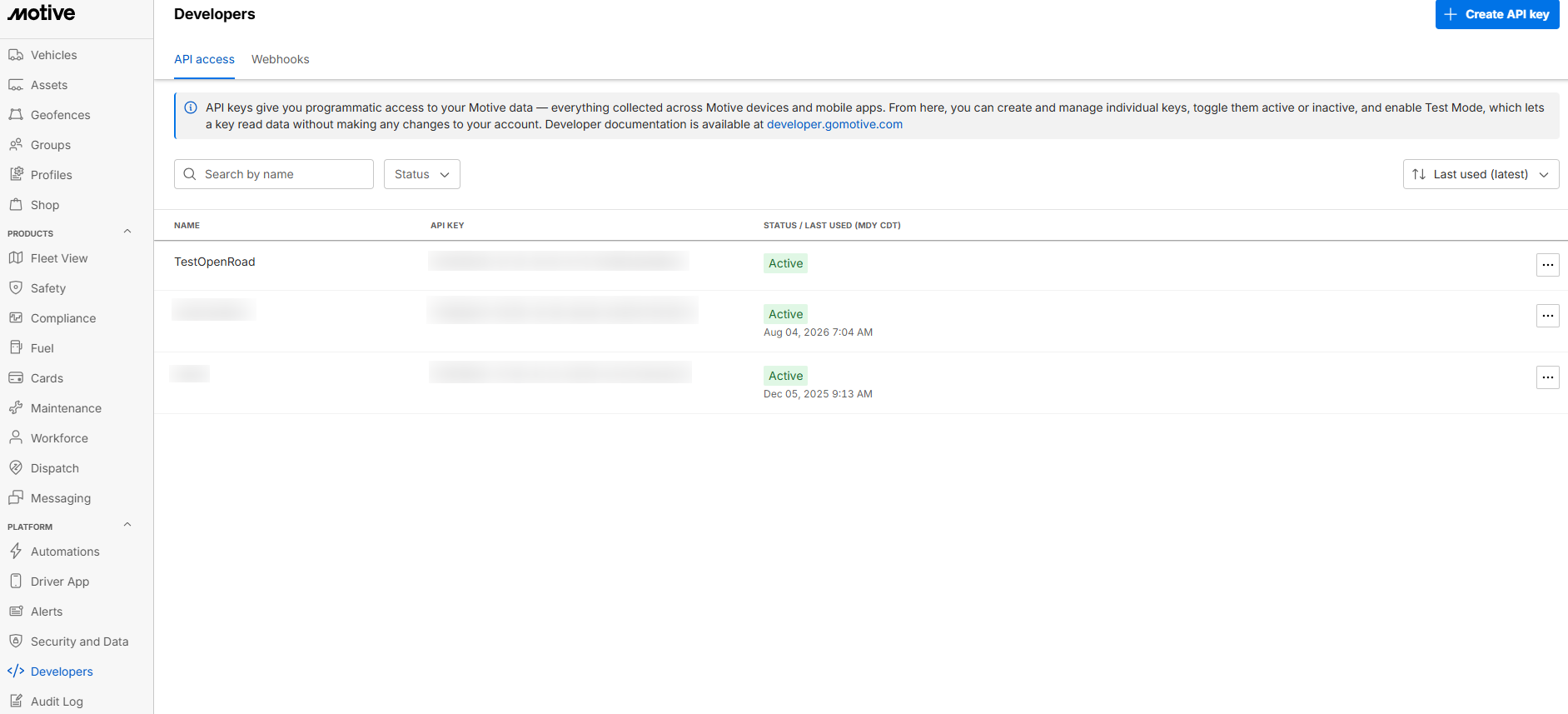
- Select the blue Create API Keybutton at the top right.

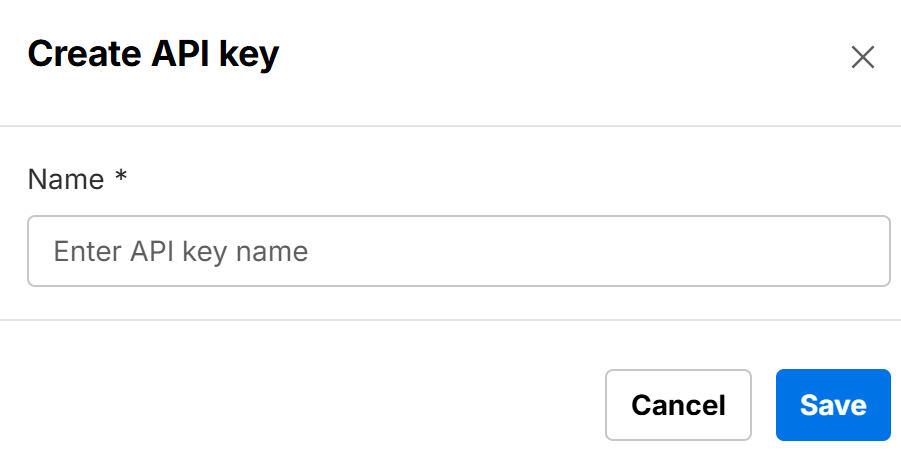
- Name the key so you can recognise it later, for example OpenRoad API Key, and select Save.
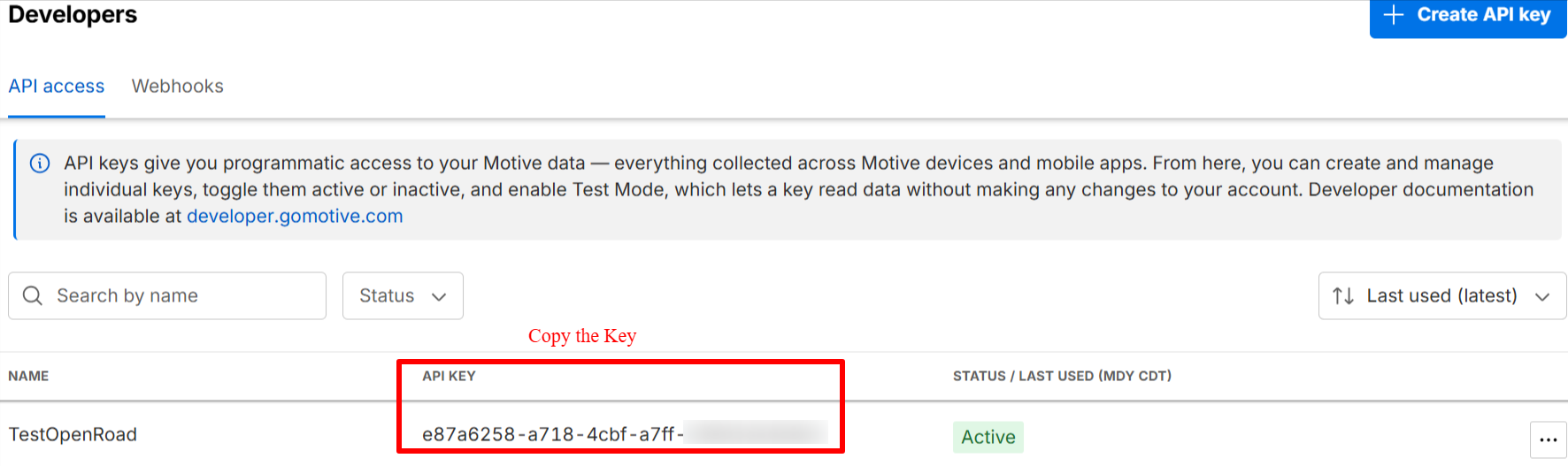
- Copy the API key.
Part 2: Connect Motive for the first time
Your first Motive connection belongs to your default Driving As company, so you do not need to create a company or move records.
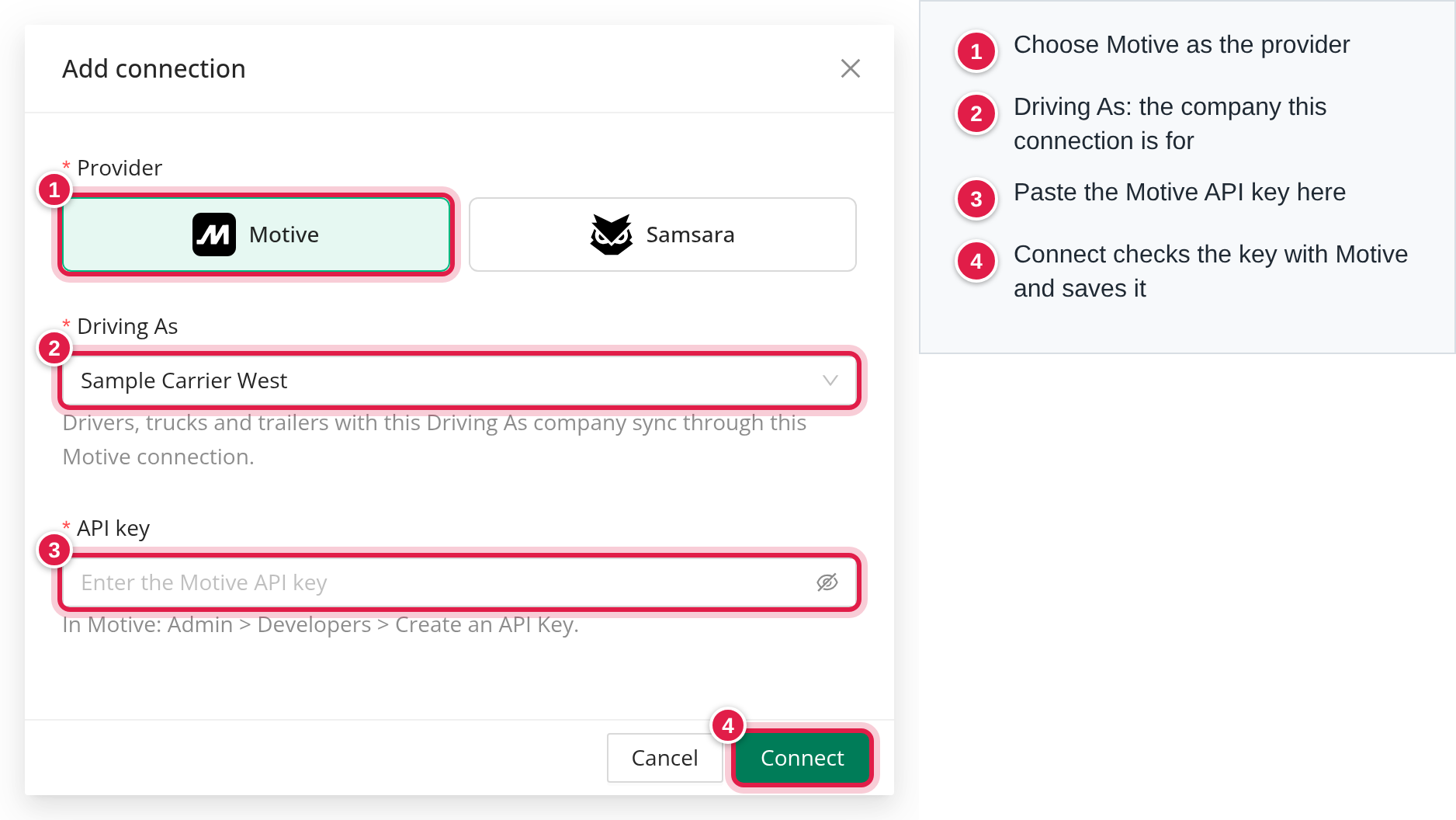
- Go to Settings → Integrations → Telematics and click Add connection.
- If your account uses both Motive and Samsara, select Motive as the provider.
- Select your default Driving As company (it is marked Default).
- Paste the Motive API key and click Connect. OpenRoad checks the key with Motive before saving. If Motive accepts it you see a confirmation such as "Connected to Motive: [Company Name]". If Motive refuses it you see an error and nothing is saved.
- Go to "Check that the connection is working".
Once a key is saved, OpenRoad never shows it again. To replace it, edit the connection and paste the new one. If you leave the key field blank when editing, the current key stays.
Part 3: Connect an additional Motive account (more than one company)
Do this only if you run several companies, each with its own Motive account. Your first connection keeps working and needs no change.
Step 1: Create the Driving As company
- Go to Settings → Account → Driving As.
- Add a new Driving As value with the name of the additional company.
- If your account has MC numbers listed on this page, select the MC number for this company. It is required once MC numbers exist on the account.
- Save. The new company appears in the Driving As list.
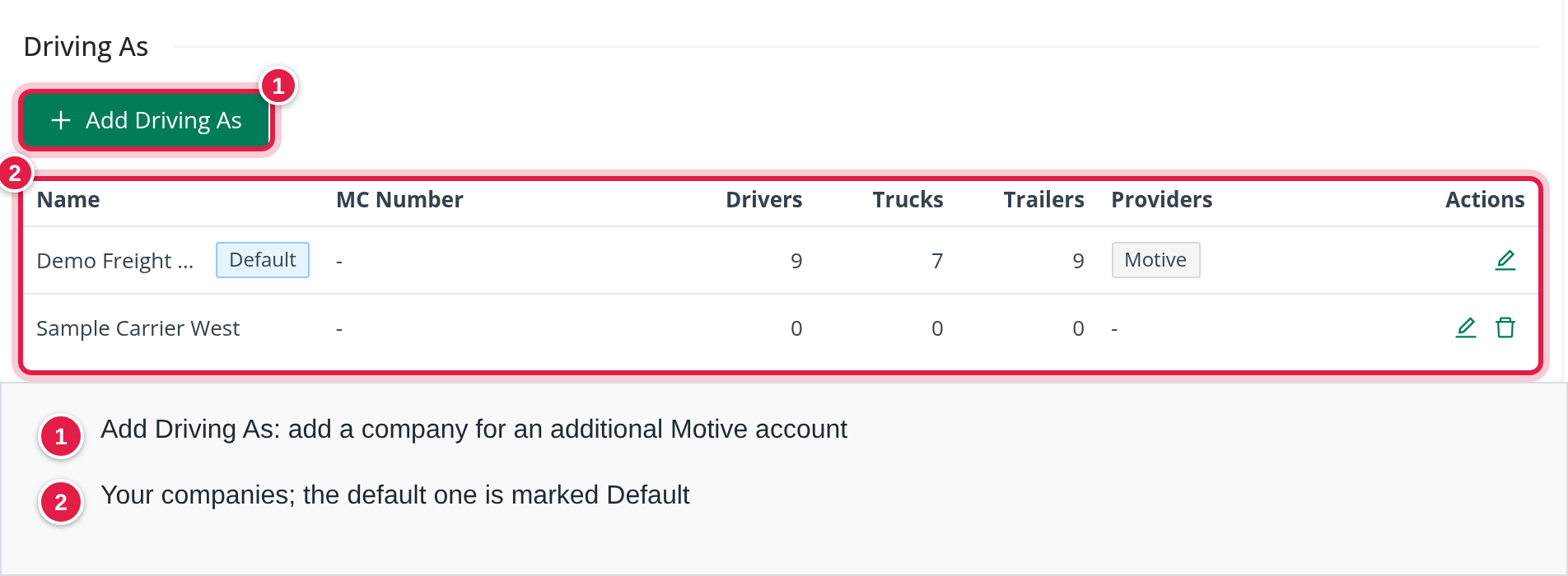
Step 2: Add the Motive connection
- Go to Settings → Integrations → Telematics and click Add connection.
- Select Motive if you are asked for the provider, and select the Driving As company you created in Step 1.
- Paste the additional account's API key (Part 1, in that Motive account) and click Connect. Choose a Driving As company that has no Motive connection yet: if every company already has one, OpenRoad tells you to add its company first under Settings → Account → Driving As. Your default company needs no new entry.
Step 3: Assign drivers, trucks and trailers to the new company
- Open each driver, truck and trailer that belongs to the additional company.
- In the Driving As field, select the new company and save the record.
The Driving As field shows once your account has two or more Driving As values. From then on it is required when you create a driver, truck, trailer or load. When you edit an older record with no value, the field opens blank so you can choose the company. If you move a truck to another company while its driver is still under a different company, OpenRoad shows a warning with a button to move the driver as well. For many records, send OpenRoad Support a list of the driver numbers, truck unit numbers and trailer numbers and they can assign them in bulk.
Check that the connection is working
Go to Settings → Integrations → Telematics. Each connection shows its Driving As company, provider, Motive account name, number of tracked vehicles and a status. Select Test on a connection's row to test it again.
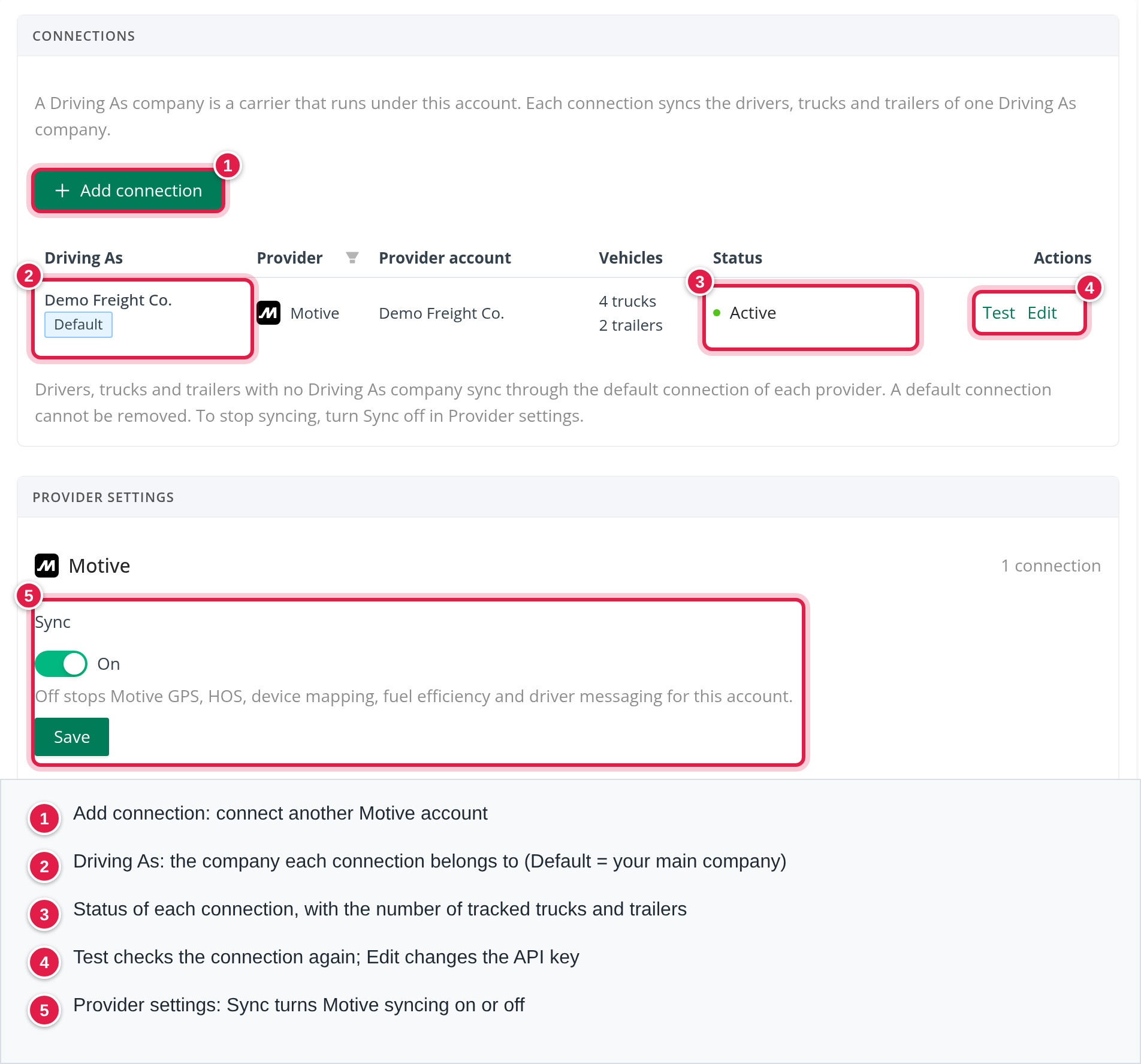
- Active: vehicles are being tracked.
- Mapping vehicles: no sync has run yet. This normally changes within minutes.
- Nothing assigned yet: no drivers, trucks or trailers use this Driving As company yet.
- No vehicles: a sync ran but no vehicles matched. Check that truck unit numbers and VINs match Motive.
- API key refused: Motive did not accept the key. Edit the connection and paste a valid key.
- Needs attention: the sync returned an error, or the newest position is more than 24 hours old.
- Sync off: syncing is turned off for Motive in Provider settings.
Below the table a warning lists any company whose records are not tracked, for example "Not tracked by Motive: [Company Name] (12 trucks, 4 trailers)". Matching of trucks, trailers and drivers starts as soon as you save a connection, and then runs automatically twice a day (early morning and evening).
Where you see Motive data
- GPS Logs tab. Open a truck or trailer and select its GPS Logs tab. Each position OpenRoad received is listed with its Source (Motive), address, latitude, longitude and the time it was updated. Use it to confirm that a recent position arrived.
- Trucks and trailers. Motive positions are shown wherever OpenRoad shows where a truck or trailer is, for example the Trailer Organizer map.
How OpenRoad matches your Motive records
- Trucks are matched by VIN first, then by the vehicle number in Motive against the truck's unit number in OpenRoad.
- Trailers are matched by VIN first, then by the asset name in Motive against the trailer number in OpenRoad.
- Drivers are matched by the driver's company ID in Motive (the Driver ID field on the Motive user), which must hold the OpenRoad driver number. If there is none, OpenRoad tries the email and then the first and last name, but only when exactly one OpenRoad driver has that email or name. Only drivers who are active in Motive are matched.
Keep these details the same in OpenRoad and in each Motive account. If two trucks, trailers or drivers would end up with the same Motive record, only the one OpenRoad matched last keeps it.
Good to know
- Each Driving As company can have one Motive connection. The same API key, or the same Motive company, cannot be used on two connections.
- A driver, truck or trailer with no Driving As value belongs to your default company and is tracked through your default connection.
- The default connection cannot be removed. To stop it syncing, turn Sync off in Provider settings. Additional connections can be removed from the menu on their row. Removing one stops tracking for all of that company's drivers, trucks and trailers until a new connection is added.
- The Telematics page replaces the previous Motive settings page and also manages Samsara connections. A company can have one Motive and one Samsara connection.
- This only affects tracking data. It does not change billing, payroll or who can see which records.
FAQ
Was this article helpful?
That’s Great!
Thank you for your feedback
Sorry! We couldn't be helpful
Thank you for your feedback
Feedback sent
We appreciate your effort and will try to fix the article