Main Info is the page where you keep your company profile up to date: your DBA name, logo, address, phone and email, the email address that receives system notifications, and your Tax ID, MC, DOT and SCAC numbers. This article shows where to find the page, what every field does, the rules for the logo, what happens when you save, and where OpenRoad uses these details.
Before you begin
- Only a Superadmin can open Settings. The Settings item and the Main Info page are not shown to other users, and the page cannot be changed by anyone else. If you cannot see Settings, ask a Superadmin in your company.
- Have your logo ready as a PNG, JPG or JPEG file of 5 MB or smaller.
- Know your notification address. Notifications Email is the only required field (see Part 3).
- Invoices use the billing profile, not this page. Each customer billing profile keeps its own copy of the company name, address, phone, email and tax details, so changing Main Info does not change those on your invoices. See Settings → Account → Billing: customize invoices with billing profiles, your logo, company details and invoice text.
Part 1: Open Main Info
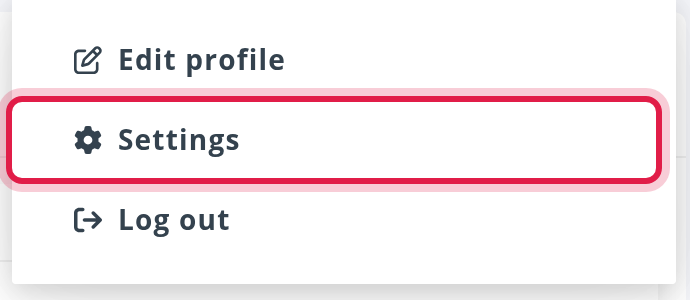
- Select your avatar in the top right corner and choose Settings.
- In the Settings menu on the left, open Account and select Main Info.
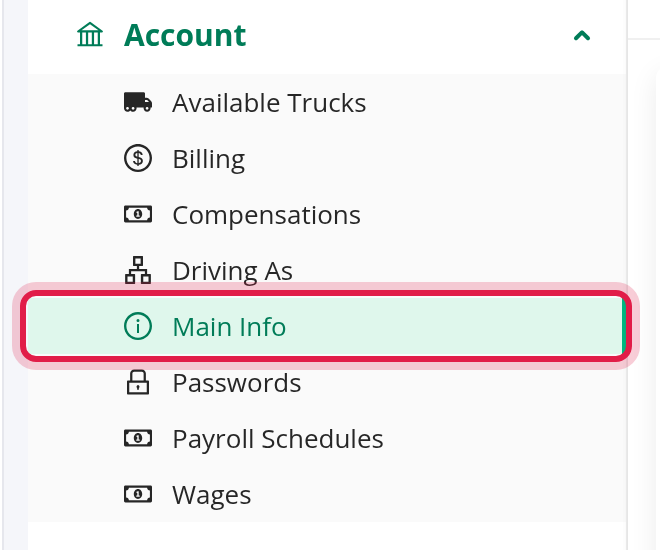
The page title is Main Info and it is split into four sections: Company, Address, Contact and Tax and Identifiers. A Save button at the bottom saves everything on the page at once.
Part 2: Company and logo
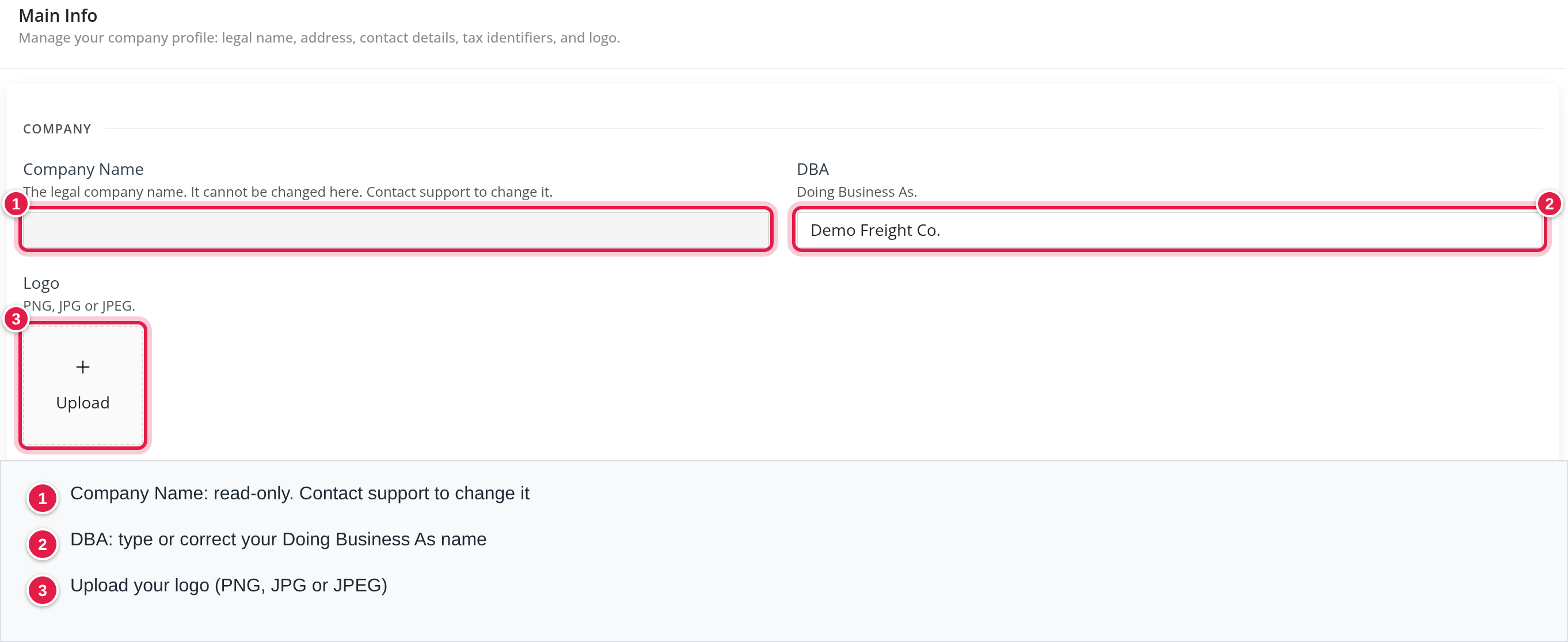
- Company Name shows your legal company name. It is read-only: the page says "It cannot be changed here. Contact support to change it." Write to OpenRoad Support at help@openroadtms.com.
- DBA (Doing Business As): the name you trade under. You can type or correct it here.
- Logo: select Upload and choose your file. Only PNG, JPG or JPEG files are accepted. If you pick another type you see "Only PNG, JPG and JPEG files are allowed." and the file is ignored.
- There is one logo. Picking a new file replaces the one shown. - The 5 MB limit is checked when you save. A larger file is refused with "The logo must be 5 MB or smaller." - To remove your logo, remove the thumbnail and select Save.
Part 3: Address, contact and tax numbers
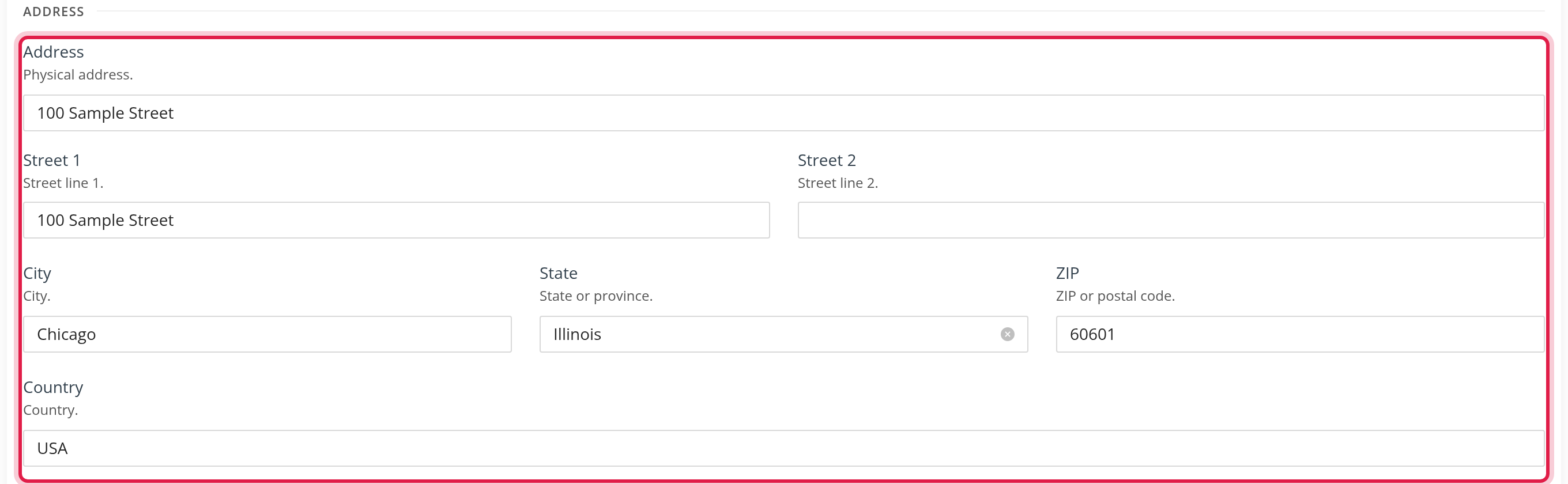
Address
- Start typing in Address to pick a suggestion. Choosing one fills Street 1, Street 2, City, State and ZIP for you, and you can still correct each field.
- State is a searchable list. Country is a free text field.
- Every address field is optional.
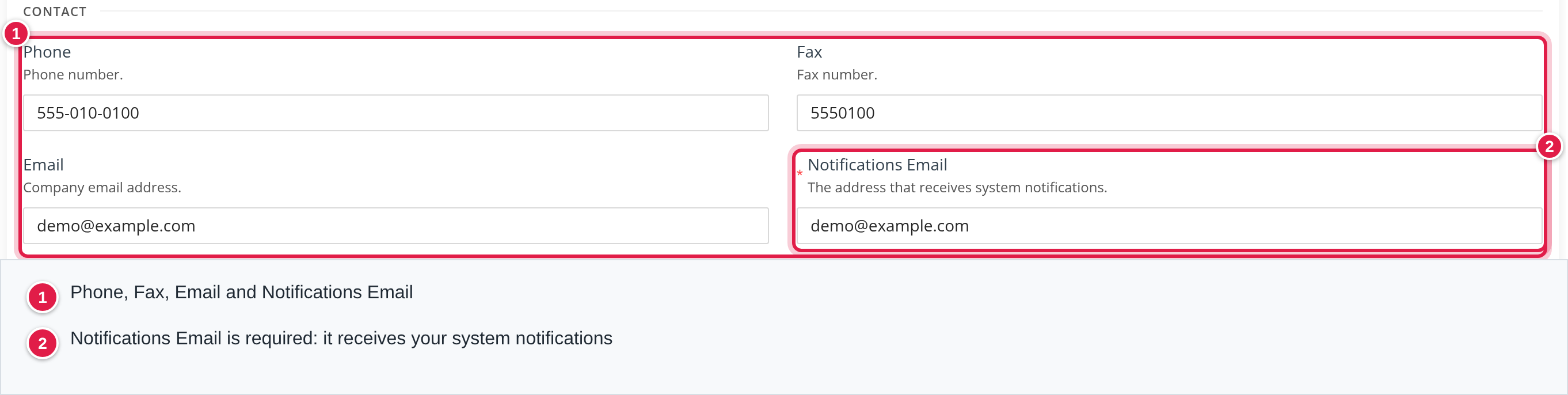
Contact
- Phone is formatted as you type. Fax is optional.
- Email is your company email address. It is optional, but if you fill it in it must be a valid address ("Enter a valid email address").
- Notifications Email is required and must be a valid address ("Notifications Email is required"). It is the address that receives your system notifications.
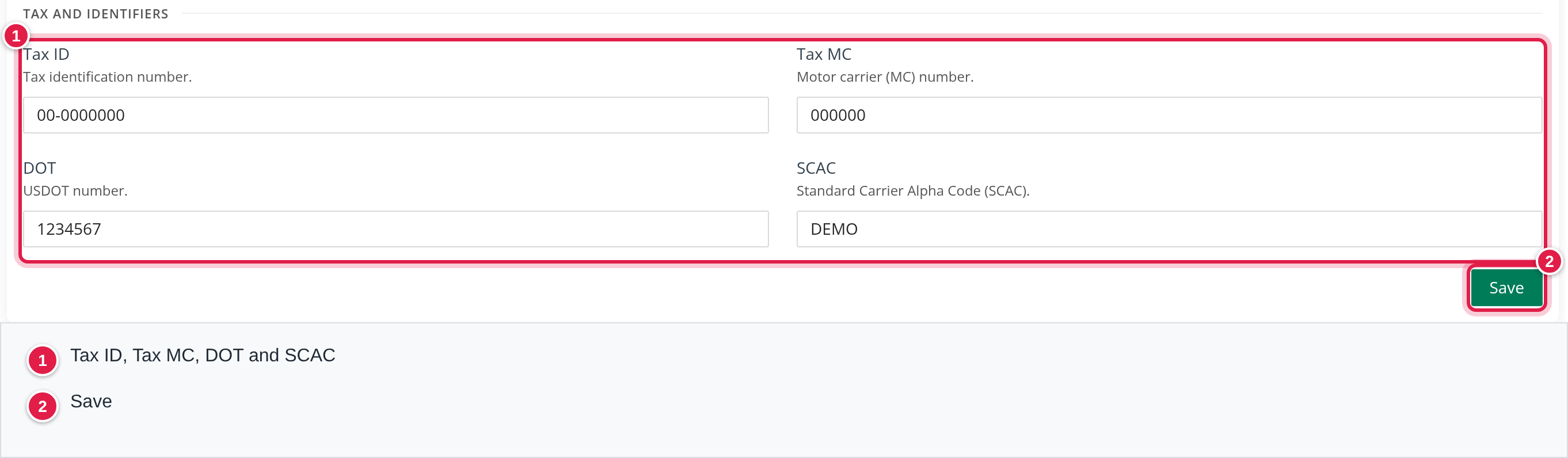
Tax and Identifiers
- Tax ID (tax identification number), Tax MC (motor carrier number), DOT (USDOT number) and SCAC (Standard Carrier Alpha Code). All four are optional free text, and OpenRoad does not check their format, so check what you type.
Part 4: Save
- Select Save.
- A Save changes? window asks "Do you want to continue?". Select Save to confirm, or Cancel.
- You see "Changes saved successfully." and the page shows what was stored.
If you clear a field and save, the stored value is cleared too.
If you leave the page with changes you have not saved (including a logo you picked or removed), OpenRoad asks "You have unsaved changes" and you can choose Leave or stay.
Every save is recorded in Settings → Audit Logs, a read-only history of the changes made on the Settings pages.
Where OpenRoad uses these details
- Logo: in the top navigation bar, in the header of the emails your customers receive, and on invoices and the billing preview when the customer's billing profile has no logo of its own (a billing profile logo wins).
- Email and Phone: in the contact lines at the bottom of the emails your customers receive.
- Notifications Email: it is copied into your email notification settings as the default recipient when the account is created, and it is the default email on loads created with Combine.
- SCAC: in the EDI documents sent to your customers (for example the 210, 214, 990 and 997).
Frequently asked questions
Was this article helpful?
That’s Great!
Thank you for your feedback
Sorry! We couldn't be helpful
Thank you for your feedback
Feedback sent
We appreciate your effort and will try to fix the article