The Wages page in Settings holds the account-wide choices that decide how driver pay is built: which date of a load puts it into a pay period, which miles are paid and shown, and the fuel fees that are deducted from percentage drivers. This article shows where to find the page and what each field does. For the weekly work with driver statements, see Wages: the complete guide to driver statements, driver pay, locking, sending and exports.
Before you begin
- Only a Superadmin can open Settings, so only a Superadmin can change these fields.
- Settings here apply to every driver in the account, not to one driver. Pay plans for individual drivers are set in Settings → Account → Compensations: create the pay plans (per mile, percentage or flat) your drivers are paid by, and pay periods in Settings → Account → Payroll Schedules: set the pay period and pay date for drivers and employees.
Part 1: Open Wages
- Select your avatar in the top right corner and choose Settings.
- In the Settings menu on the left, open Account and select Wages.
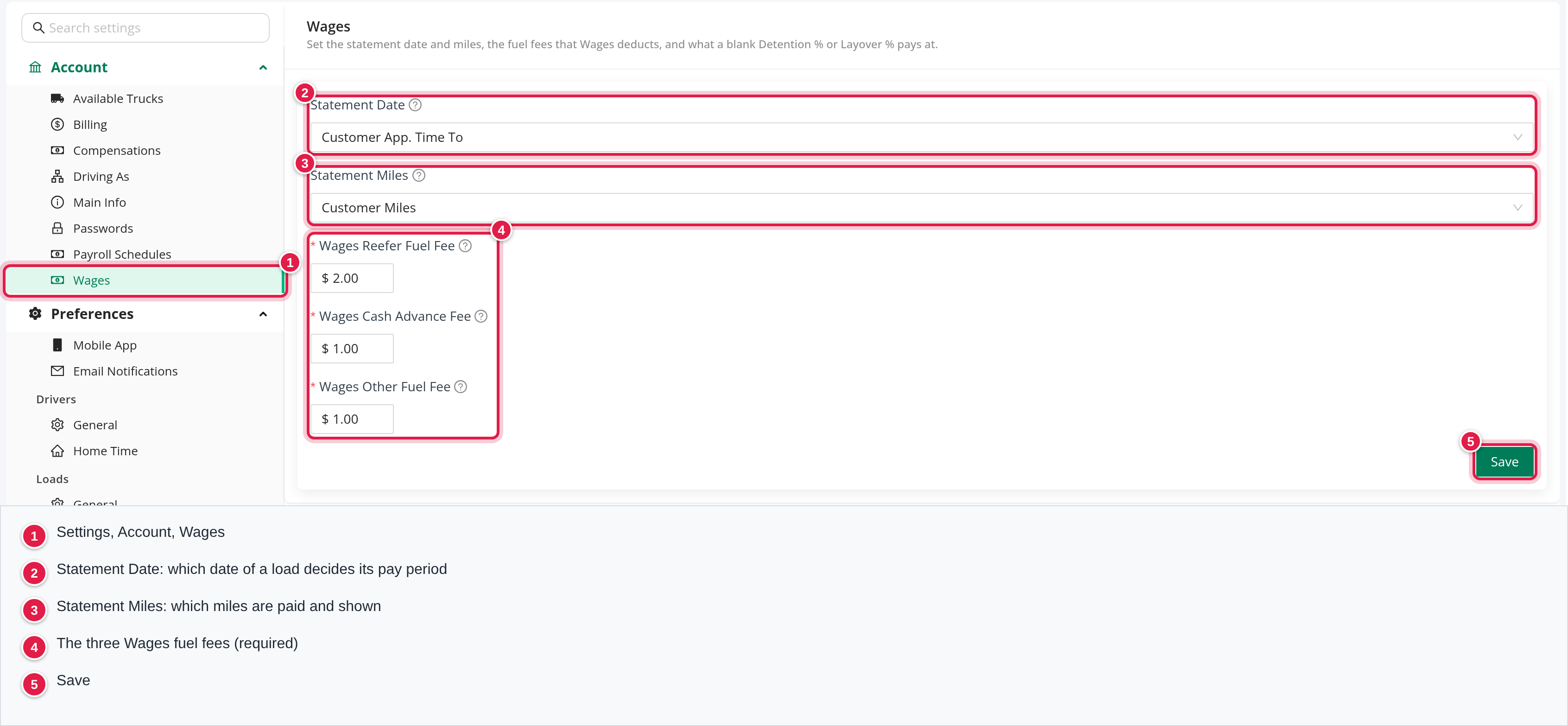
The page is one form with a Save button at the bottom. Hover over the question mark next to a field to read its short explanation.
Part 2: Statement Date
Statement Date decides which date of a load puts it into a pay period. If that date falls within a payroll period, the load is processed under that payroll. You can choose:
- Customer App Date
- Customer App. Time To
- Delivery Time Out
With Customer App. Time To or Delivery Time Out, OpenRoad takes that time from the last stop of the load to decide the pay period.
Part 3: Statement Miles
Statement Miles selects the miles that payrolls and Wages pay per mile, the mile splits and the miles your drivers see. You can choose Customer Miles or Planned Miles.
With Planned Miles, Wages also scales a percentage driver's fuel surcharge by the route's planned loaded miles divided by its stop miles. If either of the two is 0, the fuel surcharge is paid whole.
If your account uses Wages statements, only a Superadmin can change Statement Miles. When you change it, the page warns: "This can change the miles and the percentage fuel surcharge on open statements. Frozen statements keep their line items and amounts." The same warning appears in the save window.
Part 4: Wages fuel fees
The three fuel fee fields are required. Enter 0 or more dollars in each:
- Wages Reefer Fuel Fee
- Wages Cash Advance Fee
- Wages Other Fuel Fee
Wages deducts the amount from a percentage driver for each fuel transaction that has a reefer, cash advance or other amount. A fee of 0 deducts nothing. Each fee appears on the statement as a deduction. Drivers who are paid on Per Mile or Flat plans, and percentage drivers set to fuel cash advances only, are not charged these fees. These fees are used by Wages statements only.
Part 5: More fields for accounts that use Wages statements
If your account uses Wages statements, the page also shows:
- Empty Miles Decimals: 1 or 2. It sets the decimals of an empty mile that Wages pays and shows. With 1, empty miles match payrolls. With 2, an empty item can change by up to 0.05 miles times its rate. Loaded miles always pay and show 2 decimals.
- Blank Detention % pays at and Blank Layover % pays at: Linehaul % or Fuel Surcharge %. A percentage plan whose own Detention % or Layover % is left blank pays at the percentage you choose here. A value of 0 on the plan pays nothing.
Part 6: Save your changes
- Select Save.
- The Save changes? window says "You are about to save changes to Wages settings." Select Save to confirm.
- You see "Changes saved successfully."
If you leave the page with changes you have not saved, OpenRoad asks "You have unsaved changes" and you can choose Leave or Stay on page. Every save is recorded in Settings → Audit Logs: see Settings → Audit Logs: see who changed which setting and when.
FAQ
Was this article helpful?
That’s Great!
Thank you for your feedback
Sorry! We couldn't be helpful
Thank you for your feedback
Feedback sent
We appreciate your effort and will try to fix the article