A compensation is a pay plan: a name, a type and the rates that go with it. You create your plans once on the Compensations page, then choose one for each driver. When OpenRoad calculates a driver's wages, it reads the driver's plan to work out what the driver earns on each load. This article shows where to find the page, what each plan type asks for, how the plan is turned into pay, and what you can and cannot delete.
Before you begin
- Only a Superadmin can open Settings, so only a Superadmin can add, change or delete a compensation.
- Create the plans before you assign them. A plan is chosen on the driver's Compensation card, in the driver's Accounting tab. A driver who has a payroll schedule must also have a compensation. See Driver profile: Accounting tab (Compensation, Tax, Payment info, Driver Vacation and adjustments).
- Set up the payroll schedules too. The schedule decides the pay period and pay date: see Settings → Account → Payroll Schedules: set the pay period and pay date for drivers and employees.
- Related article: Wages: the complete guide to driver statements, driver pay, locking, sending and exports.
Part 1: Open Compensations
- Select your avatar in the top right corner and choose Settings.
- In the Settings menu on the left, open Account and select Compensations.
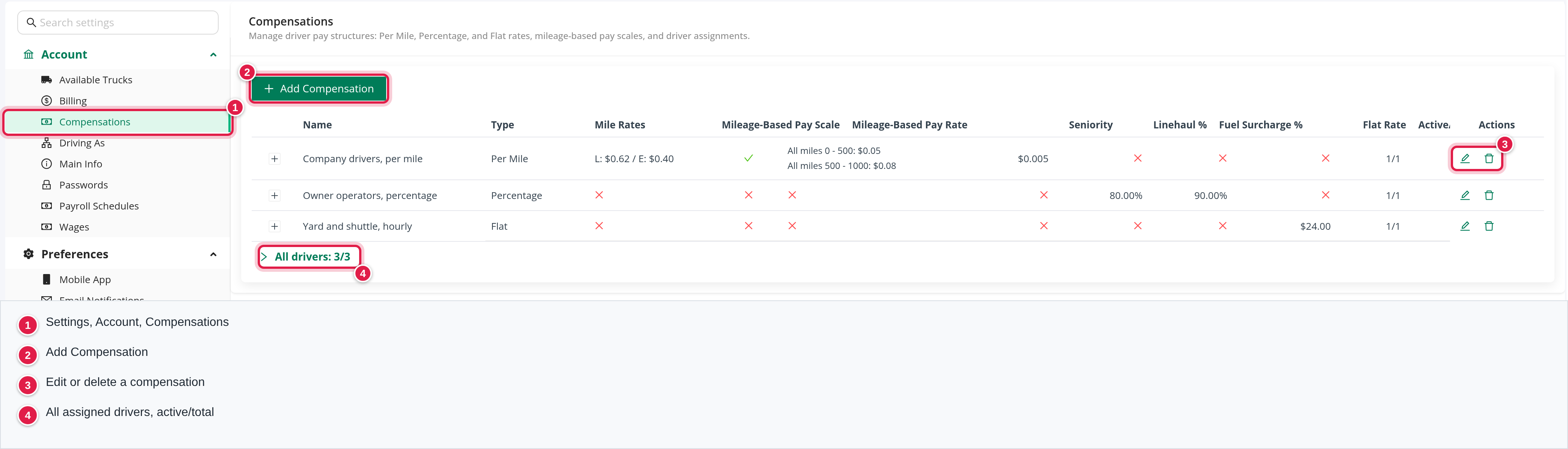
The page has an Add Compensation button and a table with one row per plan, sorted by name. The columns are:
| Column | What it shows |
|---|---|
| Name | The name of the plan. |
| Type | Per Mile, Percentage or Flat. |
| Mile Rates | For a per mile plan, the loaded and empty rate, for example "L: $0.62 / E: $0.40". A red cross means the plan does not use it. |
| Mileage-Based Pay Scale | A green check when the pay scale is on. |
| Mileage-Based Pay Rate | One line per pay scale step: the status, the miles range and the rate. |
| Seniority | The seniority amount, when the seniority bonus is on. |
| Linehaul % and Fuel Surcharge % | The percentages of a percentage plan. |
| Flat Rate | The rate of a flat plan. |
| Active/Total Driver Count | How many of the drivers on the plan are active, out of all drivers assigned to it, terminated ones included. |
| Actions | A pencil to edit and a trash can to delete. |
A plan that has drivers has a plus sign at the start of its row. Select it to see the driver numbers, grouped by status. Each number opens the driver in a new tab. The line All drivers under the table shows the same for all plans together.
Part 2: Add a compensation
- Select Add Compensation.
- Type a Name. It is required and must be different from the name of every other plan in your account.
- Choose the Type: Per Mile, Percentage or Flat. The fields below change with the type. They are described next.
- Select Create. In the Save changes? window confirm the save. You see "Changes saved successfully."
Type: Per Mile
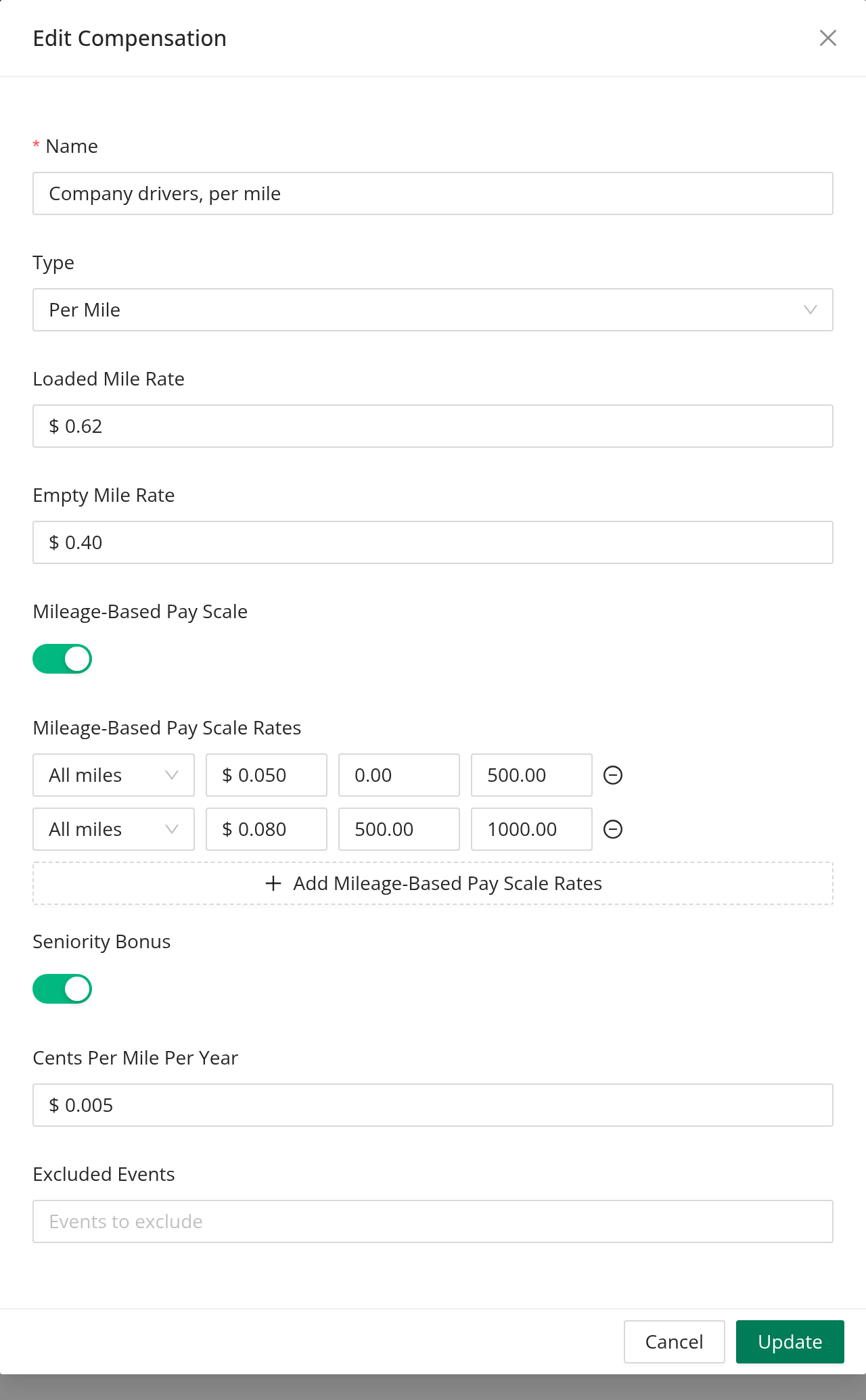
- Loaded Mile Rate and Empty Mile Rate: the dollars paid for each loaded mile and each empty mile.
- Mileage-Based Pay Scale: switch it on to add a rate that depends on how long the load is. Select Add Mileage-Based Pay Scale Rates to add a step. Each step has a status (Loaded, Empty or All miles), a Rate, Miles from and Miles to, and all four are required. The minus icon removes a step. A step whose Miles from is not lower than Miles to is refused, and a step with 0 and 0 is ignored. With the switch off, the steps are ignored.
- Seniority Bonus: switch it on to pay drivers more for each year of service. Enter the amount in Cents Per Mile Per Year. Under Excluded Events, optionally choose the events that do not count as service: 10 Hour Reset, 34 Hour Reset, Home Time, Unapproved Off, Vacation, Medical, Bereavement, Breakdown, Weather, Layover, Paid Layover and Not Paid Layover.
Type: Percentage
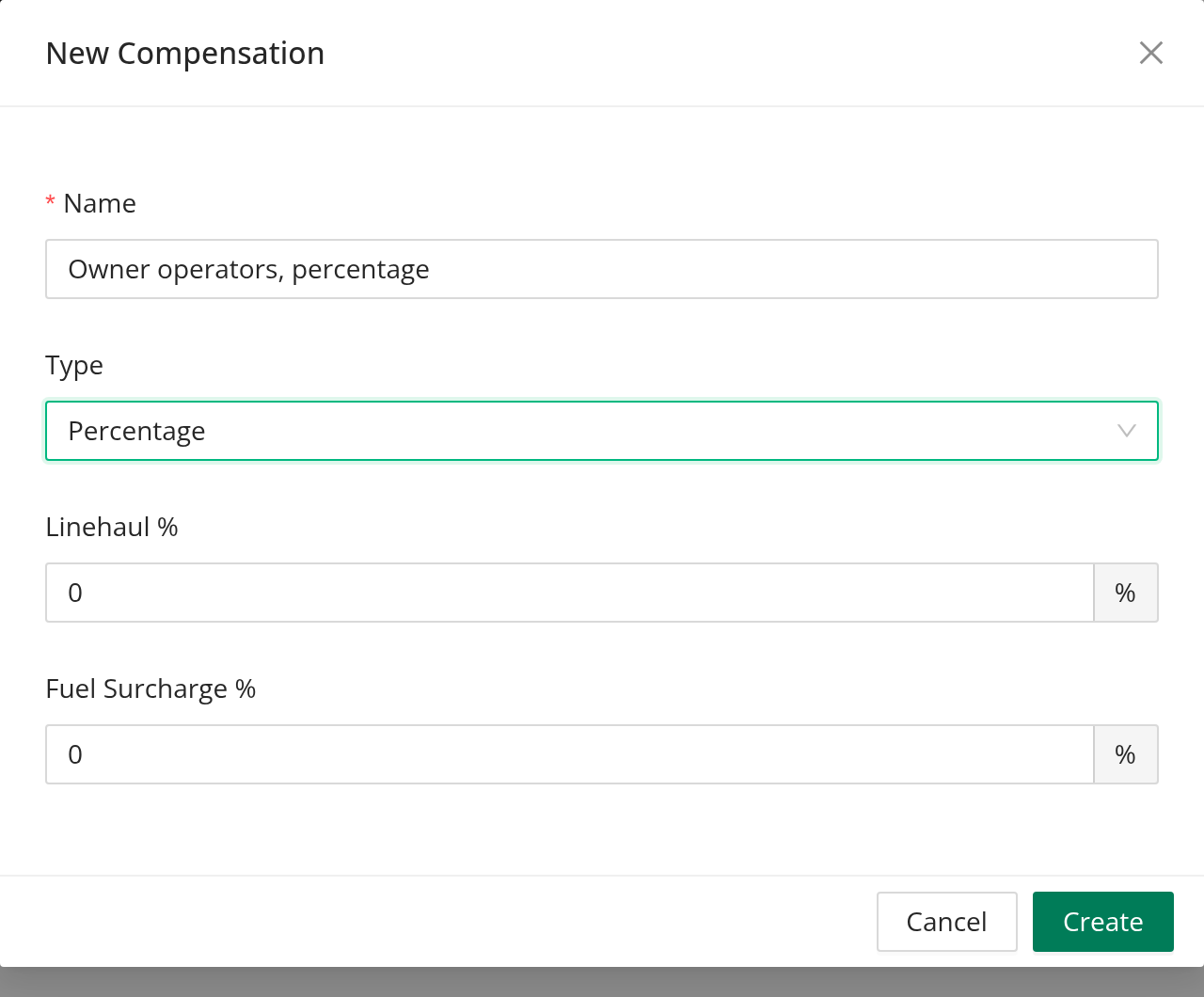
Enter Linehaul % and Fuel Surcharge %. They are the shares of the load's linehaul and fuel surcharge that the driver earns.
Type: Flat
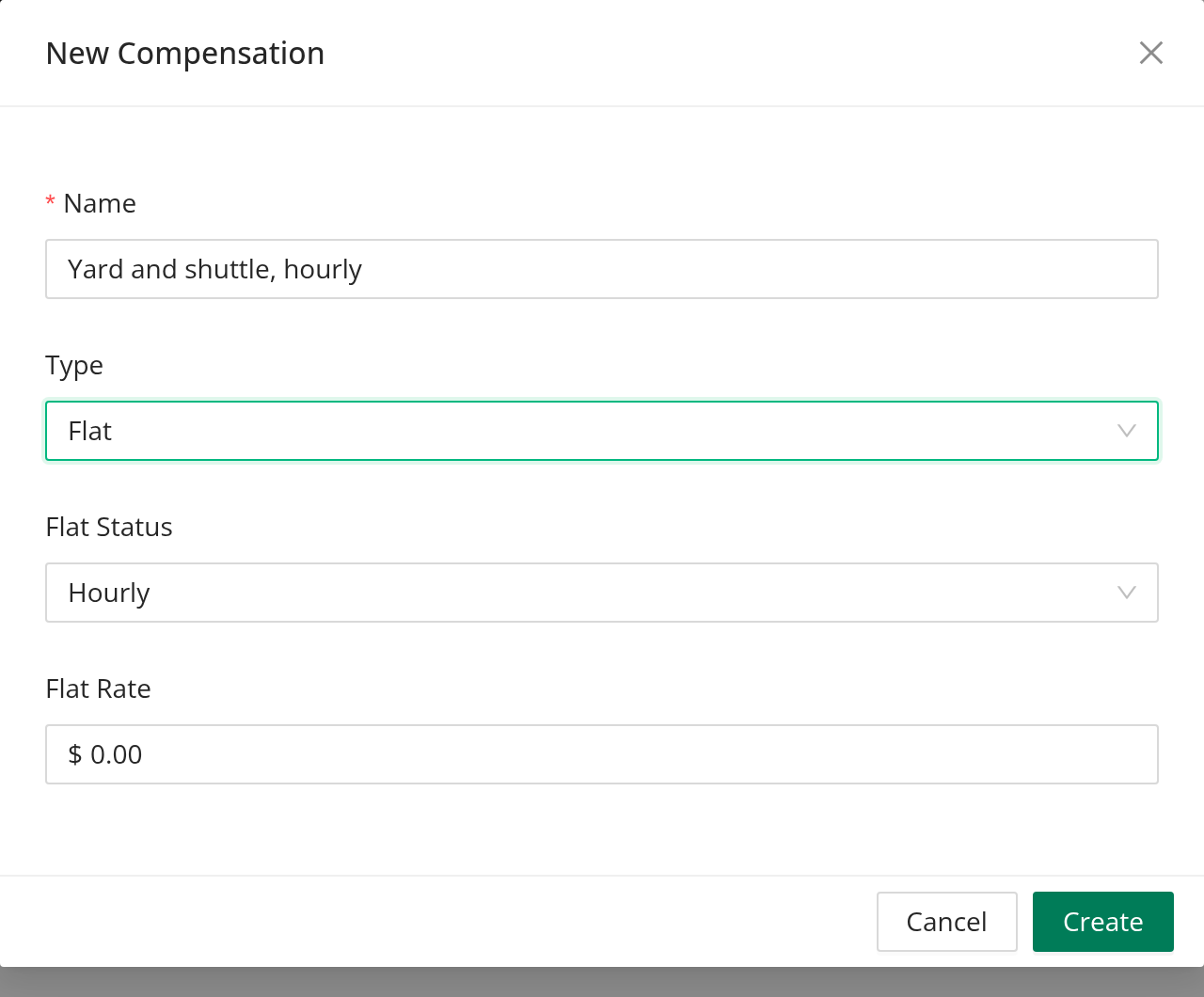
Choose the Flat Status, Hourly, Daily or Weekly, and enter the Flat Rate in dollars.
Part 3: How a plan becomes pay
OpenRoad reads the driver's plan when it calculates wages.
- Per Mile: loaded miles times the Loaded Mile Rate, plus empty miles times the Empty Mile Rate, for each load. If the pay scale is on, the step whose range contains the load's total miles (from the start of the range up to, but not including, its end) adds its rate to both the loaded and the empty rate for that load. Wages use the steps whose status is All miles. With no matching step, nothing is added.
- Seniority Bonus: for each load, the miles times the driver's completed years of service times the amount you entered. The years are counted from the driver's seniority date. If there is none, the latest rehire date is used, and then the date the driver was added. They are counted to the end of the pay period, or to the termination date. Days covered by the excluded events do not count.
- Percentage: the load's linehaul times Linehaul %, plus its fuel surcharge times Fuel Surcharge %.
- Flat: the time worked times the Flat Rate: hours for Hourly, days for Daily, weeks for Weekly.
Part 4: Change a compensation
Select the pencil, change the fields and select Update, then confirm the save. You can change everything, including the type. A change is not kept as a version: wages read the driver's current plan, so the change applies to every driver on the plan the next time their wages are calculated.
Part 5: Delete a compensation
Select the trash can and confirm in the Delete setting? window. You see "Record deleted successfully." A plan with at least one driver assigned, terminated drivers included, cannot be deleted. The trash can is greyed out and says: "Cannot delete compensation: At least one driver is assigned. Please unassign the drivers if you want to delete the compensation." Change those drivers' compensation first.
Good to know
- Every add, change and delete is recorded in Settings → Audit Logs: see Settings → Audit Logs: see who changed which setting and when.
- A blank rate on a plan that needs it stops the wages calculation for that driver with a message, for example "Loaded Rate cannot be blank for this compensation". Fill in every rate your plan type uses.
FAQ
Was this article helpful?
That’s Great!
Thank you for your feedback
Sorry! We couldn't be helpful
Thank you for your feedback
Feedback sent
We appreciate your effort and will try to fix the article