The Passwords page holds the access codes that protect sensitive actions in OpenRoad TMS, such as locking a payroll or editing a locked load, plus the Team $ Per Mile Goal that appears in your team charts. This article shows where to find the page, what each field is for, which actions ask for which code, and how to change them safely.
Before you begin
- Only a Superadmin can open Settings, so only a Superadmin can see or change these codes.
- Tell the people who need a code. Someone who is asked for one has to get it from you.
- New accounts start with default codes that OpenRoad sets when the account is created. Change them to your own codes.
- Related articles: Wages: the complete guide to driver statements, driver pay, locking, sending and exports, Driver profile: Statements tab (weekly statements: review, adjust, send and lock) and Fuel Transactions page (Fuel → Fuel Transactions): filters, Import, New Fuel Card Transaction and Export.
Part 1: Open Passwords
- Select your avatar in the top right corner and choose Settings.
- In the Settings menu on the left, open Account and select Passwords.
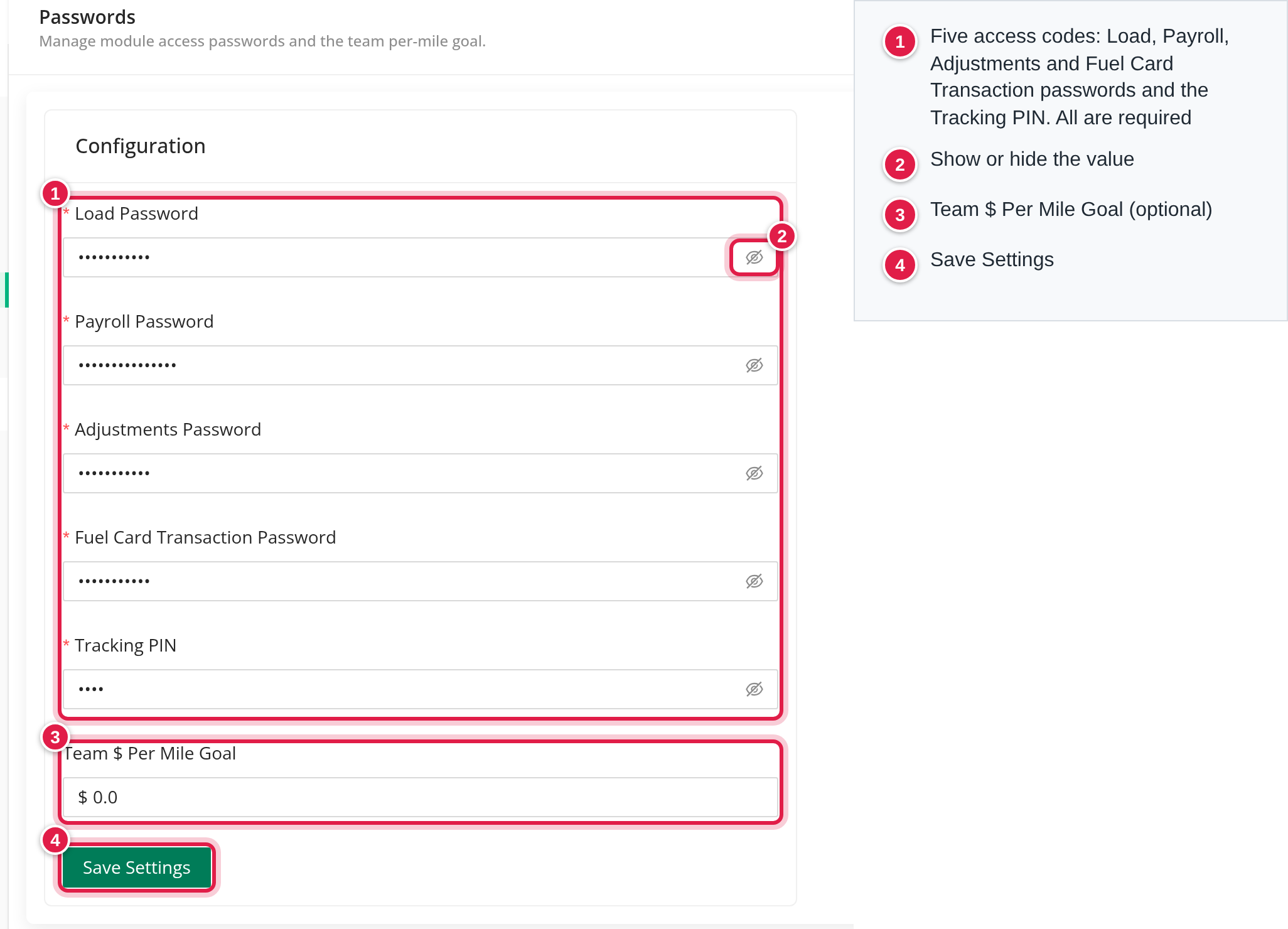
The page has one card, Configuration, with five access codes, Team $ Per Mile Goal and a Save Settings button.
Part 2: The fields
All five codes are shown as dots and are filled in with the current values. Select the eye icon at the end of a field to show or hide the value.
| Field | Rules |
|---|---|
| Load Password | Required, at least 3 characters. |
| Payroll Password | Required, at least 3 characters. |
| Adjustments Password | Required, at least 3 characters. |
| Fuel Card Transaction Password | Required, at least 3 characters. |
| Tracking PIN | Required. |
| Team $ Per Mile Goal | Optional. A dollar amount in steps of 0.01. |
Use at most 25 characters in each code. None of the codes can be left empty, so a protection is never switched off by an empty field.
Part 3: What each code protects
Every check compares what the person types with the code saved here.
Payroll Password. It is asked when someone:
- locks or unlocks a payroll, or marks it as sent or not sent;
- deletes an item, a tax or an adjustment on a payroll;
- locks or unlocks a Wages statement, or a carrier (vendor) payment statement.
Nobody is exempt from this code.
Load Password. It is asked when someone edits a load whose status is one of your account's Locked Statuses. Admin and Accounting users edit without it. If no status is locked, the code is never asked.
Fuel Card Transaction Password. An EFS fuel card transaction opens read-only. A person has to select Unlock and type this code before they can edit it.
Adjustments Password. The page requires it, but no OpenRoad TMS screen asks for it at the moment. Deleting adjustments asks for the Payroll Password.
Tracking PIN. The page requires it, but no OpenRoad TMS page asks for it at the moment.
Part 4: Team $ Per Mile Goal
This amount is the dollars-per-mile goal for your teams. It appears as the $ per mile Goal line in the team chart on the Stats page and on the Team Goals page, next to the actual figures. It is one value for the whole account, so every team is compared with the same goal. The default is 0, which draws the goal line at 0.
Part 5: Save your changes
- Select Save Settings.
- The Save changes? window says "You are about to save changes to Passwords settings." Select Save to confirm or Cancel.
- You see "Changes saved successfully."
If you leave the page with changes you have not saved, OpenRoad asks "You have unsaved changes" and you can choose Leave or Stay on page. Every save is recorded in Settings → Audit Logs.
A code takes effect as soon as you save it. Tell your team the new code first, or they will be locked out of the action it protects.
Frequently asked questions
Was this article helpful?
That’s Great!
Thank you for your feedback
Sorry! We couldn't be helpful
Thank you for your feedback
Feedback sent
We appreciate your effort and will try to fix the article