When you assign a driver to a load, Fuel Stops Automation can add a fuel stop to the route for you. OpenRoad looks at the Pilot and Love's stops near the route, picks the one with the lowest price today and adds it as a route stop. You see it on the load like any other fuel stop, marked as added by the system. You choose which drivers it applies to and how far from the route a stop may be.
Fuel Stops Automation is an extra feature. It is switched on per account and works together with the route planner. If you do not see Fuel Stops Automation under Settings → Preferences → Loads, contact help@openroadtms.com to have it enabled. Extra charges may apply.
Before you begin
- The route planner must be on for your account, because OpenRoad needs a planned route to find the stops near it.
- Your fuel prices must be up to date. OpenRoad only considers stops that have a price for today, from your Pilot and Love's price lists. See Pilot Integration: import Pilot fuel prices into OpenRoad TMS, Love's Integration: import Love's fuel prices into OpenRoad TMS and Fuel Locations page (Fuel → Fuel Locations): Pilot and Love's stops, list and map, Upload.
- Set the Settings page first (Part 4). Until you choose at least one driver type and one fleet group, nothing is added.
- Fill in the driver type and the fleet group on the driver profile. A driver gets a fuel stop only when both match your settings.
Part 1: When a fuel stop is added
OpenRoad adds a fuel stop when you assign a driver to the first stop of that driver on a load, and all of this is true:
- the driver's type and fleet group are among the ones you selected in the settings, and at least one fuel stop provider is selected;
- the driver has no fuel stop on the load yet. A fuel stop that a person added counts;
- the load has a planned route for that driver;
- there is a stop with a price for today within the distance you set.
The route is planned a little after the assignment. OpenRoad waits for it and keeps checking for about an hour.
Part 2: Which stop OpenRoad chooses
- OpenRoad looks at your Pilot and Love's stops, as far as you selected them, that are within your Maximum off-route distance (miles) of the route. The distance is a straight line, one way, from the route to the stop, on either side. Only the loaded part of the route counts, not the empty drive to the pickup.
- Only stops that have a price today are considered.
- The cheapest price wins. When two stops cost the same, the one closest to the route wins.
- OpenRoad does not look at the fuel level of the truck.
The stop goes in front of the load stop where it fits along the route, and the route is planned again through it. A fuel stop takes 10 minutes in the plan.
Part 3: On the load
The stop appears as a fuel stop card in the Stops panel, in front of the stop it comes before. It shows the fuel brand and store number, the address, the phone number and the price. When fuel information was captured for the stop, it also shows the tank level and the miles remaining. The card says System as the one who added it, with the time.
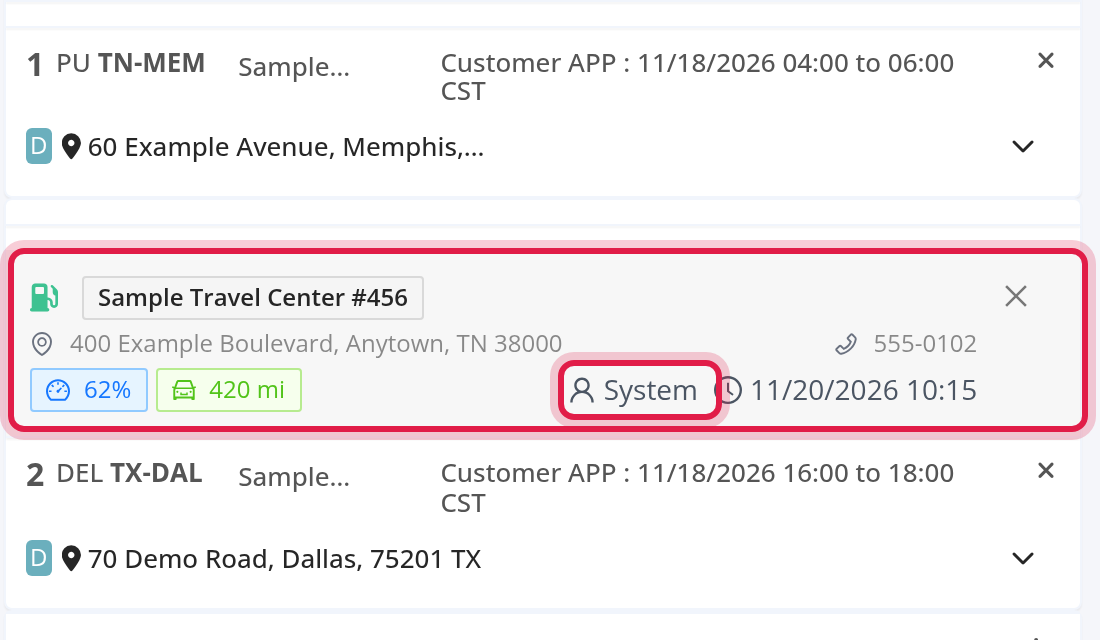
- Remove it: open the load for editing and select the X on the card, then refresh the map and save the load.
- Where else it shows: your driver reads it in the driver instructions, as a line such as "Fuel Location: City, State Store# 456". A route sent to Samsara carries it as a stop.
- If OpenRoad finds no stop, it adds a note to the load: "Fuel stop not found: no fuel stop within <n> miles of the route." It adds this note once for an assignment.
When the driver changes
- If you change the driver, the stop that OpenRoad added for the first driver stays, unless the new driver's best stop is cheaper. Then it replaces it.
- A fuel stop that a person added is never replaced or removed by OpenRoad.
- When you unassign the driver, the fuel stops that were added with fuel information are removed.
Part 4: The Settings page
Only a Superadmin can change the settings.
- Select your avatar in the top right corner and choose Settings.
- In the Settings menu on the left, open Preferences, then Loads, and select Fuel Stops Automation.
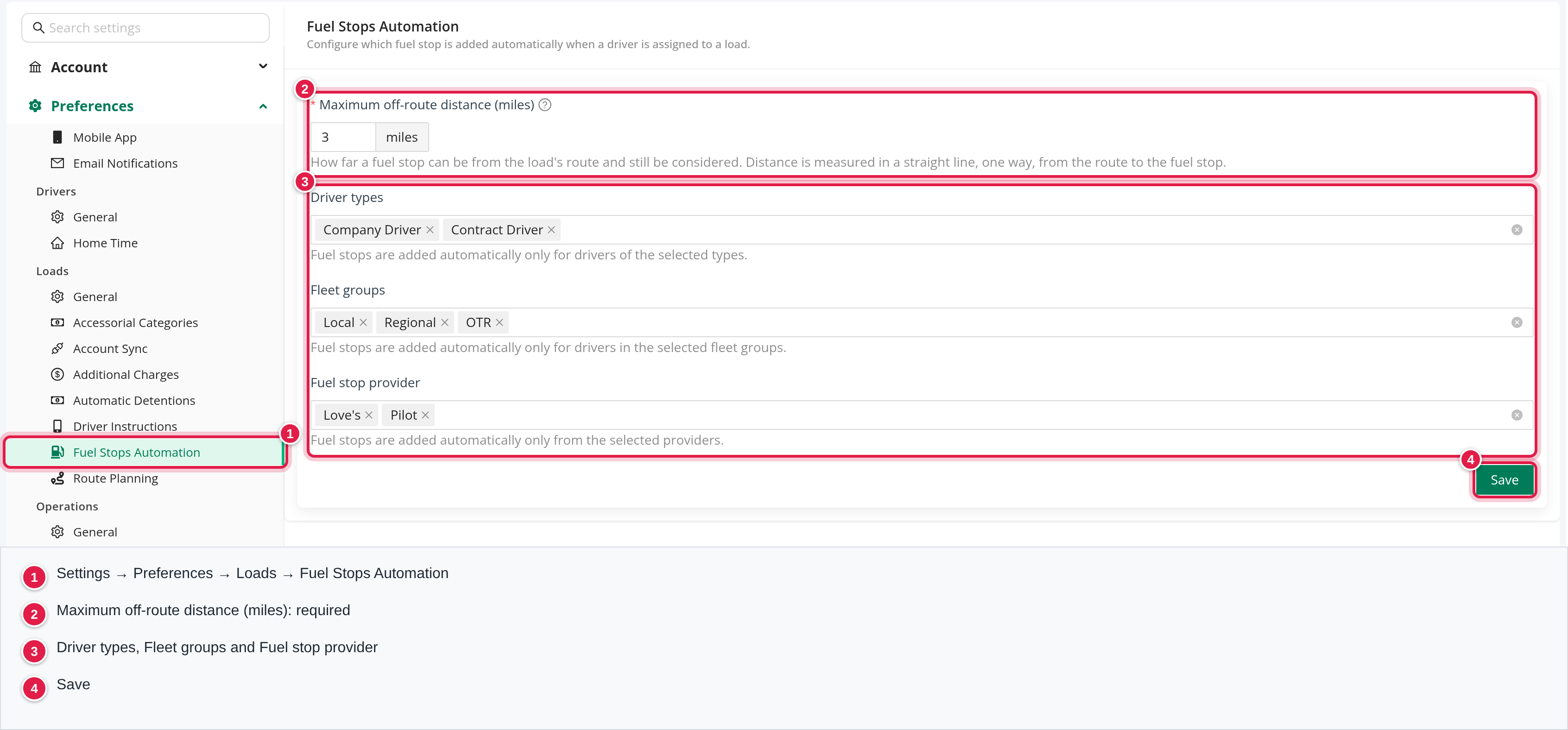
| Field | What it does |
|---|---|
| Maximum off-route distance (miles) | Required. How far a fuel stop can be from the load's route and still be considered. The distance is measured in a straight line, one way, from the route to the fuel stop. It must be more than 0. |
| Driver types | Fuel stops are added automatically only for drivers of the selected types: Company Driver, Contract Driver, Owner Operator and Leased Owner. |
| Fleet groups | Fuel stops are added automatically only for drivers in the selected fleet groups: None, Local, Short Haul, Regional, OTR, Dedicated and Flatbed. |
| Fuel stop provider | Fuel stops are added automatically only from the selected providers: Love's and Pilot. |
Select Save. In the Save changes? window, select Save again. You see "Changes saved successfully." Every save is recorded in Settings → Audit Logs: see Settings → Audit Logs: see who changed which setting and when.
If you leave Driver types or Fleet groups empty, no driver is eligible and nothing is added.
FAQ
Was this article helpful?
That’s Great!
Thank you for your feedback
Sorry! We couldn't be helpful
Thank you for your feedback
Feedback sent
We appreciate your effort and will try to fix the article