Additional charges let you split the billing amounts of a load, such as Detention, Lumper or Storage, into named lines (for example "Layover" or "Dock fee") that your customer sees on the invoice. You define the charge types once in Settings, and then pick them on each load. This article explains the settings, how to use a charge on a load, how it appears on the invoice and where it can be created automatically.
Before you begin
- You need access to Additional Charges to see the settings page, and to use the Additional Charges section on a load.
- Every charge belongs to one of the load's billing fields: Linehaul, Fuel Surcharge, Detention, Storage, Lumper, Misc. or Deductions. The amounts of the charges you add to a load are a breakdown of that field's total.
- If you exchange EDI documents with a customer, ask them for the code they use for each charge (see EDI Code).
Part 1: Create a charge type
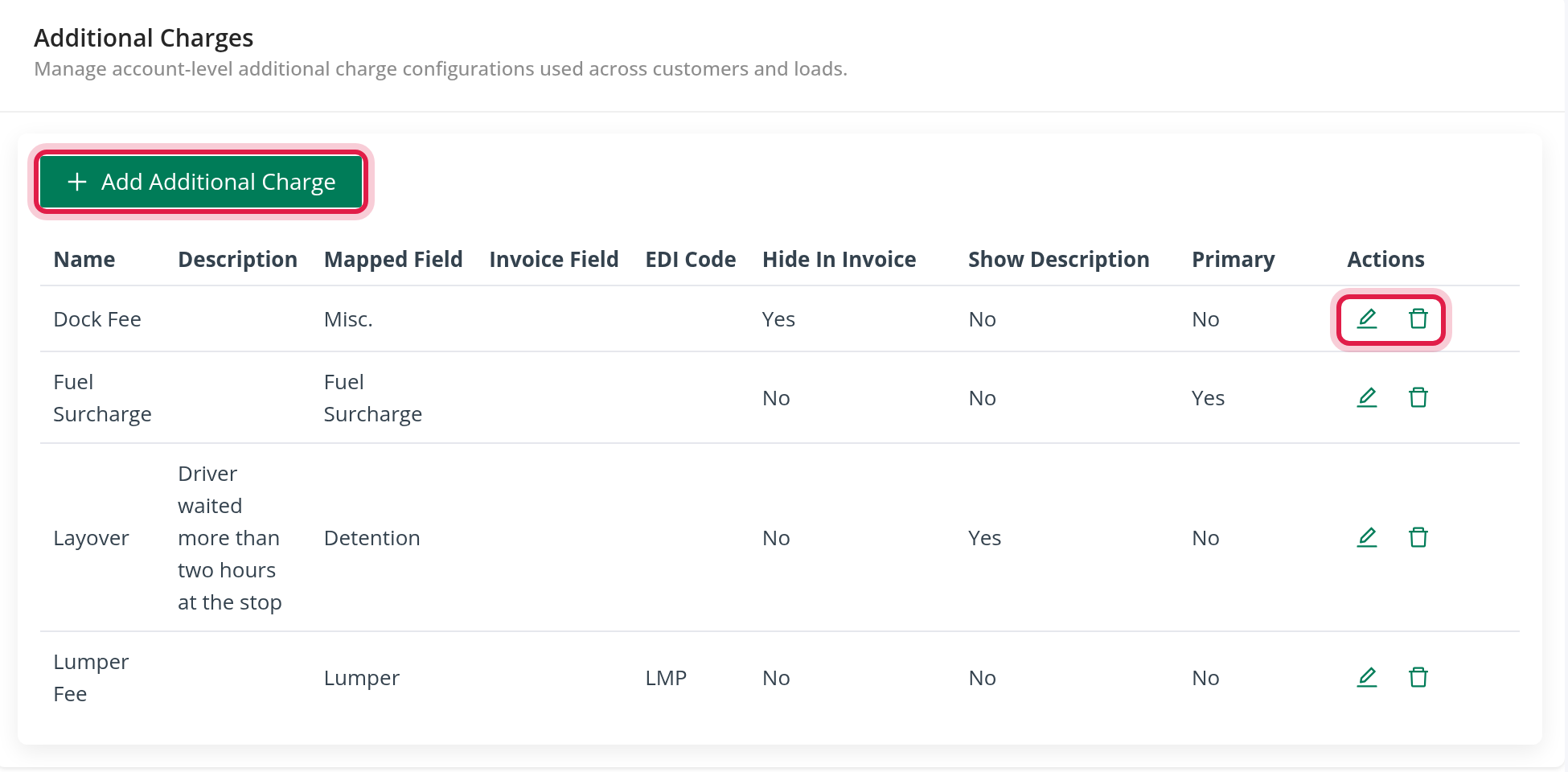
- Go to Settings → Preferences → Loads → Additional Charges. You can also type "Additional Charges" in the settings search.
- The table lists your charges with Name, Description, Mapped Field, Invoice Field, EDI Code, Hide In Invoice, Show Description and Primary. Accounts with the Wages feature also see Layover. The icons at the end of a row edit or delete the charge.
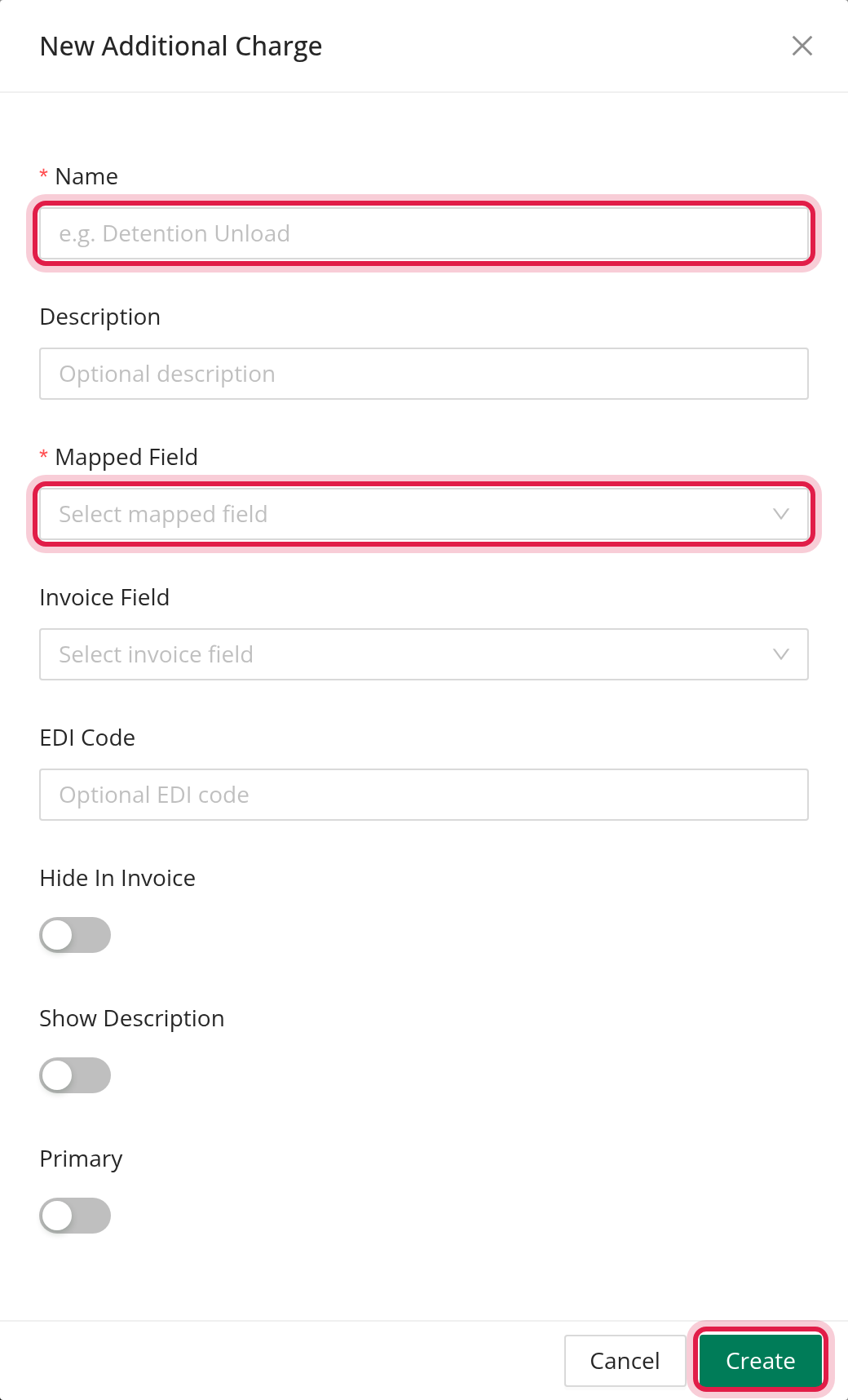
- Click Add Additional Charge. The window New Additional Charge opens.
- Fill in the fields and click Create. Name and Mapped Field are required.
| Field | What it does |
|---|---|
| Name | The label you pick on a load and the name printed on the invoice, for example "Layover". It must be unique: two charges cannot have the same name, whatever the capital letters. |
| Description | A short explanation. It is shown on the load and the invoice only when Show Description is on. |
| Mapped Field | The billing field of the load the charge belongs to: Linehaul, Fuel Surcharge, Detention, Storage, Lumper, Misc. or Deductions. |
| Invoice Field | Optional. Shows the charge on the invoice under a different billing field than the one it is mapped to. |
| EDI Code | Optional. The code your customer's EDI provider uses for this charge. It is used to recognise the charge on an incoming load tender and to send it on the EDI invoice. Leave it empty if you do not use EDI. |
| Hide In Invoice | Off by default. When on, the charge is not shown as its own line on the invoice; its amount is added to the first visible charge line. The charge stays on the load. |
| Show Description | Off by default. When on, a Description field appears on the load for this charge, filled with your text, and the description is printed on the invoice under the charge name. |
| Primary | Off by default. Marks the main charge of its field. It is used when OpenRoad updates the Fuel Surcharge: the primary charge is changed to match the field, after the other charges of that field are subtracted. |
| Counts as Layover | Only for accounts with the Wages feature, and only when Mapped Field is Detention. The charge is paid to the driver at the Layover percentage of a percentage-based compensation. |
You can edit a charge at any time with the pencil icon. The red icon deletes it after a confirmation, and a charge that an integration's billing mapping still uses cannot be deleted.
Part 2: Charges for one customer
A customer can have charges of its own. On the customer's page, the Configure Additional Charges panel lists your account-wide charges under Account Level Additional Charges. They apply to that customer unless the customer has its own charge with the same name. In that case the customer's charge is the one offered on its loads.
Part 3: Add a charge to a load
- Open the load form (new, edit or copy). In Additional Charges, click Add Charges.
- Pick the Name of the charge. The list shows the charges of the load's customer (account-wide ones plus its own).
- Enter the Amount. If Show Description is on for the charge, edit the Description if needed.
- Save the load. To remove a charge, click the red remove button and confirm "Are you sure?".
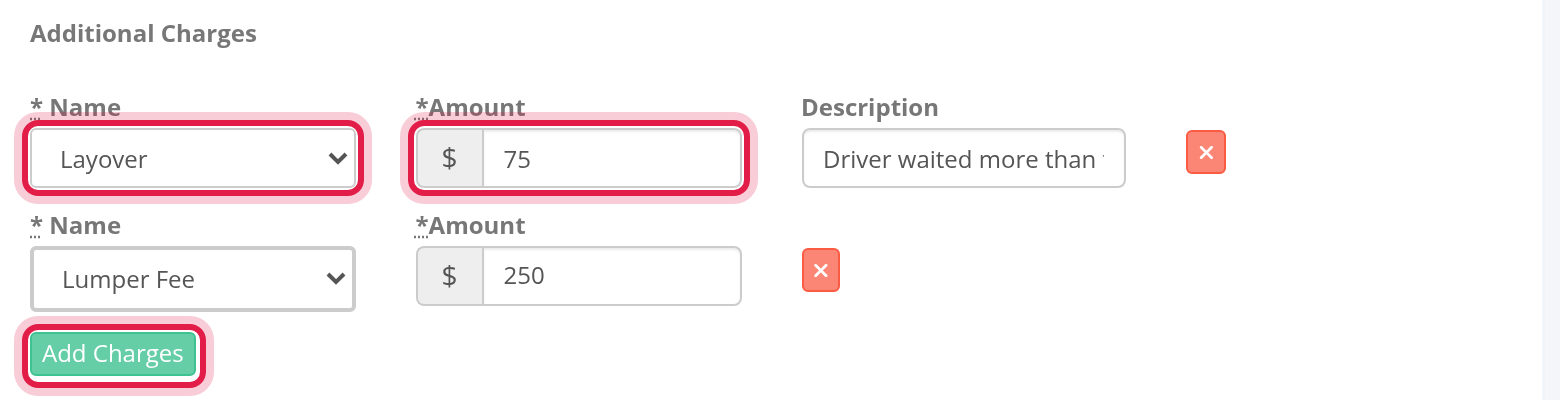
the charges of one billing field must add up to that field's total on the load. If they do not, the load cannot be saved and you see "Invalid additional charge sum for <charge>. Please update the <charge> field under the stop, or use Edit Charges (for split loads), so that the amounts match both the individual stops and the total <charge> sum". Change either the charge amounts or the total so that they match.
On a split load the section also has Edit Charges, which opens Additional Charges by destination so you can enter the charges per destination.
Charges that OpenRoad creates for you
- EDI load tenders. When a tender brings a charge, OpenRoad matches it to your charge by name or by EDI Code and adds it to the load. A charge it cannot match is added to Misc..
- Fuel surcharge updates. When a fuel surcharge estimate is accepted, the charge marked Primary for the Fuel Surcharge field is updated to match.
How charges appear on the invoice
- Each charge is listed as a line under its billing field, named with the charge Name. A charge with an amount of zero is not listed.
- Show Description adds the description on a second line. Hide In Invoice removes the line. Invoice Field moves the amount under another billing field.
Additional Charges and Accessorial Categories
Both are under Settings → Preferences → Loads, but they are different. Additional Charges are amounts you bill to the customer on the load and invoice. Accessorial Categories are the extra payments you make to drivers.
Frequently asked questions
Was this article helpful?
That’s Great!
Thank you for your feedback
Sorry! We couldn't be helpful
Thank you for your feedback
Feedback sent
We appreciate your effort and will try to fix the article