The Available Trucks page in Settings gives you one thing: the public link to your available trucks map. You can send it to outside partners, such as brokers or customers, so they can see which of your trucks will be empty, where and when, without an OpenRoad TMS login. This article shows where to find the link and what to know before you share it.
Before you begin
- Only a Superadmin can open Settings, so only a Superadmin sees the link.
- The link is created for your account by OpenRoad. If your account has none, the page says "No public link is available." Contact OpenRoad Support.
- To see the trucks yourself, use the Available Trucks page described in Available Trucks: see which trucks will be empty, where and when. That article also explains what the public page shows and how it differs from your own page.
Part 1: Open Available Trucks
- Select your avatar in the top right corner and choose Settings.
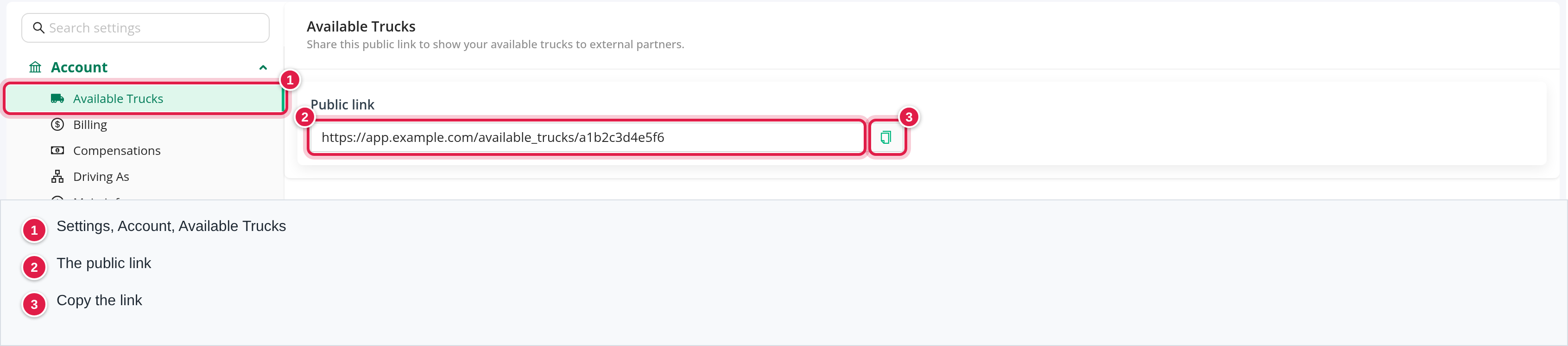
- In the Settings menu on the left, open Account and select Available Trucks.
Part 2: Copy the link
The page shows Public link with your link in a field. The field cannot be edited. Select it to highlight the whole link, or select the copy icon at its right end to copy the link. Then paste it into your e-mail or message.
Important
Anyone who has the link can open the public page without logging in. Share it only with partners you trust.
Anyone who has the link can open the public page without logging in. Share it only with partners you trust.
Good to know
- The public page reads a saved copy of your data that is rebuilt regularly, so its numbers can differ slightly from your own Available Trucks page. The details are in Available Trucks: see which trucks will be empty, where and when.
FAQ
Why does my Settings menu show Available Trucks but the page says "No public link is available"?
Your account has no public link yet. Contact OpenRoad Support.
Why can a colleague not see the link?
Only a Superadmin sees it.
Was this article helpful?
That’s Great!
Thank you for your feedback
Sorry! We couldn't be helpful
Thank you for your feedback
Feedback sent
We appreciate your effort and will try to fix the article