The Driving As page is where you set up more than one carrier inside the same OpenRoad TMS account. You first list your MC numbers, then create a Driving As value for each carrier and link it to one of those MC numbers. Drivers, trucks, trailers and loads can then be assigned to the carrier they work for. This article shows where to find the page, how to add, change and delete MC numbers and Driving As values, and where the value is chosen afterwards.
Before you begin
- Only a Superadmin can open Settings, so only a Superadmin can change these tables.
- You only need extra values if you run more than one carrier. Anything with no Driving As belongs to your default company, so add a value only for each additional carrier.
- Add the MC numbers first. Once your account has at least one MC number, every Driving As value must be linked to one.
- Related articles: Settings → Account → Main Info: your company profile, logo, contact details and tax identifiers and Settings → Account → Billing: customize invoices with billing profiles, your logo, company details and invoice text.
Part 1: Open Driving As
- Select your avatar in the top right corner and choose Settings.
- In the Settings menu on the left, open Account and select Driving As.
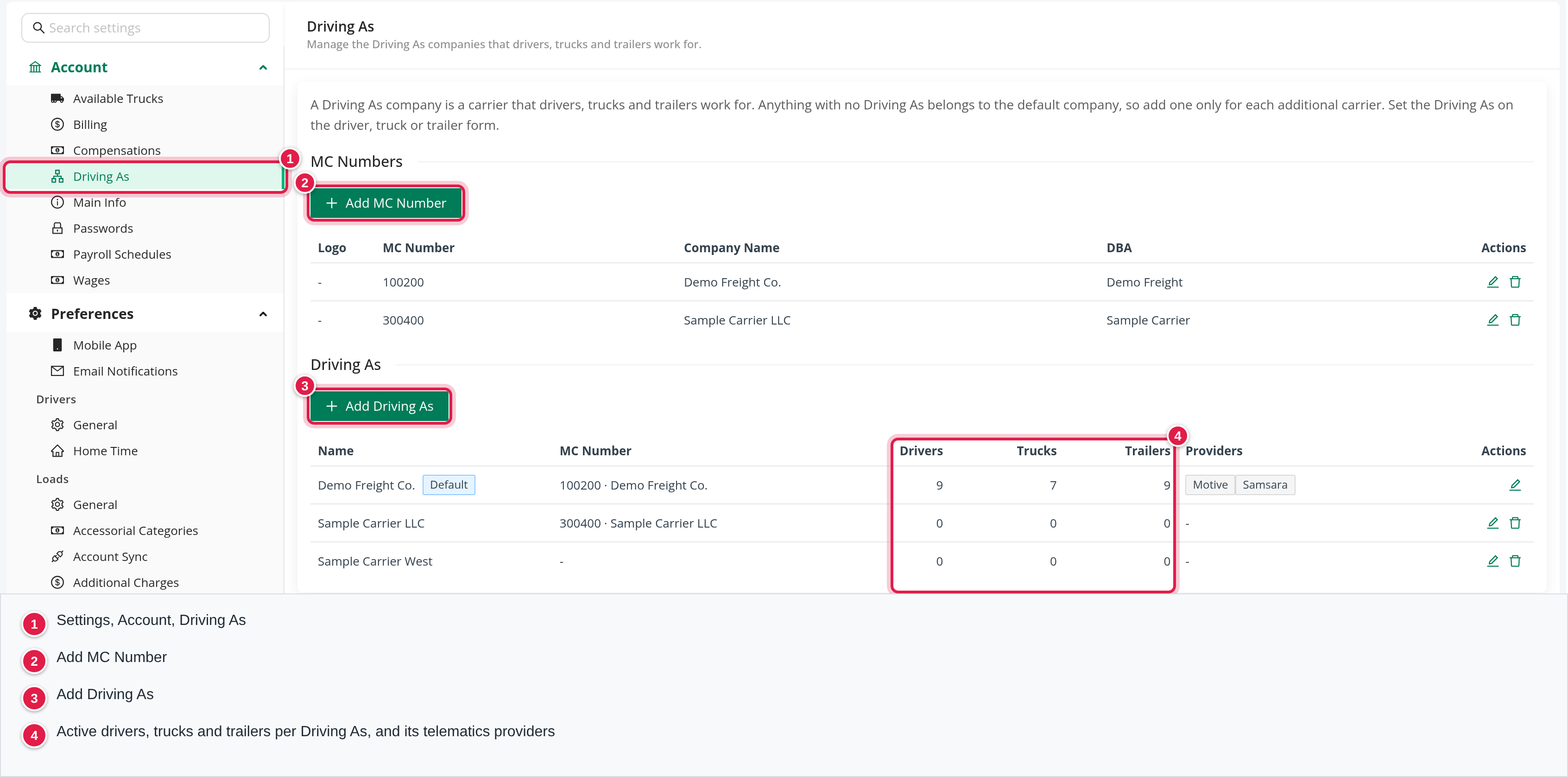
The page has a short explanation and two sections: MC Numbers and Driving As.
Part 2: MC numbers
The MC Numbers table has these columns: Logo, MC Number, Company Name, DBA and Actions (a pencil to edit and a trash can to delete).
Add an MC number
- Select Add MC Number.
- Type the MC Number. It is required. Spaces before and after are removed, and the same number cannot be used twice in your account ("is already used by another MC number").
- Optionally fill in Company Name and DBA.
- Optionally select Upload and choose a Logo. It must be a PNG, JPG or JPEG of at most 5 MB. Otherwise you see "Only PNG, JPG and JPEG files are allowed." or "The logo must be 5 MB or smaller."
- Select Add, then confirm the save in the Save changes? window. You see "Changes saved successfully."
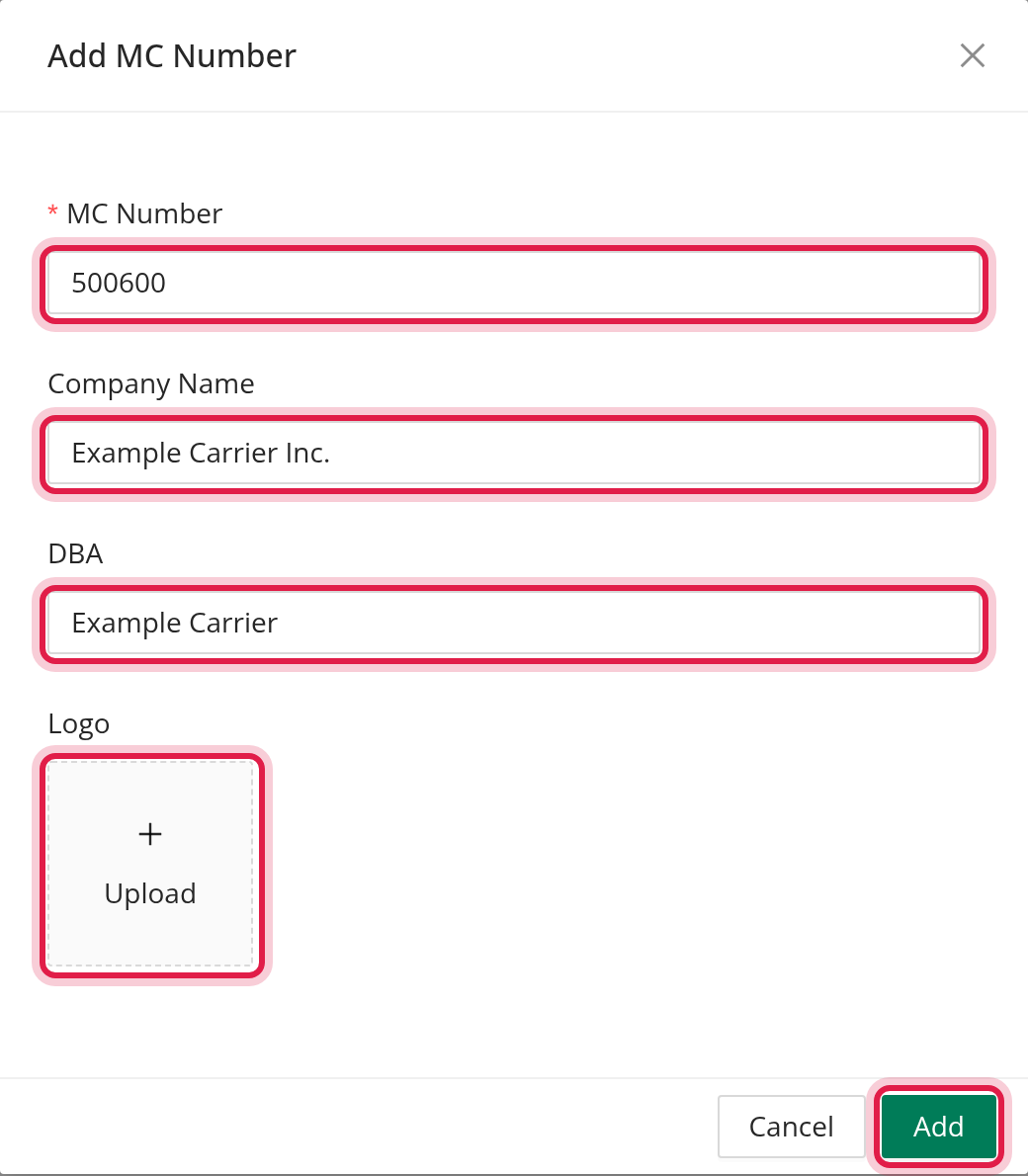
To change an MC number, select its pencil, edit the fields and select Save. To remove a logo, remove the picture in the window and save.
Delete an MC number
Select the trash can and confirm. An MC number that is linked to a Driving As value cannot be deleted: OpenRoad says "This MC number is linked to a Driving As value. Change that value first."
Part 3: Driving As values
The Driving As table has these columns:
| Column | What it shows |
|---|---|
| Name | The name of the carrier. Your default company carries a Default tag. |
| MC Number | The linked MC number with its company name. A dash means none is linked. |
| Drivers, Trucks, Trailers | How many active drivers, trucks and trailers use this value. Hover over a number to see the total including inactive ones. Records with no value are counted under the default company. |
| Providers | The telematics providers connected for this carrier. A dash means none. |
| Actions | A pencil to edit and, except on the default, a trash can to delete. |
Add a Driving As value
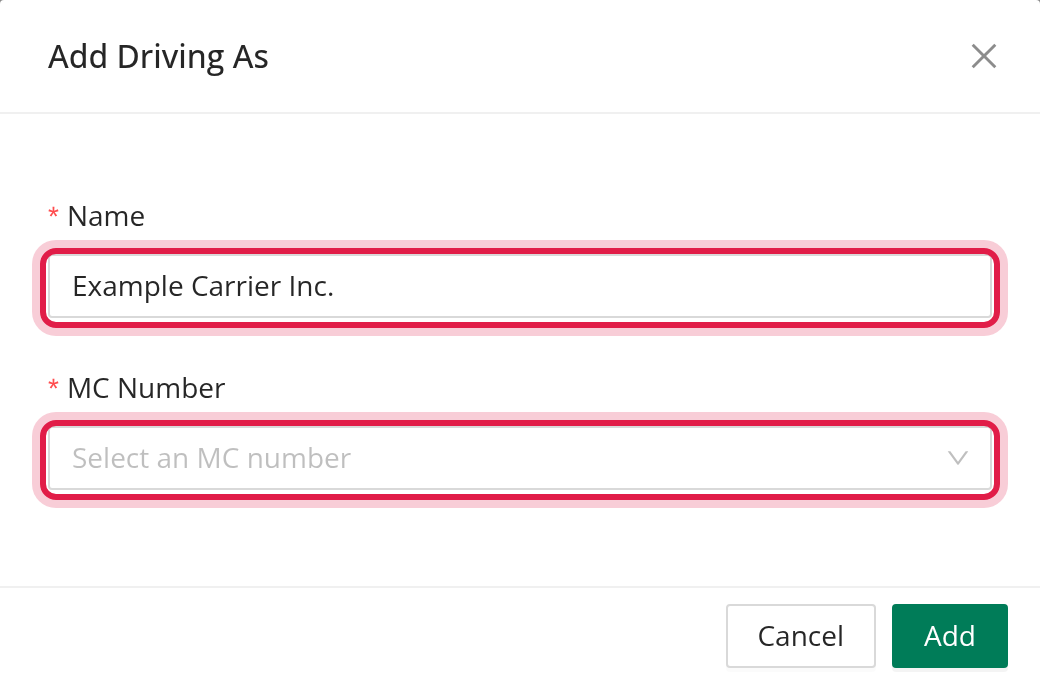
- Select Add Driving As.
- Type the Name. It is required and must be different from every other Driving As name in your account, ignoring capital letters ("is already used by another Driving As company").
- Choose the MC Number. It is required as soon as your account has at least one MC number. If it has none, the field says "Add MC numbers above first".
- Select Add and confirm the save.
Change or delete a value
Select the pencil to change the name or the MC number, then Save. The default company can be edited, but it cannot be deleted ("The default Driving As cannot be deleted."). Any other value cannot be deleted while a driver, truck, trailer, load or telematics connection still uses it: OpenRoad says "This Driving As is used by a driver, truck, trailer, load or telematics connection. Change those first."
Part 4: Where the value is chosen
- On the driver, truck, trailer and load forms, a Driving As list appears only when your account has more than one value. Each option shows the name, the telematics providers connected for that company and its MC number.
- A person needs access to the Driving As field to change it. Without it, the form says "You have no access to change the Driving As."
- When the account has several values, a value must be chosen on the form.
- Under the list, the form notes that on save the record syncs through the telematics providers connected for that company.
- On a load, the list starts with the Driving As of the driver on the first pickup, when there is one.
- If a truck and its driver end up with different values, the truck form warns that they now sync through different telematics connections and offers a button to move the driver to the truck's value.
Good to know
- Every add, change and delete is recorded in Settings → Audit Logs: see Settings → Audit Logs: see who changed which setting and when.
- If you leave a window with unsaved changes, OpenRoad asks before discarding them.
FAQ
Was this article helpful?
That’s Great!
Thank you for your feedback
Sorry! We couldn't be helpful
Thank you for your feedback
Feedback sent
We appreciate your effort and will try to fix the article