A route stop is a stop your driver makes on the way to a load stop: a fuel stop, a 30 minute break, a 10 or 34 hour reset, a CAT scale, or a point you add to change the route. You add it to the load, in front of the stop it comes before. OpenRoad then plans the route through it, adds the time the stop takes, shows it on the load, and sends it to your driver. This article shows how to add, reorder and remove route stops and what they change.
Route stops is an extra feature. It is switched on per account. If you do not see the route stop buttons on a load, contact help@openroadtms.com to have it enabled. Extra charges may apply.
Before you begin
- You add route stops while you edit a load. You need permission to edit loads: see Load form: create, copy and edit a load (Add Load).
- The load needs a planned route. The route stop buttons are on the map of the load, and the map shows only for a load that has a planned route.
- Add the stops in the order the driver visits them. Each route stop goes in front of one of the load's stops, and you can put several in front of the same stop.
Part 1: The route stop types
Each type has two names: the name you pick when you add it, and the name on the card once it is on the load.
| You pick | The card says | What it is |
|---|---|---|
| Fuel Stop | Fuel Location (or the fuel brand and store number) | A fuel stop. It takes 10 minutes. |
| 30 min Break | 30 Minute Break | A short rest. It takes 30 minutes. |
| 10h Reset | 10 Hour Reset | A long rest. It takes 10 hours. |
| 34h Reset | 34 Hour Reset | A long rest. It takes 34 hours. |
| (added from a CAT scale marker) | CAT Scale Location | A CAT scale. It takes 10 minutes. |
| Waypoint | Route Modification | A point that pulls the route where you want it to go. It takes no time. |
Part 2: Where you see route stops
On the load, the Stops panel shows the route stops as cards, just above the stop they come before.
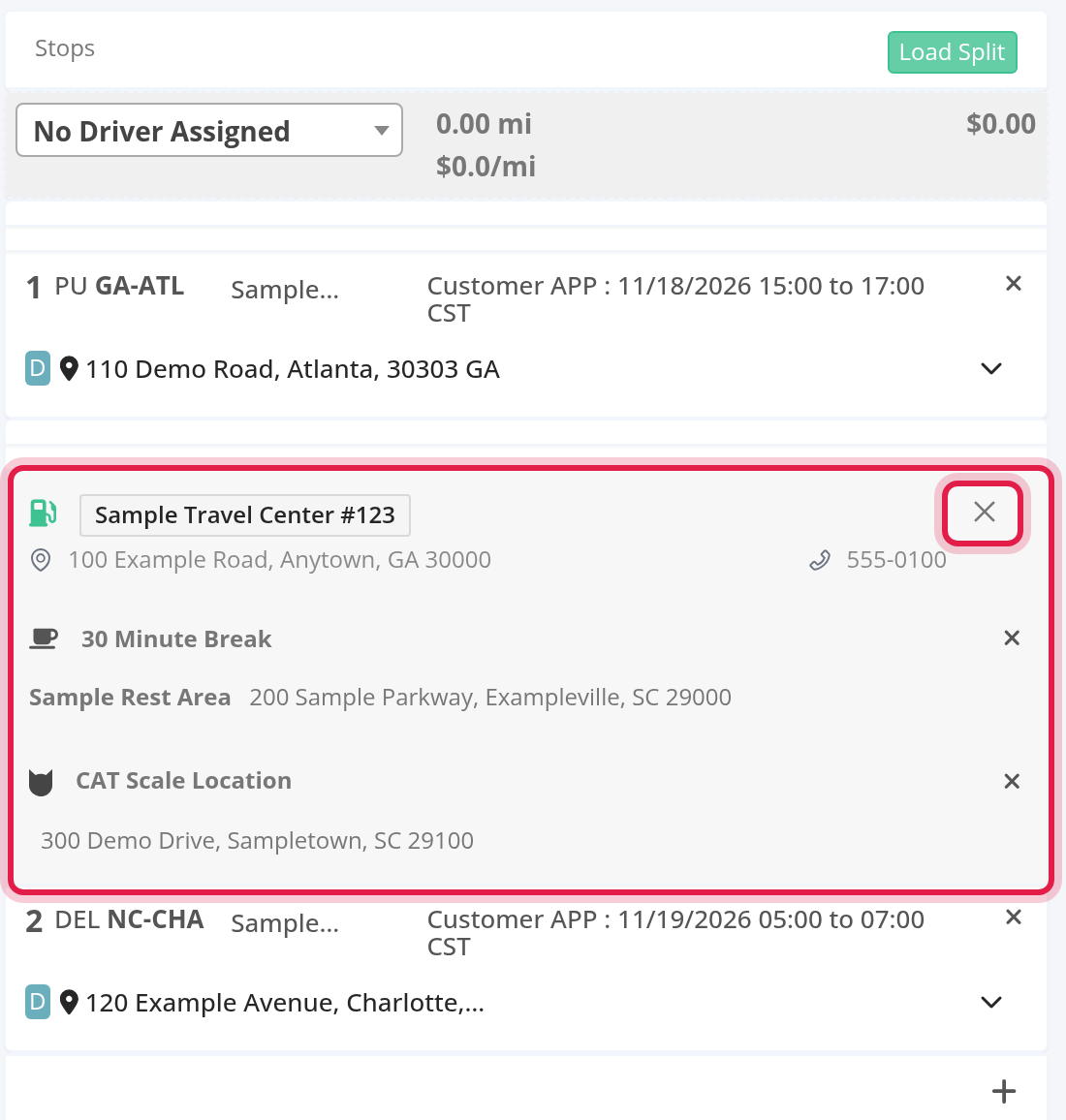
- A fuel stop card shows the fuel brand and store number, the address, the phone number and the price. It can also show Tank at selection and Miles remaining, taken when the stop was added. Miles remaining is that figure minus 100 miles. When OpenRoad has no tank information it says "Fuel data unavailable". The card also shows who added the stop and when. Hover over the eye icon to see the fuel prices that were on the map when the stop was chosen, when prices were saved.
- A break, reset or scale card shows its title, the place name, the address and, for a scale, the phone number. A rest area also shows the number of spots.
- When the load is not in edit mode, a card shows how far it is to the next stop, for example "12 miles to next stop".
- Under a load stop, OpenRoad shows the miles to the next stop. When the next stop has route stops in front of it, the miles are added up through them.
On the map, a fuel stop is a green gas pump, a route modification is a blue circle with a plus, a long rest is a purple bed, a short rest is an orange cup, and a scale has the CAT scale icon.
Part 3: Add a route stop
Open the load and edit it. On the map, use the buttons above it. Hover over a button to read its short explanation.
Add a route modification
- Select the plus marker button. The tooltip says: "Modify the route and add additional stops. Press the green Refresh Route icon after making changes."
- A blue marker appears. Drag it onto the road you want the driver to use. It snaps to the nearest road. To place it by address, type the address in the marker's window and choose it from the list (US and Canada addresses).
- In the marker's window, choose Waypoint, 34h Reset, 10h Reset or 30 min Break.
- In before destination, choose the number of the load stop the route stop goes in front of.
- Select the plus icon.
Select the plus marker button a second time to remove a marker you have not placed yet.
Add a CAT scale or a rest area
- Select the CAT scale button, tooltip "Toggle CAT scale locations", or the parking button, tooltip "Toggle Rest locations". Each button cycles through three states. The scale button shows no markers, then Nearest, then all of them. The parking button shows no markers, then Right only, then all of them. A red button is off.
- Select a marker on the map. Its window shows "Distance to stop", the address and the details of the place: for a scale, the place name and phone number, with a button that copies them; for a rest area, the place name, the number of spots and icons for its toilets, showers, food, drinking water and internet.
- For a rest area, choose 34h Reset, 10h Reset or 30 min Break. A scale is always added as a scale stop.
- In before destination, choose the load stop number and select the plus icon.
Add a fuel stop
- Turn on the fuel button on the map and select a fuel marker. Its window shows the name, the store number, the address, Fuel Price Today and Parking Spaces.
- In Add … before destination, choose the type (Fuel Stop, 34h Reset, 10h Reset or 30 min Break) and the load stop number, then select the plus icon.
For more on the fuel stops OpenRoad knows, see Fuel Locations page (Fuel → Fuel Locations): Pilot and Love's stops, list and map, Upload.
After you add a stop
- If you put the stop in position 1, in front of the first stop of the load, a window asks "Route Modification Confirmation": "Do you want to add the following stop before PU of load?". Select Yes.
- A message asks you to refresh the map: "Please refresh map to see the updated route!". Select the green refresh button. OpenRoad plans the route again through the new stop.
- Save the load. The stop belongs to the load only after you save it. A stop that is added but never saved is removed after 7 days.
- If the planned miles after your change are far from the customer miles, a warning appears: "Warning! The total planned miles after route modification is now … miles. Please double-check the sequence of additional stops in the route and try again."
Part 4: Reorder, change and remove
- Reorder: drag a card up or down inside the list of the same load stop. You cannot drag it to another load stop. A reorder does not show the refresh message, so refresh the map yourself.
- Change a stop: a card has no edit form. Remove it and add a new one.
- Remove: select the X on the card, refresh the map and save the load.
Part 5: What route stops change
- The route and the miles. The route is planned through the stops, so the miles between load stops include them. The miles to the next stop are shown on the load.
- The time. OpenRoad adds the time of each stop to the plan: fuel 10 minutes, CAT scale 10 minutes, 30 minute break 30 minutes, 10 hour reset 10 hours, 34 hour reset 34 hours. A route modification adds none.
- Samsara. A route sent to Samsara carries every route stop in front of its load stop, with its name, address and time, except route modifications.
- Your driver. The driver's app lists the route stops in order before each load stop. The driver instructions show them as lines such as "Fuel Location: City, State" and "34 Hour Reset: City, State", and leave out route modifications.
- Load map pictures. Fuel stops show a fuel pin, scales a suitcase pin and breaks and resets a parking pin. Route modifications are not drawn.
- Load Logs. Adding, moving or removing a stop is recorded as a change of Stop locations: see Load profile: status, uploads, charges, stops, notes and Load Logs.
Part 6: What happens to route stops
- When you unassign the driver, the fuel stops that were added with the driver's fuel information are removed. The other route stops stay.
- When you split or copy a load, route stops are not carried over. Add them again: see Load Split: hand a load to a second driver at a trailer drop.
Good to know
- Route stops are for planning. A stop has no arrival time, status or notes of its own.
FAQ
Was this article helpful?
That’s Great!
Thank you for your feedback
Sorry! We couldn't be helpful
Thank you for your feedback
Feedback sent
We appreciate your effort and will try to fix the article