Introduction
This document provides information about the Home Time (HT) functionality in OpenRoad, including how to create, calculate, and manage home time balances.
• LOCATIONS:
Home Time functionality and information are accessible in 2 locations within OpenRoad:
1.Driver Profile (Configuration)
Location: Driver Profile → Overview → Home Time section (below Daily Targets)
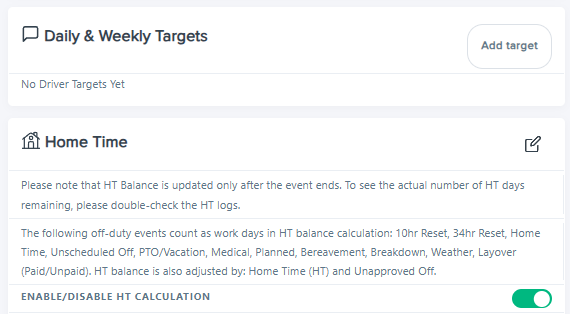
IMPORTANT: HT calculation is disabled by default for all drivers. You must manually enable this feature using the "Enable/Disable HT calculation" toggle button (appears grey when disabled).
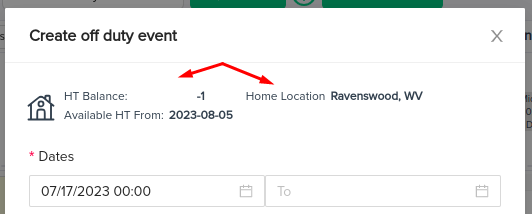
2. Planner Module (View Information)
• Off-duty creation window:
Working logic and main business rules
Glossary
• HT Balance – The number of Home Time (HT) days belonging to a driver. This balance can be positive or negative.
• Next HT Threshold (in weeks) – The number of weeks a driver needs to work to earn 1 HT day.
• HT Settings (in days) – The rule and proportion defining the relationship between working days and earned Home Time days.
• Days Without HT – The number of consecutive days a driver has been working without taking Home Time.
• HT Available From – The date from which a driver can take Home Time. This calculation is based on the values entered in the "Next HT Threshold (in weeks)" and "HT Settings (in days)" fields.
• Last Change Records – Logs of user actions related to a driver's HT (creation or editing of HT records).
Home Time Calculation and Management - Working Logic and Business Rules
• By default:
o HT settings and calculations are disabled for all drivers. Users must manually enable this functionality for each driver.
o HT settings are enabled for company and contract type drivers
o If HT settings are enabled for driver:
▪ The system calculates the HT balance based on the driver's hire date.
▪ The system uses the HT business rule of 7 working days to earn 1 HT day.
▪ The system will calculate and future HT events in the Planner
▪ The system will send email reminders about negative HT balance to the Team and Fleet manager.
•The system will automatically display home time days in the future as blue-framed boxes in the Planner view, calculated based on each driver's home time configuration: Next HT threshold (in weeks) and HT duration (in days)

• If HT settings are not enabled for a driver, no HT information will be displayed in the Planner module.
• Only Super Admin users could edit a driver's HT balance and general settings of HT functionality.
How To: Enable and Configure Home Time Settings
This section provides the main information on how to read HT-related data and a step-by-step guide on how to enable automatic calculation of HT balance and set up initial settings at both the account and driver levels.
Account-Level Settings
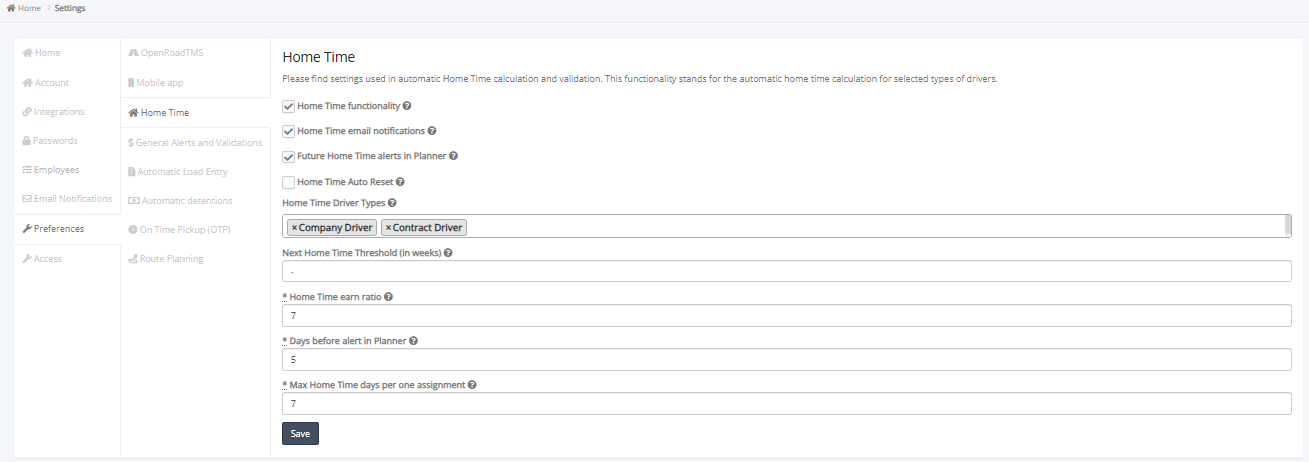
Account-level settings are located at Settings → Preferences → Home Time and include the following configuration options:
• Home Time functionality - Enable/disable HT functionality and data visibility in the Planner and Driver modules.
• Home Time email notifications - Turn on/off automatic email notifications for drivers with negative HT balance.
• Future Home Time alerts in Planner - Enable automatic creation of HT events in the Planner module.
• Home Time Auto Reset - Turn on/off automatic reset functionality to reset HT balance after the HT period ends.
• Home Time Driver Types - Select which driver types require HT setup (e.g., Company Driver, Contract Driver).
• Next Home Time Threshold (in weeks) - Set the default number of weeks a driver must work to earn 1 HT day.
• Home Time earn ratio - Set the default ratio of work days to earn 1 HT day (default: 7). Drivers must work 7 days to earn 1 day of HT.
• Days before alert in Planner - Set the number of days in advance to display a warning in the Planner about an upcoming HT event.
• Max Home Time days per one assignment - Set the maximum number of HT days allowed per single assignment in the Planner.
Driver-Level Settings
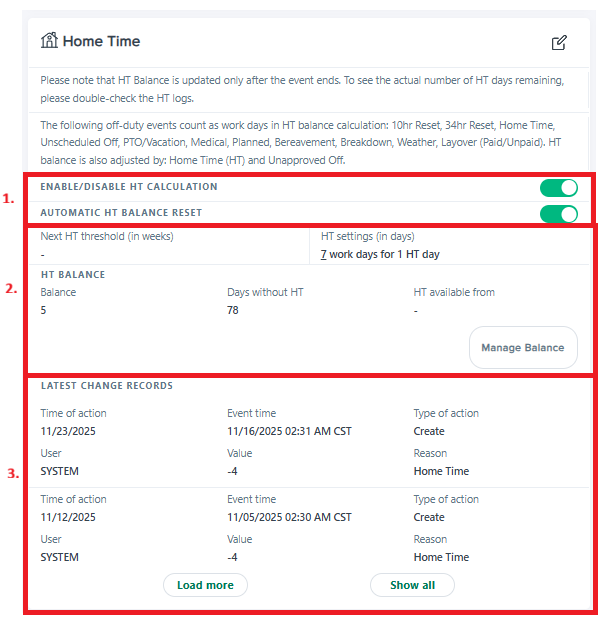
Driver-level settings are in the driver profile under Overview → Home Time Section and consist of 3 main parts:
1. Main HT Settings:
a. Enable/disable HT calculation
b. Enable/disable automatic HT balance reset
2. HT Balance Information - View current balance, days without HT, and HT availability date
3. Action Logs - Review of all user or system actions related to HT balance changes
Step-by-Step Guide: Home Time Balance Management
1. Enable/Disable Automatic Calculation of HT Balance
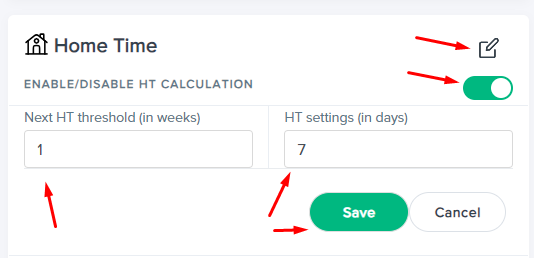
1. Go to Driver Profile → Overview → Home Time
2. Click the Edit icon (pencil)
3. Toggle the Enable/Disable HT Calculation button to green (enabled)
4. Click Save

2. Enable/Disable Automatic HT Balance Reset
1. Go to Driver Profile → Overview → Home Time
2. Click the Edit icon (pencil)
3. Toggle the Automatic HT Balance Reset button to green (enabled)
4. Click Save

3. Make Initial Setup for Automatic Calculation of HT Balance
(Complete this after enabling the functionality – step 1)
1. Go to Driver Profile → Overview → Home Time
2. Click the Edit icon (pencil)
3. Verify the functionality is enabled (toggle button is green)
4. Enter the number of weeks in the Next HT threshold (in weeks) field
5. Enter the number of days in the HT settings (in days) field
6. Click Save
4. Activate Balance Calculation
(Complete this after the initial setup is made)
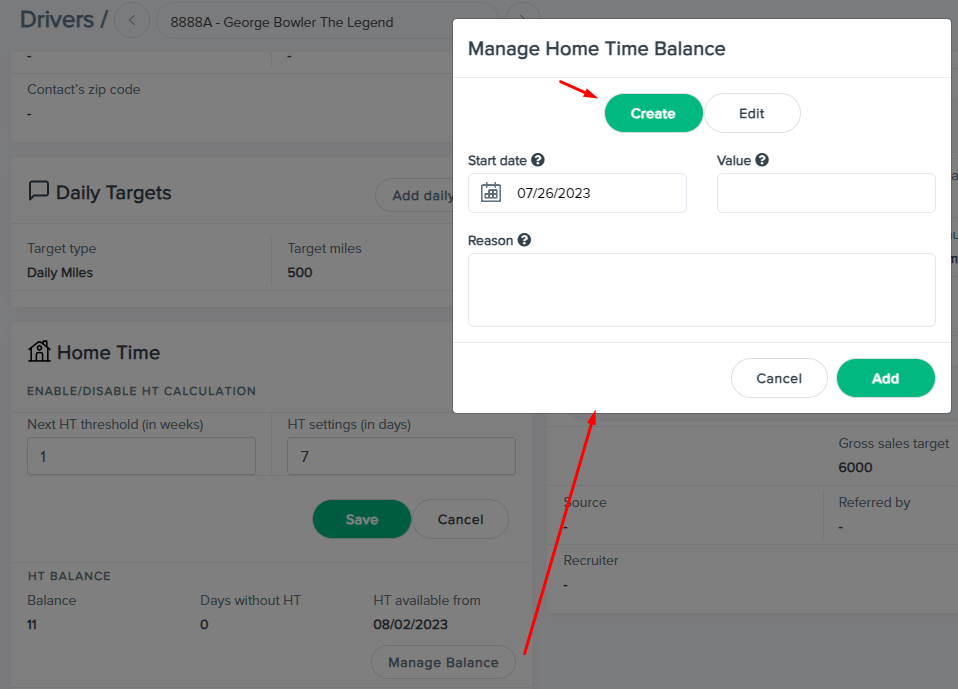
1. Go to Driver Profile → Overview → Home Time
2. Click Manage Balance
3. Select Create
4. Fill in the following fields:
o Start Date - Enter the date from which the system should start applying HT settings
o Value - Enter the correct HT balance
o Reason - Leave a comment (required)
5. Click Add
5. Edit Balance (if needed)
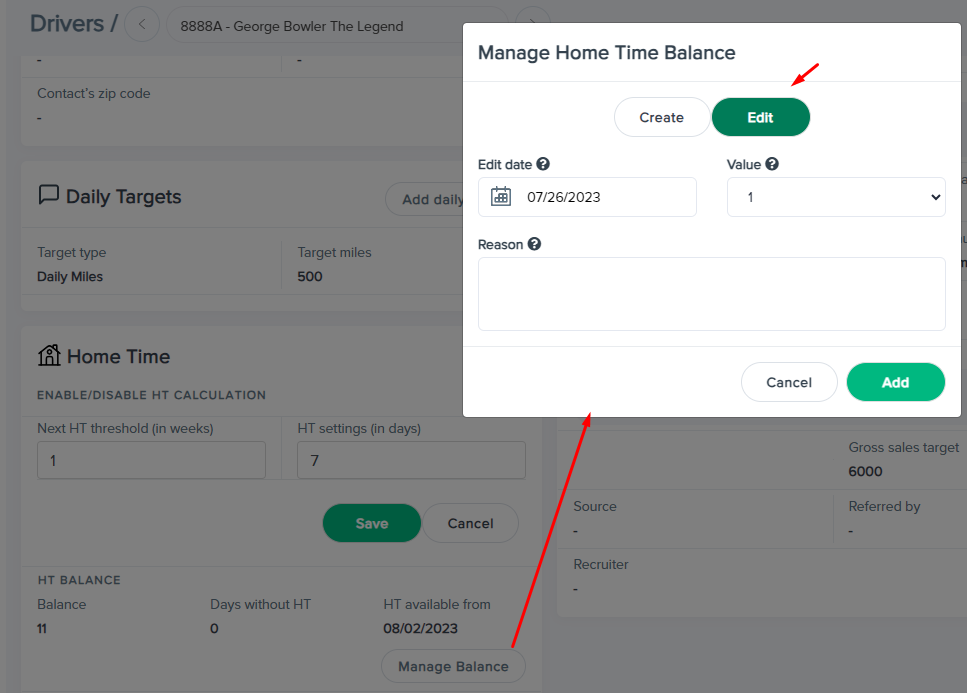
1. Go to Driver Profile → Overview → Home Time
2. Click Manage Balance
3. Select Edit
4. Fill in the following fields:
o Start Date - Enter the date from which the system should start applying the HT settings
o Value - Enter the amount by which you want to adjust the HT balance
o Reason - Leave a comment (required)
5. Click Add
Was this article helpful?
That’s Great!
Thank you for your feedback
Sorry! We couldn't be helpful
Thank you for your feedback
Feedback sent
We appreciate your effort and will try to fix the article