The Planner shows every driver you manage on one timeline: their loads and stops at the real time they happen, where the truck is, who is late, and when they are off duty. Use it to see what each driver is doing now and next, fix appointment times, dispatch loads, add off duty events and spot problems early.
Who can do this: you need permission to view the Planner (by default Admin, Dispatcher and Capacity users, and Superadmin). Editing stops, dispatching and adding events follows the permissions of the thing you change (loads, off duty events, accessorials, home time). The notification switch is only for users with the Planner notifications permission (by default Admin).
Before you begin
- A driver shows in the Select drivers list only when the driver is active, has a Fleet manager, and that manager is an active Dispatcher, Admin or Superadmin user who has a team. If a driver is missing, check the driver's Fleet manager and the manager's team.
- Truck and trailer numbers come from the driver's current assignments. Phone numbers come from the driver's profile.
- ETAs, Truck positions and Break, Drive, Shift and Cycle clocks need a connected GPS and hours-of-service provider.
Open the Planner
In the left menu, select Operations, then Planner. The board opens with your own drivers (or your whole team, when you are a team manager) for the current week, and loads by itself. The board opens scrolled to the current time: scroll left to see the earlier days of your dates, and select Now to come back.
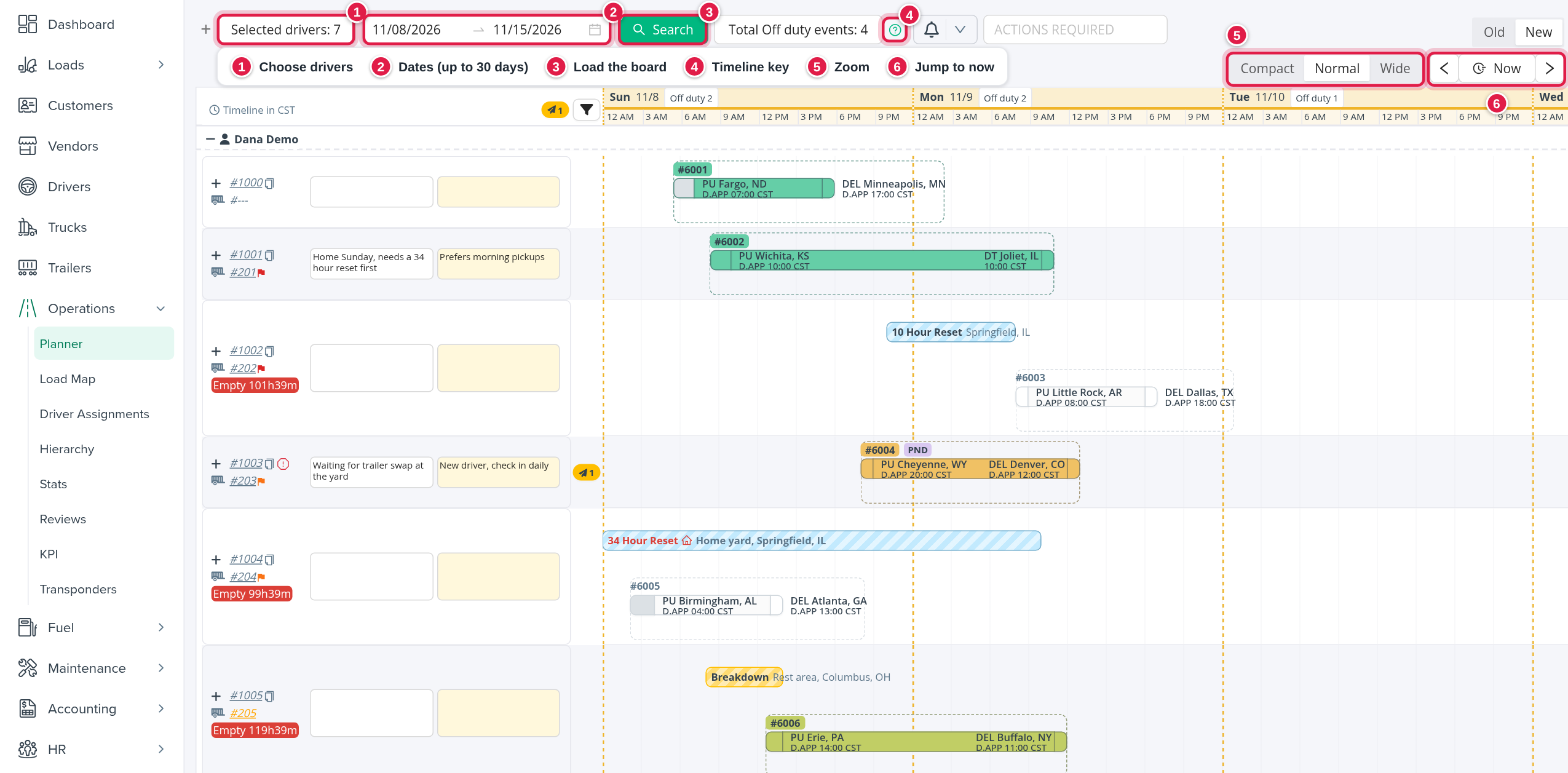
Choose drivers and dates
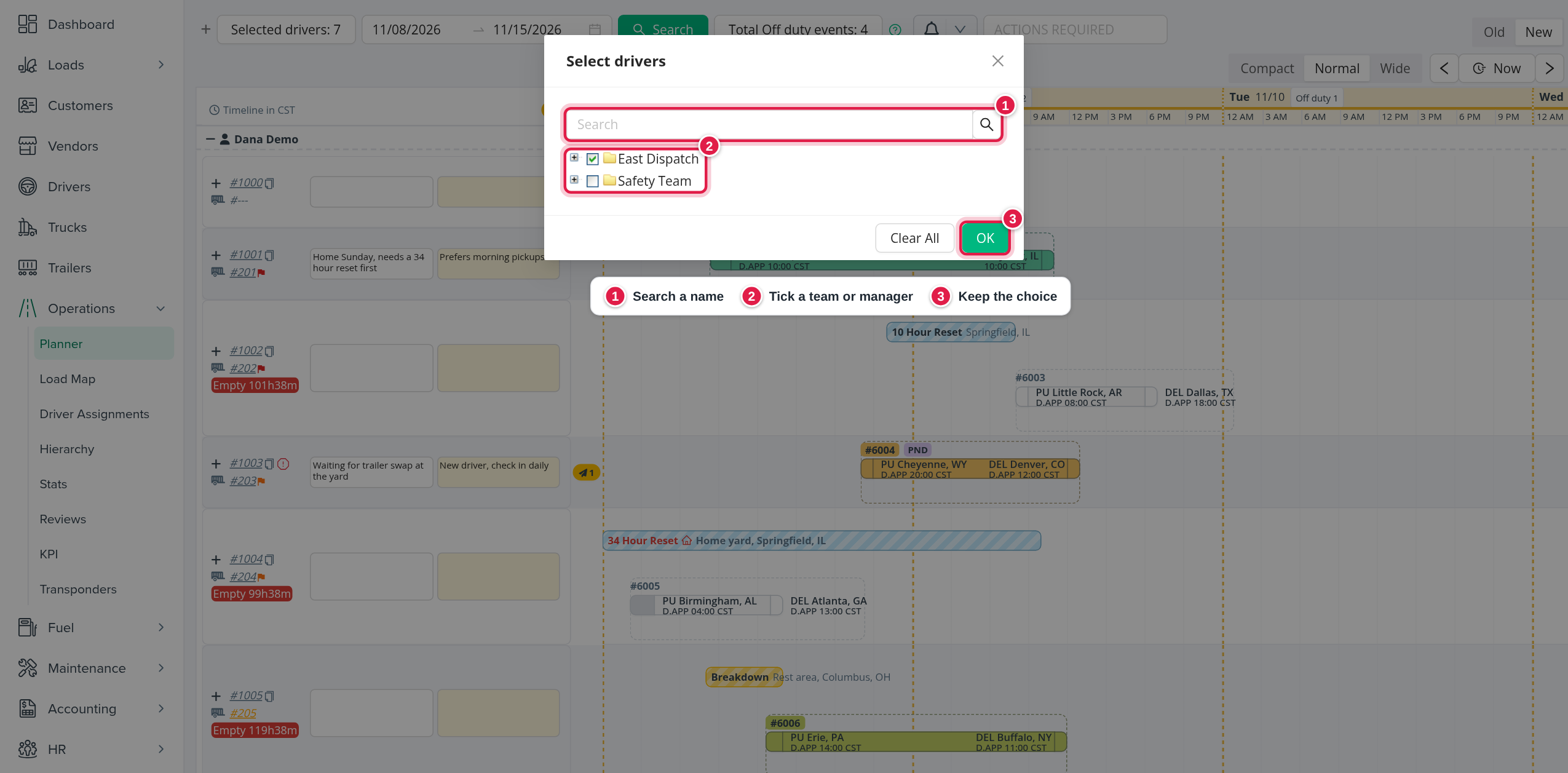
- Select Selected drivers: N. The window Select drivers opens with a Search box and a list of teams, managers and drivers (each driver as number and name). Tick a team or a manager to tick all of its drivers.
- Select OK to keep your choice, or Clear All to empty it.
- Pick the dates in the date box. You can show up to 30 days.
- Select Search.
The window only stores your choice; the board changes when you select Search. OpenRoad remembers your drivers and dates while this browser tab stays open. The board refreshes itself about once a minute, and after each change you save.
If no driver is selected the board shows "No drivers selected". If the board cannot load you see "The Planner board did not load. Press Search to try again."
The toolbar
- Expand all (the + at the far left): opens or closes the Expand view of every driver.
- Selected drivers, the date box and Search.
- Total Off duty events: N: opens the counts of off duty events by reason for the dates shown, with a tick box per reason (ticking reasons hides the drivers who have no such event), a copy button for the numbers and Clear Selections.
- ? (green): opens the Timeline key, which explains every colour and mark. Select Pin to keep it open as a floating panel you can drag.
- Bell with an arrow (Admin by default): turns all Planner notifications on or off. The arrow opens Show notifications about: with Missing SFR, Loads Pending Acceptance, Loads Pending Dispatch and Driver Appointment Time Updates.
- ACTIONS REQUIRED: show only the loads that have a chosen problem. See "Find problems fast" below.
- Compact, Normal, Wide: how much space an hour takes (see below).
- <, Now, >: go one day back, jump to the current time, go one day forward. Now is disabled when the current time is outside your dates.
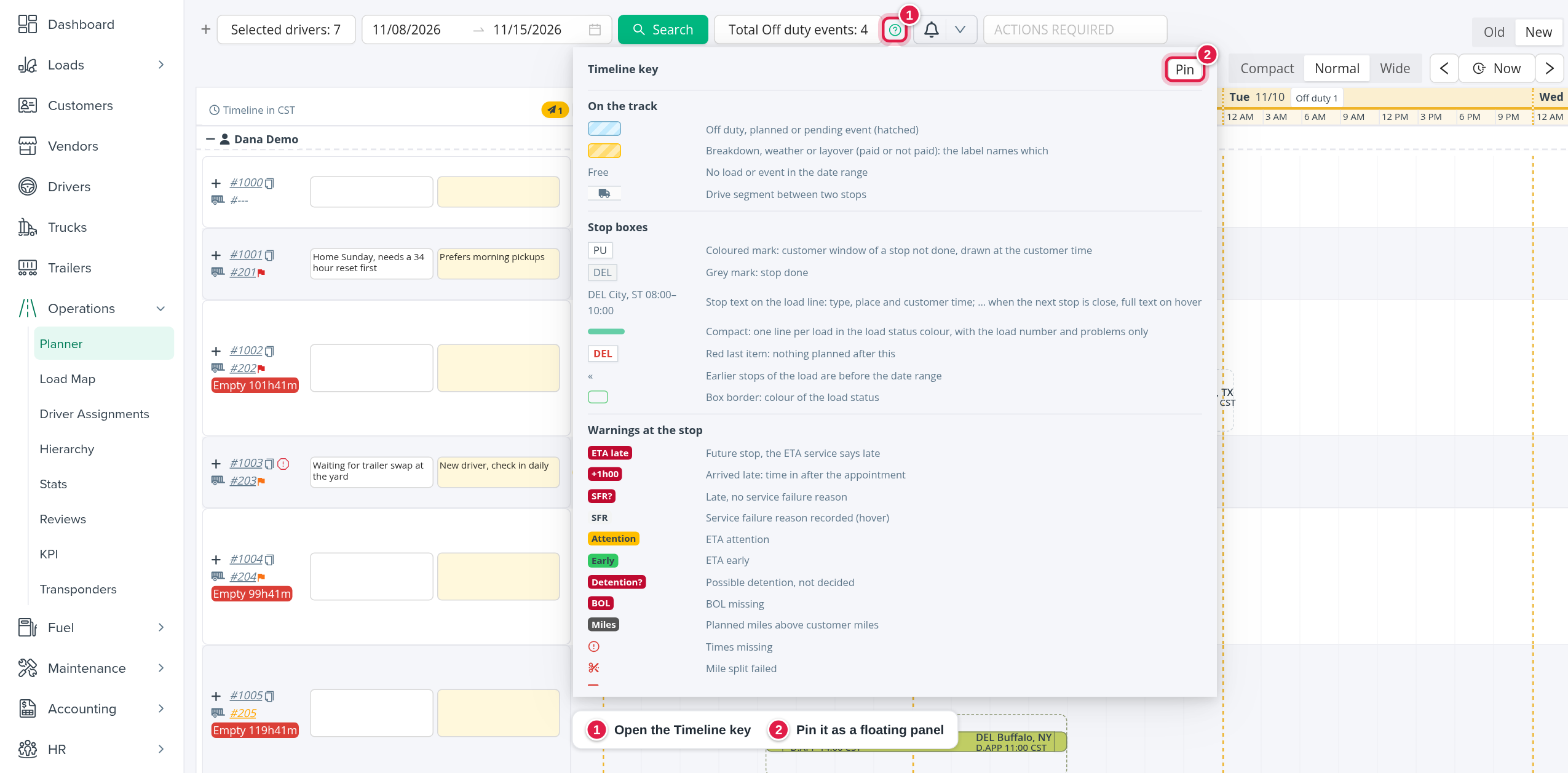
Read the timeline
The timeline runs in your account's time zone ("Timeline in CST", for example). Each day has a header with the weekday, the date, a button Off duty N (the off duty events of that day) and the hours. A blue line with the time marks now.
Zoom. Normal shows full stop boxes. Wide gives each hour more room. Compact draws one thin line per load with its number and its problems only, which is best for many drivers at once. OpenRoad remembers your zoom.
The driver column
Drivers are grouped by their manager (or by the manager covering them). Use the - / + at the group name to collapse it. A second person icon on a group means the manager covers other managers' drivers; select it to copy the list. A driver with a team partner shares a row with the partner: the TEAM line switches between the two.
For each driver you see:
- #number: opens the driver's profile. It is red when the driver's truck is out of service and orange when it needs repair.
- A clock icon with the last 13 weeks' on-time delivery percentage (red under 90, orange under 95).
- The copy icon, which copies four lines to the clipboard: Driver:, Phone number:, Truck: and Trailer:.
- The trailer number (or #---), with a flag when its DOT inspection needs attention.
- A Driver is grounded icon when the driver is grounded, ON PIP (with the follow-up date and objectives on hover) when the driver is on a performance plan, and Empty in red when the driver has been empty for 4 hours or more.
- Two boxes, see "Notes" below.
- +: opens the Expand view.
Loads and stops
Each load is a bar on the driver's row. Its header shows #load number (a link that opens the load in a new tab, coloured by status), the load's flags and the load-level tags. Each stop is a box at the time of the stop: PU (pick up), DEL (delivery), DT (drop trailer) or PT (preloaded trailer), the place, and a time:
- D.APP is the driver appointment time.
- C.APP is the customer appointment window.
- in is the actual arrival time.
A coloured stop box is not done yet; a grey one is done. Lines between stops are the drive; a truck icon sits on them when there is room. A stop that sits before or after your dates is shown at the edge with « or ».
The load's colour and border show its status: Assigned (not dispatched yet), En Route To Shipper, At Shipper, Loaded, En Route To Receiver or At Receiver.
The Truck marker shows where the truck is on the way to its next stop. Hover it to see the miles left, the time of the last GPS position, the ETA status and the ETA. Its colour is green for on time or early, and different for Attention, Late and unknown (also when the GPS position is more than 2 hours old).
The last item of a driver with nothing planned after it is shown in red.
Tags on a stop
| Tag | Meaning |
|---|---|
| ETA late | The driver has not arrived and the ETA says late, with no service failure reason recorded. |
| +1h00 (or Arrived late) | The driver arrived after the driver appointment time. The number is how late. |
| SFR? | Arrived 15 minutes or more after the driver appointment and no service failure reason is recorded. |
| SFR | A service failure reason is recorded. Hover to read it. |
| Attention | The ETA status is Attention. |
| Early | The driver has not arrived and the ETA says early. |
| Detention? | Detention is possible and has not been decided yet. |
| Clock with a tick / with a cross | Detention approved / no detention. |
| Alert icon | Time In / Time Out missing. |
| Trailer icon | Wrong trailer assigned to load. |
| Scissors | Mile Split failed. |
| Hook icon | Preloaded Trailer or Drop Trailer (hover). |
SFR?, Arrived late and the Missing SFR items only appear when your account's Missing SFR Planner setting is on.
Tags on a load
BOL (BOL missing on a delivered or billed load), Miles (planned miles exceed the customer miles by more than 5%: check the load before dispatching), PND (the driver has not accepted the load in the app), TBD (trailer to be assigned, when your account uses the trailer organizer) and the load flags Hot load, Sealed, Re-Power, Last mile, High value, Ad-Hoc, Short haul and Regional. Select the running-man button on a load header (not in Compact) to add an off duty event.
Off duty, planned and pending events
Off duty events are hatched bars with the reason, a home icon when the driver is at home, and the reset location. Unscheduled Off is shown as Unpaid Off and Vacation as PTO/Vacation. Breakdown, Weather and the three Layover reasons are amber. A planned event shows its status and the pickup location. A pending home time request is hatched and shows the reason and location.
Find problems fast
Every driver with a problem gets a badge in the narrow column next to the driver. Select a badge to jump to the next stop or load with that problem (it flashes for a moment).
| Badge | Meaning |
|---|---|
| BOL missing | A delivered or billed load has no BOL. |
| SFR? (late, no reason) | Arrived late and no service failure reason is recorded. |
| ETA late | Not arrived yet, and the ETA says late. |
| Arrived late | Arrived late (same rule as SFR?). |
| Times missing | Time in or time out is missing. |
| Not dispatched | The load is Assigned but not dispatched. |
The header shows one small button per badge type with the number of drivers. Select one to show only those drivers, most affected first; select it again to show all. The funnel button next to them switches Showing drivers with actions only on and off (OpenRoad remembers it): drivers without a badge are hidden.
ACTIONS REQUIRED filters loads instead. Each choice shows how many loads match: Wrong Trailer, Times Missing, Mile Split Failure, Possible Detention, Miles, Late, Attention, Detention and Missing BOL. Only loads with at least one stop with the chosen problem stay on the board; off duty events stay.
Work on a stop
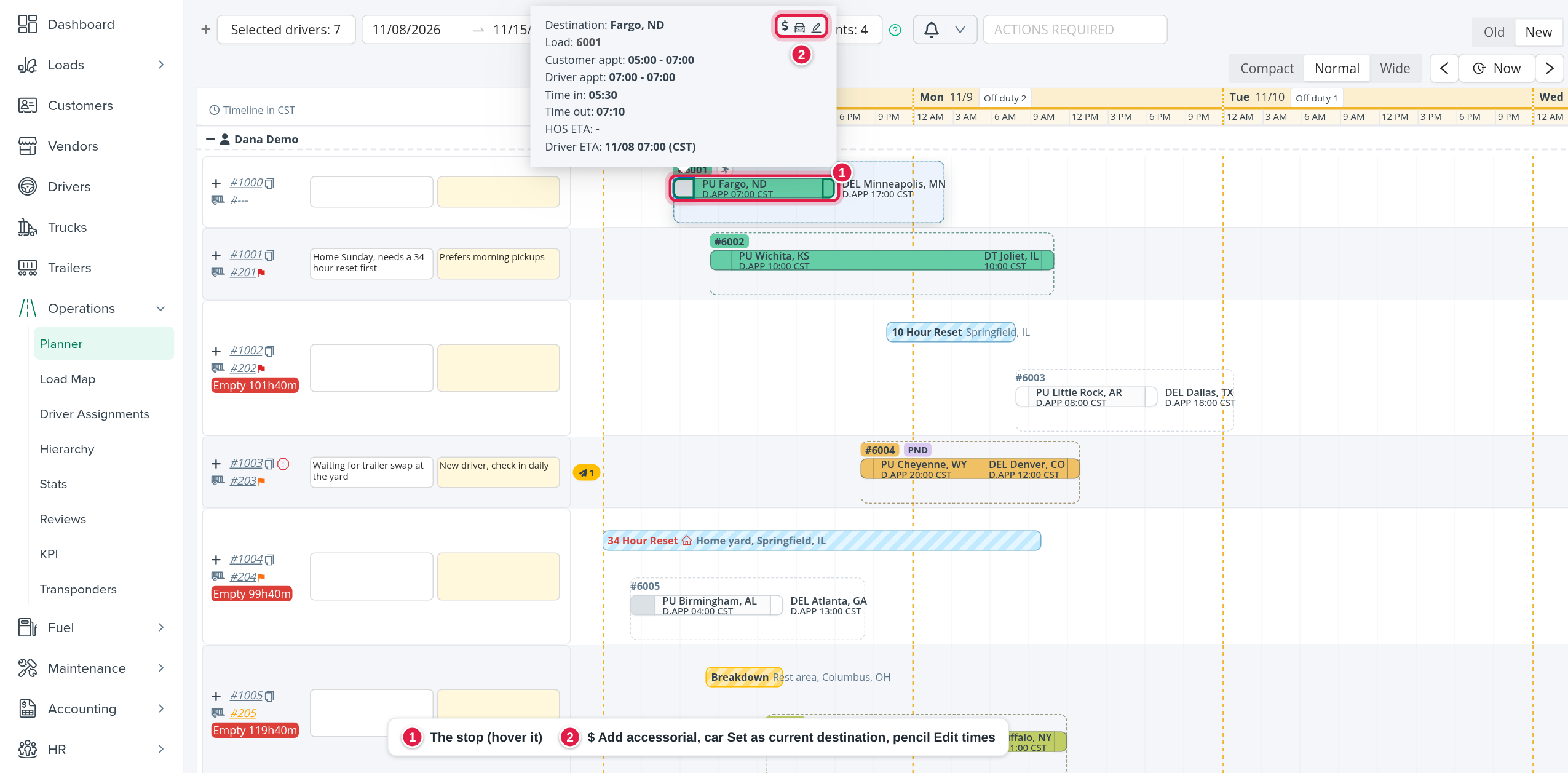
Hover a stop box. A window opens with the destination, the load link and the times.
- Customer appt (or Trailer appt), Driver appt, Time in and Time out. HOS ETA and Driver ETA show the expected arrival.
- Detention and No Detention tick boxes when detention is possible.
- Icons at the top: $ (Add Accessorial), the car (Set as Current Destination), the phone (Dispatch, for a load that is Assigned and not dispatched) and the pencil (edit).
To change times, select the pencil, edit Customer appt, Driver appt or Time in / Time out, then Save. Customer appt is required. Time in and out may be locked after a delay set in your account, and the customer app times may be read-only for your role. A refusal from the server is shown under the field.
Add Accessorial opens Create accessorial event: Driver accessorial (an amount), Category and Driver note. Picking a category fills in its default amount. A category is required when the amount is not 0, and a category may have a maximum.
Dispatch opens a window with each stop's company, location and customer times, and a required Driver App. Time To per stop. Save to dispatch; the page refreshes.
Off duty events
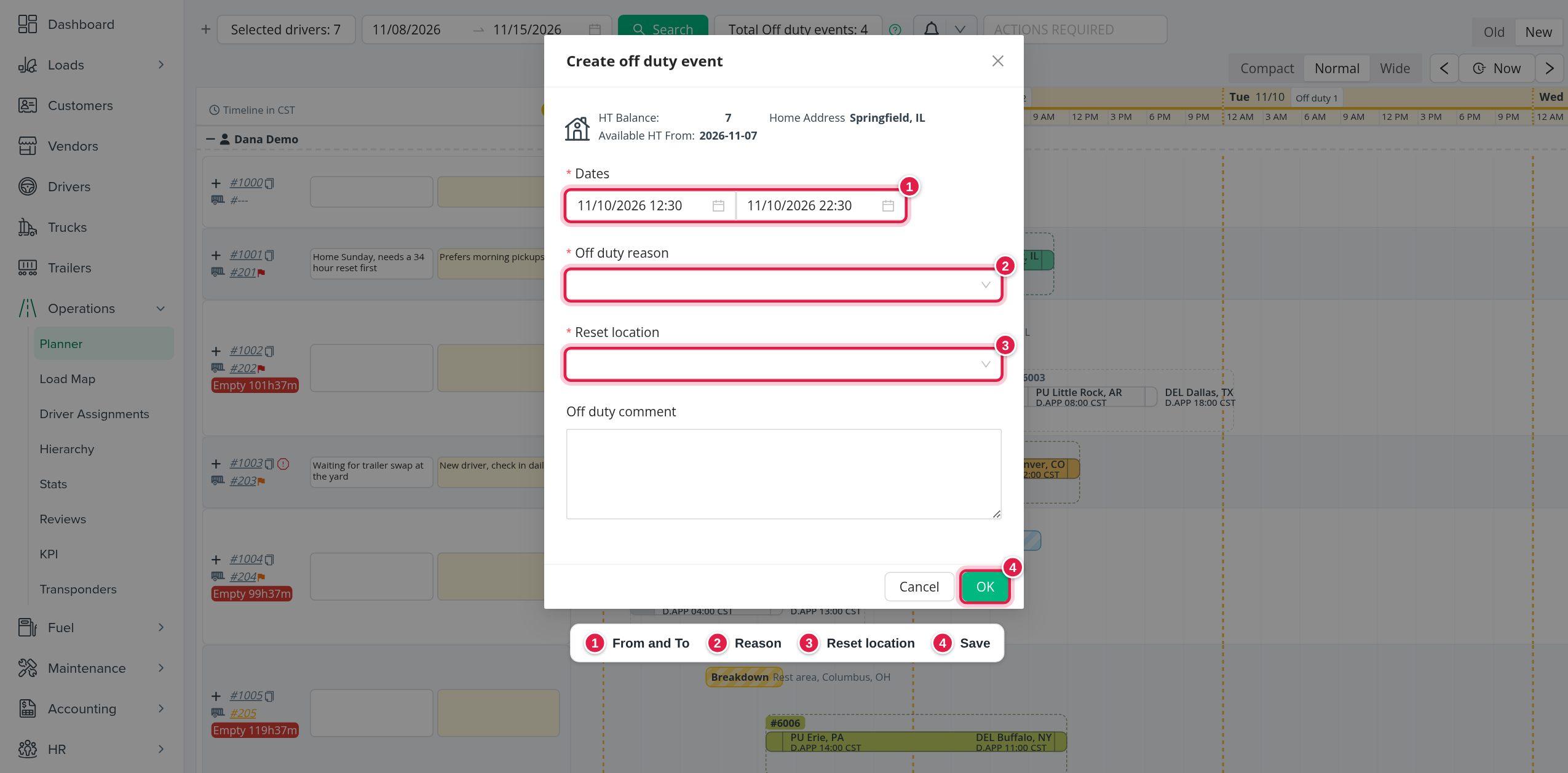
Create an event. Select an empty place on the driver's track (a hint shows "Off duty" and the time under the pointer), or the running-man button on a load header. Create off duty event opens with From set to the time you picked (rounded to 30 minutes) and To 10 hours later.
- Check From and To (both required).
- Choose the Off duty reason: 10 Hour Reset, 34 Hour Reset, Home Time, Unapproved Off, Vacation, Medical, Bereavement, Breakdown, Weather, Paid Layover or Not Paid Layover.
- For a layover, choose the Layover reason (required).
- For a 34 Hour Reset, tick At home if the driver is at home.
- Enter the Reset location (required; type at least 3 characters). Your Home Address and recent searches are offered too.
- Add an Off duty comment if you like, then save.
A panel at the top shows the driver's home time balance, the first day home time is available and the home address. Warnings appear when relevant, for example an insufficient vacation balance, an insufficient work period before home time, home time longer than the days allowed, or a reminder to add accessorial information to the driver's payroll. Unapproved Off, Medical and Bereavement send an e-mail notification. An event cannot end before it starts, and a Home Time event is limited to your account's home time days.
Move or resize an event. Drag an off duty bar sideways to move it, or drag its left or right edge to change the start or the end. Steps are 30 minutes and an event cannot be shorter than 30 minutes. This does not work for Vacation events. When you let go, a window (Move off duty event, Change off duty start or Change off duty end) shows the reason, the Now and New start, end and length, and tells you whether the new time overlaps loads or other events of the driver. An overlap is a warning, not a block. Select Update to save or cancel to put the bar back.
Edit or delete. Hover an off duty bar to see its Start date, End date, Reason, Reset location, Off duty comment and Created by. The pencil edits it. The trash icon asks "Are you sure you want to delete this off duty event?".
Pending home time. Hover a pending home time bar to see its dates, reason, location, comment and the Current Home Time Balance, with Approve and Reject. Approving turns it into an off duty event.
Notes, Expand and clocks
Two boxes in the driver column. The left box is a comment about the driver's availability and the right (shaded) box is a planner note. Each saves when you click out of it. The comment is also shown on the Capacity driver card and map and on the Available Trucks page; the planner note is shown on the Capacity driver card and map.
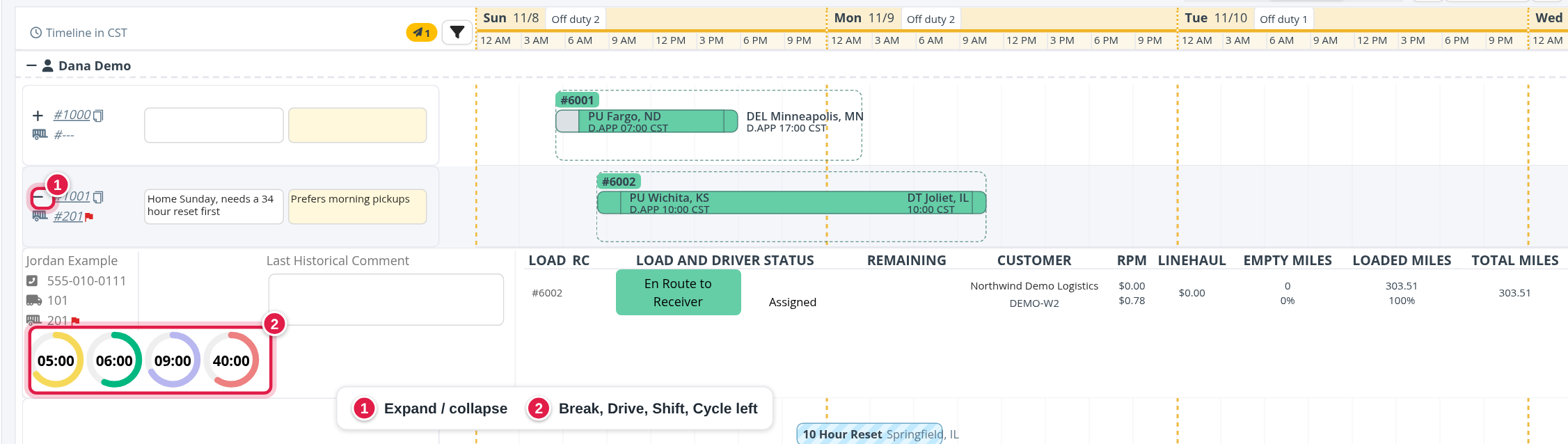
Expand (+). Opens a full-width row under the driver with:
- the driver's name, phone, truck and trailer (with out of service and repair marks), endorsements, the home time balance and the type icons Team driver, Route driver and CoPilot driver;
- Last Historical Comment;
- four rings Break, Drive, Shift and Cycle with the time left in each (from the driver's last hours-of-service log);
- a table of the driver's loads in your dates: LOAD, RC, LOAD AND DRIVER STATUS, REMAINING, CUSTOMER, RPM, LINEHAUL, EMPTY MILES, LOADED MILES and TOTAL MILES.
Messages to drivers
When your account uses Samsara driver chat, a chat icon appears in the driver column, and users with permission get a button, Message drivers on the board, that sends one message to all drivers on the board (up to the limit shown in the window).
Frequently asked questions
Was this article helpful?
That’s Great!
Thank you for your feedback
Sorry! We couldn't be helpful
Thank you for your feedback
Feedback sent
We appreciate your effort and will try to fix the article